
If you’ve ever wondered how to turn a static PowerPoint slide into a captivating animated presentation, you’re in the right place. In this comprehensive guide, we’ll walk you through a step-by-step tutorial on creating a beautiful infinite scroll animation in PowerPoint — a technique that brings your slides to life and impresses your audience with smooth, professional motion. This tutorial is based on insights from the expert One Skill PPT and their popular video, “Turn Boring Slides Into Cool Infinite Animations!”
Whether you’re a beginner or an experienced presenter looking to add fresh animation ideas to your toolkit, this guide covers everything you need to know to master infinite scrolling animations in PowerPoint. Plus, we’ll share essential tips on slide design, animation settings, and how to enhance your slides with shadows and transitions for a polished look.
Table of Contents
- Why Use Infinite Scroll Animation in PowerPoint?
- Preparing Your Slide: Using a Template and Setting Up
- Adding Images and Arranging Shapes
- Creating the Motion Path Animation
- Applying Animation to Multiple Shapes
- Adding Slide Transitions and Previewing
- Enhancing Your Slide with Shadows
- Pro Tips for PowerPoint Animation Ideas
- Frequently Asked Questions
- Conclusion
Why Use Infinite Scroll Animation in PowerPoint?
PowerPoint animation ideas often include simple fades, wipes, or fly-ins, but infinite scroll animation takes your presentation to the next level by creating a seamless, continuous movement effect. This type of animation is perfect for:
- Backgrounds that subtly move to add visual interest
- Data visualizations or design elements that loop infinitely
- Creating dynamic title slides or section dividers
- Engaging your audience with professional-looking, smooth animations
Infinite scroll animations create a sense of flow and continuity, making your slides feel less static and more dynamic. It’s a fantastic way to keep viewers engaged without overwhelming them with distracting effects.
Preparing Your Slide: Using a Template and Setting Up
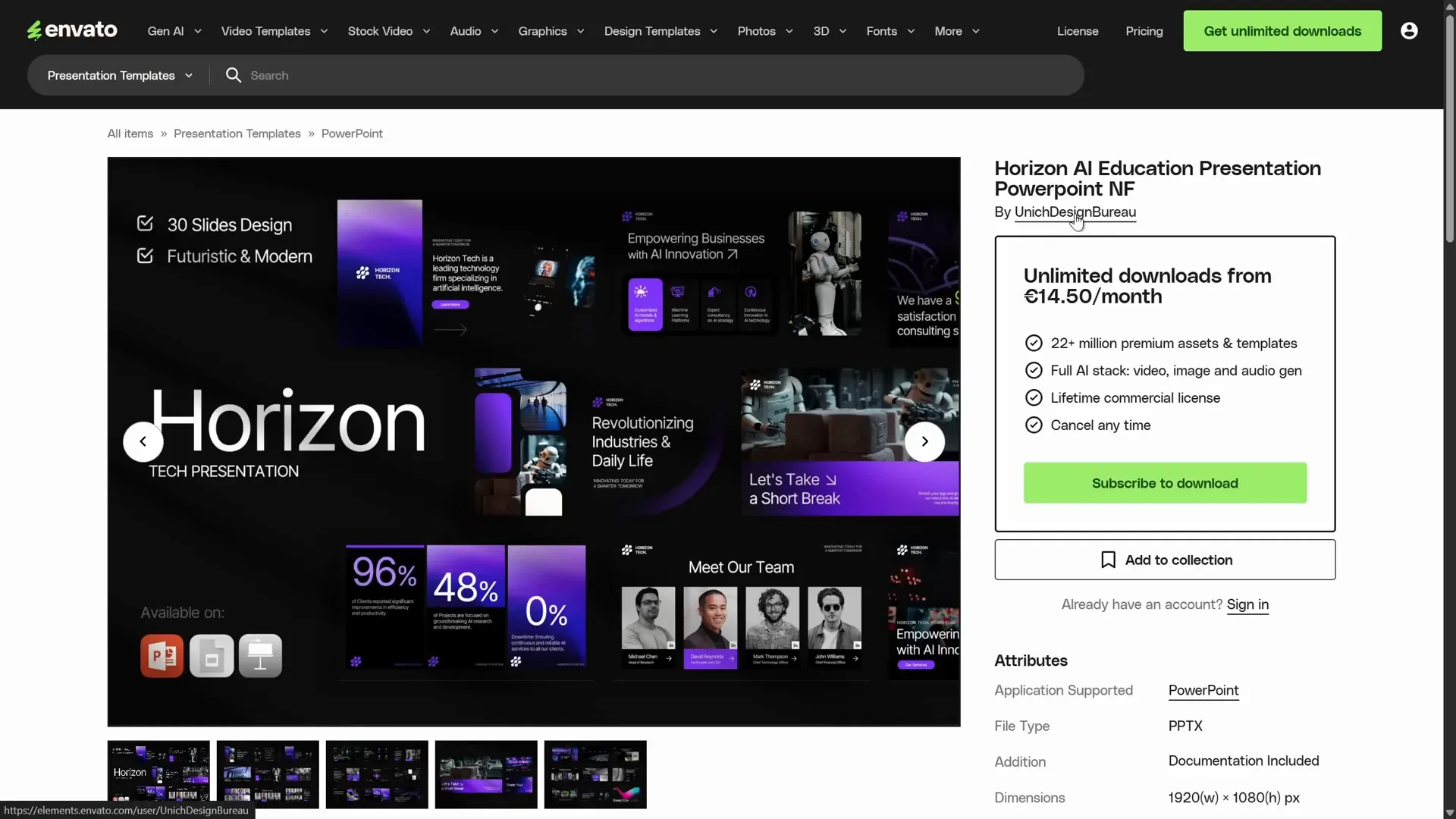
Before diving into animations, it’s crucial to start with a well-designed slide. In the video tutorial, the creator used a beautiful PowerPoint template from Unique Design Bureau, available on Envato. Using a professional template saves time on design and lets you focus on animation.
Here are some important setup tips to prepare your slide for animation:
1. Check Slide Margins and Guides
Turn on guides from the View tab in PowerPoint to see margins around your slide edges. These margins help keep your layout clean and balanced, ensuring that your animated elements don’t get cut off or appear cluttered.
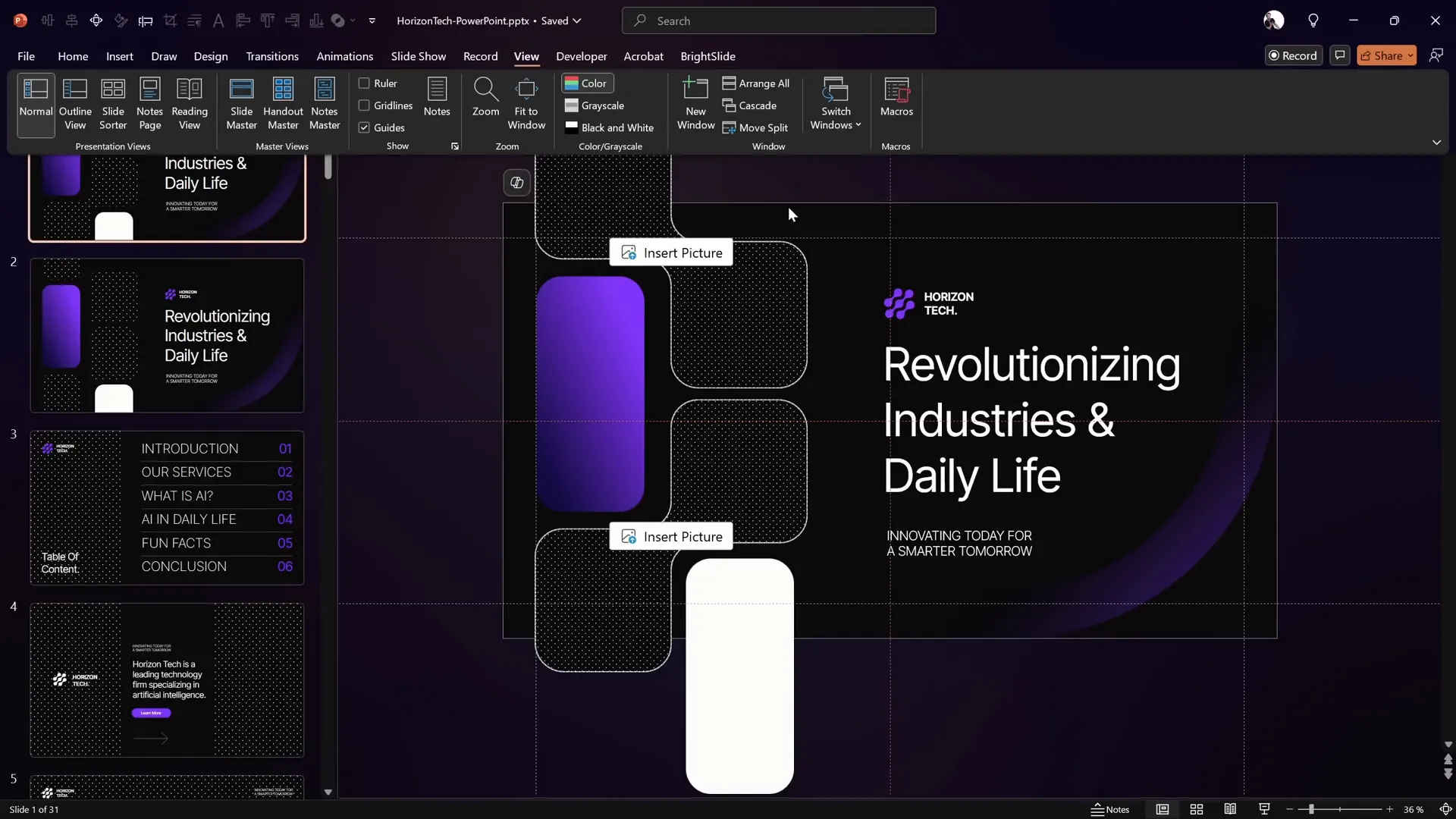
If you want to learn more about setting up margins, grids, columns, and gutters for professional slide layouts, it’s worth watching tutorials dedicated to slide design fundamentals.
2. Adjust Slide Size for High Resolution
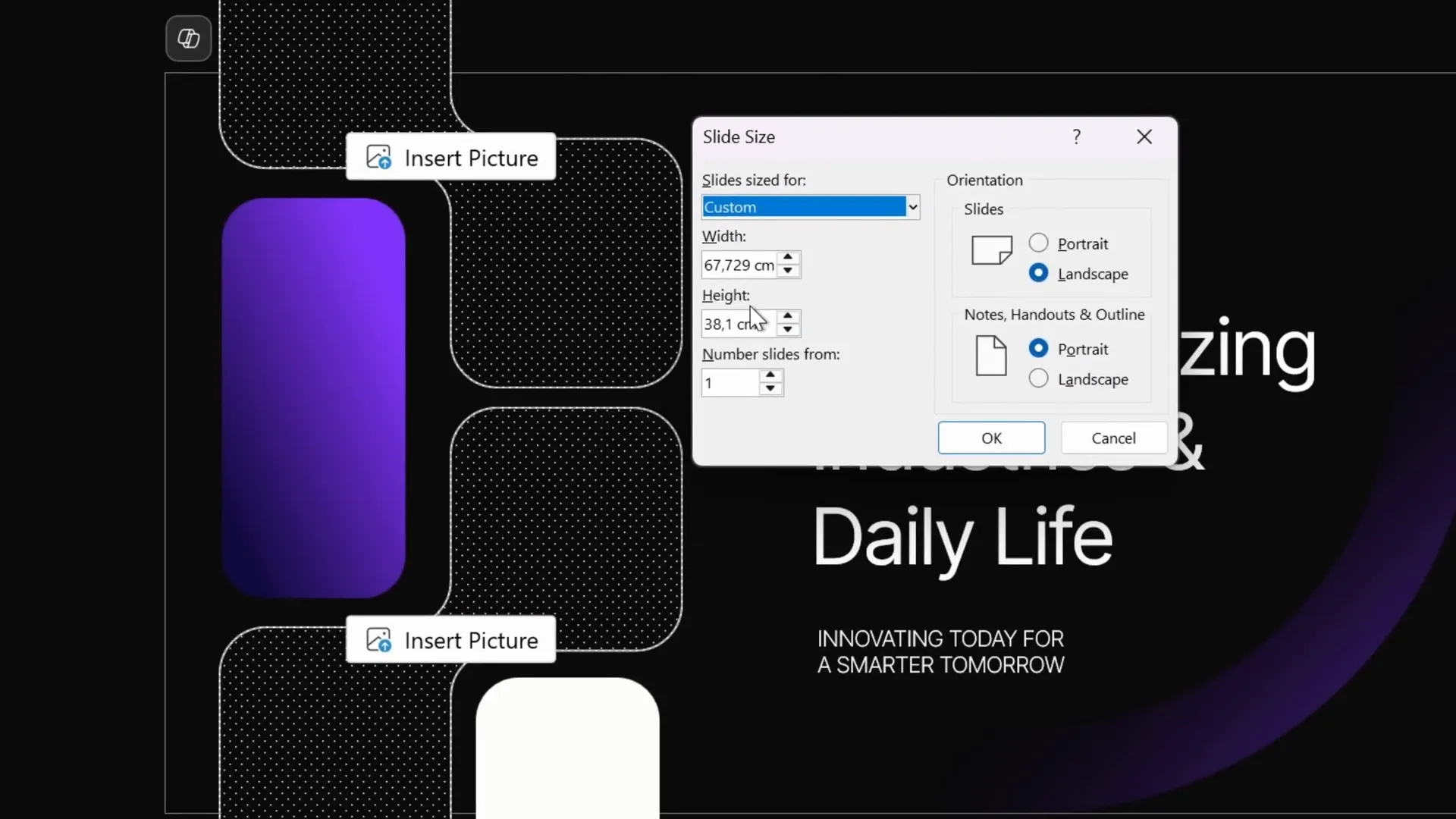
In the tutorial, the slide size was set to double the default PowerPoint dimensions. This larger size allows you to export slides as high-resolution images — perfect for presentations that need crisp visuals or printouts.
To adjust slide size:
- Go to Design > Slide Size > Custom Slide Size
- Set the width and height to your desired dimensions (e.g., double the default size)
- Choose whether to scale existing content or not
Adding Images and Arranging Shapes
The next step is to populate your slide with images and shapes that will be animated. The template used contains custom image placeholders that can be easily filled.
1. Insert Images into Placeholders
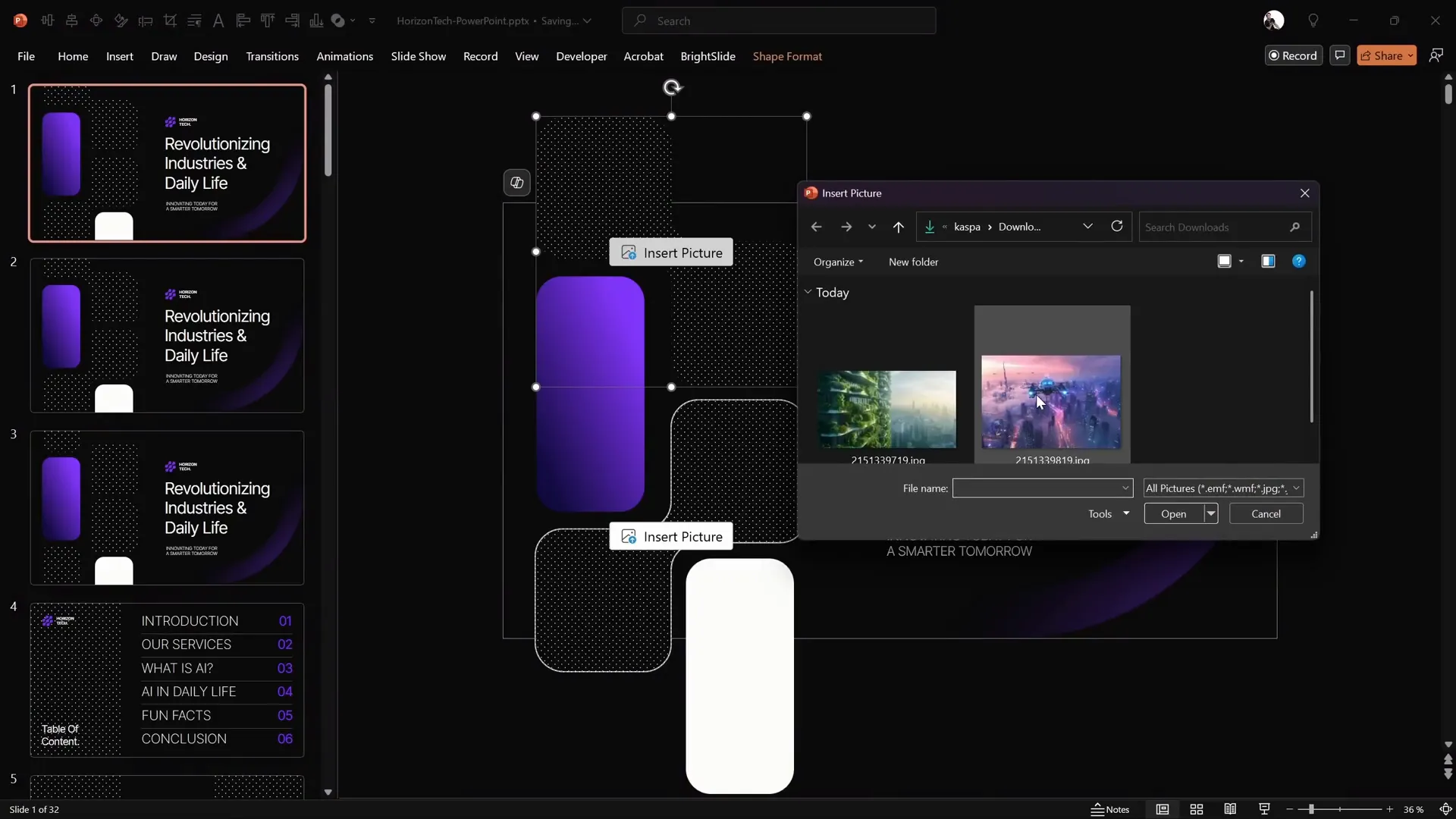
The creator sourced beautiful images from Freepik. You can add images by:
- Clicking on the image placeholder
- Selecting Insert > Pictures and choosing your image
- Using Picture Format > Crop to adjust the image within the placeholder
2. Duplicate and Arrange Shapes for Animation
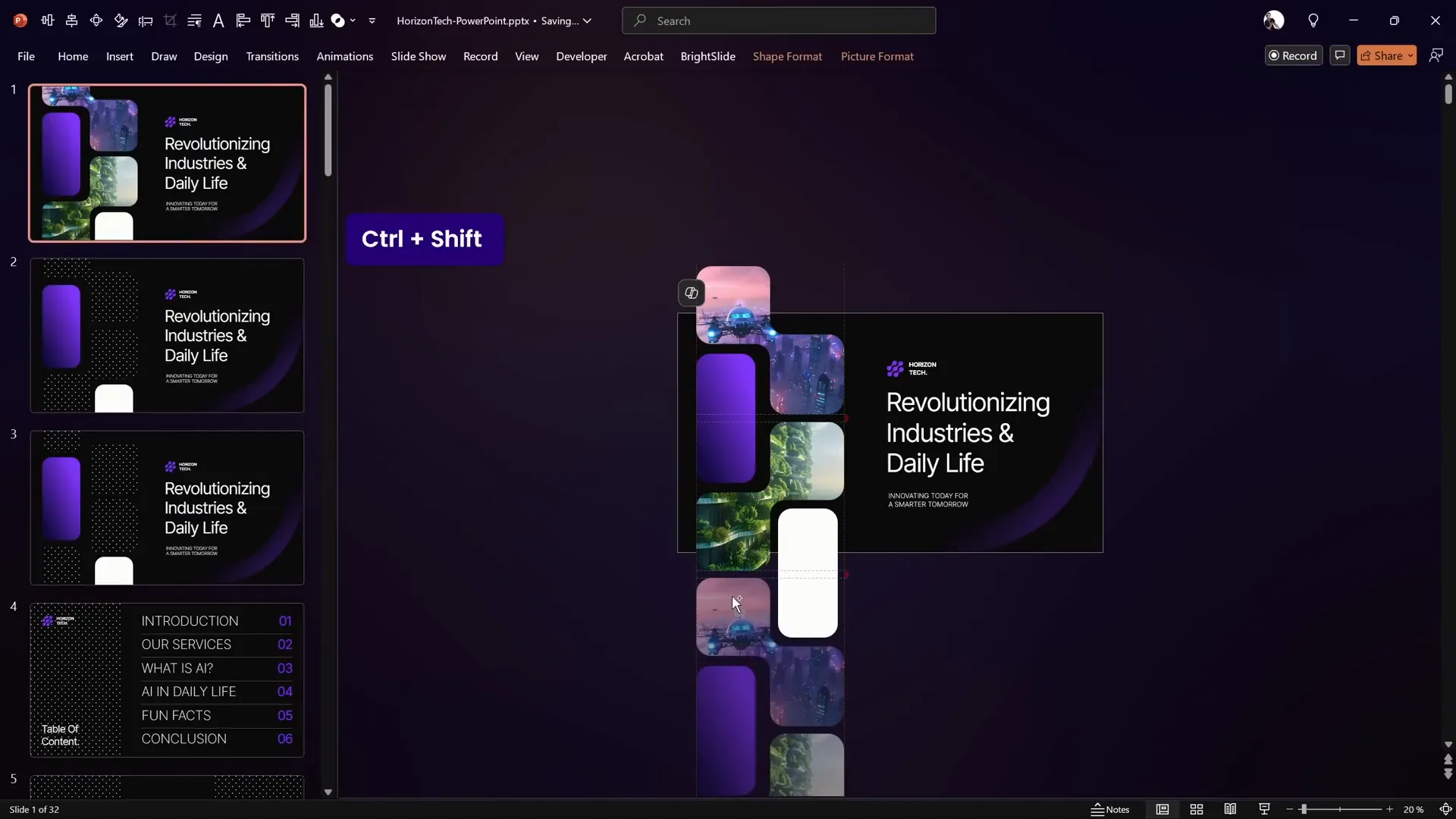
To create the infinite scrolling effect, you need multiple copies of the shapes or images arranged vertically.
Since picture placeholders cannot be grouped with other shapes, the workaround is to:
- Zoom out to see all shapes
- Select all relevant shapes
- Hold down Ctrl + Shift keys and drag downwards to create a straight-line copy
- Maintain consistent vertical spacing between the copies
Creating the Motion Path Animation
Animating the shapes to create the infinite scroll effect involves using motion path animations in PowerPoint.
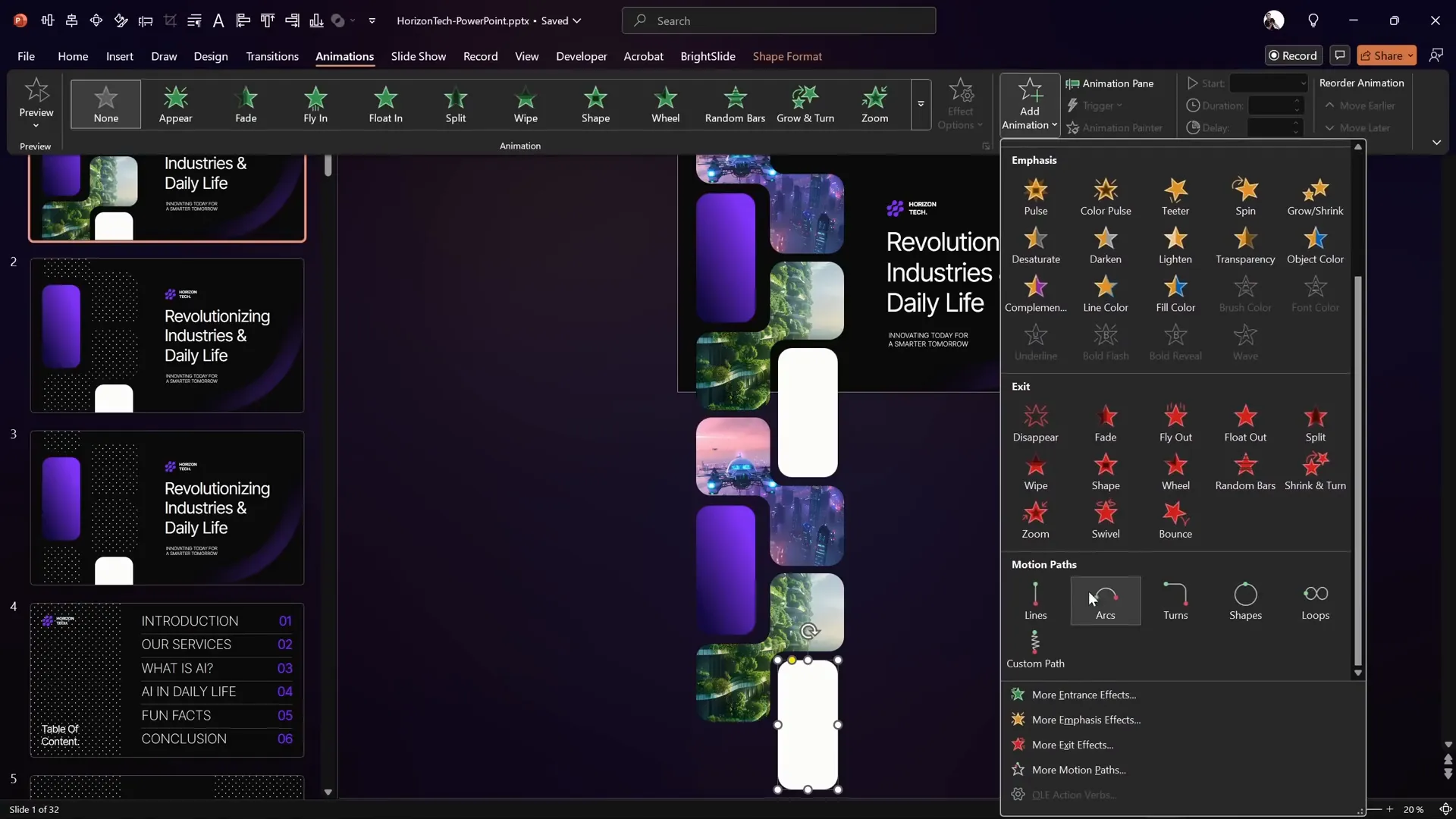
1. Select the Shape to Animate
Start with the bottom shape in your vertical stack. This will be the first to animate upwards.
2. Add a Motion Path Animation
Go to the Animations tab and:
- Click Add Animation
- Choose Motion Paths > Line
- Set the motion direction to Up
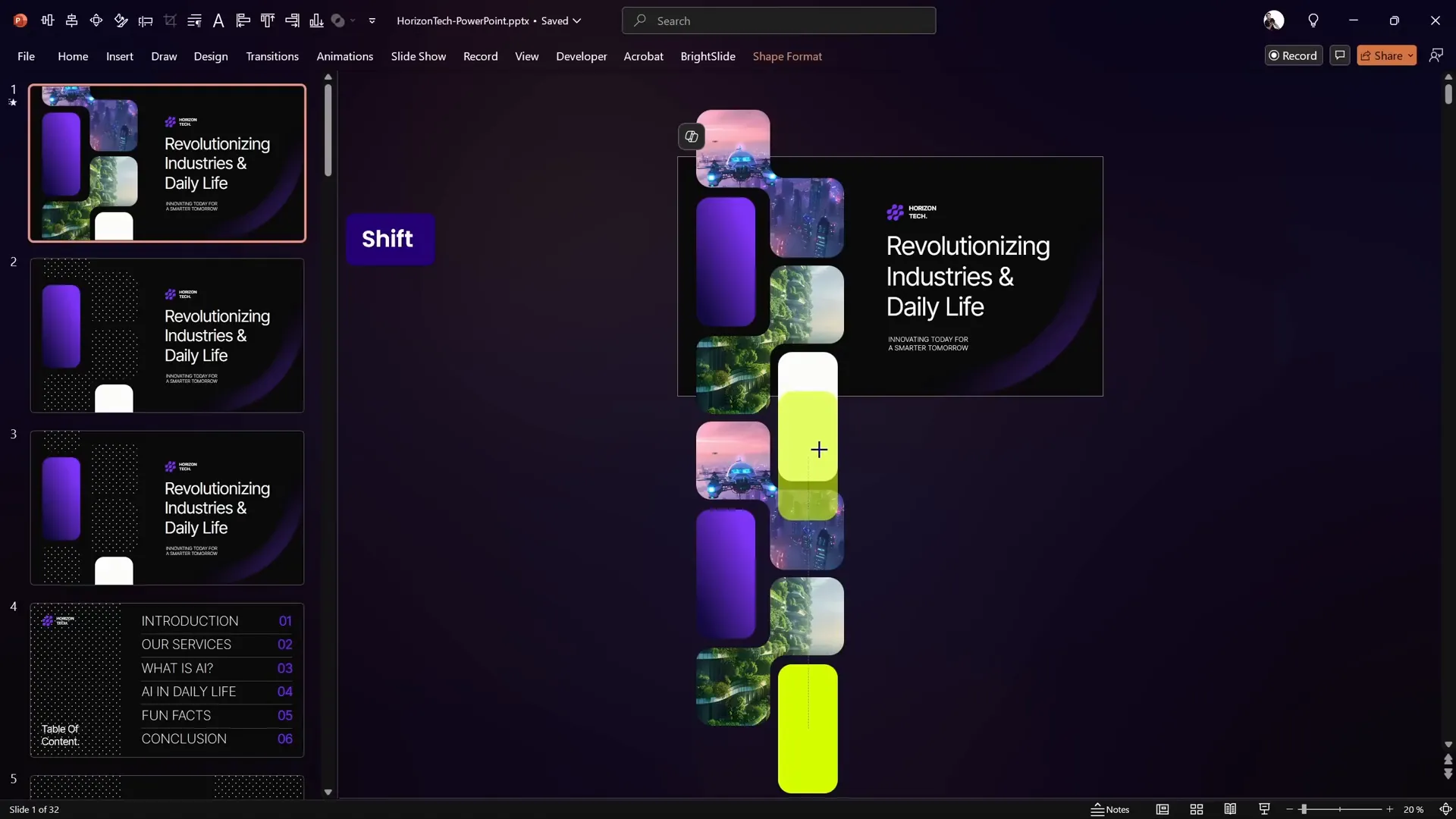
3. Adjust the Motion Path Length
Click the red arrow (animation path end point), and drag it upwards so the shape moves exactly to the position of the shape above it. Holding Shift while dragging keeps the movement in a straight vertical line.
Temporarily change the shape’s fill color (e.g., to bright green) to better see alignment during adjustment.
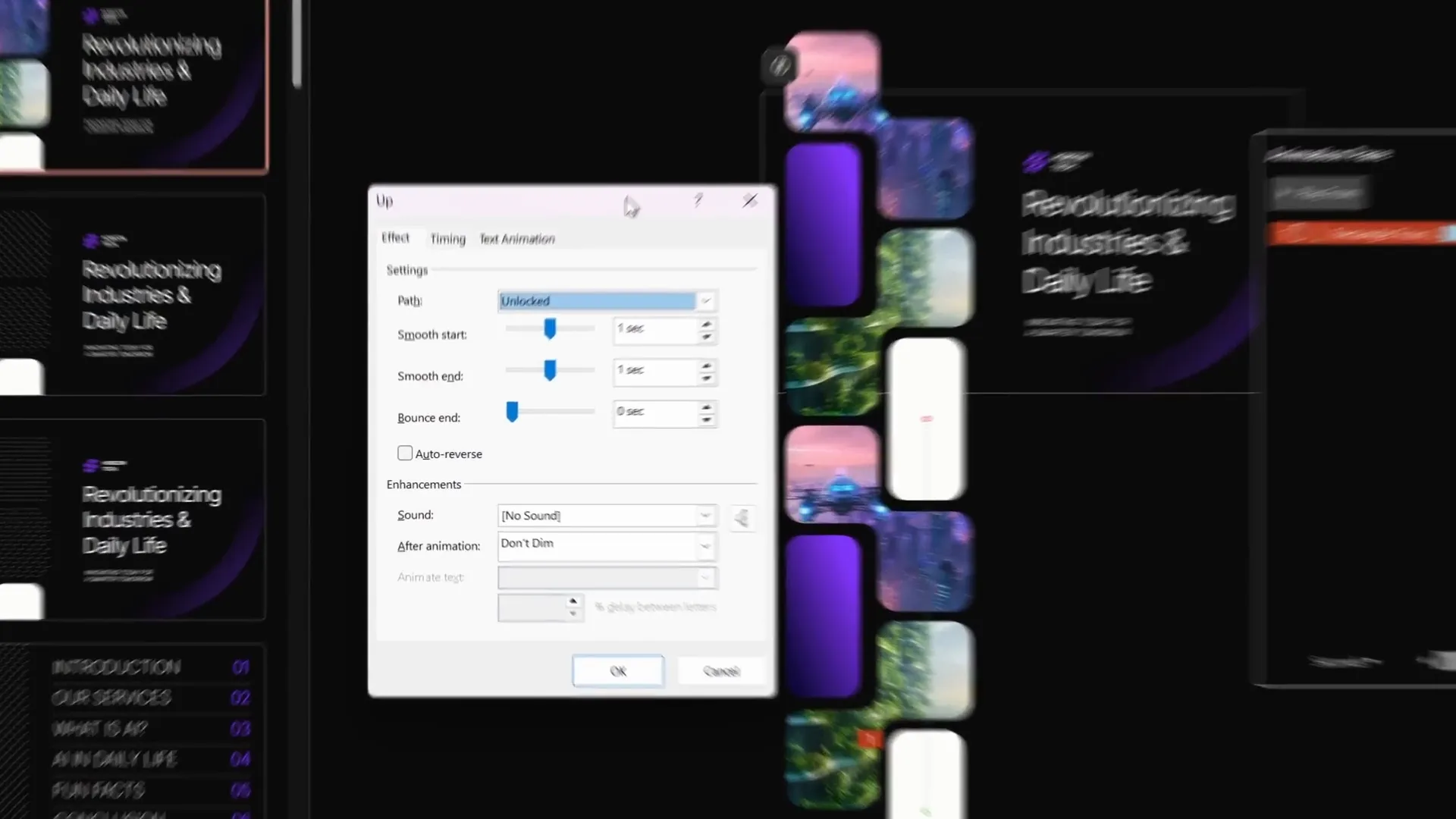
4. Refine Animation Settings
Open the Animation Pane and:
- Remove Smooth Start and Smooth End for a linear motion
- Set the animation to start With Previous so it plays automatically
- Set the duration to 10 seconds (longer duration = slower scroll)
- Set the animation to Repeat Until End of Slide for infinite looping
Applying Animation to Multiple Shapes
After creating the perfect motion path animation for one shape, you want to apply the same animation to the rest to synchronize the movement.
How to Copy Animation Settings
- Select the animated shape
- Go to Animations tab
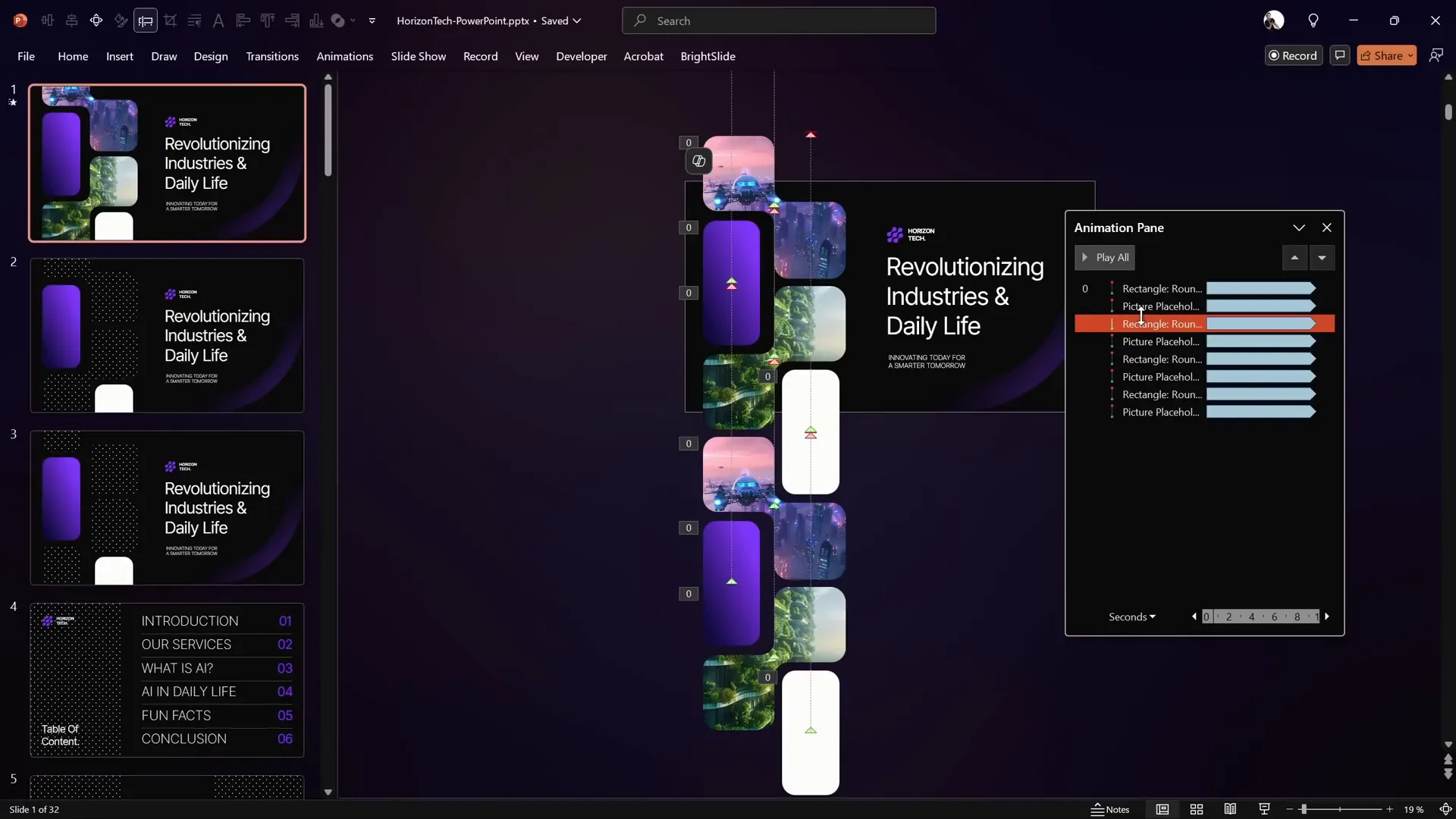
- Double-click the Animation Painter tool
- Click on each other shape on the left side of the slide to apply the same animation
This ensures all shapes scroll upwards uniformly, creating a seamless infinite scroll effect.
Adding Slide Transitions and Previewing
To enhance the presentation flow, add a subtle slide transition effect like Fade to the slide.
- Select the slide
- Go to the Transitions tab
- Choose Fade or another subtle transition
Preview the slide in full screen mode to see the infinite scroll animation in action. The shapes should scroll upwards smoothly and continuously, without any visible breaks or jumps.
Enhancing Your Slide with Shadows
To add depth and a sense of dimension to your animated slide, you can create subtle shadows at the top and bottom edges. This makes the shapes appear as if they are emerging from and disappearing into darkness, enhancing the infinite scroll illusion.
How to Create Shadow Overlays
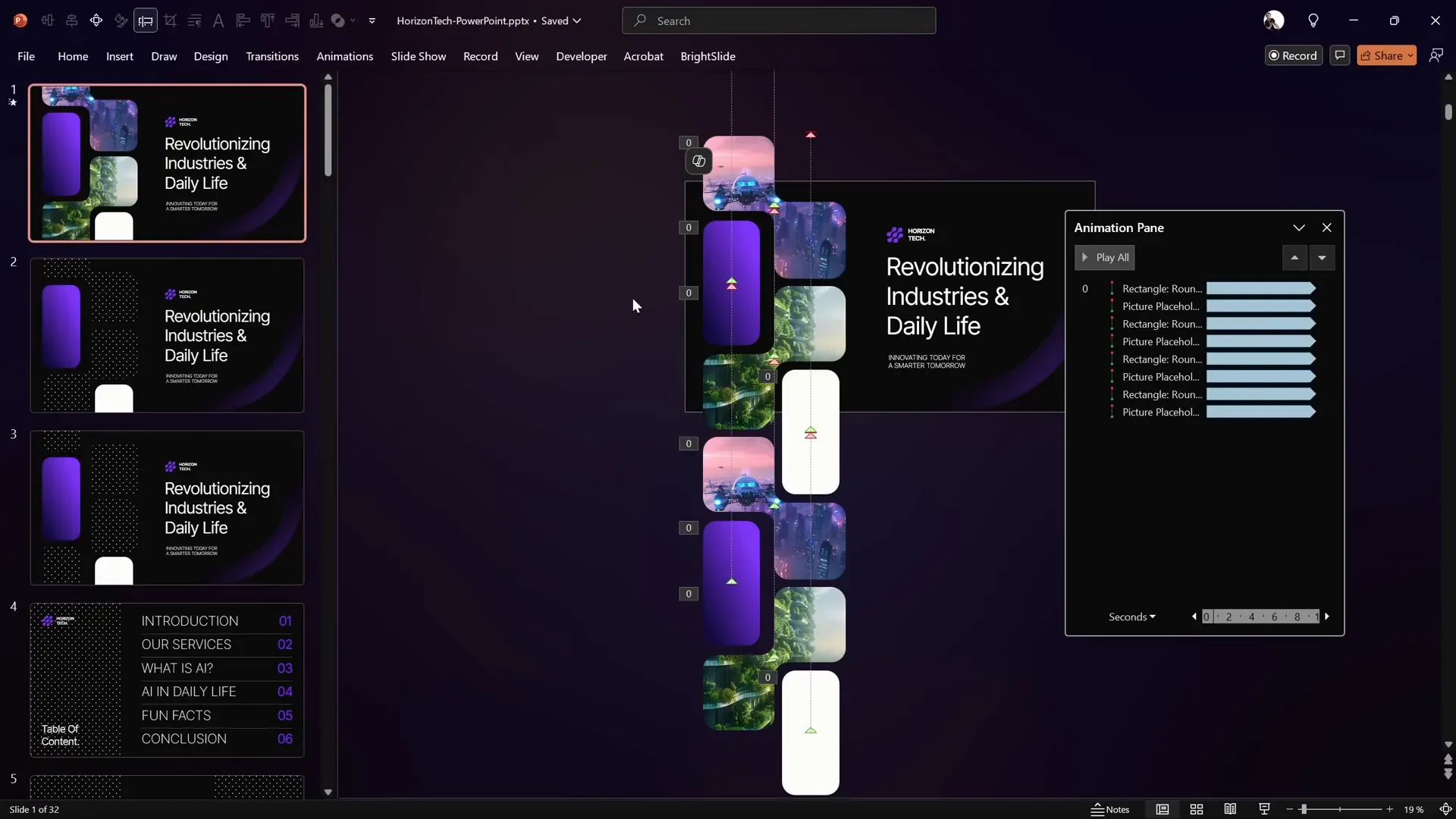
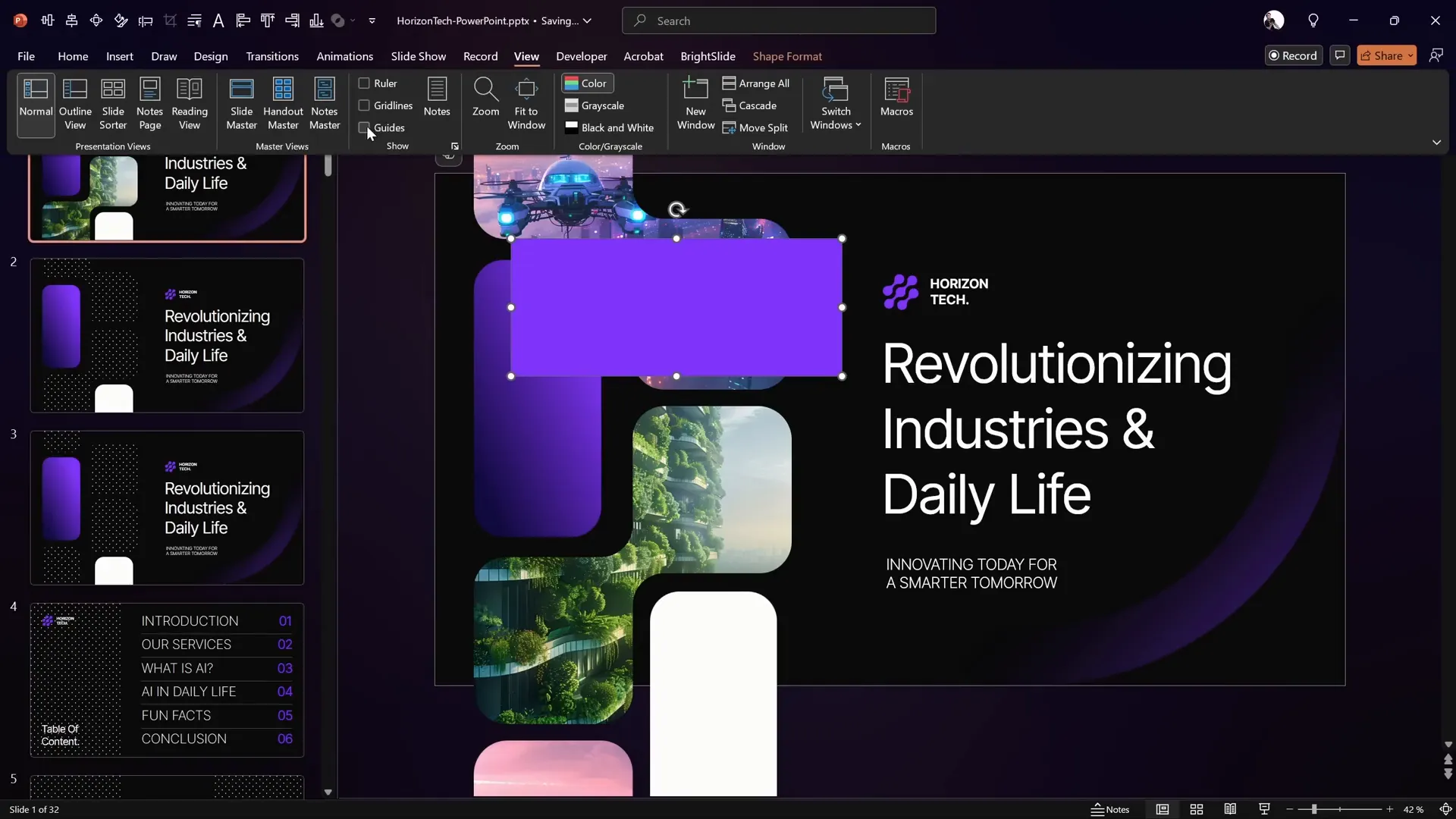
- Insert two rectangles, one positioned at the top and one at the bottom of the slide.
- Enable guides to help position the rectangles perfectly over the animated area.
- Apply a gradient fill to each rectangle:
- Use two color stops: one matching the slide background color (opaque) and one fully transparent.
- For the top rectangle, set the gradient to fade from the slide color at the top to transparent at the bottom.
- For the bottom rectangle, duplicate the top rectangle, flip it vertically, and position it at the bottom.
- Adjust the gradient stops to achieve a subtle, natural shadow effect.
This simple addition dramatically improves the visual quality of your infinite scroll animation, making it look more polished and professional.
Pro Tips for PowerPoint Animation Ideas
Creating infinite scroll animations is just one example of how you can elevate your presentations with smart PowerPoint animation ideas. Here are some additional tips to help you master animations and design:
| Tip | Description |
|---|---|
| Use Templates | Start with professional templates to save design time and ensure balanced layouts. |
| Set Up Guides and Margins | Use guides for precise alignment and consistent spacing in your slides. |
| Adjust Slide Size | Consider custom slide sizes for high-resolution exports or unusual display setups. |
| Duplicate Slides and Elements | Duplicate to speed up your workflow and maintain design consistency. |
| Use Animation Painter | Copy and paste animation settings quickly across multiple objects. |
| Optimize Animation Timing | Adjust duration and repetition for smooth and professional-looking animations. |
| Enhance with Shadows and Transitions | Add subtle visual effects for depth and smoother slide changes. |
| Practice and Preview | Test your animations in full screen to ensure everything is seamless. |
Frequently Asked Questions
What is an infinite scroll animation in PowerPoint?
It’s an animation effect where objects continuously scroll or move in a loop, creating a seamless and endless motion, often used for backgrounds or repeated design elements.
Can I use any PowerPoint template for this animation?
While you can use any template, starting with a well-designed template that has clear margins and placeholders will make the process smoother and your results more professional.
How do I make sure my animation is smooth and seamless?
Use precise motion paths, align duplicated shapes perfectly, set animation durations longer for slower motion, and enable repetition until the end of the slide.
Can I export these animated slides as videos?
Yes, PowerPoint allows you to export presentations as video files, which will retain your animations including infinite scroll effects.
Are there any limitations to infinite scroll animations in PowerPoint?
Complex animations can sometimes slow down PowerPoint or cause performance issues on older computers. Also, grouping limitations exist when picture placeholders are involved, requiring workarounds.
Where can I find more PowerPoint animation ideas?
Websites like pptskill.com offer extensive tutorials and video lessons to master PowerPoint animations and design.
Conclusion
Infinite scroll animation in PowerPoint is a powerful technique to breathe life into your presentations. By following the step-by-step process outlined above, you can create professional, seamless animated slides that captivate your audience and elevate your storytelling.
Remember to start with a strong foundation — use high-quality templates, set up guides and margins, and carefully arrange your shapes. Master the motion path animations, fine-tune timing and repetition, and add subtle visual enhancements like shadows and transitions to polish your work.
With practice, these PowerPoint animation ideas will become a valuable part of your presentation toolkit, helping you create slides that are not only informative but also visually stunning and memorable.
Ready to dive deeper? Check out pptskill.com for over 65 video lessons revealing professional animation secrets step-by-step.
Happy animating!







