
If you’re looking to elevate your PowerPoint presentations with captivating animation effects, you’ve come to the right place. In this comprehensive guide, we explore the full spectrum of PowerPoint slide zooms—from the simplest Level 1 to the most advanced Level 100. Whether you’re a beginner eager to add a pinch of interactivity or a seasoned presenter aiming to dazzle your audience with seamless slide navigation, understanding slide zooms and how to implement them effectively is a game-changer.
PowerPoint animation effects, especially slide zooms, can transform a static deck into a dynamic storytelling tool. This article covers all the essentials, breaking down the best slide zoom techniques demonstrated by the expert One Skill PPT, whose tutorials provide step-by-step guidance for each level of complexity. Plus, you’ll find direct links to detailed tutorials and downloadable slides to practice along.
Table of Contents
- What Are Slide Zooms and Why Use Them?
- Slide Zoom Levels Overview (1 to 100)
- Level 1 to 30: Getting Started with Basic Slide Zooms
- Level 40 to 70: Intermediate Zoom Effects
- Level 75 to 100: Advanced and Beautiful Slide Zooms
- Tips for Creating Effective PowerPoint Slide Zooms
- Frequently Asked Questions about PowerPoint Animation Effects
- Conclusion: Unleash the Full Potential of Slide Zooms
What Are Slide Zooms and Why Use Them?
Slide zooms are a powerful feature in Microsoft PowerPoint that allow you to create interactive navigation between slides, sections, or even parts of a single slide. Unlike traditional linear slide transitions, slide zooms enable non-linear storytelling, akin to jumping in and out of different topics smoothly and engagingly.
Using PowerPoint animation effects such as slide zooms can:
- Enhance audience engagement by providing dynamic navigation.
- Help presenters focus on key points without losing context.
- Allow for creative storytelling with zoom-in and zoom-out effects.
- Make complex presentations easier to follow by visually connecting related content.
Since slide zooms create a fluid and interactive experience, mastering them can significantly improve the professionalism and impact of your presentations.
Slide Zoom Levels Overview (1 to 100)
The video by One Skill PPT showcases 15 key levels of slide zooms, ranging from the most basic (Level 1) to the most sophisticated (Level 100). Each level builds upon the previous, introducing new techniques and creative ideas to optimize your presentation flow.
Here’s a quick overview of the levels covered:
| Level | Description | Effect Style | Difficulty |
|---|---|---|---|
| 1 | Basic slide zoom | Simple zoom-in effect | Beginner |
| 10 | Easy peasy lemon squeezy | Basic zoom with smooth transition | Beginner |
| 20 | Skadoosh effect | Zoom with dynamic animation | Intermediate |
| 30 | Super duper awesome | Enhanced zoom with layered visuals | Intermediate |
| 40 | Easy peasy lemon squeezy | Smooth zoom with clean styling | Intermediate |
| 50 | Skadoosh | Eye-catching zoom with flair | Advanced |
| 55 | Looking beautiful | Stylish and polished zoom | Advanced |
| 60 | Super duper awesome | Complex zoom with smooth transitions | Advanced |
| 65 | Skadoosh | Dynamic zoom with creative motion | Expert |
| 70 | Super duper awesome | Advanced zoom with layered effects | Expert |
| 75 | Looking beautiful | Polished zoom with smooth animation | Expert |
| 80 | Easy peasy lemon squeezy | Clean and effective zoom | Expert |
| 85 | Skadoosh | Dynamic and engaging zoom | Master |
| 90 | Super duper awesome | Highly polished zoom effect | Master |
| 95 | Looking beautiful | Elegant zoom with smooth pace | Master |
| 100 | Super duper awesome | Ultimate slide zoom mastery | Master |
Each level comes with a detailed tutorial link from One Skill PPT, making it easy to follow along and practice on your own.
Level 1 to 30: Getting Started with Basic Slide Zooms
Let’s dive into the beginner to intermediate levels, where you’ll learn foundational slide zoom techniques that are easy to implement and highly effective.
Level 1: The Foundation of Slide Zooms
The journey starts with Level 1, which introduces the basic slide zoom. This is perfect for beginners who want to add a simple zoom effect to their slides without complexity.
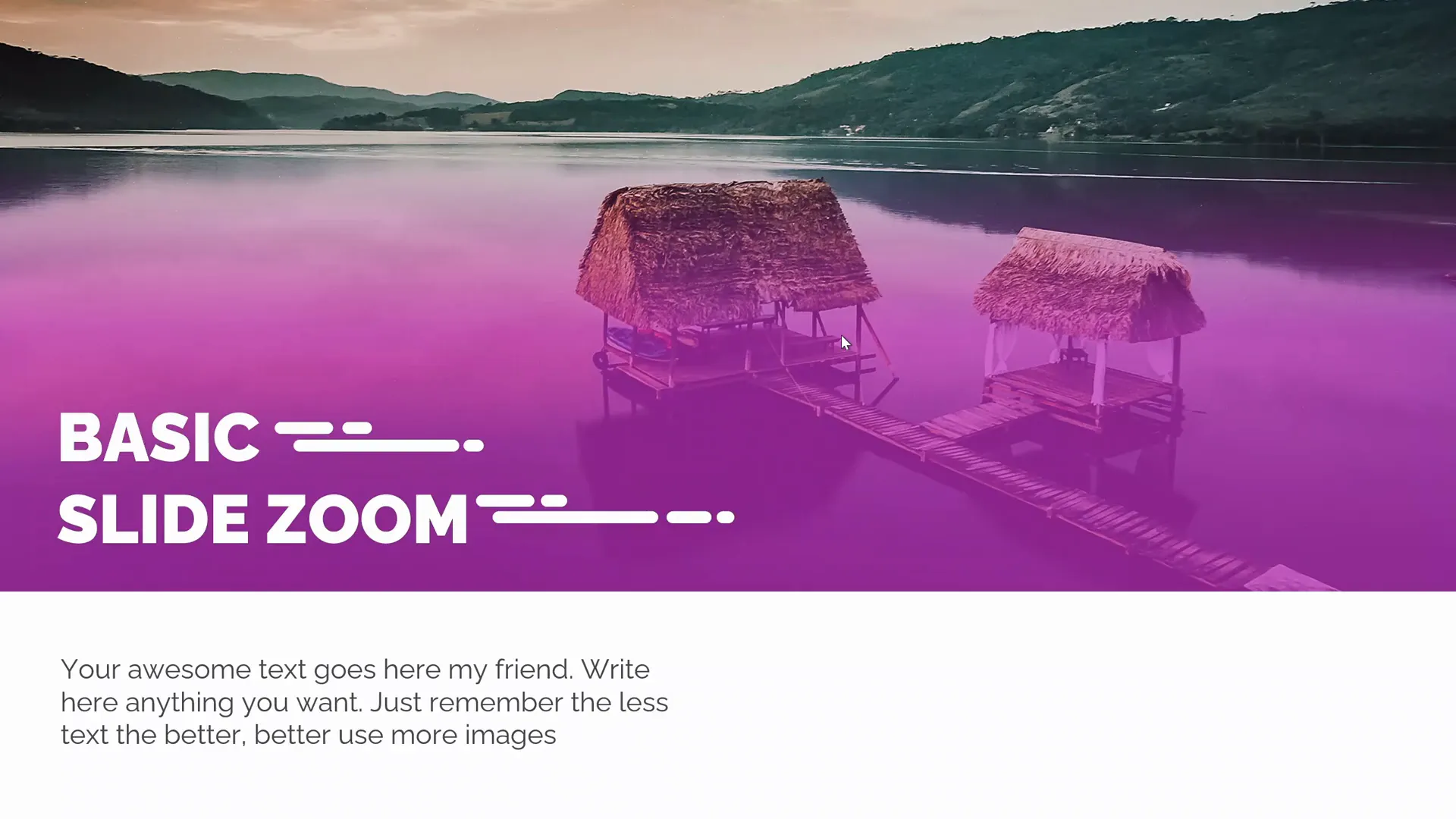
This technique involves linking a thumbnail or section zoom to a specific slide, allowing you to jump to that slide with a clean zoom-in effect. It’s straightforward and sets the stage for more advanced techniques.
Level 10: Easy Peasy Lemon Squeezy
Jumping to Level 10, the effect remains simple but polished, making navigation seamless and visually appealing.
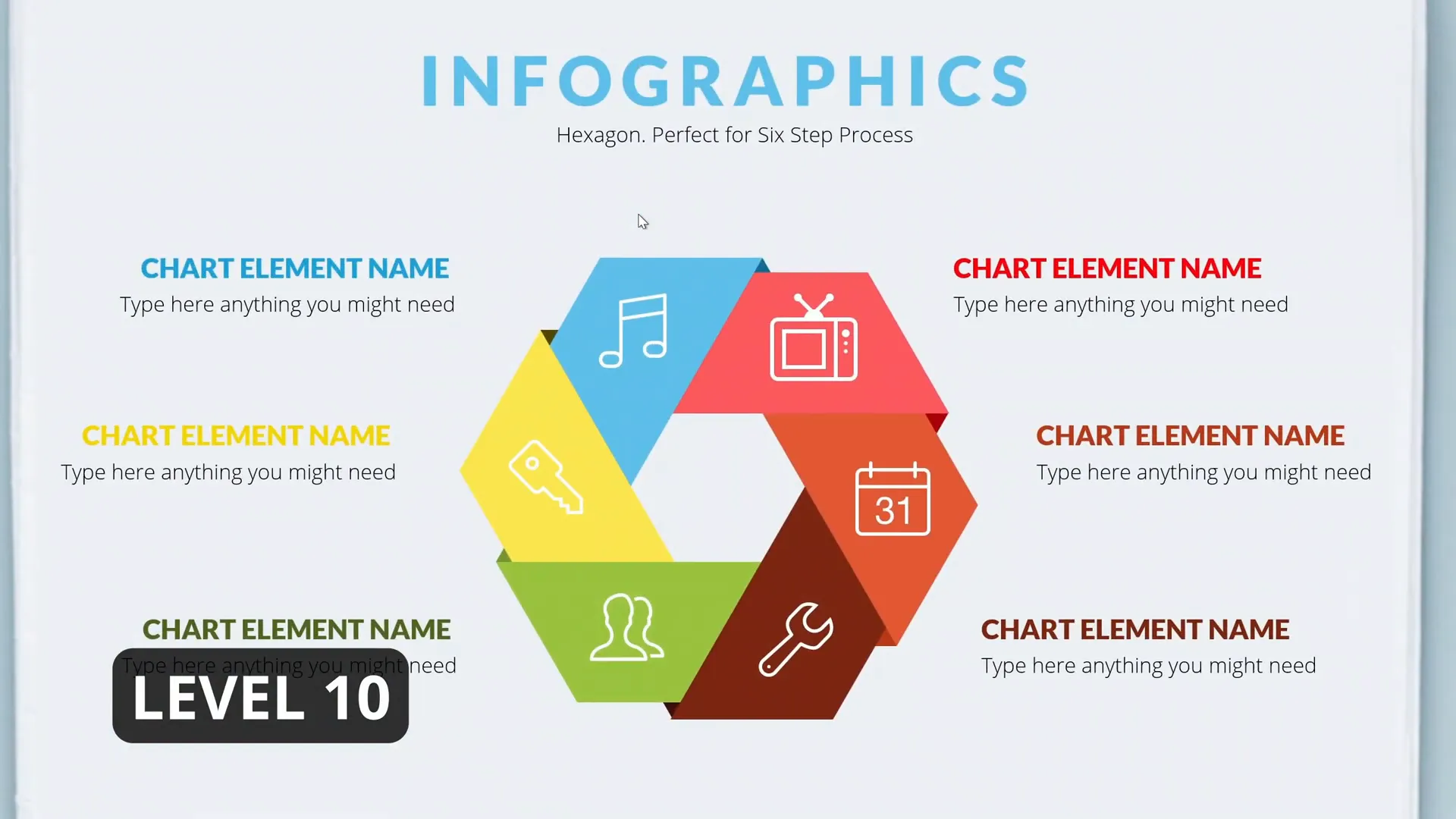
The “easy peasy lemon squeezy” style is all about smooth transitions and intuitive navigation. This zoom effect is great for presentations that require clear and quick access to different sections.
Level 20: Skadoosh – Adding Flair
At Level 20, the slide zoom gets a creative boost with the “Skadoosh” effect, which adds dynamic motion to the zoom.
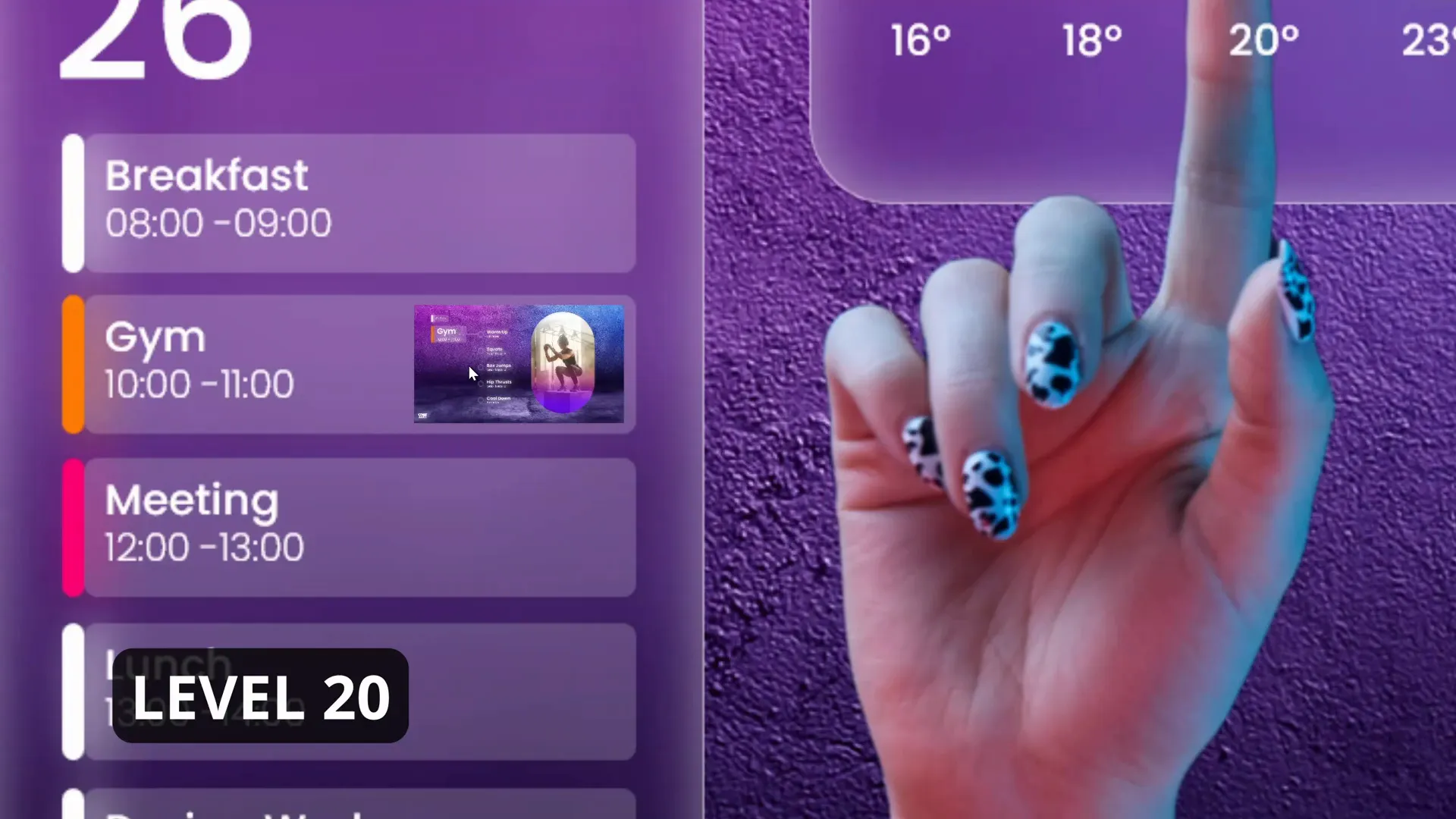
This effect introduces more movement and flair, catching the audience’s attention while still keeping the presentation professional and easy to follow.
Level 30: Super Duper Awesome Zoom
Level 30 ups the ante with layered visuals and a more complex animation sequence.

This slide zoom incorporates animation timing and layering that create a richer viewing experience. It’s ideal for presenters who want to impress without overwhelming their audience.
Level 40 to 70: Intermediate Zoom Effects
As you progress, the slide zooms become more refined and visually captivating. Let’s explore Levels 40 through 70.
Level 40: Easy Peasy Lemon Squeezy Redux
This level revisits the classic easy peasy lemon squeezy style but with enhanced polish and smoother transitions.

It’s a clean, no-nonsense zoom effect perfect for professional presentations that still want a hint of animation.
Level 50: Skadoosh with Flair
Level 50 reintroduces the Skadoosh effect with added sophistication, incorporating timing and layering to create an eye-catching zoom.

This effect is excellent for transitions between major sections or highlighting key points in your presentation.
Level 55: Looking Beautiful
At Level 55, the zoom effect achieves a beautiful balance of style and function.

The animation is smooth and polished, providing a professional aesthetic that will elevate any presentation.
Level 60: Super Duper Awesome Refinement
Level 60 builds on previous super duper awesome effects with more refined motion and timing.
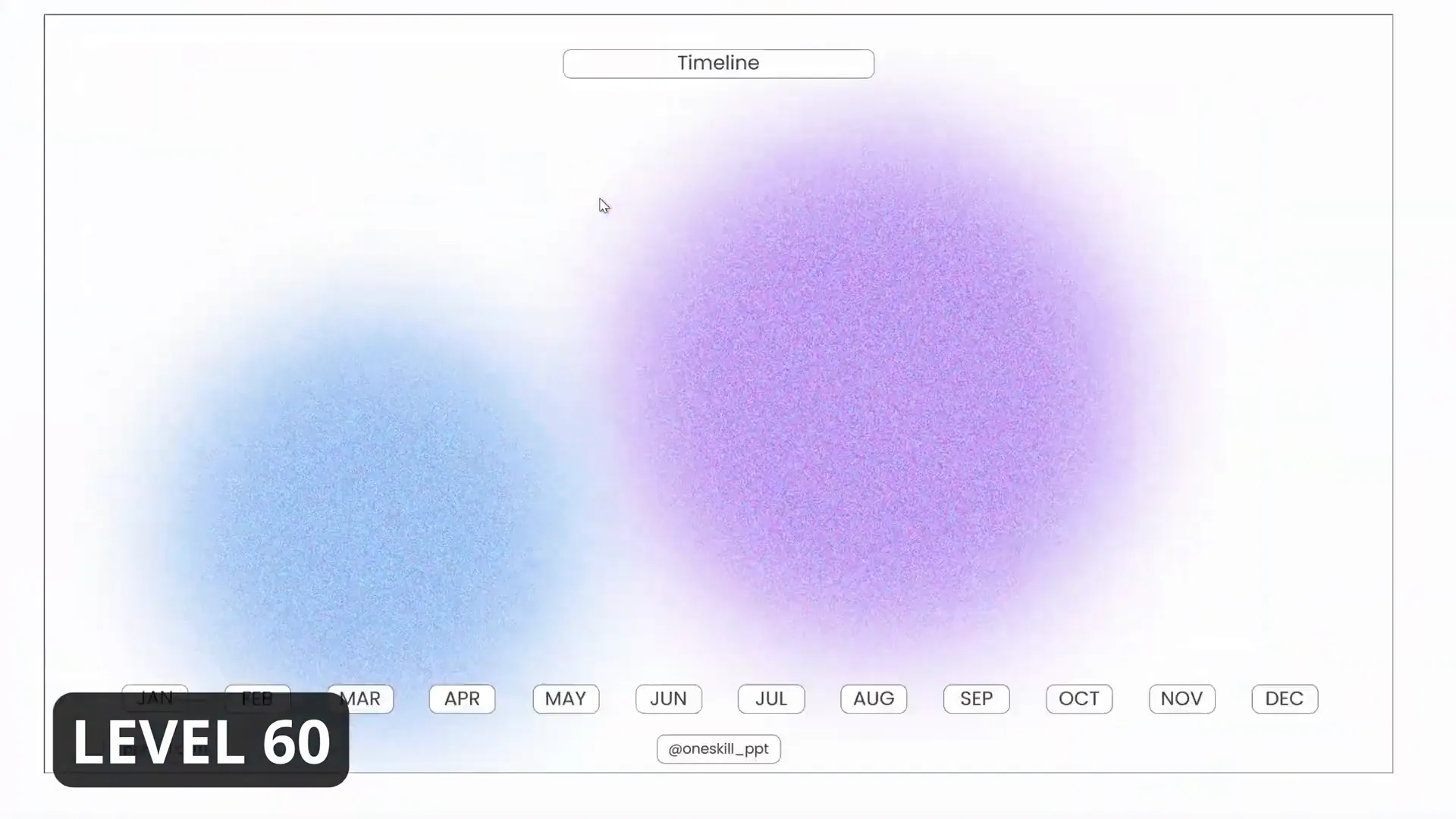
This level is great for presenters who want to add energy and engagement while maintaining clarity and flow.
Level 65: Skadoosh Dynamic Zoom
Level 65 continues the Skadoosh trend with dynamic and creative zoom movements.
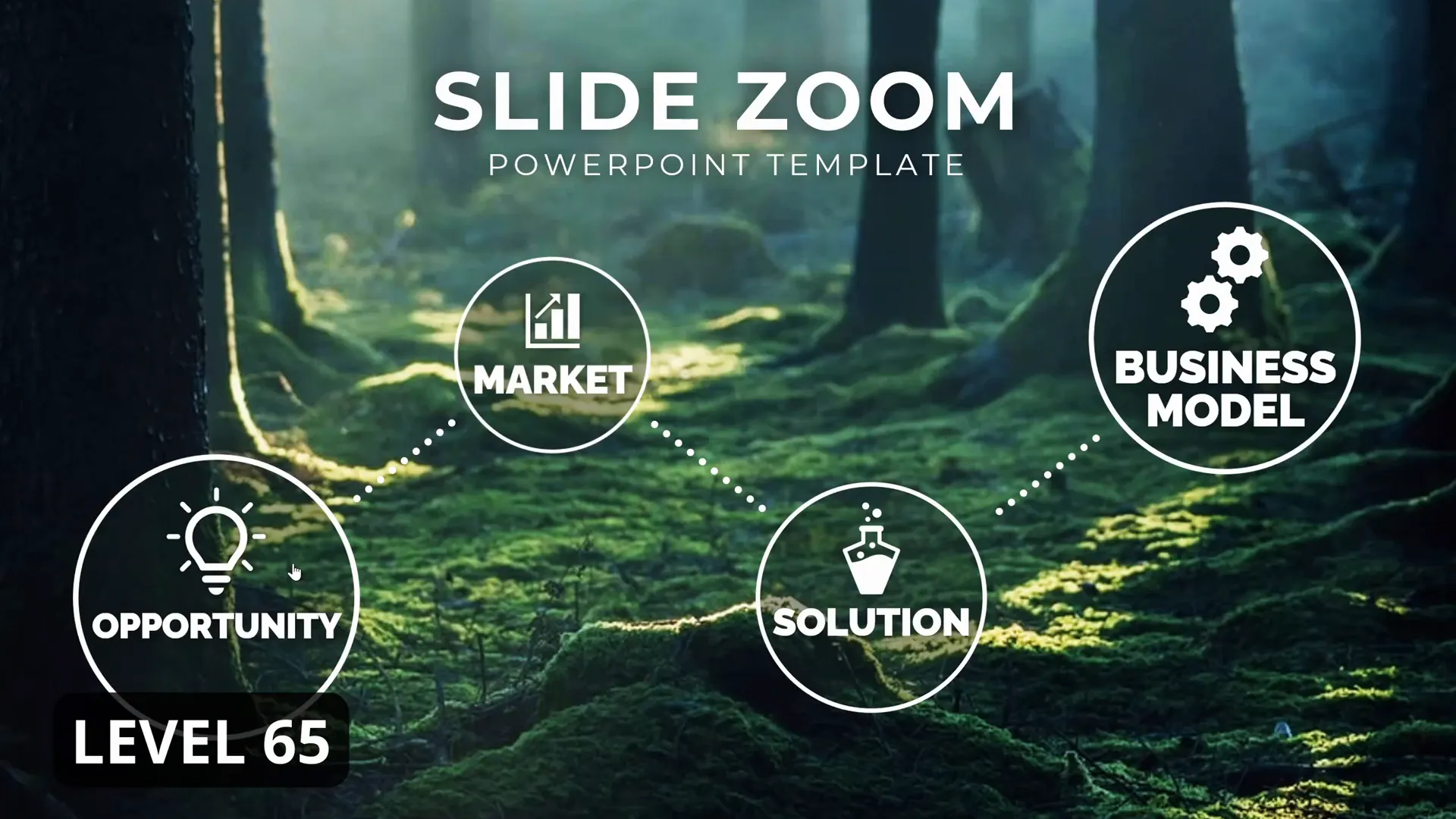
This effect is perfect for presentations that need to capture attention and highlight transitions dramatically.
Level 70: Super Duper Awesome Layered Zoom
At Level 70, the zoom effect is layered and complex, combining multiple animation techniques.

This level is suited for advanced users who want to impress with seamless, professional navigation.
Level 75 to 100: Advanced and Beautiful Slide Zooms
In the final stretch, Levels 75 to 100 showcase the pinnacle of slide zoom mastery, blending beauty with technical finesse.
Level 75: Looking Beautiful with Elegance
Level 75 features elegant, polished animations that are pleasing to the eye and smooth in execution.

This effect is ideal for corporate or creative presentations where aesthetics are paramount.
Level 80: Easy Peasy Lemon Squeezy Clean Zoom
Level 80 returns to the easy peasy lemon squeezy style but with expert-level execution.
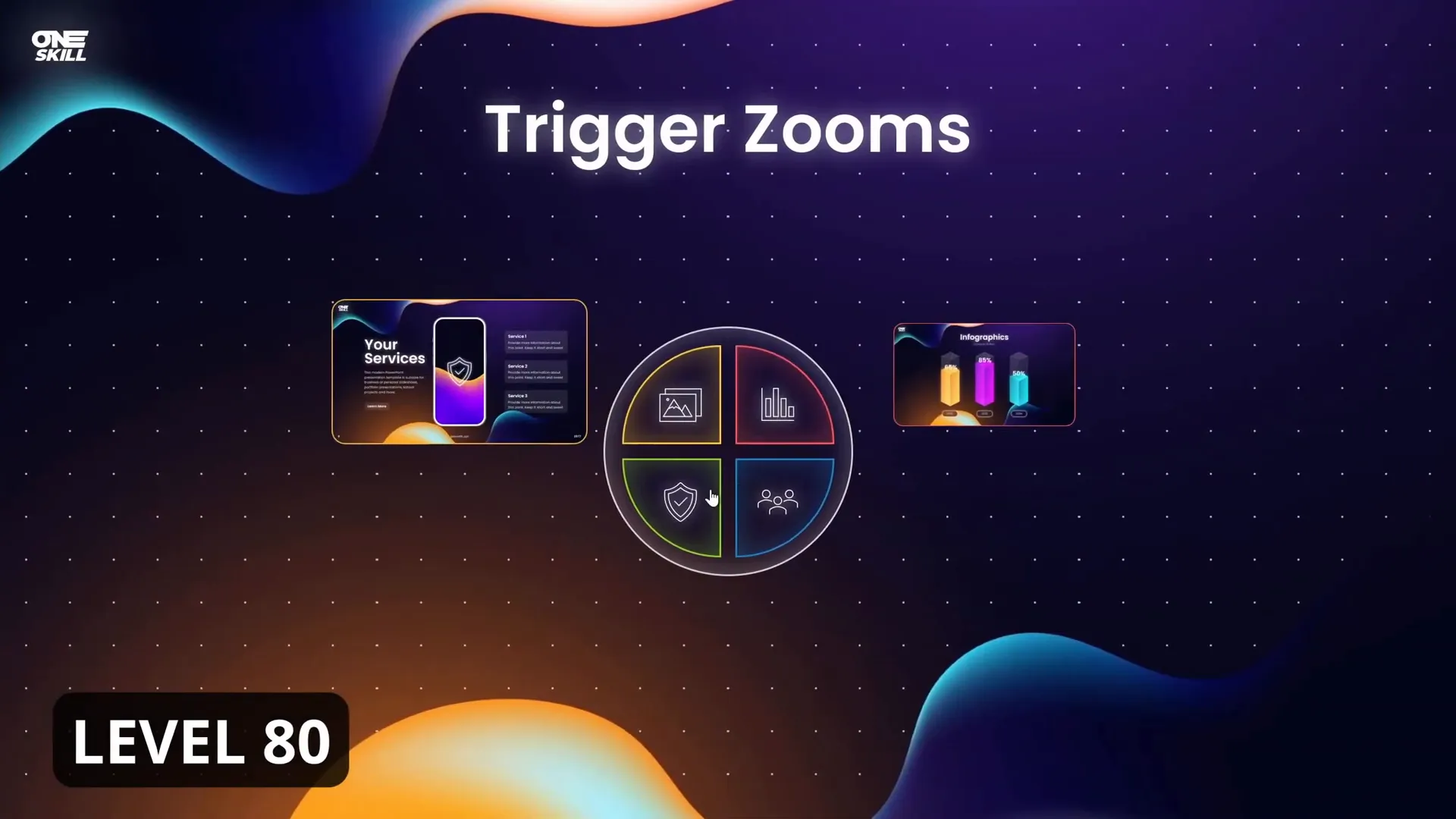
The simplicity and cleanliness of this zoom make it versatile for many presentation types.
Level 85: Skadoosh Dynamic and Engaging
Level 85 ramps up the Skadoosh effect with engaging, dynamic animations that keep viewers hooked.
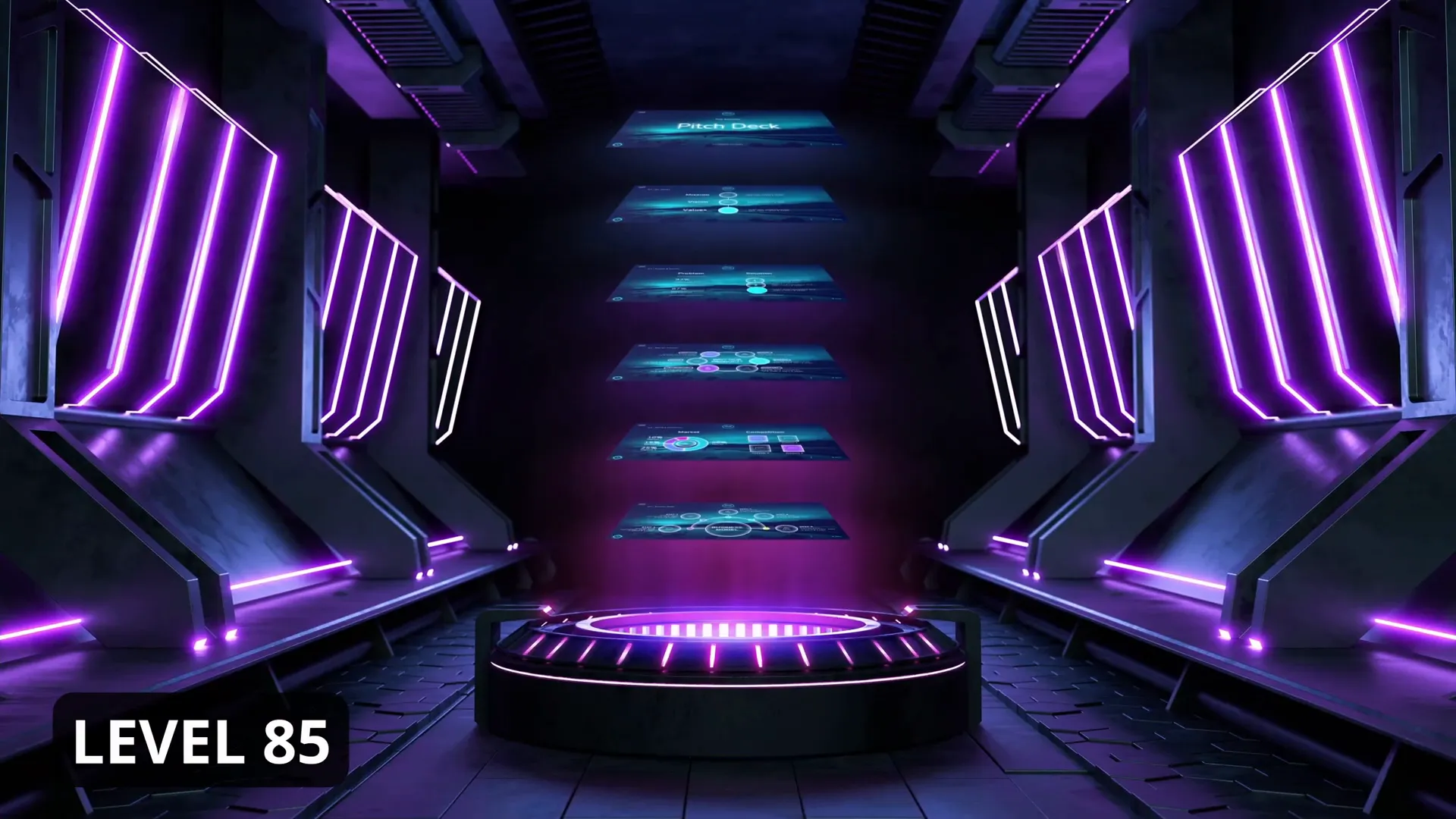
This level is perfect for high-energy presentations needing visual impact.
Level 90: Super Duper Awesome Polished Zoom
Level 90 showcases a highly polished zoom effect with smooth transitions and layered animations.

This effect is suited for professional settings where sophistication is key.
Level 95: Looking Beautiful with Smooth Pacing
Level 95 refines the beautiful zoom effect with perfectly timed pacing for maximum impact.
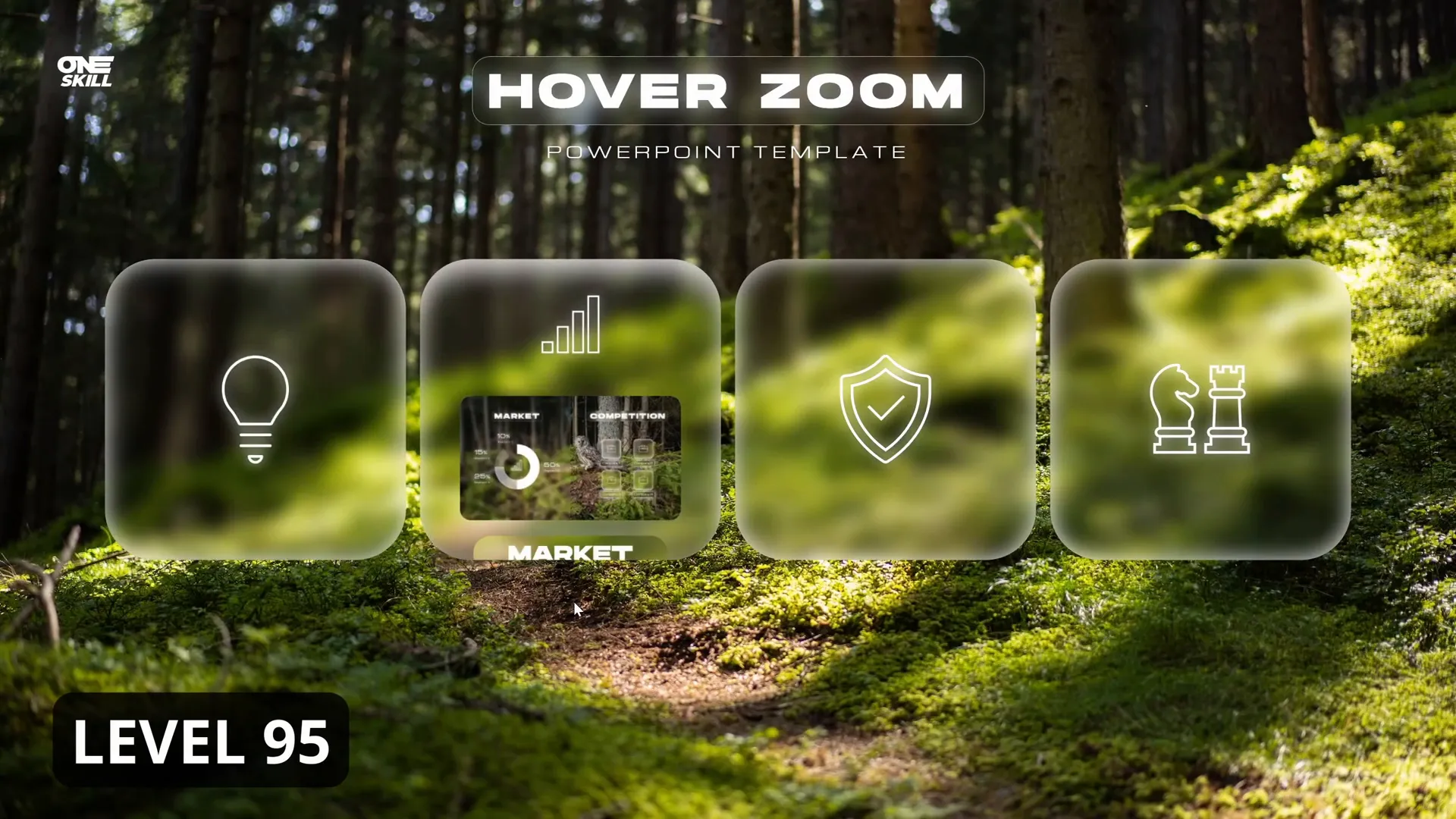
Use this for presentations where storytelling flow is essential.
Level 100: Ultimate Slide Zoom Mastery
The final level, 100, represents the ultimate mastery of PowerPoint slide zooms.

This effect combines all the best elements—dynamic motion, smooth transitions, beautiful aesthetics—to create an unforgettable presentation experience.
Tips for Creating Effective PowerPoint Slide Zooms
Mastering slide zooms requires more than just clicking buttons. Here are expert tips to ensure your PowerPoint animation effects shine:
- Plan Your Navigation: Map out your presentation’s structure to use slide zooms for smooth, logical transitions.
- Keep It Simple at First: Start with basic zooms and build complexity as you gain confidence.
- Use Consistent Styles: Maintain a consistent animation style throughout your deck for a professional look.
- Optimize Timing: Adjust animation speeds to avoid overwhelming your audience or dragging the presentation.
- Test on Different Devices: Ensure your slide zooms work well on the system you’ll present from.
- Leverage Tutorials: Follow detailed tutorials, like those from One Skill PPT, to perfect each zoom level.
- Combine with Other Animations: Use slide zooms alongside fades, wipes, and other effects for a richer experience.
- Use Visual Cues: Add icons or thumbnails to indicate where zooms will take the audience.
Frequently Asked Questions about PowerPoint Animation Effects
What is the difference between a Zoom and a Morph transition in PowerPoint?
Zoom creates an interactive navigation effect by jumping between slides or sections with a zooming motion, whereas Morph smoothly animates the transformation of objects or text between slides. Zoom focuses on navigation, while Morph focuses on object animation.
Can I customize the speed and style of slide zoom animations?
Yes, PowerPoint allows you to adjust the duration, delay, and effect options of your slide zoom animations to suit your presentation’s flow and style.
Are slide zooms compatible with all versions of PowerPoint?
Slide zooms were introduced in PowerPoint 2019 and Office 365. Older versions might not support this feature or could have limited functionality.
How do I add a slide zoom in PowerPoint?
Go to the Insert tab, click Zoom, and choose from Summary Zoom, Section Zoom, or Slide Zoom. Then select the slides or sections you want to link.
Can slide zooms help with non-linear presentations?
Absolutely! Slide zooms are designed to create interactive, non-linear presentations that allow you to jump between different topics or sections seamlessly.
Conclusion: Unleash the Full Potential of Slide Zooms
PowerPoint slide zooms are an incredible tool to add interactivity, engagement, and professionalism to your presentations. From the simplest Level 1 zooms to the intricate Level 100 effects, mastering these PowerPoint animation effects empowers you to tell your story with clarity and flair.
Thanks to the detailed tutorials by One Skill PPT, you can follow along and practice each level of slide zoom, gradually building your skills and confidence. Whether you want to create a straightforward business presentation or a captivating pitch deck, slide zooms enhance your ability to connect with your audience.
Don’t just settle for static slides—embrace the dynamic power of slide zooms and transform your presentations today.
For direct access to the tutorials and downloadable slides for each level, check the video description by One Skill PPT on their YouTube channel.
Ready to unleash the full potential of slide zooms? Dive into the detailed tutorials and elevate your presentation game!







