
When it comes to elevating your PowerPoint presentations, mastering the art of animation can make all the difference. Imagine captivating your audience with a dynamic slide that combines a beautiful video background, smooth looping animations, and eye-catching wavy text—all seamlessly integrated into one cohesive design. This tutorial will guide you through the step-by-step process of creating an engaging summer-themed animated slide in Microsoft PowerPoint 365, using hand-drawn illustrations and motion path animations that loop endlessly.
Whether you want to showcase your favorite travel destination, celebrate your country, or simply add flair to your presentation, these PowerPoint presentation skills will empower you to impress your audience with professional-level animations. Let’s dive into the magical world of PowerPoint and learn how to craft this stunning looping sticker animation from scratch.
Table of Contents
- Essential Assets: Summer Illustrations and Video Background
- Creating a Looping Video Background
- Animating Wavy Text for Slide Titles
- Adding and Looping Summer Illustrations
- Advanced Animation Tips and Tricks
- Wrapping Up and Final Thoughts
- Frequently Asked Questions (FAQ)
Essential Assets: Summer Illustrations and Video Background
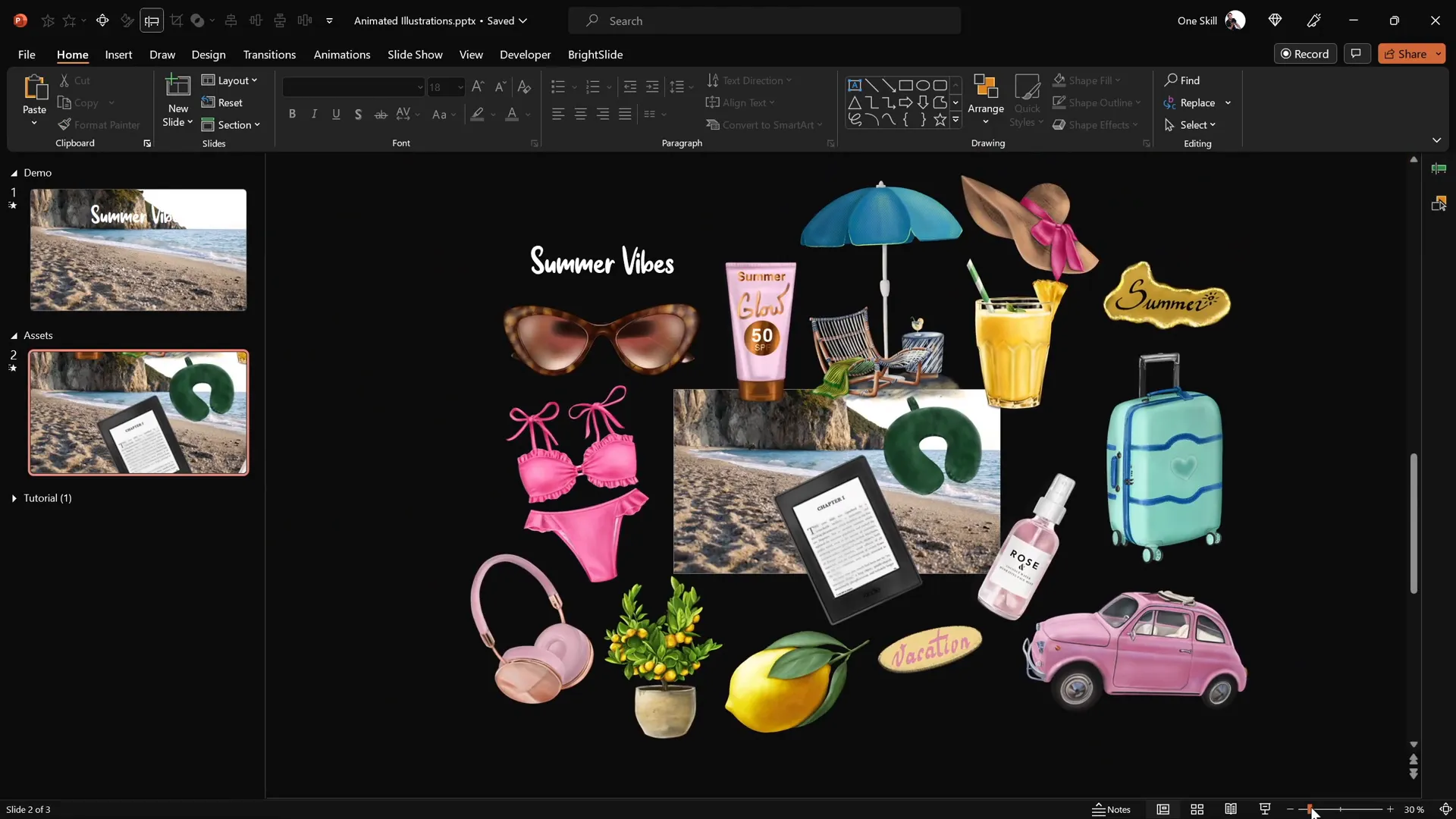
Before starting the animation process, it’s crucial to gather the right assets that will bring your slide to life. For this tutorial, a collection of vibrant, hand-drawn summer-themed illustrations was used. These include:
- Sunglasses
- Headphones
- Lemons
- Stickers
- Luggage and cars
- Kindle reader
- Cocktail glass
- Sunscreen bottle
- Umbrella
All these illustrations are in PNG format with transparent backgrounds, which makes them incredibly easy to place and animate within PowerPoint. The illustrations were created by the talented digital artist Raminta, whose Etsy store offers these assets at very affordable prices—perfect for upgrading your presentations with professional visuals.
Why Use PNG Format?
- Transparency allows seamless integration over any background.
- High-quality images maintain clarity even when resized.
- Easy to manipulate and animate individually.
Additionally, the video background used in this tutorial was sourced from Artlist.io, featuring a smooth, looping summer beach scene that adds depth and a dynamic feel to the slide.
Creating a Looping Video Background
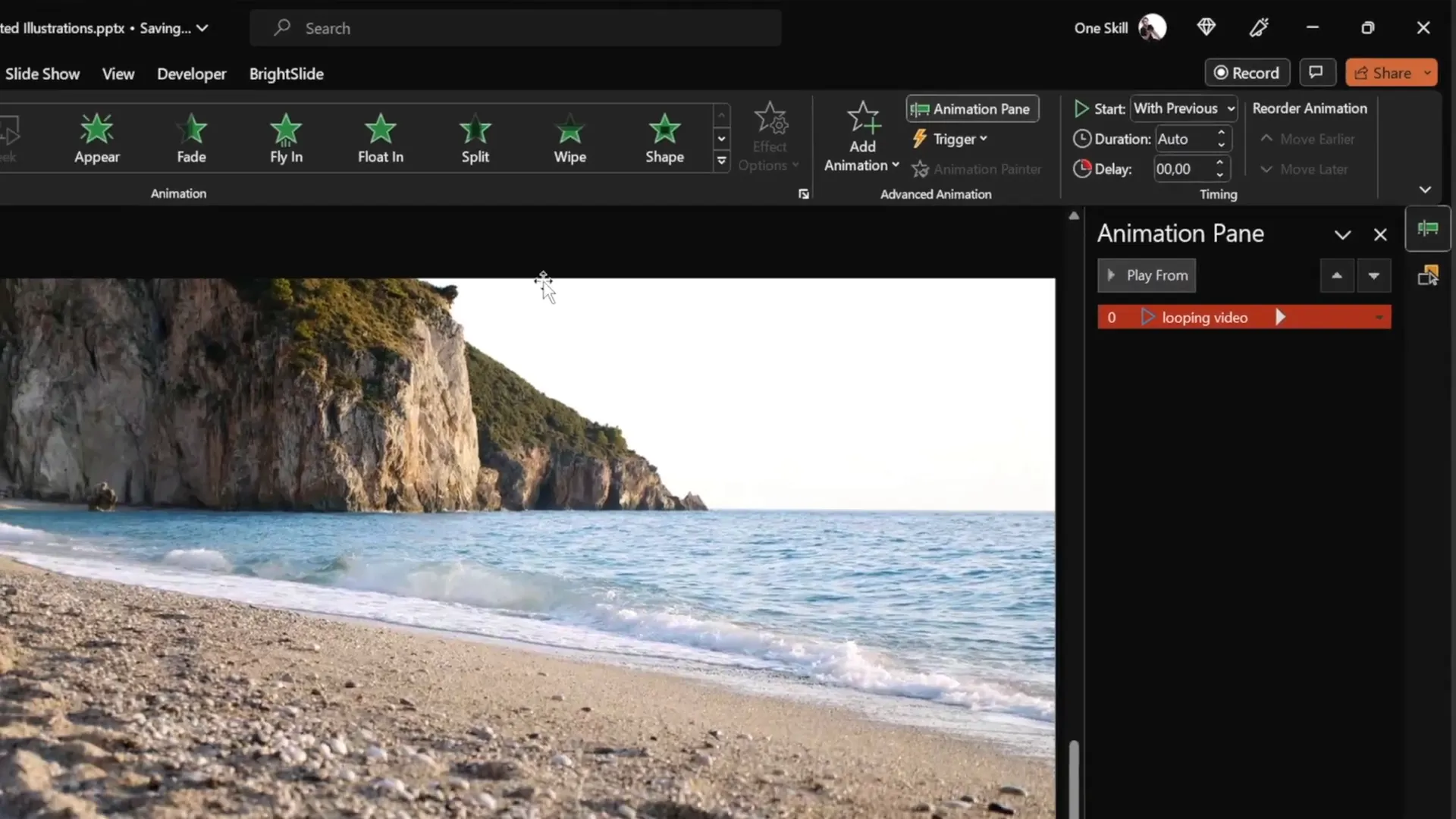
The first step in crafting this animated slide involves setting up a captivating video background that plays automatically and loops continuously. Follow these detailed steps:
- Insert the Video: Download your desired video clip (e.g., a beach scene) and paste it onto a fresh, blank PowerPoint slide.
- Set Video Playback to Automatic: Select the video, then add a Play animation effect. Adjust the animation to start With Previous, ensuring the video plays as soon as the slide loads.
- Enable Looping: Under the video playback options, check the box to loop the video until stopped, so it will play endlessly during your presentation.
- Remove Media Controls: To keep the slide clean, uncheck Show Media Controls in the slideshow options. This hides the video player bar at the bottom.
- Disable Video Click Reset: To prevent the video from restarting when clicked, insert a transparent rectangle shape covering the entire slide. Remove its outline and set its fill transparency to 100%. This shape acts as a click-blocker while remaining invisible.
Once these settings are applied, your video background will play smoothly, looping without interruption, and without visible controls or accidental resets.
Animating Wavy Text for Slide Titles
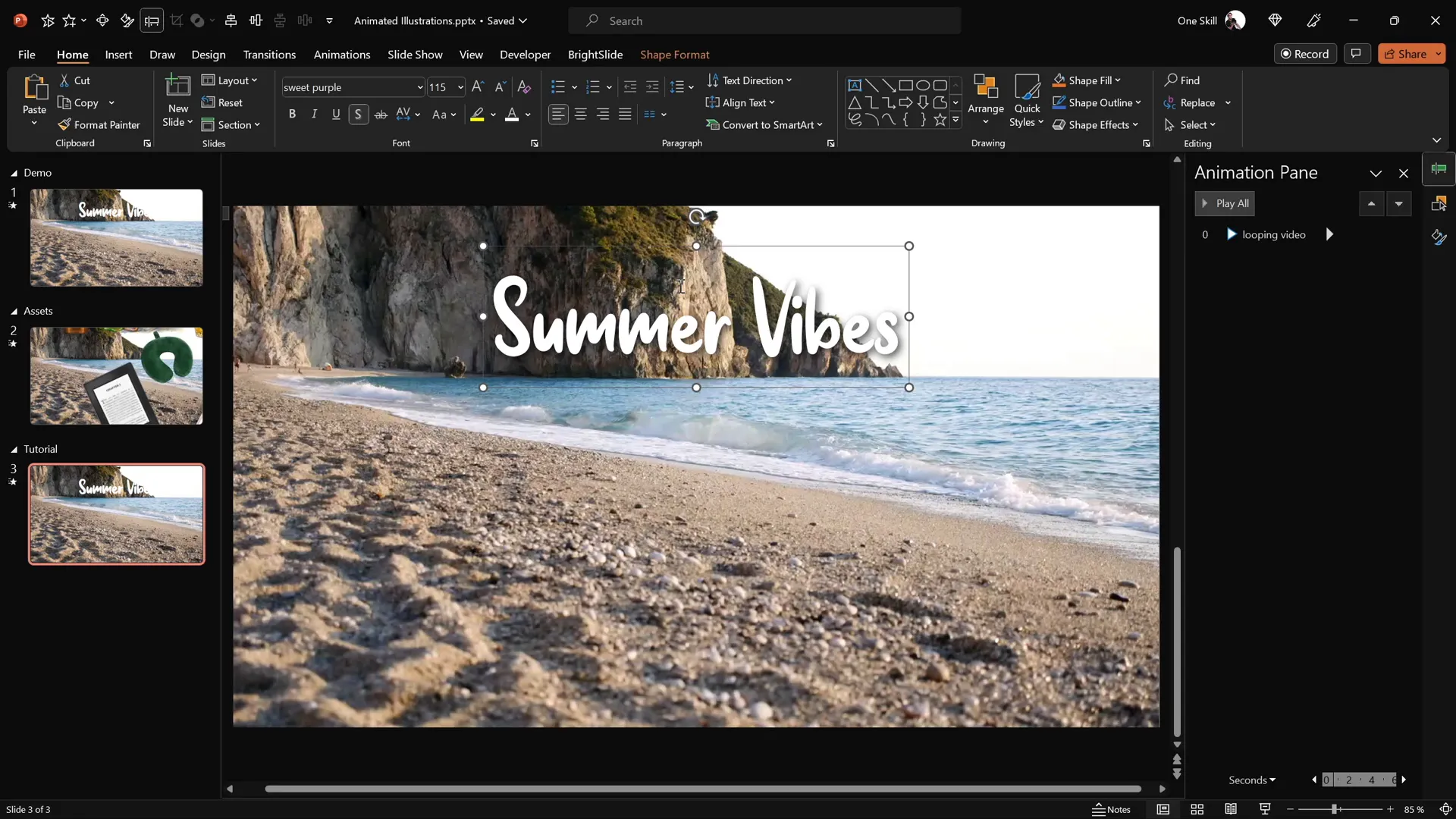
Next, add an animated title with a visually appealing wavy effect that complements the summer theme. This effect is achieved through a combination of entrance and text animations:
- Insert the Text Box: Use a stylish font like Sweet Purple (font size 115 recommended) to create your slide title. Place it centrally, just above the animated video background.
- Add Basic Zoom Entrance Animation: In the animations pane, add the Basic Zoom entrance effect. Set this animation to start On Click with a duration of 0.5 seconds. Animate the text by each letter with a 10% delay between letters for a staggered zoom-in effect.
- Add Wave Text Animation: Add a second animation, the Wave effect, to the same text box. Set it to start With Previous, with a duration of 2 seconds, and animate by letter with a 5% delay. In the timing tab, set this animation to repeat until the end of the slide, creating a continuous wavy motion.
- Customize Wave Height: You can adjust the wave height for a more or less pronounced effect, but the default setting works well for a smooth, natural wave.
This combination results in a dynamic title that zooms in letter by letter and then gently waves, adding a lively and creative flair to your presentation.
Adding and Looping Summer Illustrations
To further enhance the slide, you can animate the summer-themed illustrations to float or move around the slide in a looping motion. Here is how to do it:
Step 1: Select and Place Illustrations
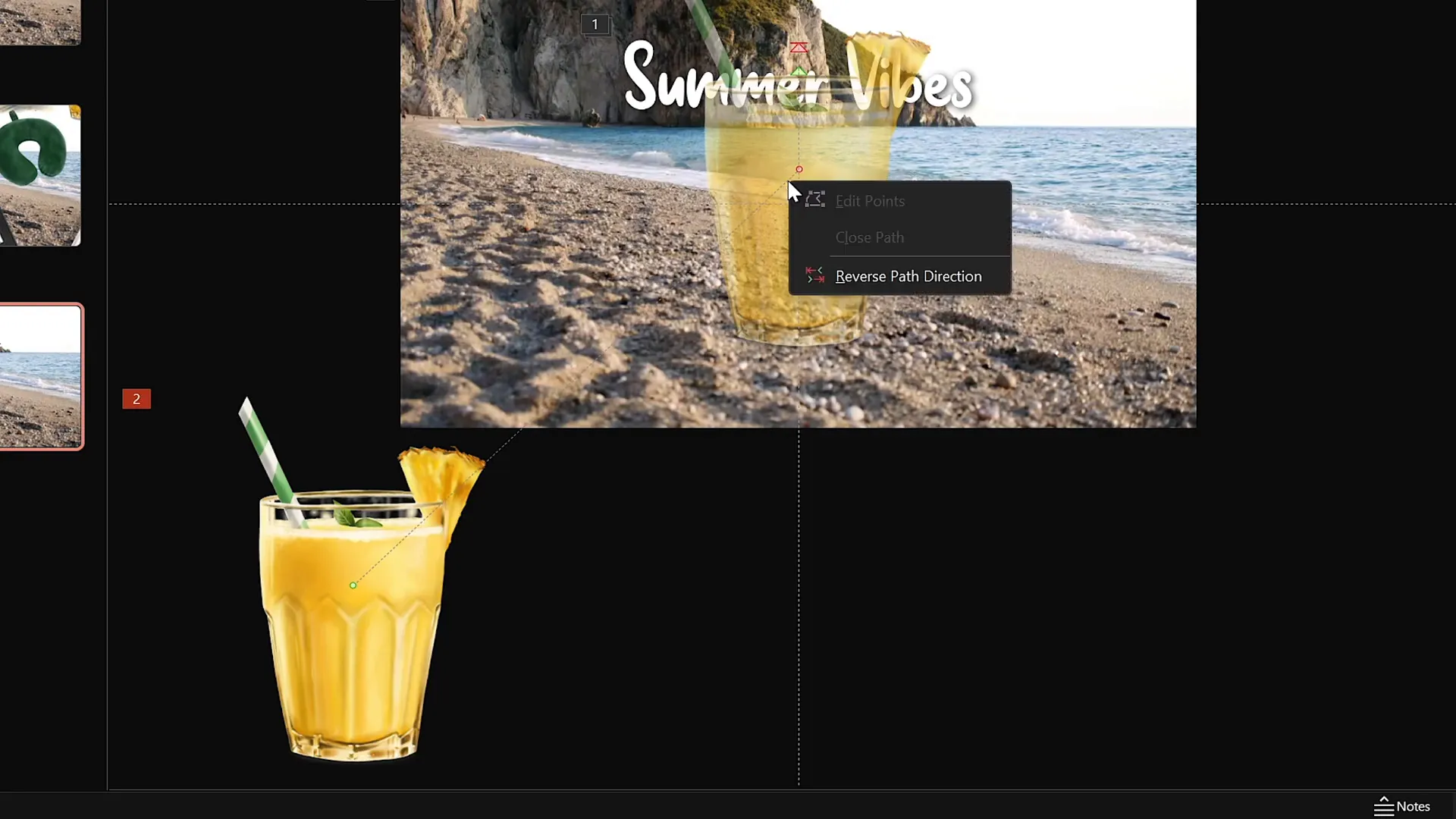
Choose any illustration you want to animate, for example, a cocktail glass. Copy and paste it onto your slide, positioning it at the bottom left corner or any preferred location.
Step 2: Add Motion Path Animation
- With the illustration selected, add a Motion Path – Line animation.
- Adjust the ending point of the path to a new position, such as just above the center of the slide.
- Reverse the path so that the animation starts from the center and moves to the original position.
- Set the animation to start With Previous, with a duration of 4 seconds.
- Apply a smooth start effect for a natural motion.
- Set the animation to repeat until the end of the slide, creating a continuous looping motion.
Step 3: Add Zoom Entrance Animation
To make the illustration grow gradually as it moves, add a Basic Zoom entrance animation starting With Previous and lasting 4 seconds. This animation should be set to repeat until the slide ends, synchronized with the motion path.
Step 4: Duplicate and Adjust for Multiple Illustrations
- Copy other illustrations, such as an umbrella, sunscreen bottle, or hat, and paste them onto the slide.
- Use the Animation Painter tool to quickly apply the same animations to these new illustrations.
- Adjust the starting positions of their motion paths to the slide center for uniformity.
- Add staggered delays (e.g., 1 second, 2 seconds, 3 seconds) to each set of animations to avoid simultaneous movement and create a pleasing visual rhythm.
- Use the Selection Pane to layer the illustrations properly, ensuring they don’t visually overlap awkwardly.
This method allows you to create an engaging scene where summer icons gently float and loop around the slide, complementing your animated title and video background.
Advanced Animation Tips and Tricks
To make your animations look polished and professional, consider the following tips:
| Tip | Description | Benefit |
|---|---|---|
| Use Transparent Shapes to Block Clicks | Insert a fully transparent rectangle over the video to prevent accidental resets when clicking. | Ensures smooth playback without interruptions during presentations. |
| Stagger Animation Delays | Apply incremental delays to animations on different objects. | Creates a natural, engaging flow rather than all elements moving simultaneously. |
| Loop Animations Until End of Slide | Set animations to repeat continuously until the slide changes. | Maintains dynamic movement for the entire duration of the slide. |
| Use Animation Painter | Copy animations from one object and apply them to others quickly. | Saves time and ensures consistent animation styles. |
| Layer Objects Properly | Use the Selection Pane to arrange objects in front or behind others. | Prevents visual clutter and overlapping issues. |
Additional Notes on Fonts and Styles
The font used for the title, Sweet Purple, is ideal for adding a playful, summery vibe. It’s freely available online and pairs well with the hand-drawn illustrations.
Remember to keep font sizes large enough for visibility (font size 115 was used here) and choose colors that contrast well with the video background for readability.

Performance Considerations
Animations and videos can sometimes affect presentation performance. To ensure smooth playback:
- Use optimized video files (compressed formats without losing quality).
- Avoid excessive simultaneous animations.
- Test your presentation on the actual device you will present on.
Wrapping Up and Final Thoughts
Congratulations! You’ve now learned how to create a vibrant, looping sticker animation slide in PowerPoint using video backgrounds, motion path animations, and text effects. These Powerpoint presentation skills not only help you craft visually captivating slides but also allow you to engage and impress your audience effectively.
Thanks to the creative contributions of talented digital artists like Raminta, and resources like Artlist.io for video footage, it’s easier than ever to access high-quality assets to enhance your presentations.
Keep experimenting with different illustrations, animations, and text effects to develop your unique presentation style. The techniques covered here are versatile and can be adapted for various themes beyond summer—think travel, business, education, or any topic you want to bring to life.
Remember, the key to a great PowerPoint presentation lies in the balance between content, design, and delivery. Use these animation tips as tools to support your storytelling and keep your audience engaged from start to finish.

Frequently Asked Questions (FAQ)
1. What version of PowerPoint is required to create these animations?
This tutorial uses Microsoft PowerPoint 365, which includes advanced animation and video playback features. While some effects may work in earlier versions, PowerPoint 365 offers the smoothest experience for these techniques.
2. Can I use different illustrations or themes besides summer?
Absolutely! The animation techniques demonstrated here are adaptable to any theme. Just replace the summer illustrations with assets that fit your topic, and adjust colors and fonts accordingly.
3. How do I find and use free or affordable illustrations?
Platforms like Etsy, Creative Market, and free resource sites offer a variety of hand-drawn and professional illustrations. Always check licensing terms. For this tutorial, the summer illustrations were created by Raminta and are available on Etsy at affordable prices.
4. How can I make my animations run smoothly during a live presentation?
Optimize your video and image files to reduce file size, avoid overlapping too many animations at once, and test your presentation on the device you will use. Also, ensure your computer has sufficient processing power to handle multimedia content.
5. Is it possible to loop animations indefinitely in PowerPoint?
Yes. In the animation settings, you can set animations to repeat until the end of the slide, effectively looping them indefinitely until you advance to the next slide.
6. Can I customize the height and speed of the wavy text animation?
Yes, you can adjust the wave height and animation duration in the animation options to suit your preferences and the overall design aesthetic.
7. How do I prevent the video background from restarting when clicked?
Insert a transparent rectangle shape that covers the entire slide and set its transparency to 100%. This blocks click interactions with the video, preventing accidental resets.
8. Can I use other fonts besides Sweet Purple?
Definitely. Choose fonts that align with your presentation’s tone and ensure readability. The Sweet Purple font was chosen here for its playful, summery look but feel free to experiment.
9. What are some best practices when layering animated objects?
Use the Selection Pane to organize objects so that important elements appear on top and background elements stay behind. This avoids visual confusion and enhances slide clarity.
10. How do I add delays to animations to stagger their start times?
In the animation pane, select the animation, then adjust the Delay setting to stagger the timing. This creates a more natural, less cluttered animation sequence.
Check out the full video: PowerPoint Presentation Skills: Looping Sticker Animation! ✨







