
Creating impactful PowerPoint presentations is an essential skill whether you’re presenting to your team, pitching to management, or consulting clients. However, many of us struggle to make slides that truly support our message without overwhelming or confusing our audience. Drawing from my own experiences and mistakes, I want to share three crucial tips that have helped me transform my presentations into clear, compelling, and professional communication tools.
These tips revolve around the principles of simplicity, mindful use of acronyms, and balanced branding. By applying them, you can deliver your message more effectively, keep your audience engaged, and appear confident and polished. Let’s dive into these strategies in detail.

Table of Contents
- Why Simplicity is the Ultimate Sophistication
- Be Careful with Acronyms: Do They Help or Hurt?
- Branding: Finding the Right Balance
- Putting It All Together: Effective PowerPoint Presentations
- Frequently Asked Questions (FAQ)
- Final Thoughts
Why Simplicity is the Ultimate Sophistication
When it comes to PowerPoint slides, many people mistakenly think that simplicity means sacrificing important details. But nothing could be further from the truth. As Leonardo da Vinci famously said, “Simplicity is the ultimate sophistication.” This is especially true when designing slides to support your presentation.
Your slides are there to help deliver your message — not to serve as a script or a memory aid just for you. Early in my career, I used to bring my slides to meetings as a three-in-one tool: cue cards, handouts, and presentation visuals all rolled into one. I would cram slide after slide full of bullet points to ensure I didn’t forget anything. This resulted in crowded, intimidating slides that overwhelmed my audience.
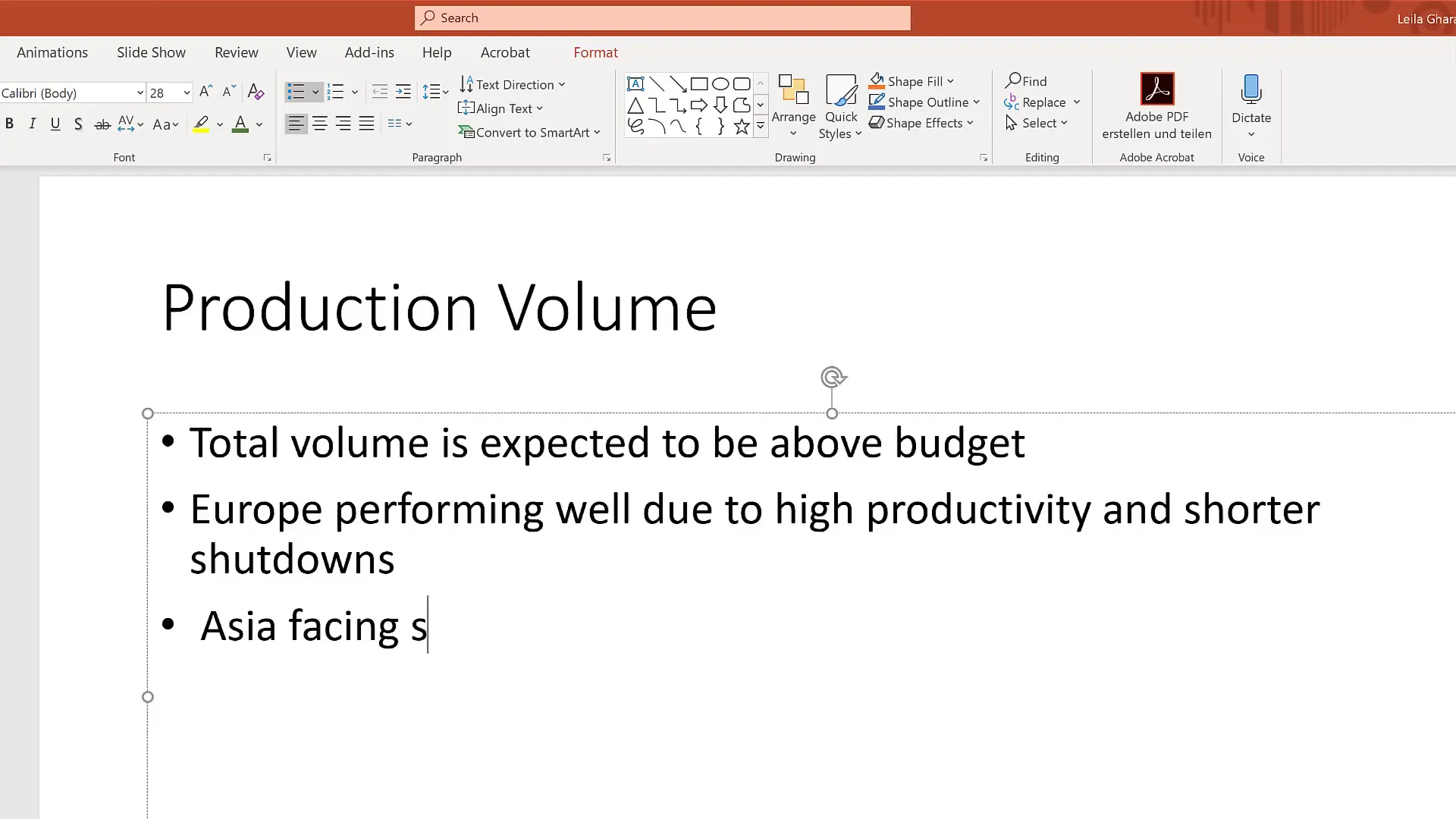
Why is this a problem? Because slides that are too dense distract your audience. Most people can’t read and listen at the same time, so when faced with a wall of text, they zone out, thinking about their dinner plans or the workout they have scheduled later — definitely not what you want during your presentation!
One complicated slide takes the same amount of time to present as three simple slides. The difference is pacing. Simple slides allow you to deliver information in manageable chunks, in the order your audience needs to understand it. Complex slides confuse and distract, while simple ones keep your audience focused and engaged.
To illustrate this, I now bring three separate items to important meetings:
- Cue cards: These help me remember my key points without reading directly from the slides.
- Slides: These contain only the most important points to help my audience follow along and retain information.
- Detailed handouts: For those who want to dive deeper, I provide handouts with all the supporting details.
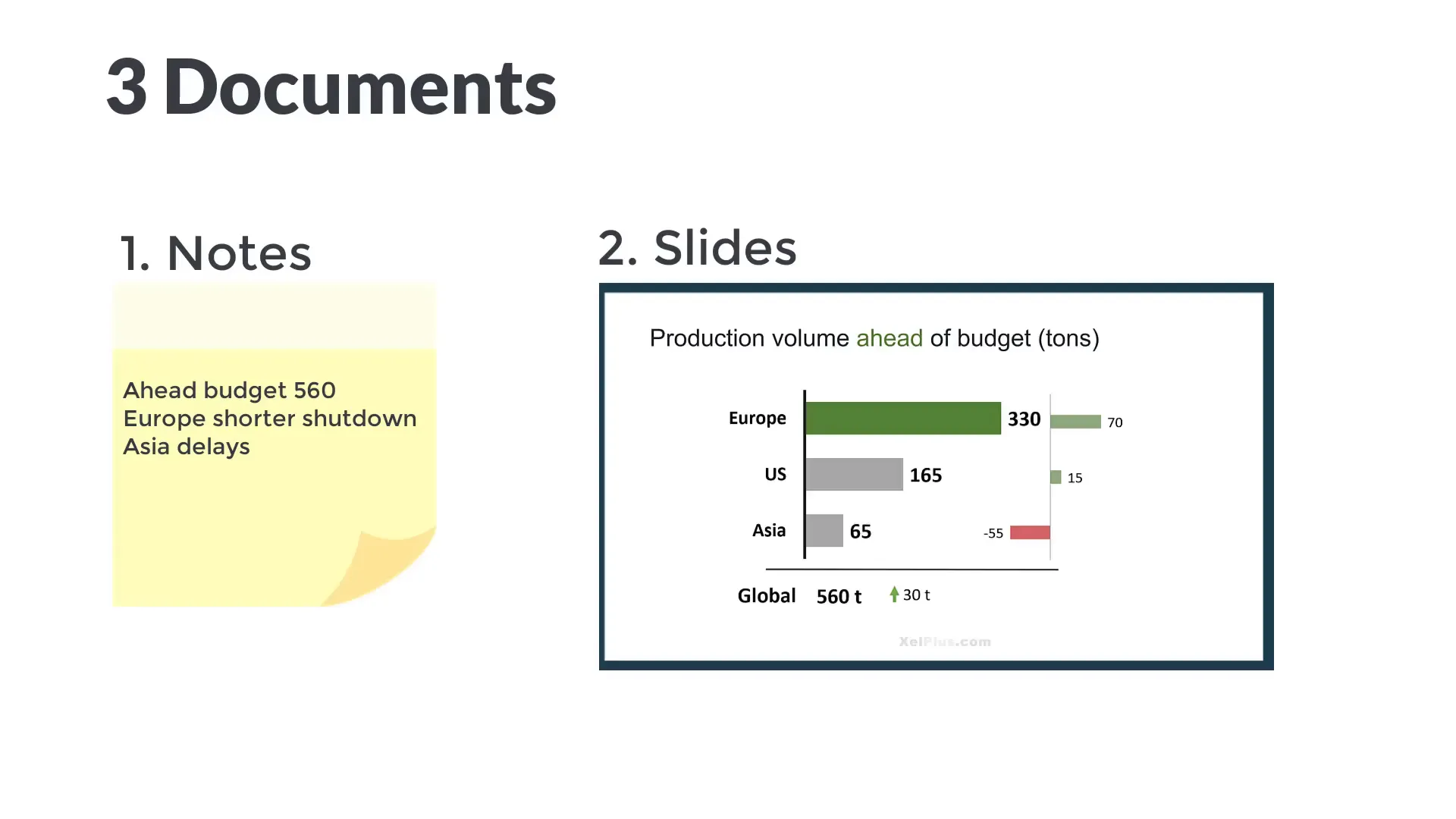
This approach ensures my slides are clear and uncluttered, making it easier for people to stay with me throughout the presentation. If you want to test whether your slides are simple enough, try this: give your PowerPoint file to a friend or colleague and ask them to press next, next, next during your meeting without you speaking. If the slides alone make perfect sense and tell the whole story, they are probably serving as handouts, not presentation slides.
Your slides shouldn’t make sense without you. They are meant to support your spoken words, not replace them.
How to Simplify Your Slides Effectively
Simplifying your slides doesn’t mean stripping away all content. Instead, focus on the essentials and organize your points into digestible pieces. Here are some practical tips:
- Limit bullet points: Try to keep no more than three to five bullet points per slide.
- Use visuals: Incorporate charts, images, or icons to convey ideas quickly and visually.
- Break complex ideas into multiple slides: Instead of one crowded slide, use several simple slides to guide your audience step-by-step.
- Choose readable fonts and sizes: Avoid tiny fonts or overly decorative styles that make text hard to read.
- Use consistent formatting: Keep your slide layouts uniform to avoid distracting your audience.
By making these changes, you’ll find your audience more engaged and your message clearer.

Be Careful with Acronyms: Do They Help or Hurt?
Acronyms are a double-edged sword. On one hand, they can save time and space on your slides. On the other hand, they can confuse, exclude, or even offend if your audience doesn’t understand them.
For example, if you’re in a finance meeting and say, “Let’s take a look at the BS you’ve been working on,” most will understand you mean the balance sheet. But not everyone may find this abbreviation clear or professional, especially if people from different backgrounds or departments are present.

During a project I worked on involving an Oracle group finance consolidation system, we had to create the backbone structure called metadata. One of the tasks was setting up different hierarchies for our company structure, each with code names that were short, had no spaces, and sometimes included numbers. For example, we had “ANAL Europe” and “ANAL America” to represent analysis structures for European and American companies.
While convenient internally, these abbreviations were not intuitive for everyone. This experience taught me that some words should never be shortened or replaced by acronyms, especially when presenting to a mixed audience.
Guidelines for Using Acronyms in Presentations
- Define acronyms clearly: The first time you use an acronym, spell it out fully and explain what it means.
- Use acronyms sparingly: Only use them when they are widely recognized or when they save significant time or space.
- Include acronyms in handouts: Provide a glossary or explanation in your detailed handouts so your audience can refer to it later.
- Be mindful of your audience: Avoid acronyms that might exclude or confuse people unfamiliar with the terms.
By being thoughtful about acronyms, you ensure your presentation is inclusive and professional, helping everyone stay on the same page.


Branding: Finding the Right Balance
Branding your presentation can add professionalism and recognition, but it’s easy to go overboard. In my early days, I used to put my company’s logo on every single slide, prominently displayed at the top. I thought this was the professional thing to do and that it reinforced brand identity.
However, when I started creating simpler slides with more white space, the logo suddenly looked huge and distracting. It drew attention away from the content because there was so little else on the slide to balance it out.
This made me rethink my approach. Now, I only include the logo on the first and last slides, where it makes sense as part of the introduction and conclusion. If you’re worried about protecting your content from unauthorized use, a small, light watermark in the footer is a subtle way to keep your branding without overwhelming your slides.
Tips for Balanced Branding in Presentations
- Limit logo placement: Use your logo sparingly—on the title slide, closing slide, and optionally as a small footer watermark.
- Maintain visual hierarchy: Make sure branding elements don’t compete with your main message or distract your audience.
- Match branding to slide design: Adjust logo size and placement based on how much content is on the slide.
- Use consistent brand colors and fonts: This helps reinforce your brand identity without overpowering the content.
When done thoughtfully, branding enhances your presentation’s professionalism without cluttering your slides or distracting your audience.

Putting It All Together: Effective PowerPoint Presentations
By focusing on simplicity, mindful use of acronyms, and balanced branding, you can significantly improve the quality and impact of your presentations. Here’s a quick recap:
- Keep slides simple and focused. Use them to support your spoken message, not replace it. Break complex ideas into multiple slides and avoid overcrowding.
- Use acronyms carefully. Define them clearly and sparingly to avoid confusion and exclusion.
- Brand with balance. Limit logos and branding elements to avoid distraction, placing them thoughtfully where they add value.
These tips are applicable to all versions of PowerPoint and can help you communicate more effectively in any professional setting. Whether you’re presenting internally to your team or pitching to a client, applying these principles will help you deliver your message with clarity and confidence.
Frequently Asked Questions (FAQ)
Why shouldn’t my slides make sense without me?
Your slides are designed to complement your spoken words, not replace them. If the slides tell the whole story without you, your audience might not listen to you and instead just read the slides. This reduces engagement and impact.
How many bullet points should I have per slide?
Ideally, keep it between three and five bullet points per slide. This ensures your slides remain clear and easy to read, helping your audience focus on the key messages.
Can I use acronyms if my audience is familiar with them?
Yes, but it’s still a good idea to define acronyms the first time you use them to ensure clarity and professionalism. Even familiar audiences appreciate clear communication.
What if my company requires logos on every slide?
If branding guidelines require logos on every slide, try to minimize their size and opacity so they don’t distract from your content. Consider discussing with your branding team about more subtle options like small watermarks.
How can I test if my slides are effective?
Give your slides to someone who hasn’t seen your presentation and ask them to click through while you are not present. If the slides alone make complete sense, they are probably too detailed. Aim for slides that enhance your talk, not replace it.
Final Thoughts
Effective presentations are a blend of clear communication, audience engagement, and professional design. By embracing simplicity, being considerate with acronyms, and balancing branding, you can elevate your PowerPoint skills and present with confidence.
Remember, your slides are a tool to support your message—not a script or a handout. Keep them clean, concise, and visually appealing to maintain your audience’s attention and help them absorb your key points.
What challenges do you face when creating PowerPoint presentations? Feel free to share your experiences or questions in the comments below—I’d love to hear from you!
Check out the full video: Present with CONFIDENCE with THESE 3 PowerPoint Tips







