10 AMAZING Things You Can Create with PowerPoint Animations
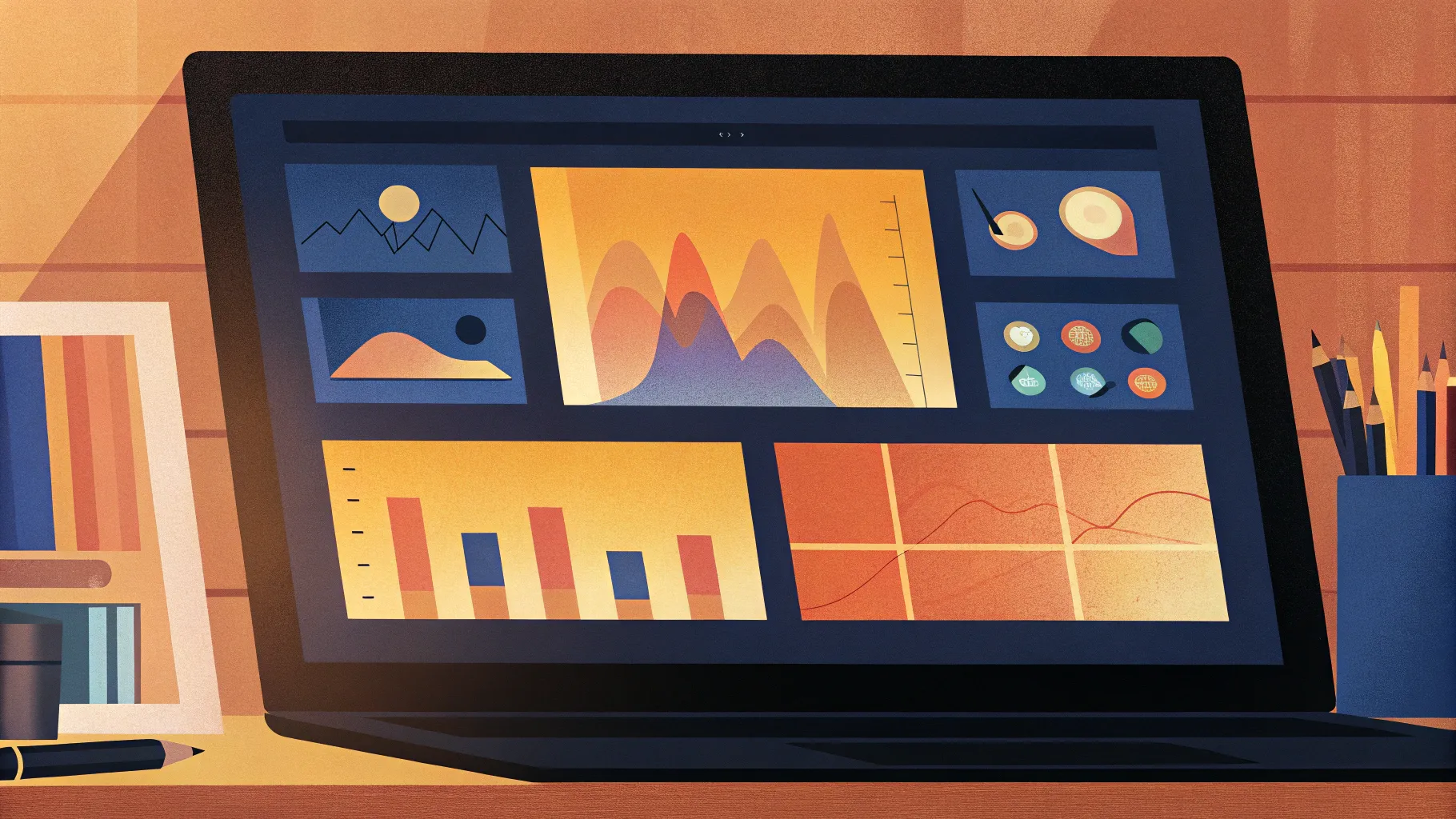
If you think PowerPoint is just for static slides and dull presentations, think again! PowerPoint animations open a world of creative possibilities that go far beyond simple transitions. As someone passionate about pushing PowerPoint to its limits, I’m excited to share with you ten incredible things you can achieve with PowerPoint animations—things that will captivate your audience, make your presentations stand out, and help you tell your story in dynamic, engaging ways.
Whether you’re a beginner or an experienced user, this comprehensive guide will inspire you to explore the vast animation features PowerPoint offers. From animated slide designs to 3D model animations, discover how to transform your presentations into visual masterpieces.
Let’s dive into the fascinating world of PowerPoint animations and explore ten amazing creative ideas you can start working on today!
Table of Contents
- 1. Animated Slide Designs
- 2. Photo and Video Animations
- 3. Impressive Text Animations
- 4. Animated Charts
- 5. Animated Illustrations
- 6. Video Intros
- 7. Interactive Presentations
- 8. Dynamic Navigation with Animation
- 9. Explainer Videos
- 10. 3D Model Animations
- Frequently Asked Questions
- Conclusion
1. Animated Slide Designs
Many people assume PowerPoint presentations are inherently boring, but that couldn’t be further from the truth. By harnessing the full range of PowerPoint’s animation tools, you can create stunning animated slide designs that keep your audience hooked from start to finish.
There are two main ways to add animation to your slides:
- Slide Transitions: These animate the entire slide as you move from one to another, adding smooth or dramatic effects to maintain flow.
- Element Animations: Animate individual objects on a slide, such as text boxes, images, shapes, or icons. You can apply entrance, emphasis, or exit animations to control how and when elements appear, move, or disappear.
By combining these options thoughtfully, you can design animated slides that feel professional and engaging rather than distracting or gimmicky.
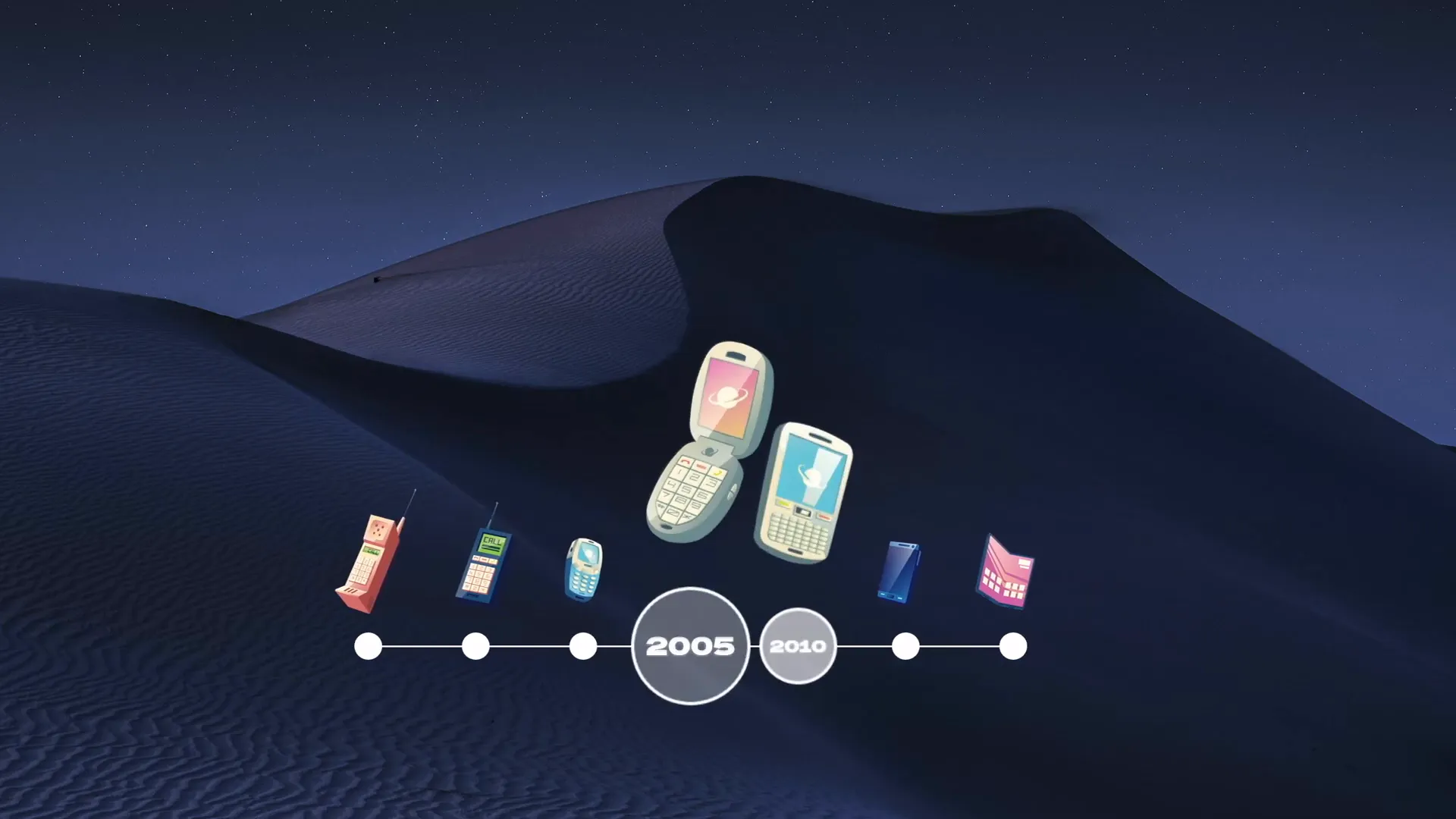
For example, animated timelines, custom slide transitions, and clickable slide designs can dramatically elevate the storytelling aspect of your presentation. These techniques allow you to pace your content delivery and build anticipation, making your message more memorable.
2. Photo and Video Animations
PowerPoint is not just for static photos or videos—it can animate them in creative ways to enhance your storytelling. Whether you want simple fade-ins or complex motion effects, photo and video animations add a layer of polish and professionalism to your presentations.
You can animate photos and videos to:
- Create zoom effects that draw attention to specific details.
- Simulate pen or drawing animations to illustrate points dynamically.
- Apply masking or morphing transitions between images or video clips.
- Loop videos seamlessly for background effects.
These animations help you tell your story visually and emotionally, keeping the audience interested and connected to your message.

For those interested in mastering these advanced animation techniques, there are detailed tutorials available covering pen animation, TV animation, infinite zooms, animated building posters, and circular morph transitions. These tutorials can help you take your photo and video animations to the next level.
3. Impressive Text Animations
Text doesn’t have to be dull or static. With PowerPoint animations, your text can come alive and make a lasting impression. Whether it’s rolling 3D text effects, golden shimmering text, folding animations, or auto-filling effects, animated text grabs attention and emphasizes key points.
Some popular text animation effects include:
- Entrance Effects: Such as fade-in, fly-in, or zoom-in to introduce text elegantly.
- Emphasis Effects: Like pulse, spin, or color change to highlight important words.
- Exit Effects: To smoothly remove text as you transition to the next point.
- Text Delay and Staggered Animations: Animate individual letters or words sequentially for dramatic effect.

Using these animations smartly helps your text stand out and supports your verbal message, making your presentation more engaging and memorable.
4. Animated Charts
Animated charts are a powerful way to present data dynamically. Instead of showing a static bar or pie chart, you can animate the chart elements to build your story step by step, making complex information easier to digest.
Custom animations for charts can include:
- Animating bars or slices to grow or appear one by one.
- Using emphasis effects to spotlight specific data points.
- Animating labels and legends to appear in sync with chart elements.
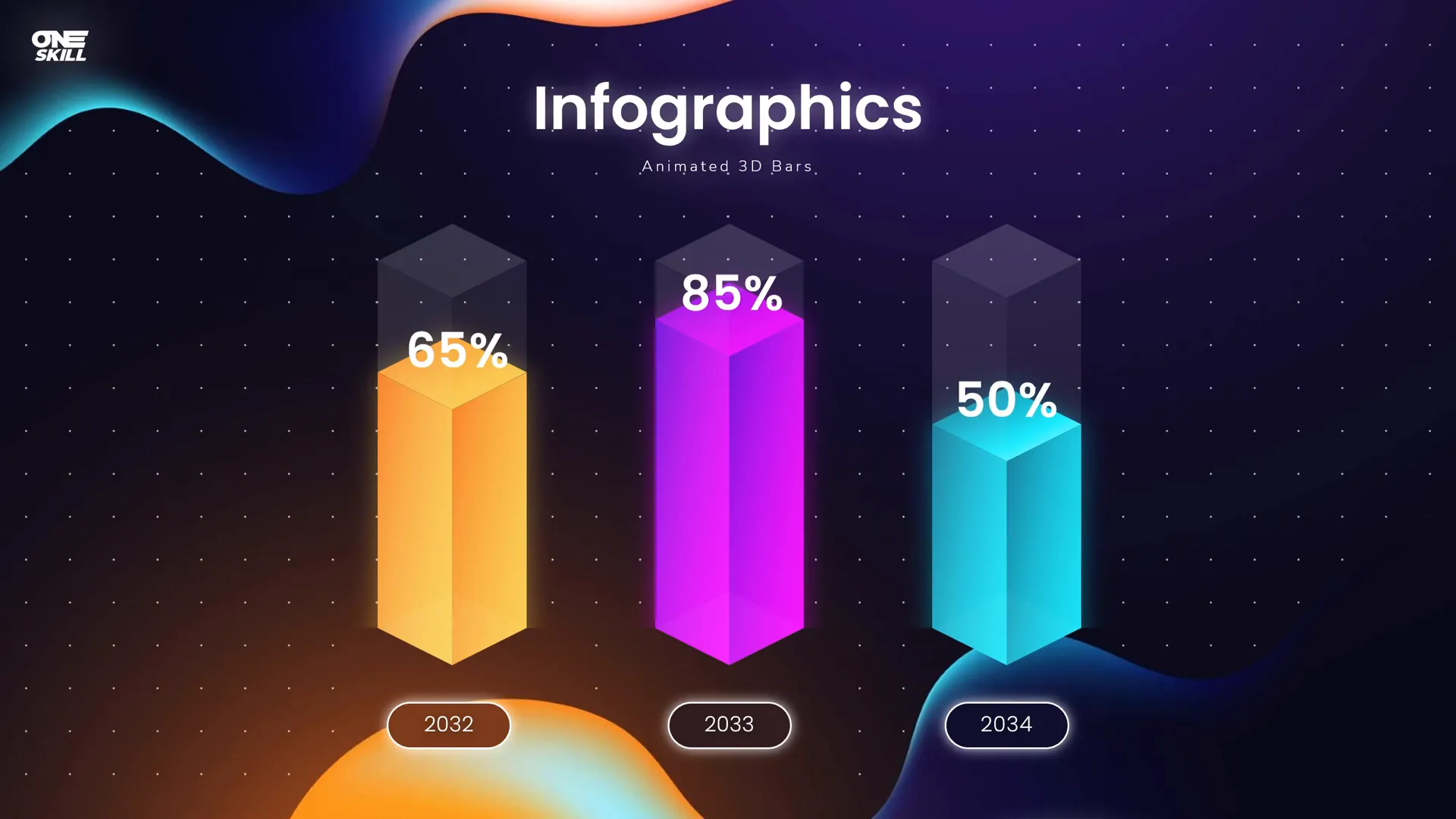
These animations encourage your audience to focus on the relevant data as you discuss it, improving comprehension and retention.
5. Animated Illustrations
Animated illustrations can add a unique dimension to your slides. Whether you’re using simple icons or complex vector art, adding animation breathes life into these visuals, making your slides visually captivating.
Examples of animated illustrations you can create include:
- Moving vehicles like trains, vans, or retro cars.
- Interactive emotion icons that respond to clicks.
- Animated backgrounds or decorative elements that subtly enhance mood.

Animated illustrations not only make your slides more attractive but also help reinforce your message by providing visual cues and storytelling support.
6. Video Intros
Did you know you can create professional video intros right inside PowerPoint? Using animations, you can design captivating intros that add polish to your video presentations or online content.
Some possibilities include:
- Logo animations that introduce your brand dynamically.
- Subscribe animations with moving mouse pointers and clickable buttons.
- Animated text and graphics that set the tone of your video.

These intros can be exported as video files or integrated directly into your presentations, adding a professional touch that grabs attention from the very first second.
7. Interactive Presentations
PowerPoint animations can make your presentations highly interactive, increasing audience engagement and participation. Using animation triggers, you can control when an animation plays—only activating it when a user clicks or hovers over specific elements.

With this technique, you can create:
- Sliding clickable photo galleries: Allowing users to navigate through images with clicks.
- Box hover animations: Animations that activate when hovering over a box or button.
- Hover slide zoom animations: Zoom effects triggered by mouse-over actions that emphasize content.
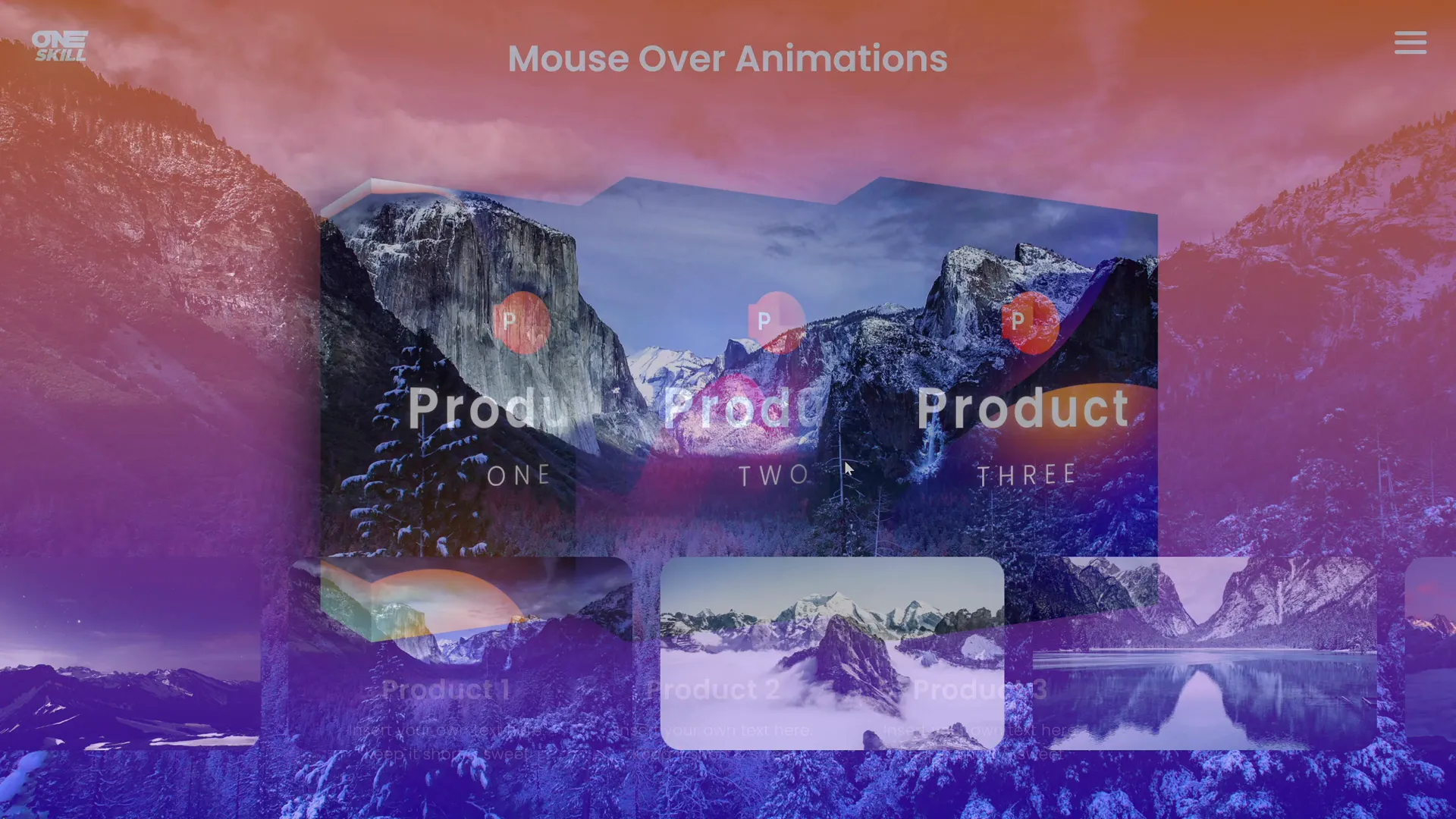
This interactivity opens up endless creative possibilities, letting you design presentations that feel more like apps or websites than traditional slideshows.
8. Dynamic Navigation with Animation
Break free from the linear, slide-by-slide presentation format with dynamic navigation powered by animations. With custom navigation menus and animated slide designs, you can let your audience explore content in any order they choose.
Imagine giving your audience complete control to jump quickly to any slide they want, supported by animated buttons, menus, or icons. This approach is especially useful for sales decks, training materials, or interactive reports.
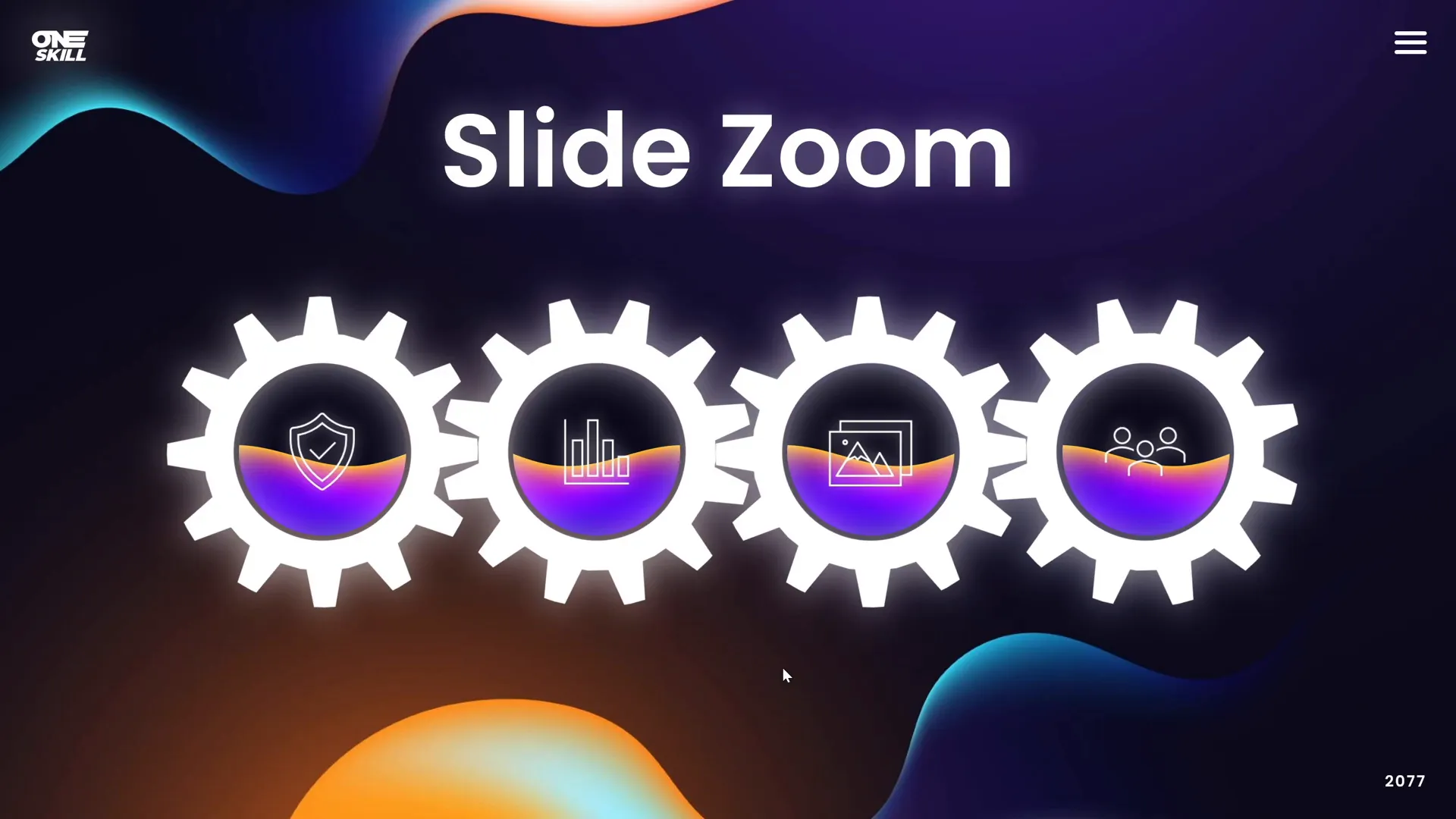
Some popular navigation animations include:
- Spinning slide zoom gears.
- Animated circular menus.
- Pitch deck menus with smooth animated transitions.
These features create a new dynamic experience that keeps your audience engaged and in control.
9. Explainer Videos
PowerPoint is surprisingly powerful for creating explainer videos—especially whiteboard-style animations. Using animation effects, you can simulate hand-drawn visuals and combine them with voiceovers or text to communicate your ideas clearly and effectively.

These explainer videos can cover complex topics in a simple, engaging way, making them perfect for marketing, training, or educational content.
10. 3D Model Animations
One of the most exciting features in modern PowerPoint is support for 3D models and animations. You can insert 3D objects provided by PowerPoint or import your own, then animate them to rotate, zoom, or move on your slides.
3D animations add depth and dimension to your presentations, making them more visually impressive and immersive.
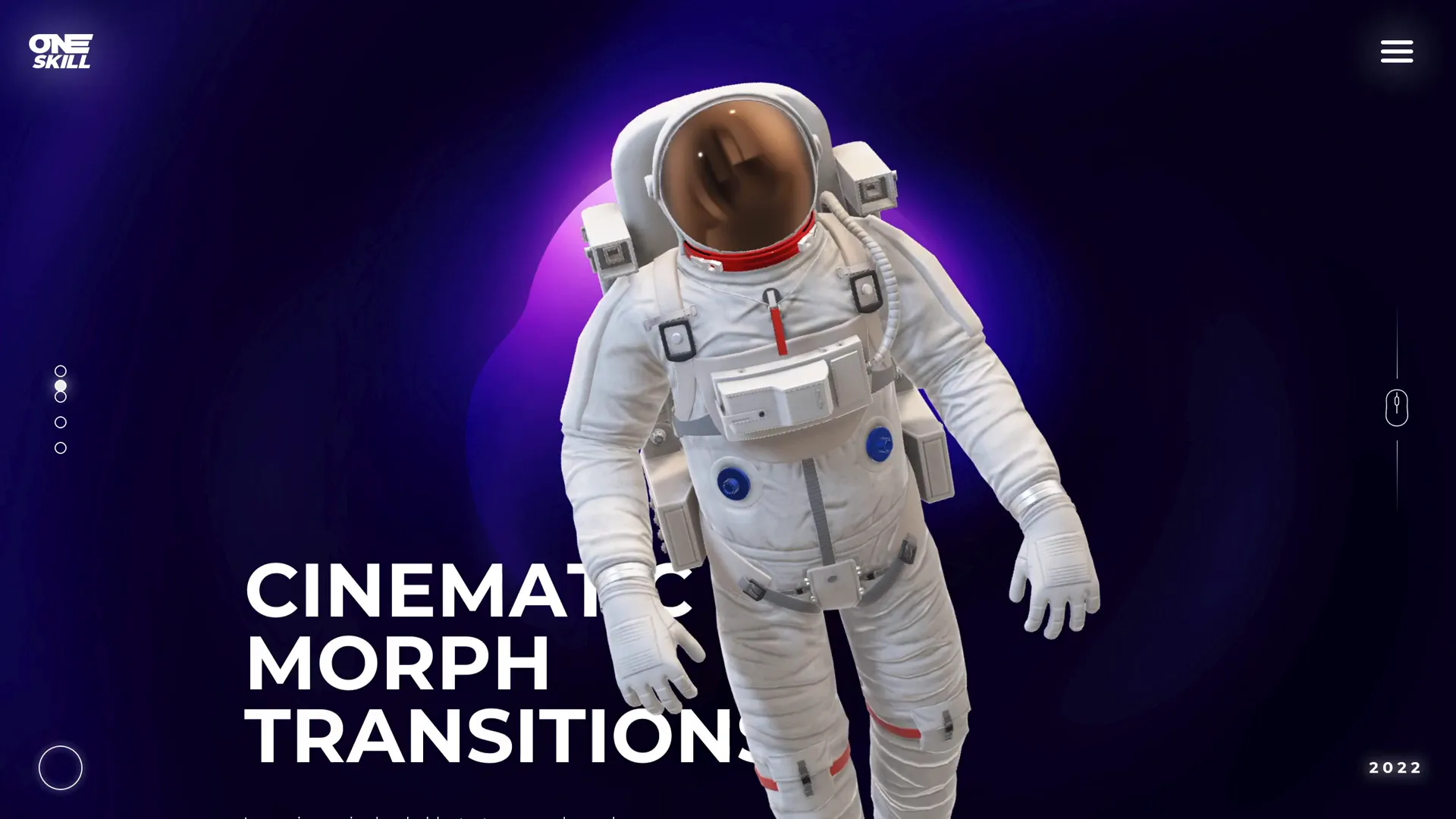
Whether you’re showcasing a product, architectural design, or futuristic concept, 3D model animations help your audience visualize ideas more effectively.
Frequently Asked Questions
What are PowerPoint animations?
PowerPoint animations are effects applied to slide elements—like text, images, charts, and shapes—that control how they appear, move, emphasize, or disappear during a presentation.
Can I create interactive presentations with PowerPoint animations?
Yes! By using animation triggers and linking animations to mouse clicks or hover actions, you can build interactive presentations that respond to user input.
Are advanced animations difficult to create in PowerPoint?
While some animations require practice and patience, PowerPoint offers intuitive tools and tutorials that make it accessible to users of all skill levels. Structured courses and step-by-step guides can accelerate your learning.
Can I export animated PowerPoint slides as videos?
Absolutely. PowerPoint allows you to export presentations as video files, preserving animations and transitions for sharing on platforms like YouTube or social media.
Do I need special software to use 3D model animations in PowerPoint?
No special software is needed. PowerPoint supports inserting and animating 3D models directly within the program. You can use built-in models or import your own 3D files.
Where can I learn more about mastering PowerPoint animations?
There are many free and paid resources online, including detailed tutorials, courses, and communities focused on PowerPoint animation mastery. Structured courses provide step-by-step guidance to become a PowerPoint animation pro.
Conclusion
The world of PowerPoint animations is vast, creative, and full of potential. From animated slide designs to interactive galleries, from explainer videos to 3D model animations, PowerPoint offers tools that let you break out of the ordinary and engage your audience in fresh, dynamic ways.
Don’t settle for boring slides. Instead, embrace the possibilities of animation to make your presentations memorable, effective, and professionally polished. Whether you want to create simple animated text or complex interactive experiences, PowerPoint is more than capable of helping you bring your vision to life.
The time has come to explore and create all of the PowerPoint animations you’ve ever dreamed of. Dive in, experiment, and transform your presentations into captivating stories that stand out and inspire.
Happy animating!
Check out the full video: 10 AMAZING Things Created with PowerPoint ANIMATIONS! 🤩







