
PowerPoint animations have the power to transform a simple presentation into an engaging visual experience that captivates your audience. Whether you’re a designer, business professional, entrepreneur, instructor, speaker, teacher, or student, mastering PowerPoint animations can elevate your presentations to a whole new level. If you’ve ever wished for a comprehensive guide to help you create breathtaking animations in PowerPoint, this article is for you.
In this detailed guide, we’ll walk through everything you need to know to become a PowerPoint animation pro. This step-by-step mastery course is designed to take you from the fundamentals to advanced animation techniques, ensuring you gain the skills to create any animation effect you envision.
Table of Contents
- Introduction to PowerPoint Animation
- Fundamentals of PowerPoint Animation
- Building Your Animation Skills
- Advanced Animation Techniques
- Tools and Software Recommendations
- Course Structure and Learning Support
- Frequently Asked Questions
- Conclusion
Introduction to PowerPoint Animation
Animations in PowerPoint are not just about adding flashy movements to your slides; they are essential tools to guide your audience’s focus, emphasize key points, and make your message memorable. Yet, many users find PowerPoint animations either intimidating or underutilized, often sticking to basic slide transitions or simple fade-ins and fade-outs.
This comprehensive mastery approach is designed to change that. Imagine having the confidence to create subtle yet effective transitions, dynamic text animations, photo and video effects, captivating animated intros, and even animated infographics that tell your story visually. The best part? You don’t need advanced graphic design or video editing software to achieve these results—just PowerPoint and the right techniques.
Creating powerful animations in PowerPoint can be a game-changer for your presentations, whether you’re pitching a business idea, educating students, or delivering a keynote speech. By delving into this mastery course, you’ll gain the skills that many professionals wish they had when they first started their animation journey.

Fundamentals of PowerPoint Animation
Before diving into complex animations, it’s critical to build a strong foundation. The fundamentals of PowerPoint animation include understanding the different types of animations, how to apply them, and how to control their timing and effects.
Types of PowerPoint Animations
- Entrance Animations: These animations control how an object appears on the slide, such as fade-ins, fly-ins, or zooms.
- Emphasis Animations: These highlight an object that is already on the slide, like pulsing, spinning, or changing colors.
- Exit Animations: These control how an object leaves the slide, such as fading out or flying away.
- Motion Paths: These animations move an object along a defined path on the slide.
Applying Animations
Applying animations in PowerPoint is straightforward, but mastering their nuances takes practice:
- Select the object (text, image, shape, etc.) you want to animate.
- Go to the Animations tab on the ribbon.
- Choose an animation effect from the gallery.
- Adjust the timing, duration, and delay to control the flow.
Animation Pane and Timeline
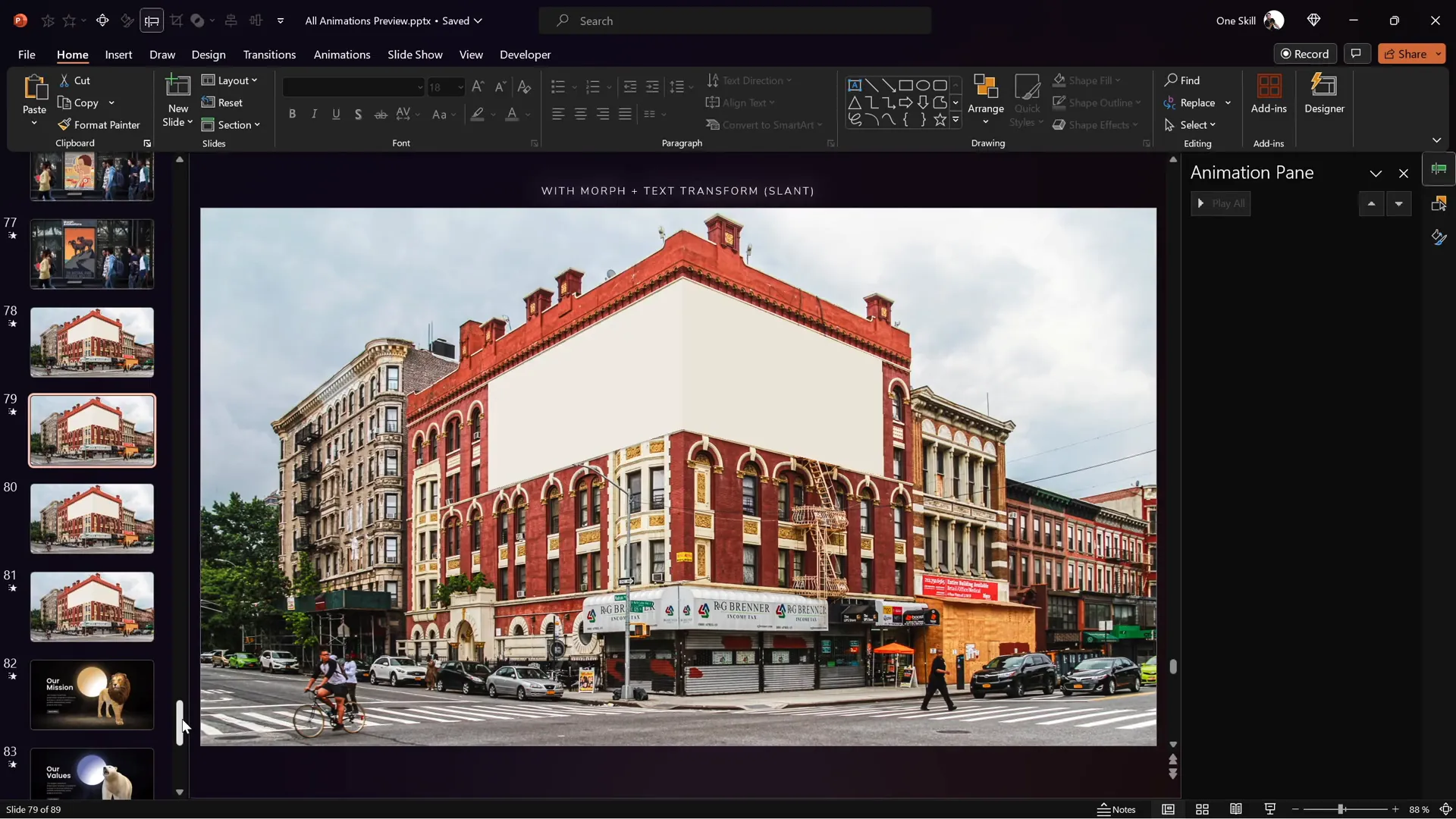
One of the most powerful tools in PowerPoint animation is the Animation Pane. It lets you see all animations on a slide, reorder them, and fine-tune their timing. Understanding how to use this pane effectively is key to creating smooth, professional animations.
Timing and Triggers
Animations can be set to start:
- On Click: Animations start when you click the mouse.
- With Previous: Animations start simultaneously with the previous animation.
- After Previous: Animations start immediately after the previous animation finishes.
Additionally, you can use triggers to start animations on specific actions, such as clicking a particular object, which adds interactivity to your slides.
Building Your Animation Skills
Once you are comfortable with the basics, it’s time to build your skills by exploring various animation types and creative uses.
Animating Text
Text animations can make your message more dynamic and engaging. Some useful techniques include:
- Fade In/Out: Smoothly introduce or remove text.
- Typewriter Effect: Animate text to appear as if it’s being typed.
- Fly In: Text flies onto the slide from a direction.
- Emphasis Effects: Highlight keywords with color changes or scaling.
Animating Photos and Videos
Adding animations to images and videos can help emphasize visual content:
- Zoom In/Out: Draw attention to specific parts of an image.
- Motion Paths: Move photos across the slide.
- Fade Transitions: Smoothly transition between video clips or images.
- Layering: Animate multiple images sequentially for storytelling.
Creating Animated Intros
Begin your presentation with a memorable animated intro to captivate your audience from the start. Techniques include:
- Animated logos using entrance and exit effects.
- Text combined with motion paths for dynamic titles.
- Background animations using subtle fades or zooms.
Animating Illustrations and Infographics
Infographics and illustrations become more impactful when animated:
- Use build animations to reveal data step-by-step.
- Animate chart elements to emphasize trends.
- Draw animations simulate hand-drawn effects to add creativity.

Animating with GIF Images
GIFs are a fun way to add movement without creating complex animations:
- Insert GIFs directly into slides.
- Use GIFs for subtle background movements or icons.
- Combine GIFs with other animations for layered effects.
Advanced Animation Techniques
After mastering the basics and intermediate techniques, you can explore advanced animation strategies to truly stand out.
Using the Advanced Animation Timeline
PowerPoint on Windows offers an advanced animation timeline feature that lets you:
- Precisely control the start and end times of animations.
- Overlap animations for smooth transitions.
- Visualize complex animation sequences.
This timeline is invaluable when creating multi-layered animations or when syncing animations to narration or music.
Custom Motion Paths
Beyond the preset motion paths, you can create custom paths to move objects in unique patterns:

- Draw freeform paths for organic movement.
- Combine motion paths with rotation or scaling.
- Use triggers to start motion paths on demand.
Draw Animations
Draw animations simulate the effect of an object or text being drawn or written on the slide. This technique adds a personal, handcrafted feel to your presentations and is excellent for storytelling or educational content.
Layered Animations and Grouping
Grouping objects and animating them together or in sequence creates complex visual effects:
- Group multiple objects to animate as one.
- Animate groups sequentially for storytelling.
- Use layering to control which objects appear on top during animations.
Tools and Software Recommendations
To get the most out of your PowerPoint animations, having the right software version and platform is crucial.
| Software Version | Recommendation | Notes |
|---|---|---|
| PowerPoint 2019 | Recommended | Supports advanced animation timeline and features |
| PowerPoint 2021 | Recommended | Latest features and updates |
| Microsoft 365 | Recommended | Always up-to-date with newest animation tools |
| PowerPoint on Windows | Highly Recommended | Full animation timeline and better performance |
| PowerPoint on Mac | Supported | Limited animation timeline features compared to Windows |
Using PowerPoint on Windows is highly recommended because it offers the most comprehensive set of animation tools, including the advanced animation timeline. While Mac users can still create animations, some advanced features are exclusive to the Windows version.
Course Structure and Learning Support
To effectively learn PowerPoint animations, a structured approach is essential. The mastery course is designed to progressively build your skills from basics to advanced techniques.
Step-by-Step Learning
- Start with Fundamentals: Understand the basics of PowerPoint animations and how to apply them.
- Build Skills Gradually: Move on to animating text, images, videos, and more complex elements.
- Explore Advanced Animations: Learn to use the animation timeline, custom motion paths, and layered effects.
Supporting Materials
Each chapter includes downloadable lesson slides, allowing you to follow along and practice. This hands-on approach helps reinforce learning and makes your animation journey more interactive.
Community and Assistance
If you encounter questions or challenges, you can post them in the discussion section beside each lesson. Support is provided to ensure you overcome obstacles and continue progressing.
Continuous Updates
The course is regularly updated based on learner feedback. If you want more lessons on specific topics like animated slide design or animated illustrations, your input will help shape future content.
Frequently Asked Questions
Who is this PowerPoint animation course for?
This course is perfect for anyone looking to enhance their PowerPoint presentations with animations. It suits beginners new to PowerPoint as well as more advanced users wanting to refine their skills. Designers, business professionals, entrepreneurs, instructors, speakers, teachers, and students will all find it valuable.
Do I need prior experience with PowerPoint animations?
No prior experience is necessary. The course starts with fundamentals and gradually builds up to more complex techniques, making it accessible to beginners.
What version of PowerPoint do I need?
For the best experience, use PowerPoint 2019, 2021, or Microsoft 365 on Windows. PowerPoint on Mac is supported but lacks some advanced animation features available on Windows.
Can I use this course to create animations for professional presentations?
Absolutely! The skills taught are designed to enhance professional presentations with polished, engaging animations.
Will the course content be updated?
Yes, the course is continually updated based on student feedback to include new lessons and improvements.
Are there any free lessons available?
Yes, some free lessons are available to get you started immediately.
Conclusion
Mastering PowerPoint animations opens a world of possibilities for creating presentations that not only inform but also captivate and inspire your audience. From learning the fundamentals to exploring advanced techniques like custom motion paths and layered animations, you’ll develop the confidence to design any animation you envision.
This mastery course offers a comprehensive, structured approach with downloadable materials, community support, and continuous updates to ensure you stay ahead in your animation skills. Whether you want to animate text, photos, videos, infographics, or create stunning intros, this course equips you with everything you need.
So, why wait? Start your PowerPoint animation journey today, and transform your presentations from ordinary to extraordinary.
Check out the full video: Create PowerPoint Animations Like a PRO 😎✨







