
PowerPoint slide design can be a challenging yet rewarding task, especially when you want to present complex information in a clear, engaging, and visually stunning way. In this article, we explore an exciting slide design challenge where three talented PowerPoint creators — One Skill PPT, Lewis, and Marius — took the same base slide about time travel theories and transformed it into unique, interactive presentations. By diving into their creative process, techniques, and design choices, you’ll gain valuable insights into how to elevate your own PowerPoint slide design skills.
Whether you are a beginner or an experienced presenter, this exploration will inspire you to rethink how you approach slide layouts, animations, interactivity, and multimedia integration in PowerPoint. Let’s jump in and see how these designers brought the fascinating topic of time travel theories to life in just four slides, while adhering to strict rules.
Table of Contents
- The Slide Design Challenge: Rules and Goals
- Breaking Down the Initial Slide: Content and Constraints
- One Skill PPT’s Design Approach: Interactive and Animated
- PowerPoint Design Techniques Used
- Creating Interactive Menus and Navigation
- Using Multimedia to Enhance Learning
- Slide Structure and Transitions: Keeping it to Four Slides
- Key Takeaways for Your PowerPoint Slide Design
- Frequently Asked Questions about PowerPoint Slide Design
- Conclusion
The Slide Design Challenge: Rules and Goals
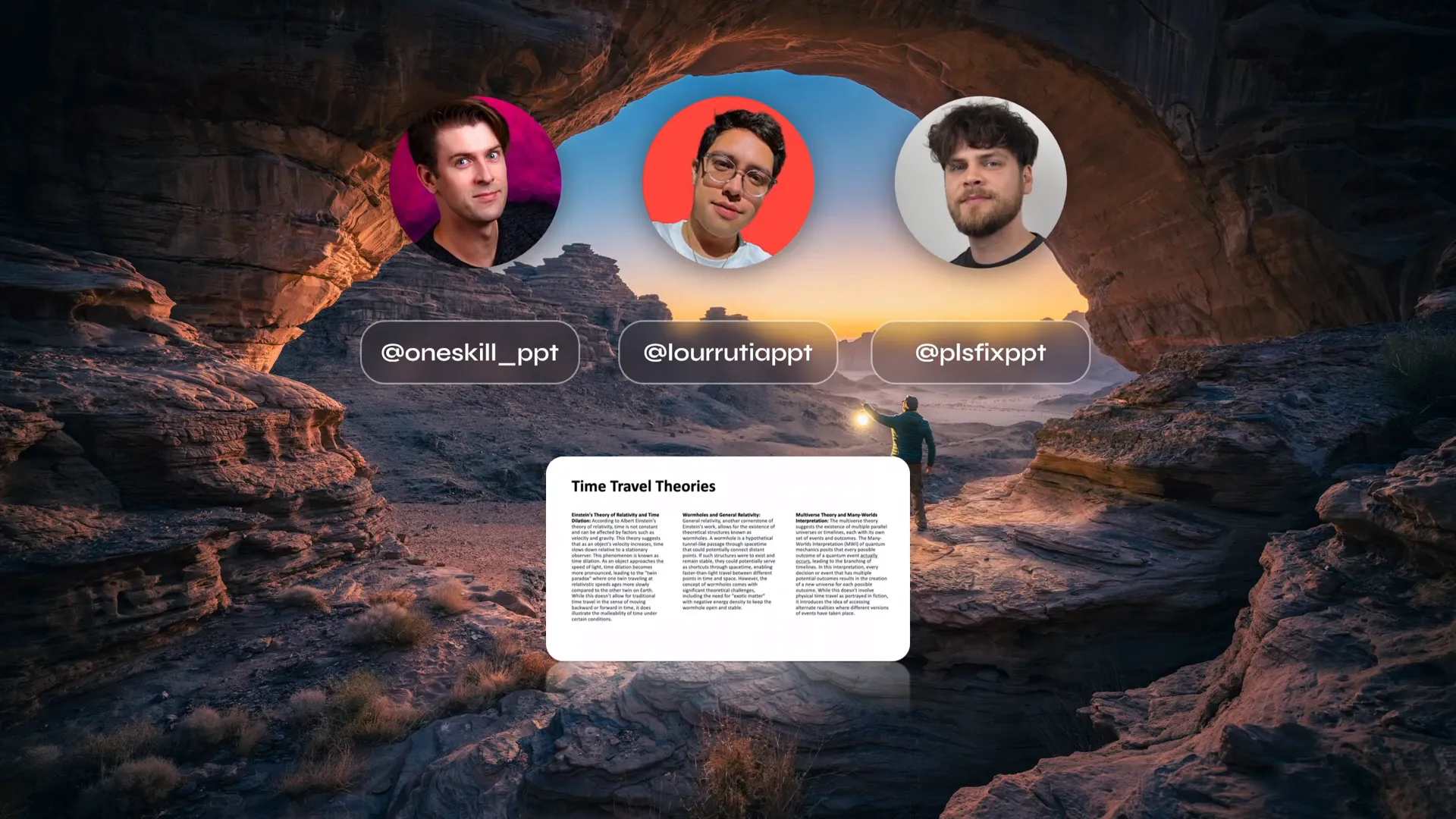
In this creative project, three PowerPoint designers — One Skill PPT (the video’s author), Lewis, and Marius — collaborated on a fun and inspiring slide design challenge. The goal was to take the same original slide about time travel theories and transform it in each creator’s own unique way.
Key rules for the challenge:
- The presentation must have a maximum of four slides.
- All the original text content must be included.
- Designers could use any PowerPoint tools or effects but had to adhere to the slide limit.
This challenge pushed the designers to think critically about how to organize and present dense scientific content — including theories of relativity, wormholes, and the multiverse — in a visually appealing and user-friendly way without overwhelming the audience.
Breaking Down the Initial Slide: Content and Constraints
The original slide provided a lot of text and information about three main time travel theories:
- Relativity and Time Dilation: Based on Albert Einstein’s theory of relativity, where time is affected by velocity and gravity.
- Wormholes and General Relativity: Theoretical structures that allow shortcuts through spacetime.
- Multiverse Theory and Many Worlds Interpretation: The idea of multiple parallel universes or timelines with different outcomes.
Each of these theories had descriptive text explaining the concepts in detail. The challenge was how to fit all this text while keeping the presentation engaging and easy to navigate.
Here’s a summary of the constraints and content considerations:
| Constraint | Details |
|---|---|
| Maximum Slides | 4 slides total for the entire presentation |
| Text Inclusion | All original text content must be included without omission |
| Content Complexity | Scientific theories with technical language and multiple sub-points |
| Interactivity | Optional but encouraged for enhanced engagement |

One Skill PPT’s Design Approach: Interactive and Animated
One Skill PPT’s transformation of the slide was a masterclass in combining interactivity, animation, and multimedia to create a captivating user experience while respecting the four-slide rule.
1. Dividing the Screen Visually
The first slide was divided into three equal vertical sections, each representing one of the three time travel theories. This layout immediately gave viewers a clear visual organization of the content areas.
Each section was made clickable, allowing the user to jump directly to the detailed slide for that theory.

2. Using Animations to Enhance Visual Appeal
One Skill PPT applied various animations to bring the slide to life:
- A highlight effect that follows a rounded rectangle around a section when hovered or clicked.
- Holographic illustrations that float up and down, adding a futuristic, space-themed vibe.
- A scrolling text banner at the top that continuously moves, grabbing attention without distracting.
These animations were designed to be subtle yet engaging, avoiding overwhelming the viewer.
3. Interactive Detail Slides with Audio and Navigation
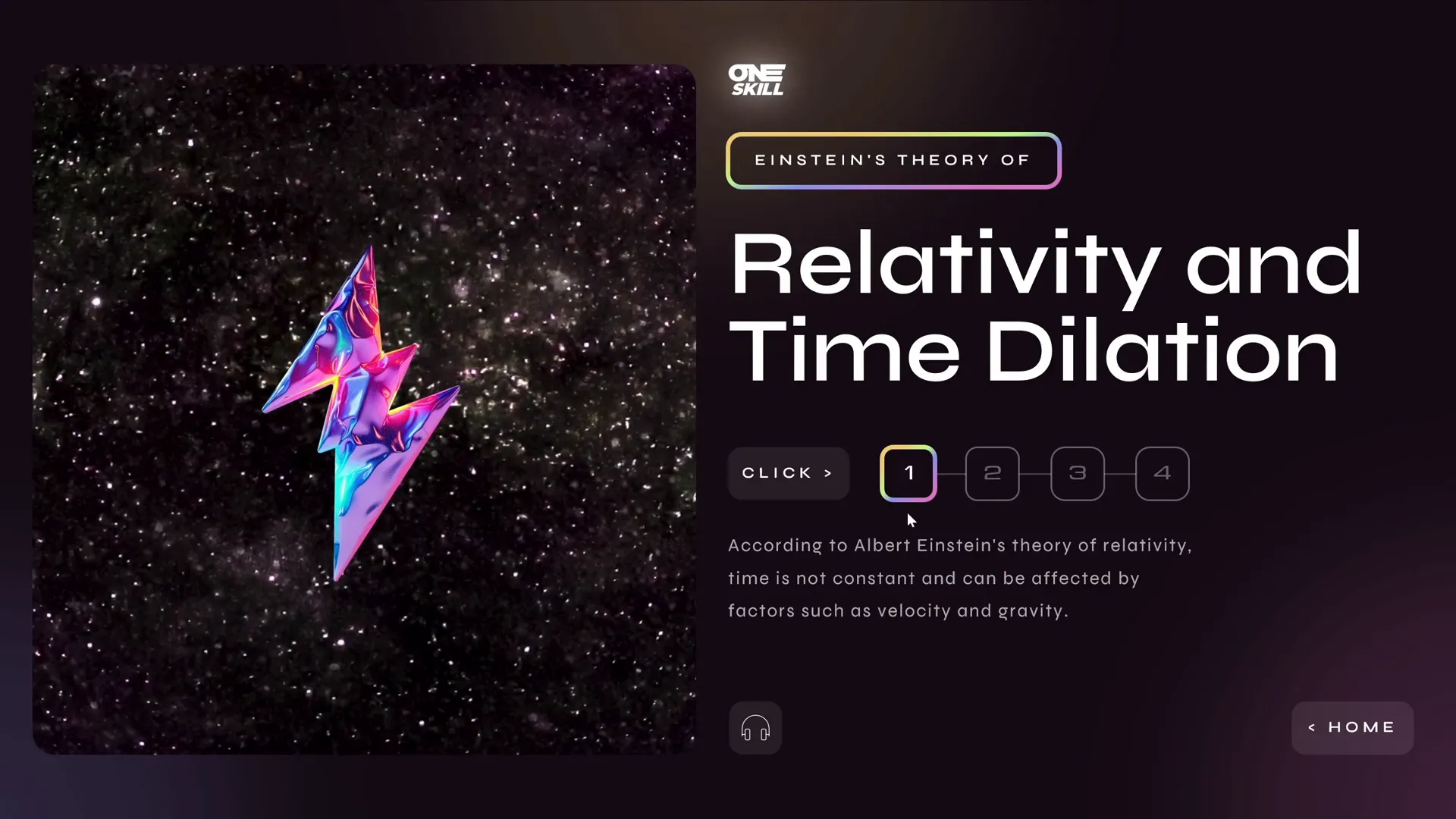
For each of the three theories, One Skill PPT created dedicated slides that broke down the dense text into smaller, manageable passages. A small interactive menu allowed users to navigate between these passages without leaving the slide.
Additionally, an audio button was included that used AI-generated voiceover (via the Eleven Labs tool) to read the text aloud, enhancing accessibility and engagement.
4. Multimedia Integration
Each detailed slide included a holographic illustration that, when clicked, launched a looping video related to the theory. These videos came from Artlist.io and added dynamic visual context to the scientific concepts.
5. Easy Navigation with Home Button
To maintain smooth navigation, a home button was added on each detailed slide, allowing users to return to the starting slide effortlessly.

PowerPoint Design Techniques Used
One Skill PPT used several advanced PowerPoint features and design techniques to achieve the polished final presentation. Understanding these techniques can help you improve your own PowerPoint slide design skills.
1. Dividing Slides Using Shapes and Invisible Hyperlinks
To make the three sections on the first slide clickable, invisible rectangles were placed over each section. These rectangles were hyperlinked to their respective detailed slides, creating an intuitive navigation system.
2. Morph Transition for Seamless Animation
The Morph transition was used between slides to animate elements smoothly. This transition allows objects to move, resize, and change properties fluidly between slides, making the navigation feel natural and visually appealing.
3. Animation Triggers and Entrance/Exit Effects
Creating the interactive text menu involved using animation triggers that controlled which text passages appeared or disappeared. For a polished effect, entrance and exit animations were paired on the same trigger to ensure old content fades out as new content fades in.
4. Kiosk Mode for Controlled Navigation
The presentation was set to browse in kiosk mode, disabling mouse and keyboard clicks for slide advancement. This mode forces navigation through hyperlinks and buttons only, preventing accidental slide changes and keeping the user focused.
5. Use of Holographic Illustrations and Space Videos
The holographic shapes were sourced from the Figma community, while the space-themed videos were obtained from Artlist.io, showing the value of incorporating high-quality external assets to enhance slide design.

Creating Interactive Menus and Navigation
One of the standout features of this PowerPoint slide design was the use of interactive menus to navigate dense text content.
Why Use Interactive Menus?
- Manage Content Density: Breaking down long paragraphs into smaller chunks makes information easier to digest.
- Engage the Audience: Interactive elements encourage active participation rather than passive reading.
- Save Slide Space: Instead of multiple slides for each sub-point, interactive menus keep everything in one slide.
How to Build Interactive Menus in PowerPoint
- Create buttons or shapes for each menu option.
- Assign animation triggers to each button that show/hide corresponding text boxes.
- Pair entrance and exit animations to ensure smooth transitions between text blocks.
- Test navigation flow to confirm intuitive user experience.
By following these steps, you can transform a text-heavy slide into a dynamic exploration of content.
Using Multimedia to Enhance Learning
Integrating multimedia elements such as videos and audio can significantly improve the effectiveness of PowerPoint slide design by catering to different learning styles and adding emotional or contextual layers to the content.
Audio Narration with AI Voiceover
One Skill PPT used the Eleven Labs AI voice generation tool to add audio narration to the text. This approach provides several benefits:
- Supports auditory learners.
- Allows users to listen while reading, reinforcing understanding.
- Improves accessibility for users with reading difficulties.
Looping Videos for Visual Engagement
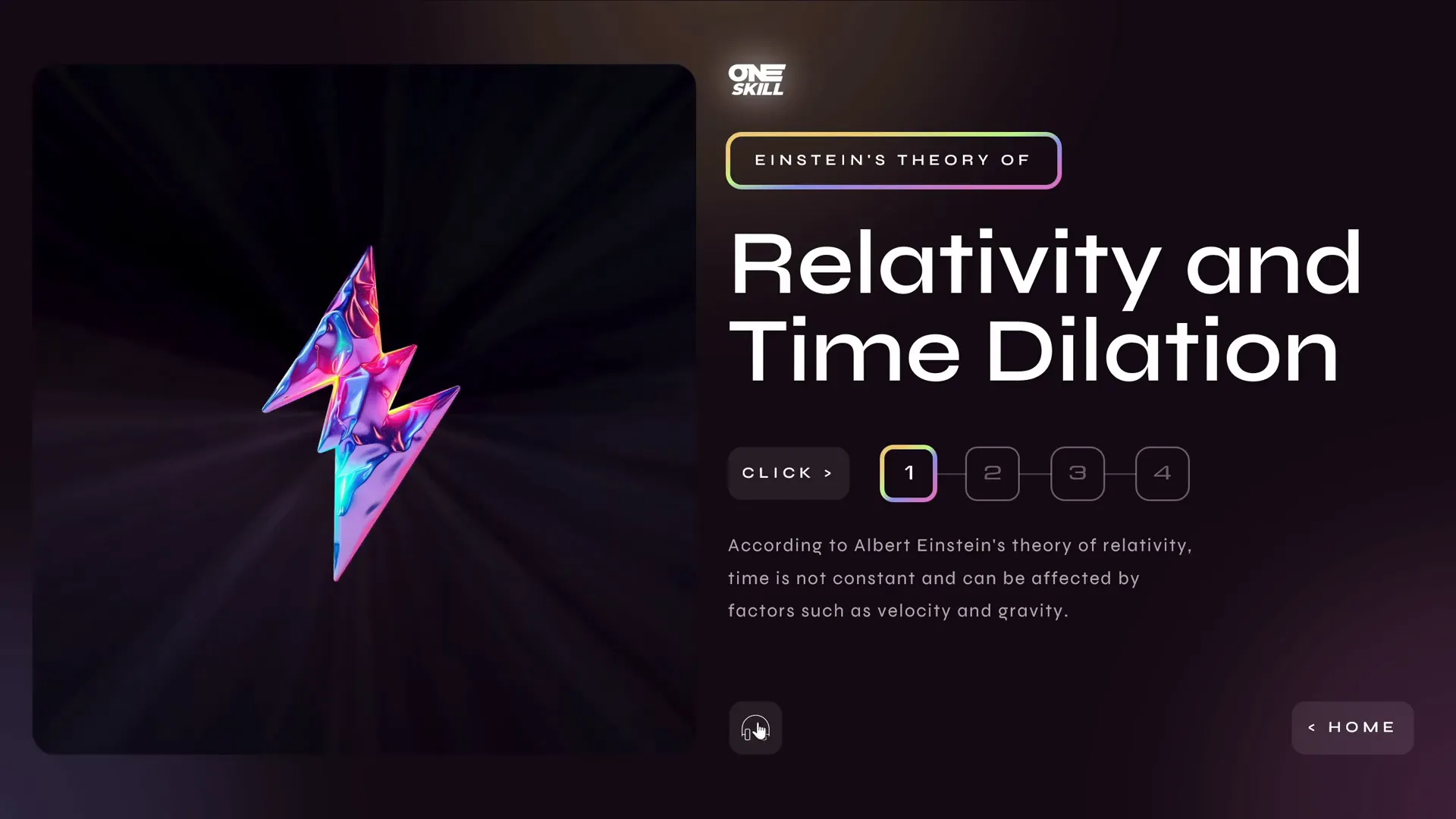
The holographic illustrations on each detailed slide launched looping videos related to the theory. These videos served to:
- Visualize abstract scientific concepts.
- Keep the audience visually engaged.
- Enhance the futuristic and space-themed aesthetic.
Where to Find Quality Multimedia Resources
- Figma Community: For high-quality illustrations and vector graphics.
- Artlist.io: For professional video clips and music.
- Unsplash: For free, high-resolution photos.
Slide Structure and Transitions: Keeping it to Four Slides
The four-slide limit was a critical constraint that shaped the design approach. Here’s how One Skill PPT structured the presentation:
- Slide 1: Starting slide divided into three clickable sections.
- Slide 2: Detailed slide on Relativity and Time Dilation.
- Slide 3: Detailed slide on Wormholes and General Relativity.
- Slide 4: Detailed slide on Multiverse Theory and Many Worlds Interpretation.
By using hyperlinks and morph transitions, the presentation felt seamless despite the limited number of slides.
Benefits of Morph Transition
The morph transition allowed elements from the starting slide to move smoothly into place on the detailed slides, including:
- Moving holographic illustrations.
- Text blocks smoothly sliding in and out.
- Creating a continuous flow that mimics an app-like experience.

Key Takeaways for Your PowerPoint Slide Design
From this challenge and One Skill PPT’s approach, here are some valuable tips you can apply to your own PowerPoint slide design projects:
| Tip | How to Apply It | Benefits |
|---|---|---|
| Divide content visually | Use sections or grids to organize information | Improves clarity and readability |
| Use clickable areas | Overlay invisible shapes with hyperlinks | Enables interactive navigation |
| Incorporate animations | Use morph, entrance, and exit animations thoughtfully | Engages audience and highlights key points |
| Break text into chunks | Create interactive menus to show/hide text | Prevents information overload |
| Add audio narration | Use AI voice tools or record your own voice | Enhances accessibility and engagement |
| Embed multimedia | Use videos and illustrations from quality sources | Supports different learning styles |
| Keep slide count limited | Use hyperlinks and transitions to simulate multiple views | Streamlines presentation flow |
| Use kiosk mode | Restrict navigation to buttons and links | Prevents accidental slide changes |
Frequently Asked Questions about PowerPoint Slide Design
Q1: How can I make a PowerPoint slide interactive?
A: You can add interactivity by inserting clickable shapes or buttons with hyperlinks to other slides or external content. Using animation triggers to show or hide content based on clicks also enhances interactivity. Additionally, setting your presentation to kiosk mode forces navigation through these interactive elements.
Q2: What is the Morph transition and how does it improve slide design?
A: The Morph transition in PowerPoint animates the movement, resizing, or transformation of objects between slides. It creates a smooth, dynamic flow that can simulate app-like navigation or storytelling. This transition is especially useful for keeping audiences engaged and making complex content more digestible.
Q3: How do I handle large amounts of text in PowerPoint slides?
A: Avoid cramming too much text on one slide. Instead, break text into smaller chunks and use interactive menus or navigation buttons to let users explore content progressively. This approach keeps slides clean and maintains audience attention.
Q4: Can I add audio narration to my PowerPoint slides?
A: Yes, you can record your own voice or use AI voice generation tools like Eleven Labs to add audio narration. Embedding audio improves accessibility and helps cater to different learning preferences.
Q5: Where can I find high-quality multimedia assets for my PowerPoint presentations?
A: Websites like Figma Community offer free and premium illustrations, Artlist.io provides professional videos and music, and Unsplash offers free high-resolution photos. Always ensure you have the right licenses to use these assets.
Conclusion
PowerPoint slide design is an art and science that balances content clarity, visual appeal, interactivity, and multimedia to create presentations that captivate and educate. The slide design challenge featuring One Skill PPT, Lewis, and Marius demonstrated how to creatively transform the same base slide into unique, engaging experiences within strict constraints.
One Skill PPT’s approach stood out by effectively using screen division, clickable navigation, animations, and multimedia to present complex time travel theories in an accessible, interactive way. The use of morph transitions and kiosk mode enhanced the user experience by making navigation seamless and intuitive.
As you work on your own PowerPoint presentations, remember these key lessons:
- Organize content visually and interactively.
- Use animations and transitions to guide attention, not distract.
- Integrate multimedia thoughtfully to support your message.
- Keep slide count manageable by leveraging navigation techniques.
- Test your presentation in kiosk mode for controlled delivery.
If you want to explore the works of Lewis and Marius, check the video description links provided by One Skill PPT. Their unique takes on the challenge offer additional inspiration for your PowerPoint slide design journey.
Happy designing, and may your slides always engage and inform!








