
Welcome to an in-depth guide on customizing one of the most popular PowerPoint templates available on Envato Elements — the Exotic template. Created with a clean, modern, and corporate style in mind, this template offers a fully animated presentation experience that you can tailor to your brand identity. Whether you’re a professional presenter, marketer, or entrepreneur, learning to personalize this template with your own logo, brand colors, and custom icons without losing the seamless animations can elevate your presentations to a whole new level.
This comprehensive tutorial will walk you through everything you need to know to transform the Exotic template into a unique presentation that perfectly represents your brand. From inserting your logo and changing color palettes to using custom icons and managing animations, you’ll gain the skills to make this template truly yours.
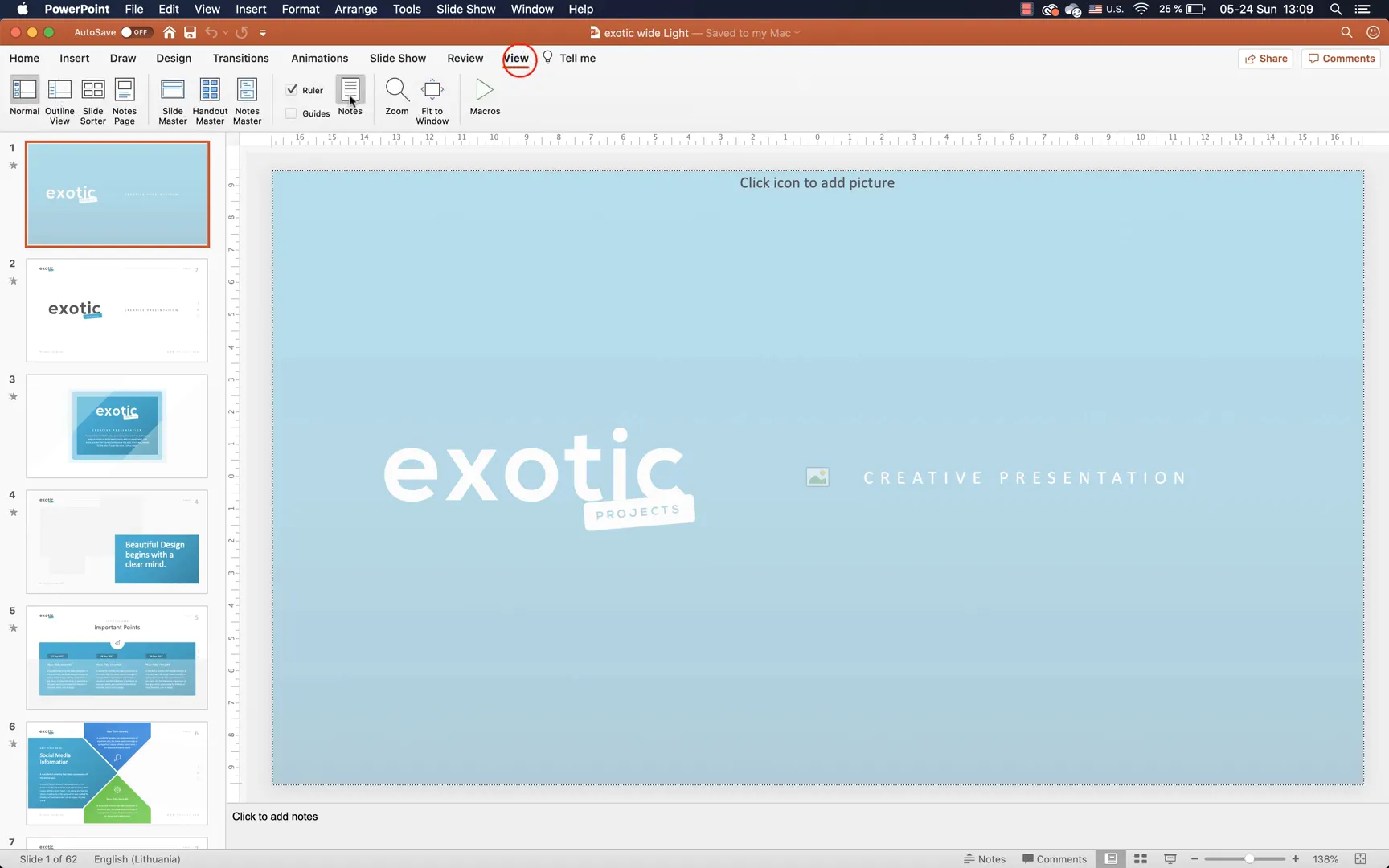
Table of Contents
- Getting Started: Downloading and Exploring the Exotic Template
- Understanding the Exotic Template Structure and Features
- How to Insert Your Own Logo into the Exotic Template
- Creating and Applying a Custom Brand Color Palette
- Maintaining Animations While Customizing
- Customizing Slide Backgrounds and Shapes
- Replacing Icons and Images
- Additional Tips for Efficient Template Customization
- Final Thoughts: Elevate Your Presentations with Customized Templates
- Frequently Asked Questions (FAQ)
Getting Started: Downloading and Exploring the Exotic Template
The journey begins on Envato Elements, a treasure trove of creative assets that offers unlimited downloads of millions of resources, including video templates, audio files, photos, fonts, graphics, and of course, presentation templates for PowerPoint, Keynote, and Google Slides. One of the perks is that new users can get their first month at a 70% discount, making it an excellent opportunity to access high-quality templates like Exotic.
Once you download the Exotic template, you’ll find a well-organized package containing:
- An icon pack featuring all the icons used throughout the template, conveniently stored in one file
- Instructions on how to use the template effectively
- A list of fonts used within the template
- Color files containing the color palettes that you can install on your computer
- The presentation templates themselves, including both dark and light versions
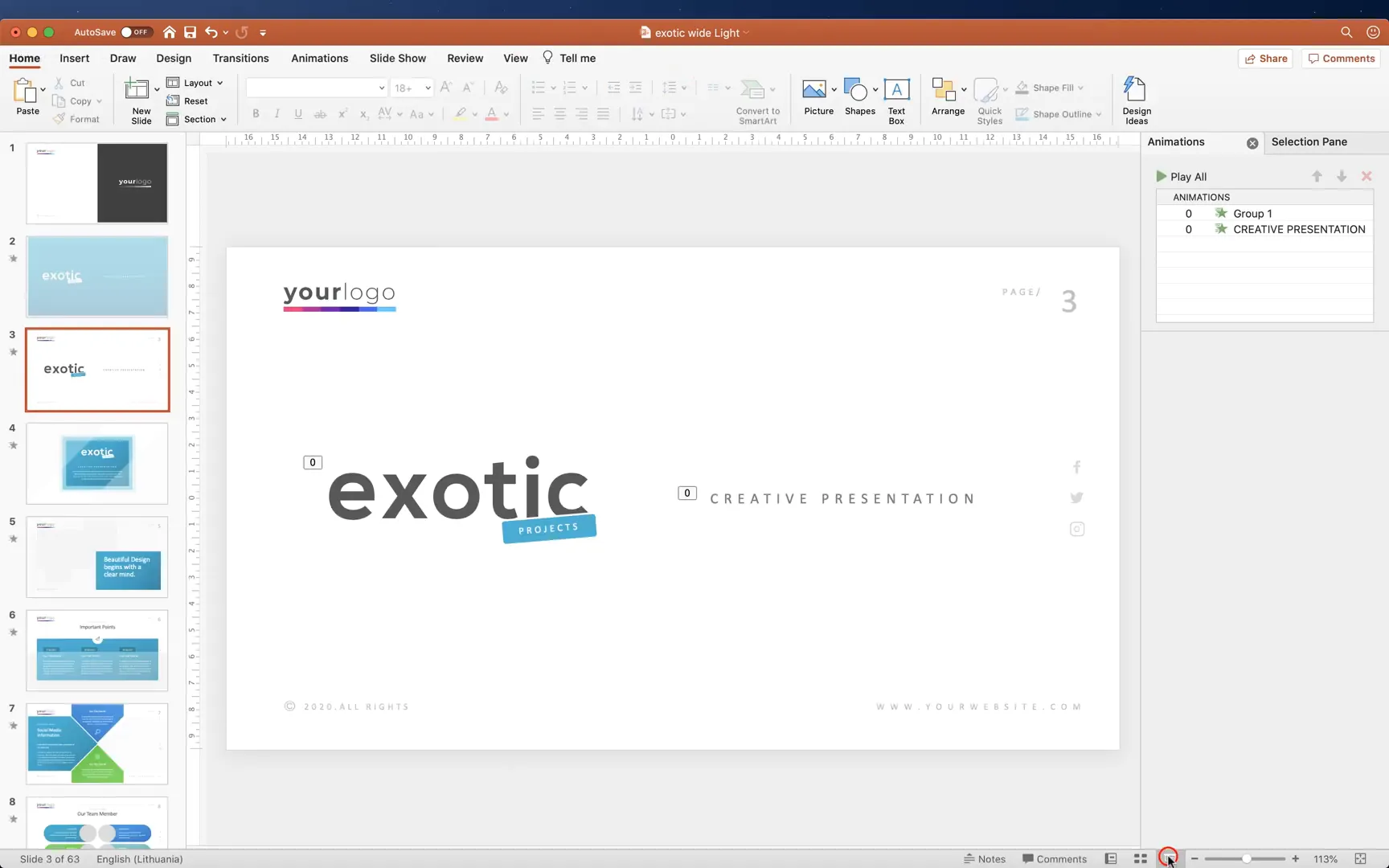
Opening the light version immediately reveals the professional and sleek design of the Exotic template. All slides come fully animated — a feature that sets this template apart from many others that often lack animation. This means your presentation will feel dynamic and engaging right out of the box.
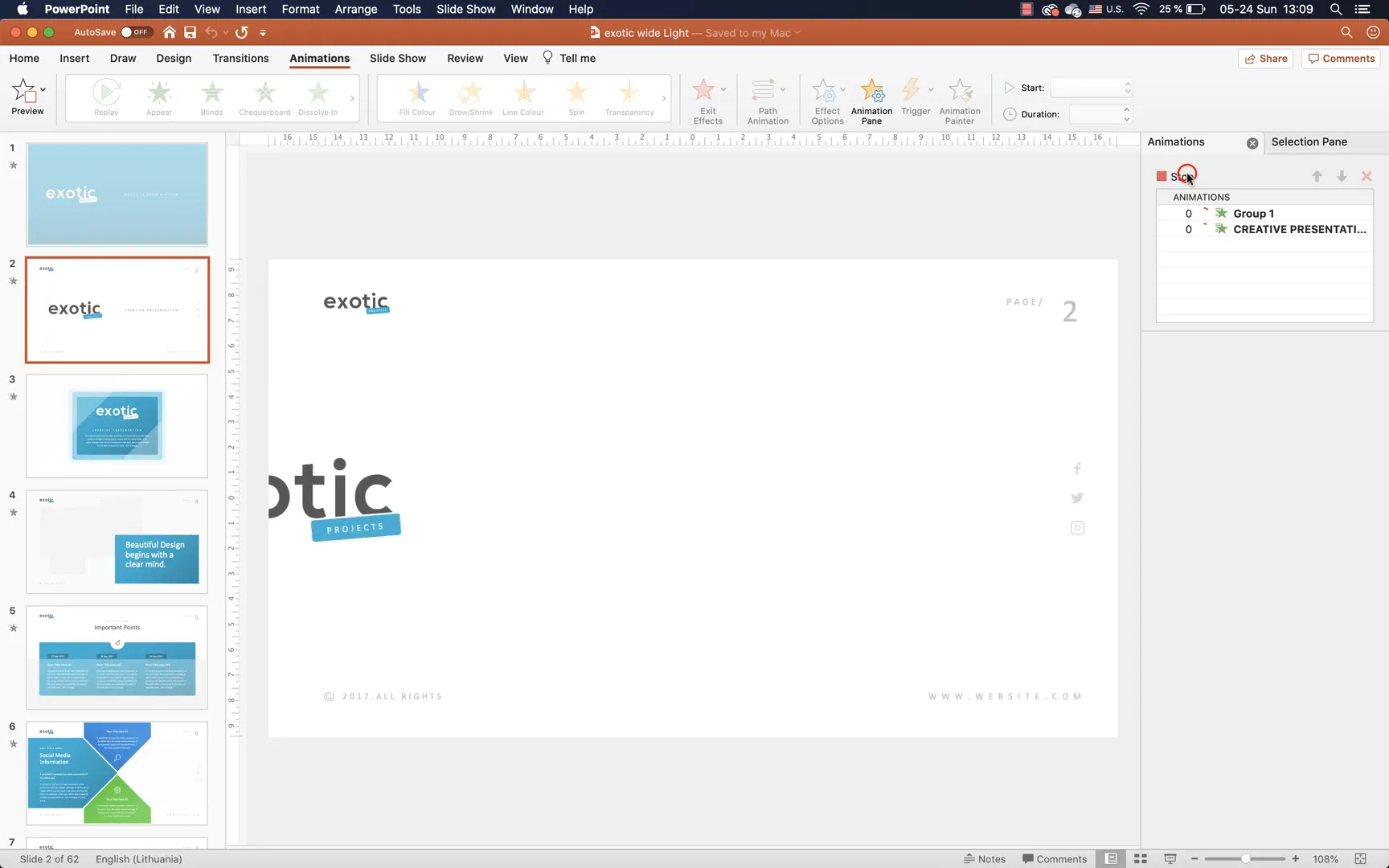
Understanding the Exotic Template Structure and Features
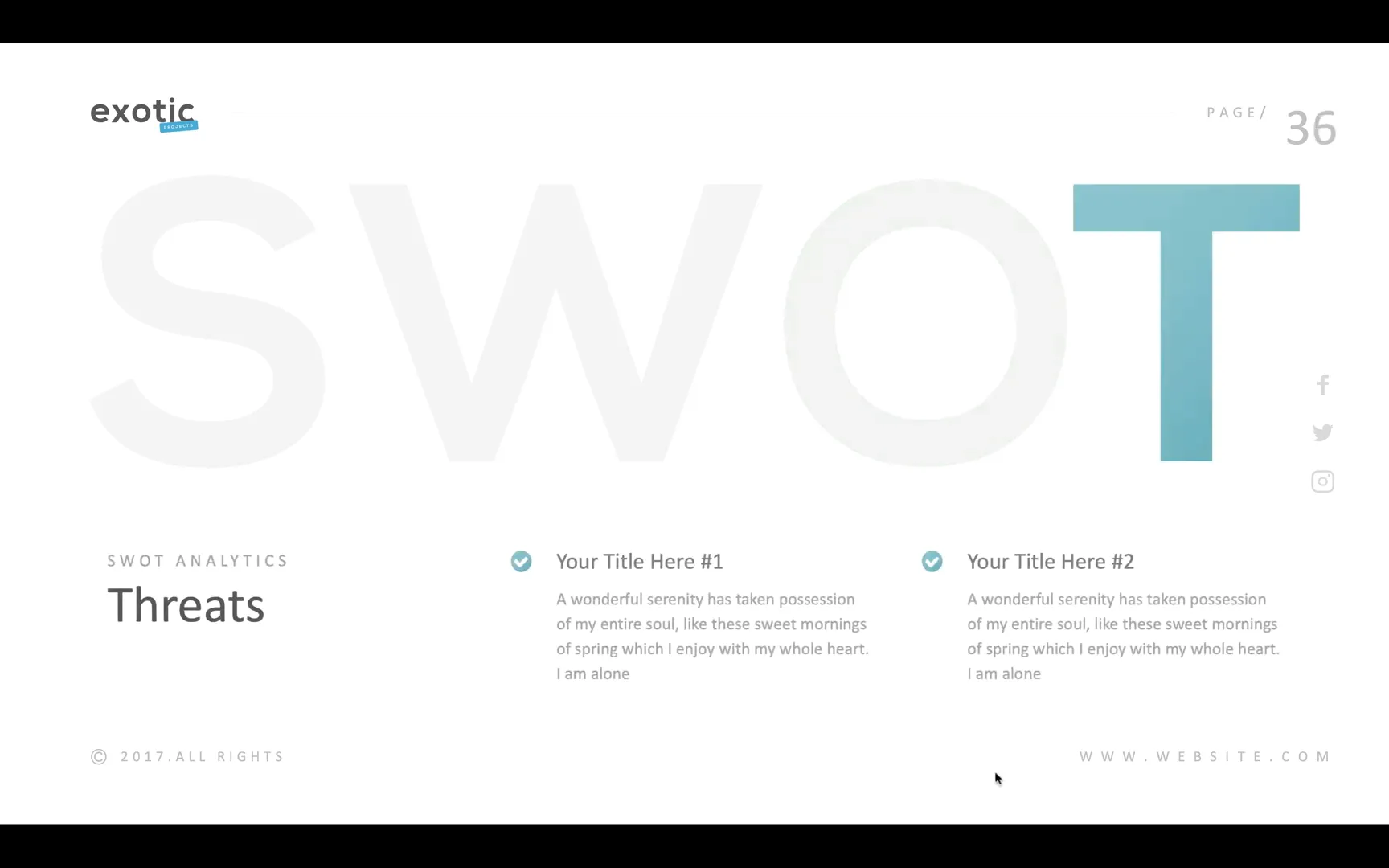
Exploring the slides in Slide Sorter view, you’ll notice a clean and modern corporate style that is versatile for various types of presentations. For instance, the SWOT analysis slides feature smooth transitions between letters, adding a polished touch to your content.
The template uses a defined color palette with six main colors. These colors are applied consistently across shapes and elements, creating visual harmony throughout the presentation. You can easily check these colors by selecting any shape and going to the Shape Format Fill options.
How to Insert Your Own Logo into the Exotic Template
One of the first customization steps is replacing the default Exotic logo with your own. This process may seem intimidating, but it’s straightforward once you understand how PowerPoint’s Slide Master works.
Step 1: Prepare Your Logo
Before inserting your logo, make sure you have it ready in two versions:
- A color version
- A white (or light) version for use on dark backgrounds
Having both versions allows you to maintain visibility and brand consistency across different slides.
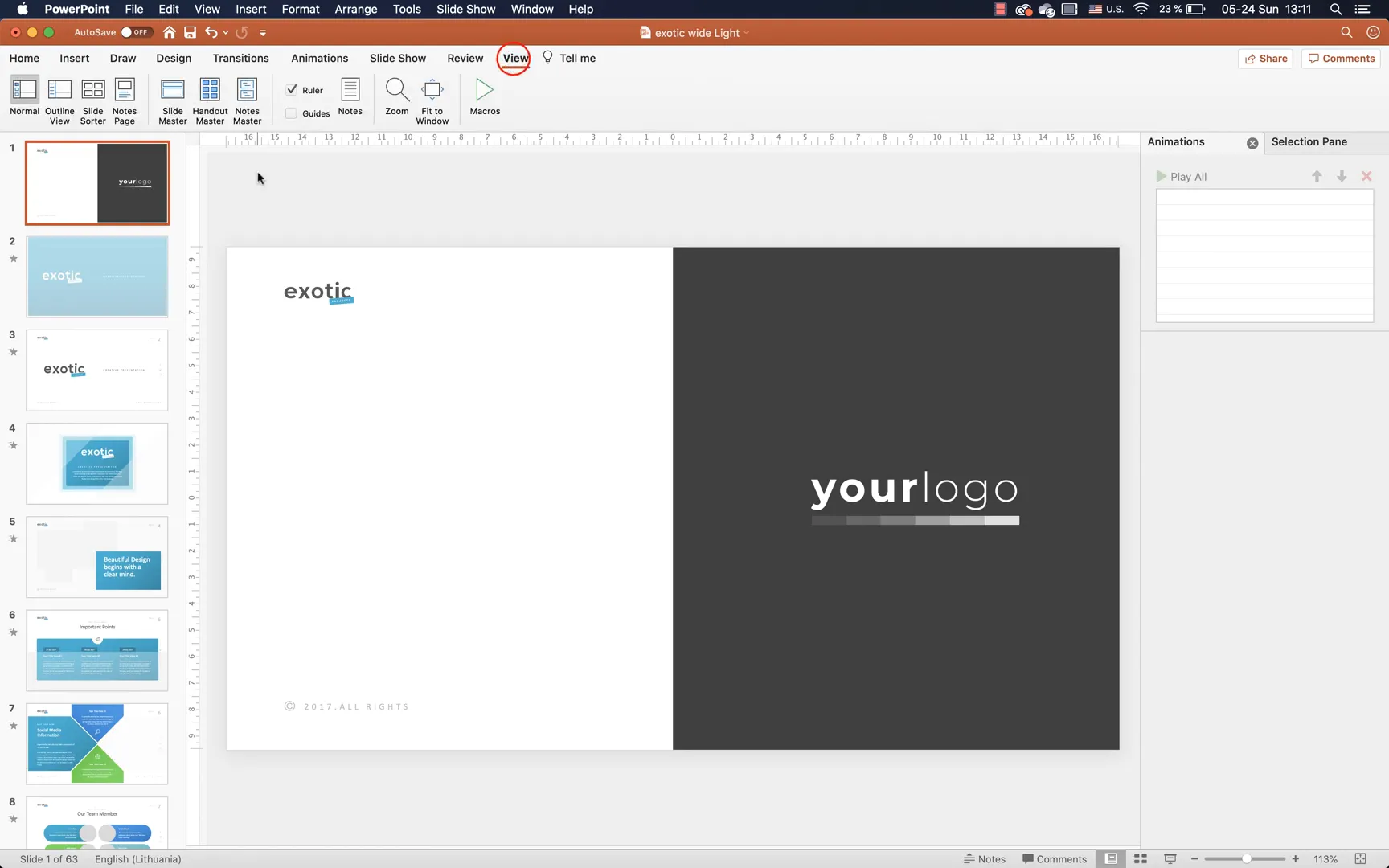
Step 2: Insert a New Slide to Paste Your Logos
In your presentation file, insert a new slide at the top where you can paste your logos. This makes it easier to manage them before applying them globally.
Step 3: Use Slide Master View to Replace the Logo
Open the Slide Master view by navigating to the View tab and selecting Slide Master. Make sure you select the topmost slide, known as the Slide Master, not the individual layouts beneath it.
Delete the existing Exotic logo on this Slide Master and paste your own logo in its place. Position and resize it so it matches the location of the original logo for consistency. When you close the Slide Master view, your logo will appear on every slide automatically.
Step 4: Customize Footer Information
Below the logo area, you’ll find text boxes for the year, website address, and social media icons. These can be customized in the Slide Master view as well:
- Change the year from the default (e.g., 2017) to the current year or any other you prefer
- Update the website address to your own URL
- Edit social media icons by ungrouping them and adding hyperlinks to your actual social media pages
For example, you can select the Facebook icon, go to Insert > Link, and input your Facebook page URL or any other social media link. This makes your presentation interactive and professionally connected to your online presence.
Creating and Applying a Custom Brand Color Palette
To truly make the Exotic template your own, you should match the color palette to your brand colors. The template uses six accent colors that can be customized to reflect your identity.
Step 1: Extract Colors from Your Logo
One of the most precise ways to get your brand colors into PowerPoint is by using the Eyedropper tool to sample colors directly from your logo.
On Mac: PowerPoint includes the Eyedropper tool within the color customization menu.
On Windows: The Eyedropper tool is not available inside the color palette customization window, so here’s a handy workaround:
- Insert six circles on a slide and fill each with a different color sampled from your logo using the Eyedropper tool applied to the shapes themselves.
- For each circle, open the Format Shape > Fill > More Fill Colors dialog to find the exact Hex color code and copy it.
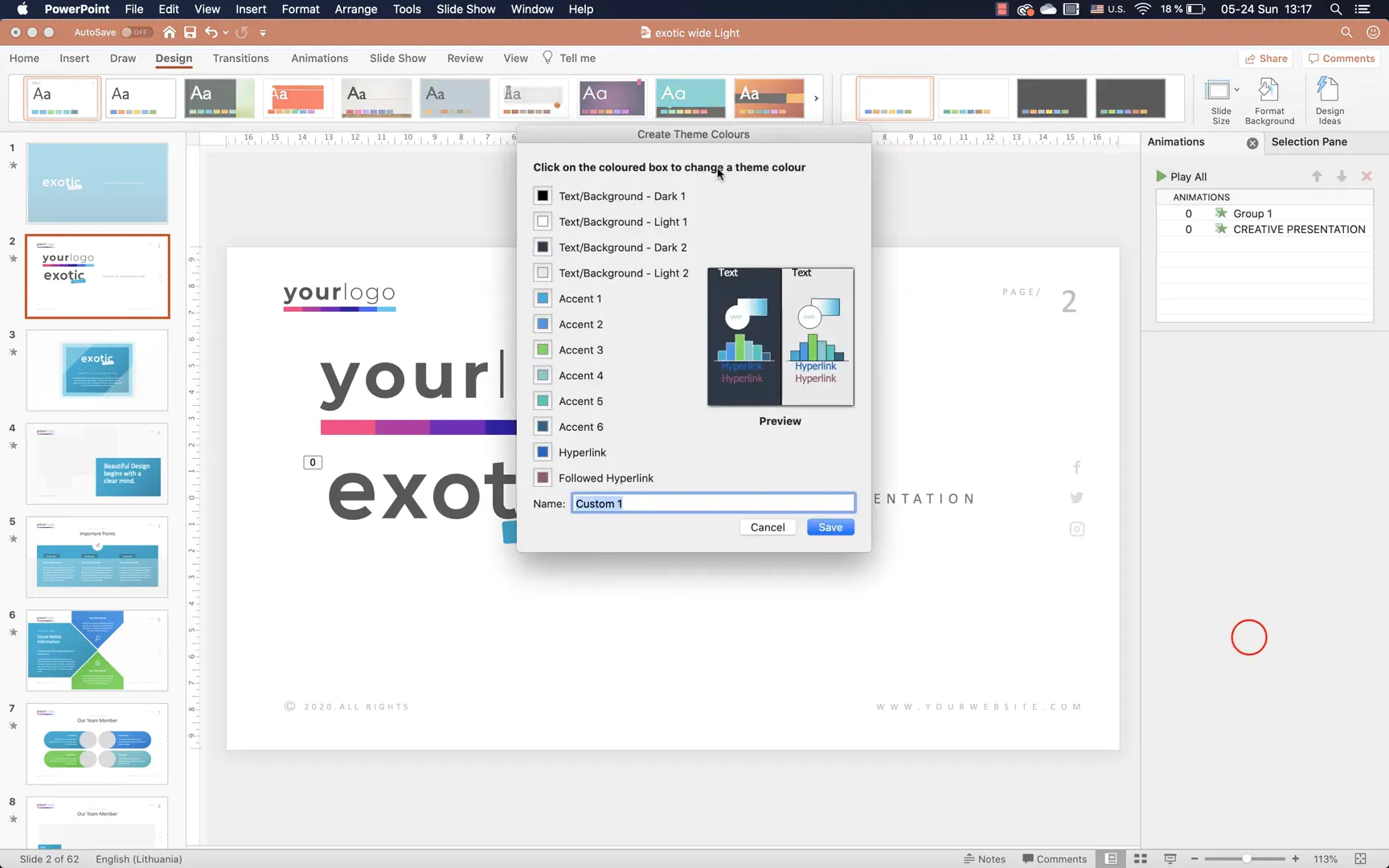
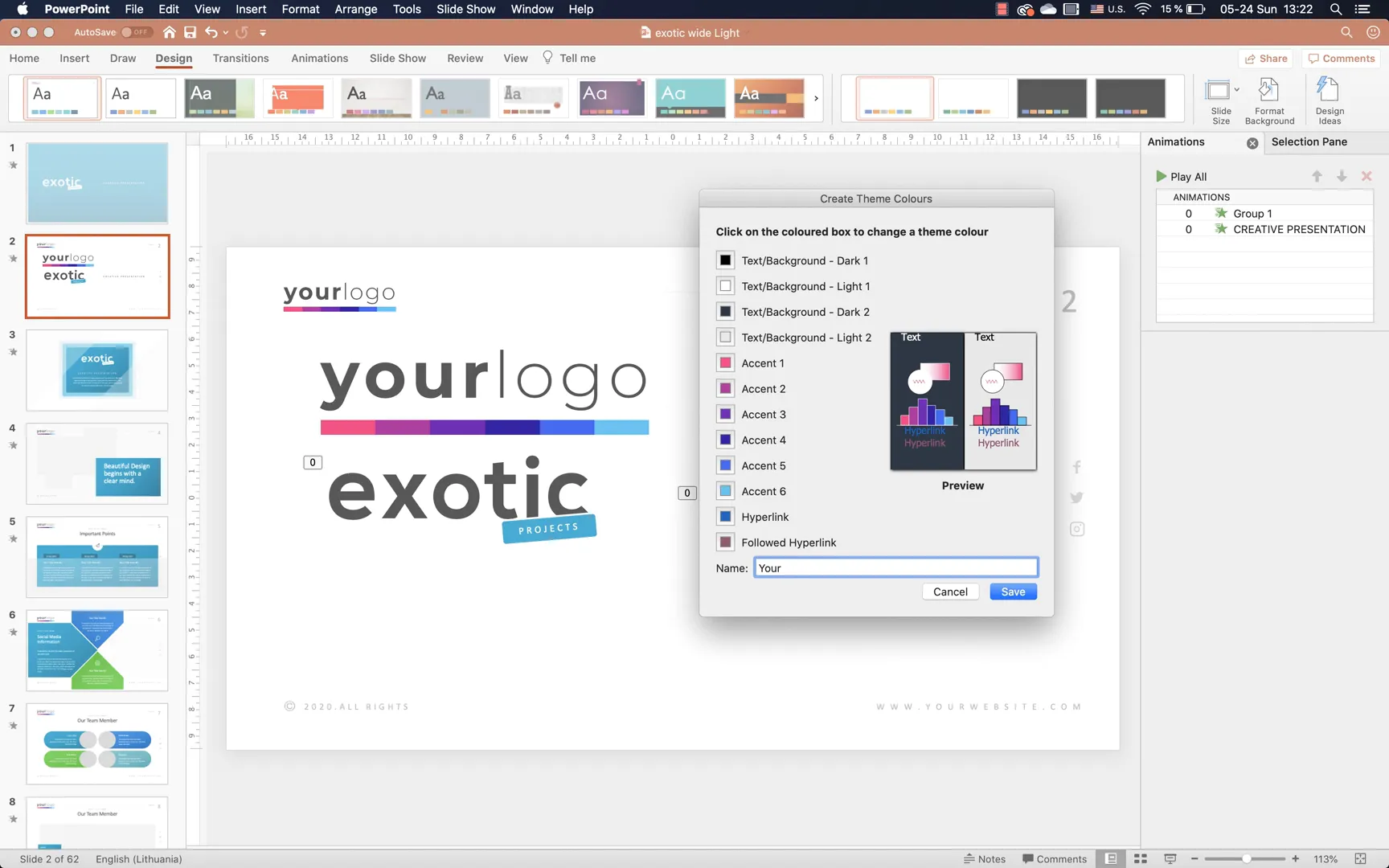
- Open the Design tab > Colors > Customize Colors and paste these Hex codes into the six accent color slots.
Step 2: Save Your Custom Palette
After inputting all six accent colors, give your custom palette a relevant name, such as “Your Colors,” and save it. PowerPoint will automatically update all slides using that palette, ensuring consistent branding throughout your presentation.
Maintaining Animations While Customizing
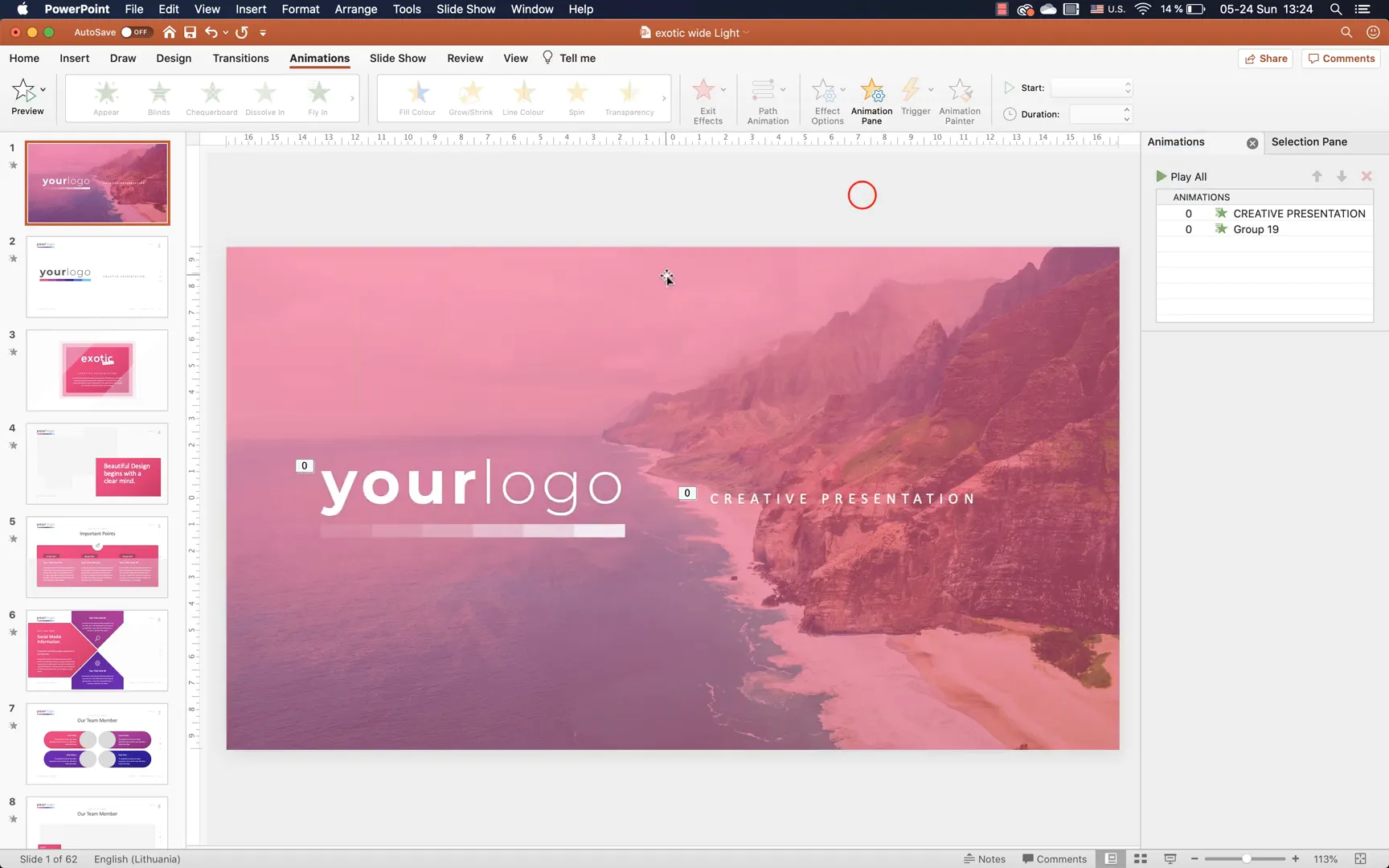
One of the standout features of the Exotic template is its full animation support. However, when you replace logos or icons, you want to keep those animations intact.
Using the Animation Painter
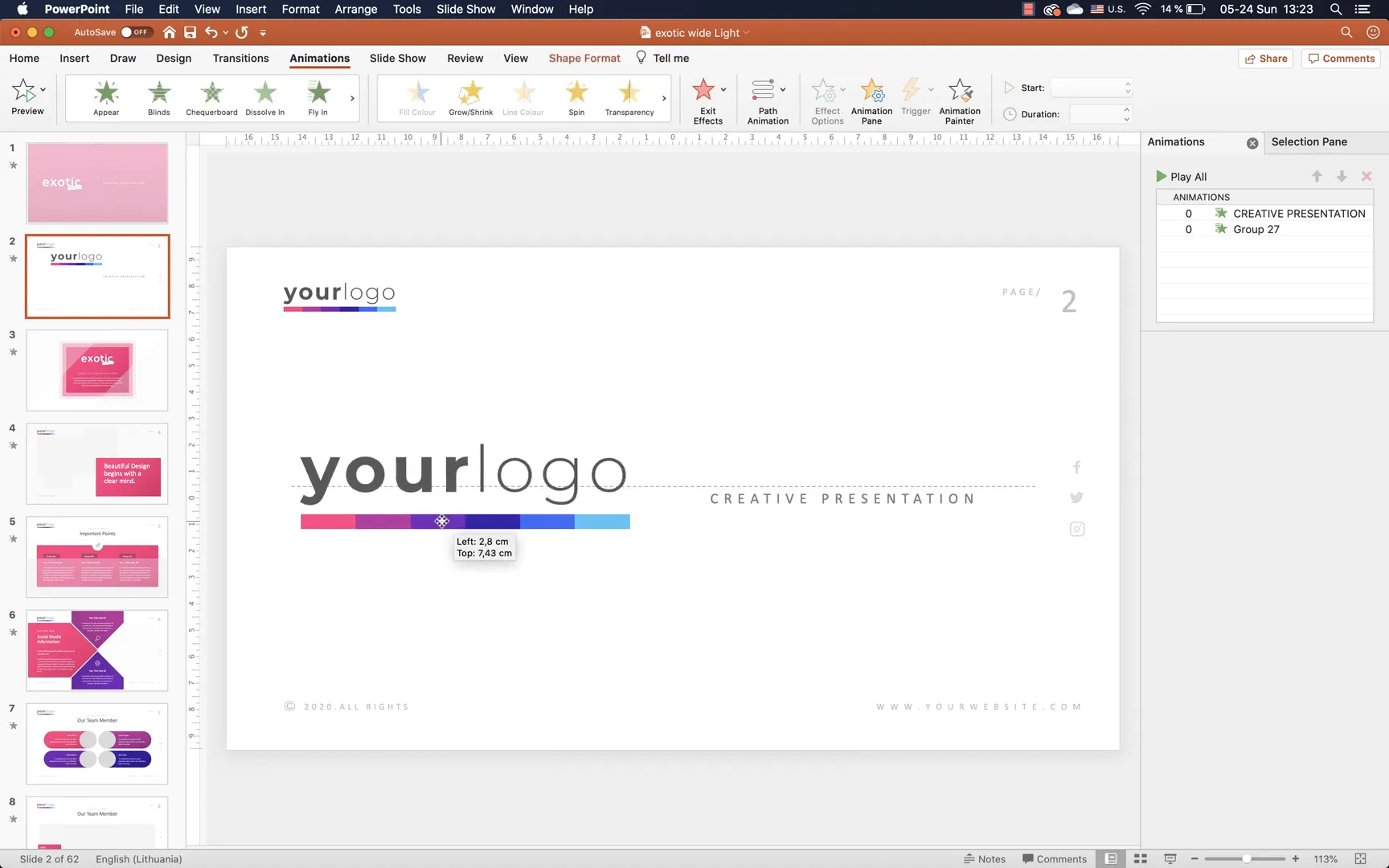
The Animation Painter tool in PowerPoint allows you to copy animations from one object and apply them to another.
For example, to apply the Exotic logo’s animation to your own logo:
- Select the Exotic logo.
- Go to the Animations tab and click Animation Painter.
- Click on your logo to transfer the animation effects.
- Once done, delete the Exotic logo.
This method ensures your presentation maintains its dynamic feel without the tedious task of recreating animations from scratch.
Adjusting Object Layering and Placeholders
Sometimes, logos or other objects might be hidden behind image placeholders or other shapes, making them unselectable. Use the Selection Pane (found under the Home tab > Select > Selection Pane) to view all slide objects, reorder them, and ensure your logos or icons are visible and interactable.
For example, moving your logo to the front or adjusting the image placeholder to the back can fix selection issues.
Customizing Slide Backgrounds and Shapes
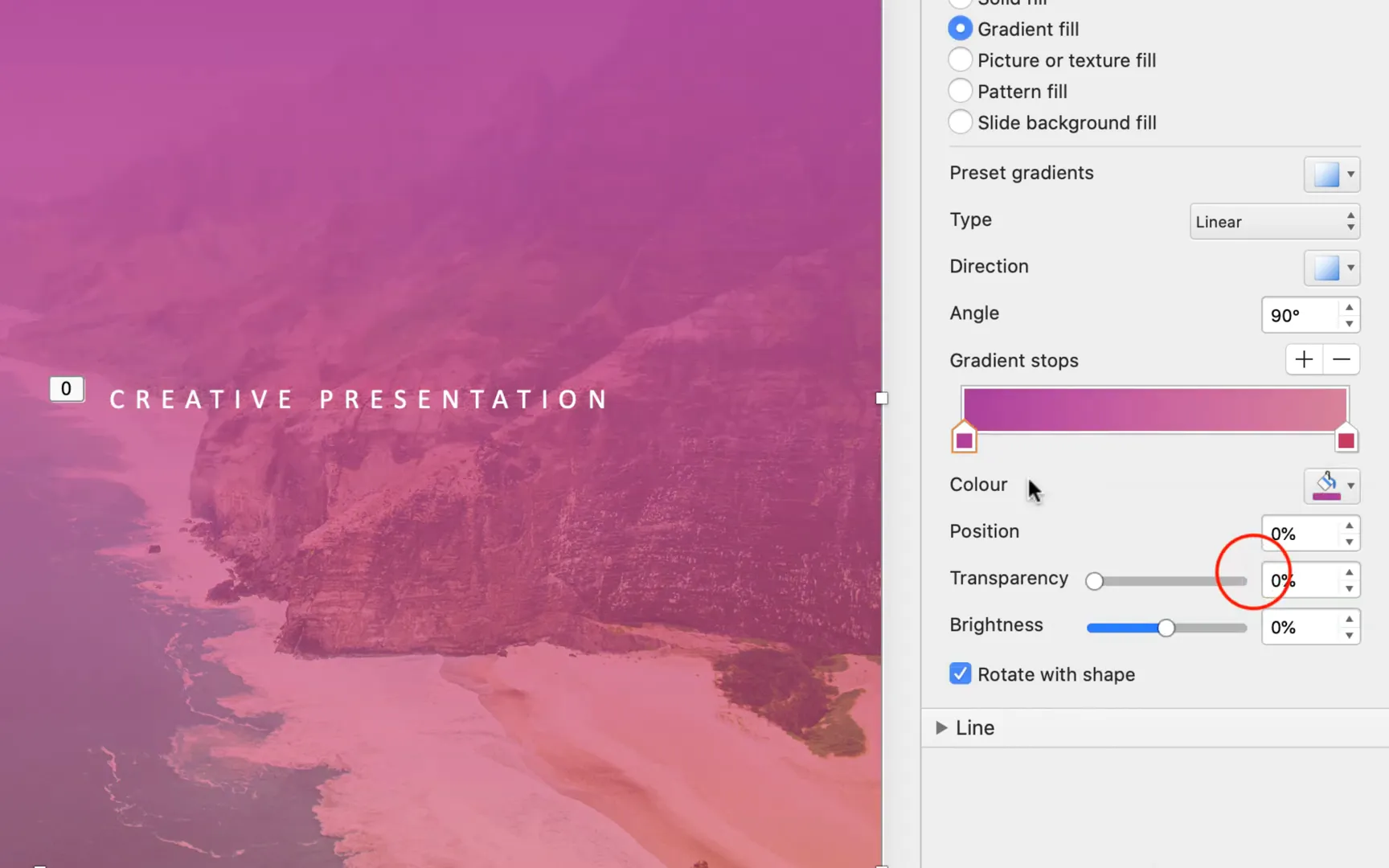
The Exotic template uses gradient fills and semi-transparent shapes to create a sophisticated visual aesthetic. You can customize these elements to better align with your brand style.
Changing Gradient Fill Colors
Select any shape with a gradient fill, then go to Format Shape > Fill > Gradient Fill. You’ll see color stops that define the gradient.

Try changing these stops to your brand colors and adjust transparency levels to create subtle overlays that enhance your slides without overpowering content.
Using Rounded Corners
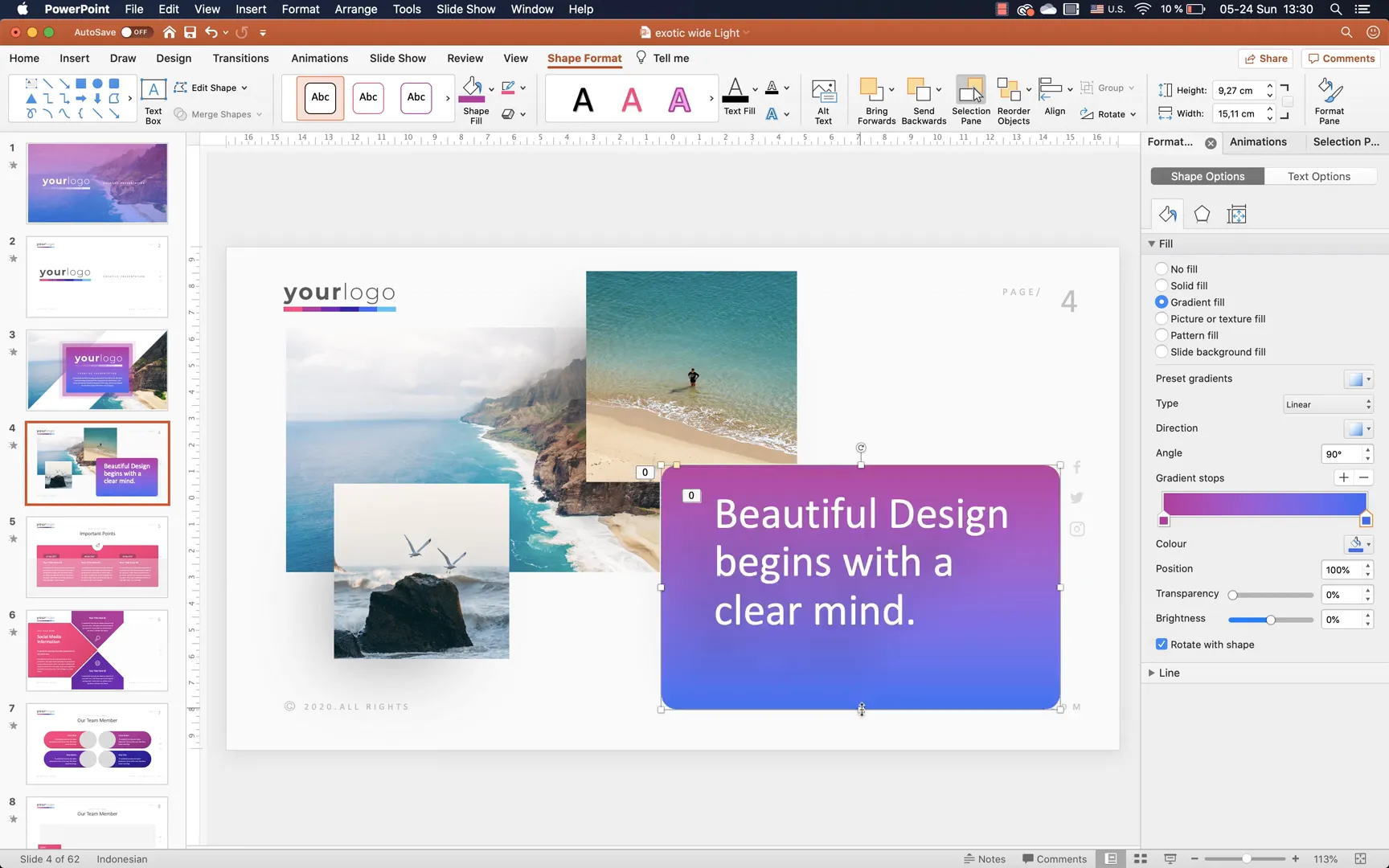
If you prefer softer edges, you can change the shape type to a rounded rectangle by selecting the shape, then going to Shape Format > Edit Shape > Change Shape > Rounded Rectangle. This adds a modern and friendly touch to your elements.
Make sure to resize these shapes appropriately so they don’t overlap important slide content like social links or website addresses.
Replacing Icons and Images
The included icon pack offers a variety of icons that you can use throughout your presentation. You’re not limited to the default icons; you can easily swap them for others from the pack or your own custom icons.
Replacing Icons in the Center of Slides
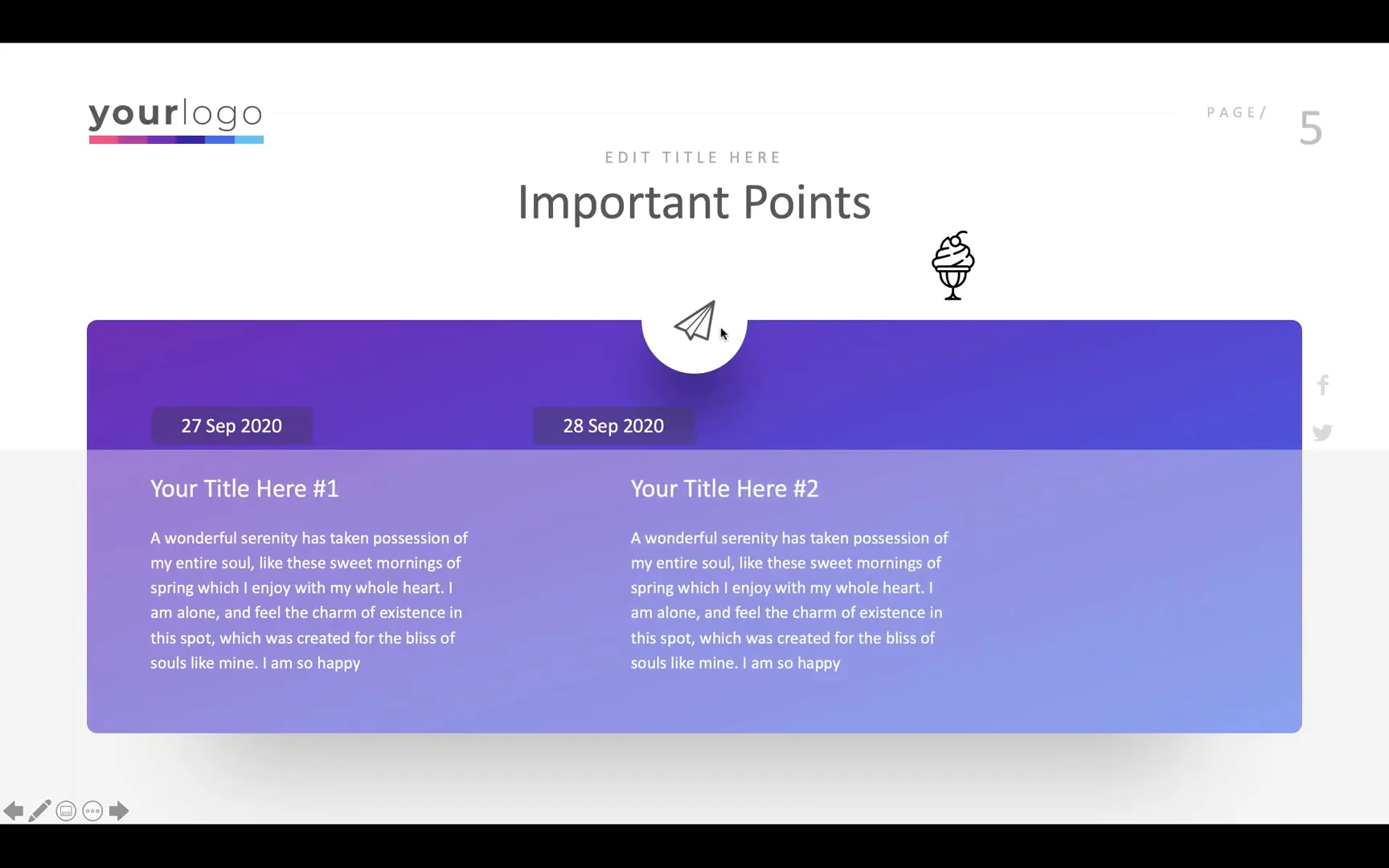
For example, on one of the slides, there is a circle with an icon inside. To replace this icon:
- Duplicate the existing icon group (circle and icon).
- Ungroup the duplicate to separate the circle and icon.
- Delete the existing icon and insert your preferred icon from the icon pack.
- Bring the new icon to the front and center it within the circle.
- Group the circle and new icon together again.
- Use the Animation Painter to copy the animation from the original icon to your new grouped icon.
This process ensures your replacement icons keep the lively animations that make your slides pop.
Inserting and Managing Images
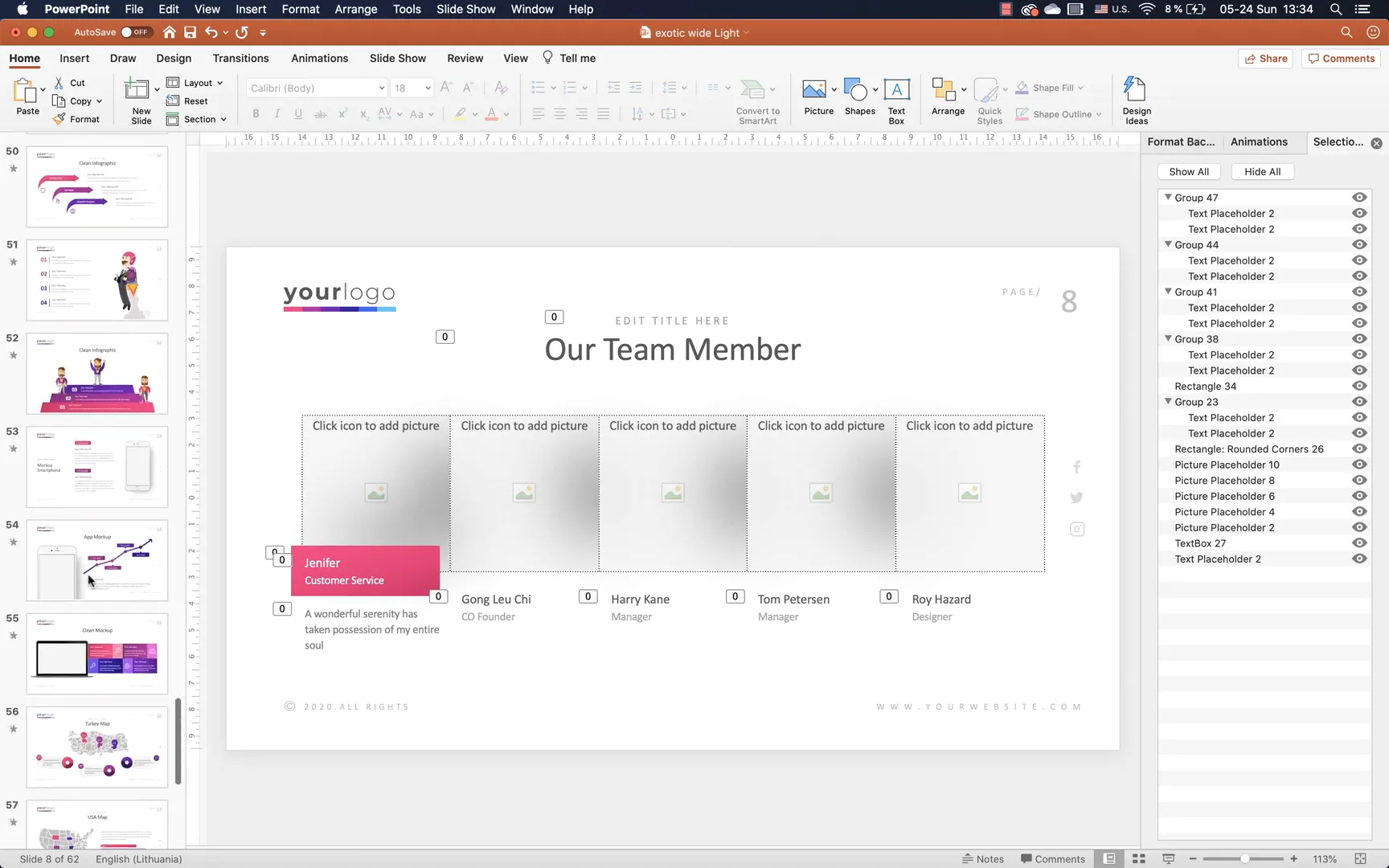
Image placeholders are scattered throughout the Exotic template, making it easy to swap out visuals without disrupting the slide layout.
To insert an image:
- Click on the picture placeholder icon.
- Choose an image from your computer or online sources like Unsplash.
- Resize and position the image as needed.
- Send the image placeholder to the back so that text and logos remain visible on top.
Many image placeholders have animations applied, such as spinning or fade effects, which add motion and interest to your presentation.
Additional Tips for Efficient Template Customization
Using the Replace Function to Update Text Globally
If your presentation contains recurring text such as years, company names, or slogans, you can use PowerPoint’s Find and Replace feature for quick editing:
- Go to Edit > Find > Replace.
- Type the text you want to replace (e.g., 2017).
- Type the new text (e.g., 2020).
- Replace all instances at once.
This saves time and ensures consistency without manually editing each slide.
Font Information
The Exotic template uses the “Next Slide” font, providing a modern and clean look. Make sure to install this font on your computer for the best visual fidelity.
Final Thoughts: Elevate Your Presentations with Customized Templates
By following these steps, you can transform the Exotic PowerPoint template into a personalized, branded presentation that captures your unique style and message. The key takeaways include:
- Replacing default logos with your own in the Slide Master for global application
- Creating a custom color palette from your brand colors for cohesive design
- Using the Animation Painter to maintain dynamic animations when swapping logos and icons
- Managing image placeholders and shapes to enhance visual appeal
- Utilizing PowerPoint’s built-in tools like Find & Replace and Selection Pane for efficient editing
With these skills, your presentations will not only look professional but also feel engaging and true to your brand identity. Remember, a well-crafted presentation can make all the difference in delivering your message effectively.
Stay creative, stay inspired, and enjoy crafting your next presentation masterpiece!
Frequently Asked Questions (FAQ)
Can I use this method to customize other PowerPoint templates?
Yes, the techniques shown here — such as using the Slide Master for logos, creating custom color palettes, and using the Animation Painter — are applicable to most PowerPoint templates. However, some templates may have different structures or animation setups, so a bit of adaptation might be needed.
What if I don’t have the “Next Slide” font installed?
If you don’t have the “Next Slide” font, your presentation might display with a default or substitute font, which can affect the look. It’s recommended to download and install the font to maintain the intended design. Alternatively, you can replace the font with one that suits your brand.
How do I keep animations when replacing icons or logos?
Use the Animation Painter tool in PowerPoint. First, select the object with the desired animation, click Animation Painter, then click the new object to transfer the animation settings. This keeps your presentation lively without rebuilding animations manually.
Is it possible to link social media icons to my pages?
Absolutely! In the Slide Master view, you can ungroup social media icons and add hyperlinks to each icon, directing viewers to your actual social media profiles. This adds interactivity and professionalism to your slides.
Can I customize the number of colors in the color palette?
PowerPoint’s default color palettes use six accent colors, which is a good balance for consistent design. While you can create multiple palettes for different purposes, each palette itself is limited to six main colors.
What if I’m using PowerPoint on Windows and don’t see the Eyedropper tool in the color palette customization?
Windows PowerPoint doesn’t have the Eyedropper tool in that specific dialog. The workaround is to use shapes filled with your brand colors and then copy the Hex codes from those shapes into your custom color palette, as detailed above.
How can I ensure my logos and images don’t get hidden behind other slide elements?
Use the Selection Pane to view all objects on a slide. You can reorder layers by moving objects up or down in the pane to ensure logos and images are visible and selectable.
Can I round the corners of shapes in the template?
Yes, you can change any shape to a rounded rectangle by selecting it, then going to Shape Format > Edit Shape > Change Shape > Rounded Rectangle. This helps soften the look of your design elements.
Where can I find high-quality images to use in my presentation?
Free stock photo websites like Unsplash provide beautiful, high-resolution images you can use without worrying about licensing issues. These images can be inserted into picture placeholders in the template.
Is there a way to quickly update recurring text like years or company names?
Yes, PowerPoint’s Find and Replace feature lets you update all instances of specific text across your presentation at once, saving time and ensuring consistency.
Check out the full video: How to Insert Your Own Logo, Colours & Pictures 🔥PowerPoint 🔥







