
Many “templates” that circulate in companies are just an old deck people copy and overwrite. They break quickly: logos drift, fonts multiply, colours get picked by eye. A proper template lives in the Slide Master: the theme (colours, fonts, effects), the master slide that holds what every slide shares, and the layouts — title, section, content, two columns, picture — that people choose from Home → Layout. Everything placed there cannot be moved by accident and updates every slide that uses it.
Plan before you build. Collect your brand colours (as hex codes), your two fonts, the logo as a PNG with a transparent background or an SVG, and a list of the slide types people actually need. Six to twelve layouts cover most organisations.
Step 1: open the Slide Master and set the size
Start the templateWindows and Mac
Start from a blank presentation
Create a new Blank Presentation. Set Design → Slide Size to Widescreen (16:9) first — changing the size later rescales everything.
Design → Slide Size → Widescreen Open the Slide Master
Choose View → Slide Master. On the left you see the master (the large thumbnail at the top) and its layouts below it.
View → Slide Master Rename the theme
Click Rename on the Slide Master tab and give the theme your company’s name; it appears under that name in the theme gallery.
Step 2: theme colours and fonts
Theme colours and fonts are the core of a template. Everything that uses them — text, shapes, tables, charts, SmartArt — updates when they change, and people pick from them instead of guessing colours.
Define colours and fontsWindows and Mac
Customise the colours
On the Slide Master tab choose Colors → Customize Colors. Set Text/Background – Dark 1 and Light 1 (usually near-black and white), Dark 2 and Light 2, then Accent 1 to Accent 6 — your main brand colour as Accent 1. Enter colours by hex under More Colors → Custom. Name the set and Save.
Colors → Customize Colors Customise the fonts
Choose Fonts → Customize Fonts, set a Heading font and a Body font, name the pair and Save. Choose fonts installed on every computer that will use the template, or plan to install them.
Fonts → Customize Fonts Set the background
Select the master and use Background Styles → Format Background for a solid colour or a picture. Keep content layouts calm; save strong backgrounds for title and section layouts.
Step 3: the master slide
The master holds what every layout shares. Select the large top thumbnail and set:
- Title placeholder: position, size, font size (around 32 to 40 pt), colour and alignment.
- Text placeholder: body size (18 to 24 pt), the bullet style of each level (Home → Bullets → Bullets and Numbering), and line spacing.
- Logo: Insert → Pictures and place it in a corner. On the master it appears on every layout and cannot be moved on the slides.
- Footer, date, slide number: position and format the placeholders; switch them on later with Insert → Header & Footer.
- Guides: right-click the master and add guides for margins; they show on every slide.
Step 4: build the layouts
Delete the layouts you will not need (select them, press Delete) and adjust or add the ones you will. Typical set: Title, Section, Title and Content, Two Content, Comparison, Picture with Caption, Title Only, Big Number, Quote, Closing, Blank.
Create a layout with placeholdersWindows and Mac
Insert a layout
Click Insert Layout on the Slide Master tab. A new layout appears with a title placeholder.
Slide Master → Insert Layout Add placeholders
Choose Insert Placeholder and pick Content, Text, Picture, Chart, Table or others, then draw it. A picture placeholder lets users click once to insert a photo that fills the shape.
Rename the layout
Right-click the layout thumbnail and choose Rename Layout: “Two columns with picture”, “Big number”. Users choose layouts by these names.
Right-click → Rename Layout Test it
Choose Close Master View, add a slide with each layout from Home → New Slide, and fill it with real content. Fix what breaks in the master, not on the slide.
Step 5: save as a .potx template
Save and use the templateWindows
Delete the sample slides
Remove all slides from the file (or leave one example per layout if you want a guide inside it).
Save as PowerPoint Template
Choose File → Save As, pick PowerPoint Template (*.potx) as the type. PowerPoint switches to the Custom Office Templates folder in Documents; save it there.
Save as type: PowerPoint Template (*.potx) Find it under New
Choose File → New and open the Personal (or Custom) tab. If it does not show, set File → Options → Save → Default personal templates location to that folder.
Save and use the templateMac
Save as template
Choose File → Save as Template. PowerPoint saves it in its My Templates folder.
PowerPoint for Mac: File → Save as Template Use it
Choose File → New from Template and find it under My Templates.
To share it with a team, put the .potx in a shared folder or ask IT to deploy it as an organisation template, so it appears for everyone in File → New. Apply it to an existing deck with Design → Themes → Browse for Themes, then fix slides whose content sat outside placeholders.
Creating Google Slides templates
Google Slides calls its master the theme builder: choose Slide → Edit theme (or View → Theme builder). Edit the master and layouts as in PowerPoint, set theme colours with the Colours button, rename layouts with Rename, and close the builder. Google Slides has no template file type: share the presentation as a template by making a copy for each new deck (File → Make a copy), or, in Google Workspace, submit it to your organisation’s template gallery.
Template mistakes to avoid
- Decoration on content layouts. Large shapes, photos or gradients behind content slides fight every chart and table placed on them. Keep content layouts quiet; give the character to title and section layouts.
- Text boxes instead of placeholders. A text box drawn on a layout is fixed text, not a place to type. Use Insert Placeholder for anything users should fill.
- Colours outside the theme. If a colour is not in the theme, people will pick it by eye and it will drift. Put every brand colour into the theme’s accents.
- Fonts nobody has. A template in a font that is not installed falls back to a substitute on other computers. Choose installed fonts or roll the fonts out with the template.
- Too many layouts. Thirty layouts make people scroll and pick the wrong one. Keep the set small and name each clearly.
- No example deck. Ship a short example presentation that shows each layout used well. People copy examples far more than they read guidelines.
Review the template after its first month in use: look at a dozen decks made with it, note where people worked around it, and fix the master and layouts there. A template is a product; it improves with feedback.
Designs for this kind of deck
Every design brings its own colours, fonts and layouts to the whole deck.
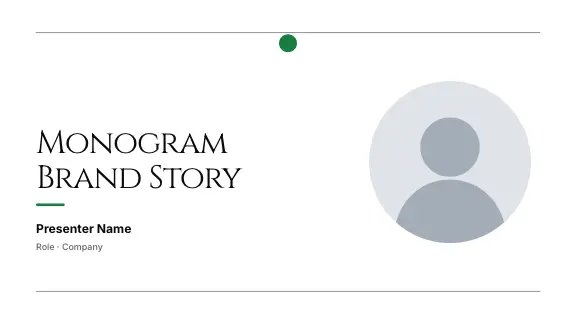



A template without the Slide Master: brand kits in ExpertSlides
ExpertSlides takes a different route. A design already is a complete template — grid, layouts for every kind of slide, two fonts by role and three deck colours — and a brand kit (Pro and Business) puts your brand on it. On the Brand Kits page you start a kit from your own files: a PowerPoint template, a brand guide as PDF, or your website. ExpertSlides reads your colours, fonts and logo from them, and you correct anything by hand. Every new deck can wear the kit, and the AI writes its slides in the library’s layouts dressed in your brand.
There is no master to maintain: change a colour or a font in the kit, and decks made with it follow; in a single deck, the Design tab of the side panel changes colours and fonts for every slide at once. When you need a .pptx, the PowerPoint export (Pro and Business) writes the deck with its fonts and colours as editable PowerPoint objects.
Related reading: templates and backgrounds, fonts in PowerPoint and slide sizes. Plans with brand kits are on Pricing; designs to start from are in Design Templates.
Questions, answered
How do I make a PowerPoint template?
Open View, Slide Master, set theme colours and fonts, place the logo and placeholders on the master, build and rename the layouts you need, delete the sample slides, and save with File, Save As as PowerPoint Template (.potx).
Where are custom PowerPoint templates saved?
On Windows in the Custom Office Templates folder in Documents, shown under File, New, Personal. On a Mac, File, Save as Template stores it under My Templates, reached through File, New from Template.
What is the difference between a .pptx and a .potx?
A .potx is a template: opening it creates a new, untitled presentation based on it, so the template itself is not overwritten. A .pptx is an ordinary presentation.
How do I create a template in Google Slides?
Use Slide, Edit theme to design the master and layouts, then make a copy of the file for each new deck. Google Workspace organisations can also add it to a template gallery.
Can ExpertSlides use my company template?
A brand kit reads your colours, fonts and logo from a PowerPoint template, a PDF brand guide or your website and puts them on new decks, on the plans with brand kits.
