
PowerPoint Templates
PowerPoint presentation templates that fill themselves
Pick a professional design, describe your deck, and the AI writes every slide into it. Download the result as a PowerPoint file you can keep editing.
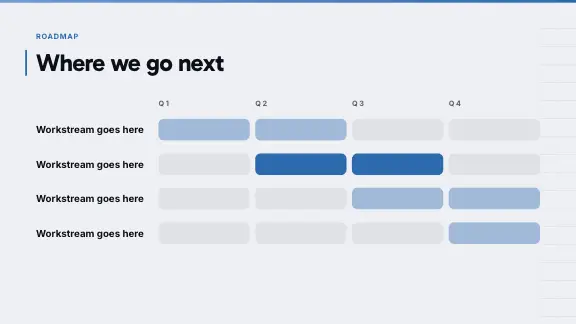
Professional presentation templates for PowerPoint
Each design comes in several colour styles and holds dozens of layouts, so each slide gets one that fits what it says.








Why use PowerPoint templates with AI
A PowerPoint template saves you the design: fonts, colours, a title slide and a handful of layouts. What it does not save you is the work that takes longest — deciding what goes on each slide, writing it, and squeezing it into a layout that was made for different content. Most people end up with a template’s title slide and twenty slides of bullet points.
With ExpertSlides the template comes with the content. You pick a design, describe the deck or upload a document, and the AI writes every slide into it. Because each design holds many layouts — timelines, comparisons, charts, processes, quotes, team slides — every slide gets the layout that fits what it says, not the one that happened to be next. The result downloads as a normal, editable PowerPoint file.
What you get with each template
Professional presentation templates for PowerPoint, with the writing, the layout and the file in one step.
Written for your topic
Headlines, bullet points and chart labels come from your prompt or your documents.
The right layout per slide
A comparison gets a comparison slide, a process gets steps, a plan gets a timeline — picked by what the slide says.
Colour styles
Each design comes in several palettes; switch the style and every slide follows.
A real PPTX file
On Pro and Business you download a PowerPoint file with editable text, native charts and tables, and animations PowerPoint plays.
Timeline, roadmap and other PowerPoint templates
Timeline templates
Milestones on a line, with dates and a sentence each — for a history, a project or a launch plan.
Roadmap templates
Quarters or phases side by side, the work of each in a column — a product roadmap at a glance.
Charts and data
Bar, line, pie and more, built from the numbers you give and editable as charts after the export.
Comparisons and processes
Two or three options side by side, or steps that lead from one to the next.
Agenda and section slides
The slides that structure a long deck and tell the room where it is.
Team, quote and closing
The slides that make a deck feel finished, laid out for you.
From template to finished PowerPoint
The example builds a product roadmap; any deck works the same way.
Browse the designs
Look through the designs on the home page or on Design Templates. Each is shown with its cover; open a preview to see its other slides.
A design’s preview shows its layouts. Choose a design and a colour style
Pick the design and the colour style for your deck. With a brand kit on your plan, your kit can stand in for the design.
The design and its colour style. Describe the deck
Type the topic: “A product roadmap for 2027 by quarter, for the whole company: themes, key releases and what each team delivers.” Name the kinds of slides you want and the AI picks those layouts.
The prompt names the slides you need. Set the number of slides
Choose the slide count beside the prompt and press Create Slides. The slides come in one after another.
The slide count before the deck is made. Adjust layouts and content
Change any text in place, switch a chart type, move a milestone, or ask the AI to “turn this list into a timeline”.
A roadmap layout, filled. Download the PPTX
Press Export to save the PowerPoint file. Every plan exports PDF; on Free a PDF carries the ExpertSlides mark.
The template, filled, in PowerPoint.
A roadmap presentation, slide by slide
Roadmap PowerPoint templates are among the most searched. A roadmap deck that a whole company can follow:
Free PowerPoint templates — what free means here
Many sites offer free PowerPoint templates as downloads: an empty .pptx with a few layouts. Here the templates are not downloads on their own — they are the designs your deck is written in. On the Free plan you can make decks in every design and present or export them as PDF; the PowerPoint download of the finished deck is part of Pro and Business.
That is a different trade from an empty template. You do not get a file to fill yourself; you get the filled deck, in the template, written from your topic or your document — and on a paid plan, as an editable PowerPoint file.
What makes a professional PowerPoint template
Many layouts, few decorations
A template is only as useful as its layouts. Look for timelines, comparisons, charts, processes and quotes — not only a title and a bullet slide dressed in ornaments.
A type scale that reads
Headings and body text set as a pair, with a clear difference in size. A professional template reads from the back of the room and on a laptop alike.
Colours with a job
One accent colour for emphasis, calm backgrounds, enough contrast for text. If the template changes palettes, every slide should follow at once.
Native elements
Charts that are charts, tables that are tables, text that is text. Templates that use pictures of charts look fine until the first number changes.
Watch a template fill itself
PowerPoint templates by occasion
Name the occasion in the prompt; the AI picks the slide types it needs from the design.
Company meetings
All-hands, town halls and kick-offs: agenda, results as charts, the plan ahead and questions at the end.
Client work
Proposals, status reports and final presentations, in the client’s colours with a brand kit.
Product launches
The problem, the product, how it works, pricing and the launch timeline.
Training sessions
Learning goals, the steps of a process, examples and a short quiz to close.
Conferences and talks
Bold statement slides, few words, large pictures — made to be seen from far away.
School and university
Seminar talks and project presentations from your paper or notes.
Tips for using PowerPoint templates
- Choose the design for the room: calm and light for reading, bold for a stage.
- Pick the colour style last — it changes the mood without changing a single layout.
- Check the template’s chart and table slides before you choose; they show whether it is built for real content.
- Ask for the slide types you need by name: timeline, roadmap, comparison, process.
- Keep one template per deck; mixing designs makes a deck look assembled.
- Leave room on every slide; a template filled to the edges reads as crowded.
- Keep text in text boxes rather than pictures of text, so it stays editable and searchable.
- For your company’s own template, use a brand kit on Pro and Business rather than recolouring slides by hand.
Questions, answered
Are the PowerPoint templates free?
Start free — no credit card required. Making decks in every design is part of the Free plan; the PowerPoint download is part of Pro and Business. Every plan exports PDF; on Free a PDF carries the ExpertSlides mark.
Do the templates work in PowerPoint?
Yes. The export is a standard .pptx file: text stays text, charts stay charts and tables stay tables.
Can I use my own PowerPoint template?
You can open your own PowerPoint files in the editor, and a brand kit on Pro and Business can carry your colours, fonts and logo onto every new deck.
Is there a timeline or roadmap template?
Timelines and roadmaps are layouts of every design. Ask for one in the prompt — “a product roadmap for 2027 by quarter” — and the AI picks it.
Where can I preview a template’s slides?
On Design Templates, open a design’s preview to page through its slides in the colour style you choose.
Can I change the design after the deck is made?
You can switch the colour style, the deck’s colours and its fonts in the editor, and every slide follows.

Create Slides in Under 90 Seconds
No credit card required · Instant access