
Presentation Templates
Presentation templates and slide deck themes
Every design is a complete slide deck template in several colour themes. Choose one, say what the deck is about, and the AI builds the slideshow in it.

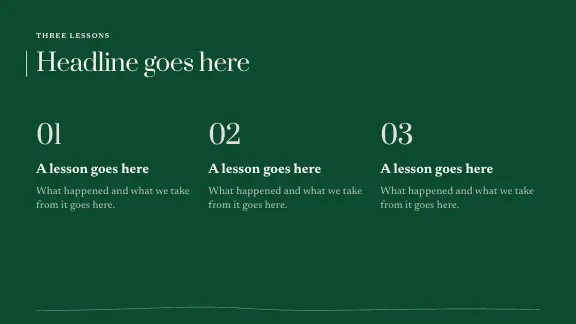
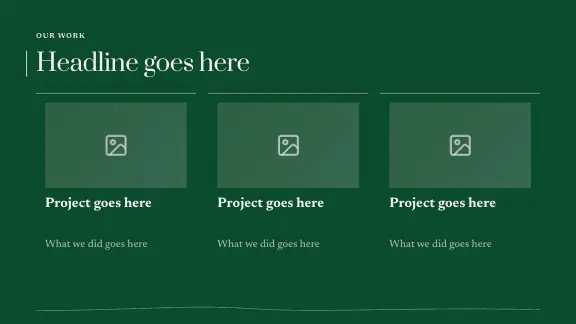
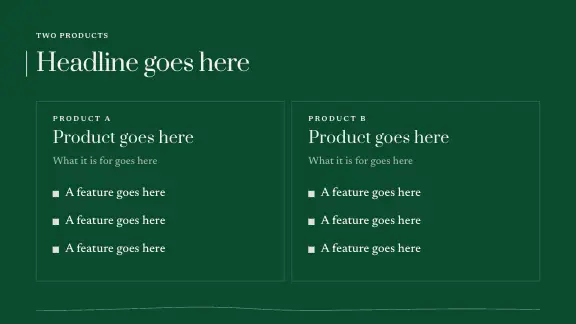
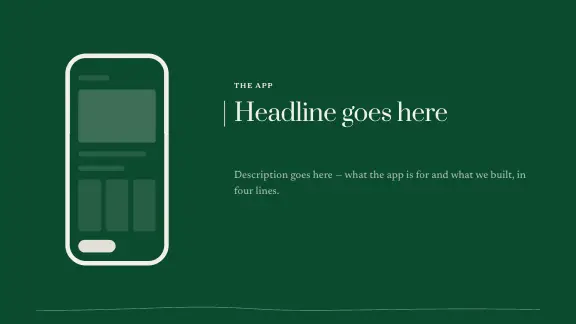
Slideshow presentation templates
Real covers of the designs you can make a deck in today. Each has its own type, shapes and picture style.
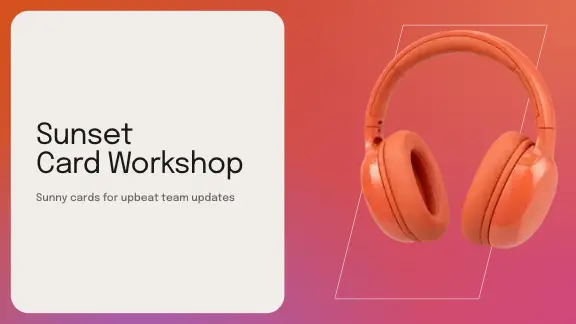



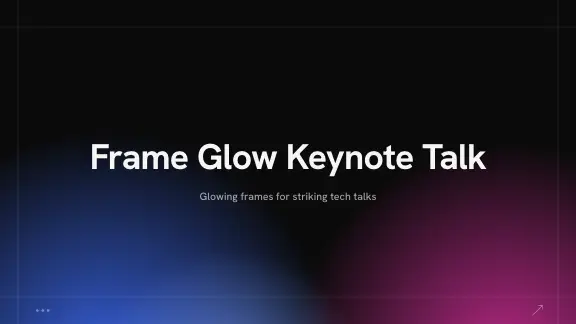



A presentation template that writes the deck too
A presentation template gives a deck its look: the fonts, the colours, the shapes and the way each kind of slide is laid out. A good one makes every slide look like it belongs to the same story. What a template cannot do on its own is decide what goes on the slides — that still takes most of the time.
In ExpertSlides every design is a complete slide deck template, and the AI fills it. You choose a design and one of its colour themes, describe the deck or upload what it should be built from, and every slide is written into a layout of that design that suits it. The look stays yours to change: switch the theme, the colours or the fonts and the whole deck follows.
A slide deck theme is more than colours
A design decides how every kind of slide looks; a theme — its colour style — decides the palette it is shown in.
Colour styles
Each design comes in several palettes, from quiet to bold. Switch the style and the whole deck follows.
Fonts that belong together
Headings and body text are set as pairs, sized so the hierarchy reads at a glance.
Your own theme
Set your own colours and fonts in the prompt bar, or keep them in a brand kit on Pro and Business for every deck.
The slide deck template, slide by slide
The kinds of slides a complete template holds — and that the AI chooses from for each slide of your deck.
How to choose between slide deck themes
Start with where it is shown
A deck read on laptops and phones needs larger text and calmer backgrounds than one shown on a big screen. A deck projected in a bright room needs strong contrast; dark themes look good on screens and can wash out on old projectors.
Then the tone of the room
Investors and boards expect calm and confident; a class or a workshop can take colour and play; a creative pitch can be bold. Pick the design for the tone, then its colour style for the mood.
Keep one theme per deck
Changing themes halfway through makes a deck look assembled from parts. If two parts need to feel different, use section slides, not another theme.
How to make a slideshow from a presentation template
Five steps from choosing a theme to presenting.
Choose a design
Browse the designs on the home page or on Design Templates. Open a preview to see more of a design’s slides before you choose.
The gallery of designs. Pick a colour theme
Each design shows its colour styles. Pick one — or set your own colours and fonts in the prompt bar.
The same design in its colour styles. Describe the slideshow
Type what the deck is about and who it is for, set the slide count and press Create Slides. On Free a deck has up to 5 slides; Pro and Business make decks of as many slides as you choose.
The topic and the length. Change the theme if you like
In the editor, the deck’s colours, palette and fonts are in Settings → General. Change them and every slide follows.
One change, the whole deck. Present or export
Present full screen from the browser, with a presenter view and an audience window, or export the deck. Download an editable PowerPoint file on Pro and Business. Every plan exports PDF; on Free a PDF carries the ExpertSlides mark.
The presenter view.
Presentation templates for every occasion
The same designs serve very different rooms. Say who the deck is for, and the AI chooses the slides and the tone; the design gives it the look.
Business
Calm, professional designs for reviews, plans and reports.
Pitch and sales
Bold designs that carry a story from problem to ask.
Education
Readable designs for lessons, lectures and workshops.
Creative and marketing
Expressive designs for campaigns, portfolios and launches.
Events and talks
Large statements, big pictures and few words, made to be seen from the back of a hall.
Non-profits
Impact reports and donor updates that show what the money did, with figures as charts.
Watch a template become a slideshow
Infographic slides without an infographic template
People search for infographic PowerPoint templates when they want numbers and ideas to be seen rather than read: a large figure with a short label, icons that stand for steps, a cycle, a funnel, a comparison of three options. In ExpertSlides these are not a separate template to buy — they are layouts of the designs, and the AI uses them where your content calls for them.
Ask for them directly in the prompt — “show the three results as large figures”, “make the process a cycle with icons” — or select a slide in the editor and ask for the change. Icons come from a large built-in library and take the colours of the deck; charts take their data from a table you can edit.
When an infographic slide helps — and when it does not
A figure that matters, a process people must remember, a comparison with a clear winner: these gain from an infographic layout. A nuanced argument does not. If a slide needs a paragraph to be understood, give it a clear headline and a few plain points instead of decoration.
Free presentation templates — what you can do on each plan
Make decks in every design
Every design and colour style is open on every plan, the Free plan included.
Present and share
Present full screen from the browser, or share a read-only web link.
Export
Download an editable PowerPoint file on Pro and Business. Every plan exports PDF; on Free a PDF carries the ExpertSlides mark.
Your own brand
Brand kits on Pro and Business turn your colours, fonts and logo into a template of your own.
Choosing a presentation template
- Match the design to the room: a calm, light design for long reading, a bold one for a stage.
- Pick the colour style last — it changes the mood without changing a single layout.
- Prefer a template with many layouts over one with many decorations.
- Try your real content in two designs before deciding; the right one is usually obvious side by side.
- Check the chart and table slides; they show whether a template is built for real content.
- Look at the type from a distance: if the headline does not read at arm’s length, it will not read from the back of the room.
Questions, answered
Are these free presentation templates?
Start free — no credit card required. Download an editable PowerPoint file on Pro and Business. Every plan exports PDF; on Free a PDF carries the ExpertSlides mark.
Can I change the theme after the deck is made?
Yes. Switch the colour style or the fonts in the editor and every slide follows.
Do they work in PowerPoint, Keynote or Google Slides?
The export is a standard .pptx file. PowerPoint opens it directly, and Keynote and Google Slides import it.
How many slides can a deck have?
You choose the number of slides before the deck is made. On Free a deck has up to 5 slides; Pro and Business make decks of as many slides as you choose.
What is the difference between a template and a theme?
Here a template is a design — the layouts of every kind of slide — and a theme is one of its colour styles. The same design looks calm in one theme and bold in another.
Can I preview a template before making a deck?
Yes. On Design Templates, open a design’s preview and page through its slides in the colour style you pick.
Is there an infographic template?
Infographic slides — large figures, icons with short labels, processes and cycles — are layouts of the designs. Ask for them in the prompt.

Create Slides in Under 90 Seconds
No credit card required · Instant access