Decision Tree Template: 50 Editable Decision Tree Slides For PowerPoint
Fifty decision tree slides in one blue look, each a different form of the same idea: one choice at the root, the options as branches and the outcomes at the ends. Yes or no trees, trees with chances and expected values, pruned trees with the chosen path, trees that sort cases and trees in numbers. Change the colours and fonts of all of them at once, let the AI build your own decision tree deck in this look, download them as PowerPoint or edit each slide in the editor.
This decision tree template pack holds 50 slides, and each one draws a decision as a tree in a different form: the classic yes or no tree from left to right, the textbook tree with a square for the choice, circles for chance and expected values in them, a pruned tree that keeps only the chosen path, a mirrored tree with the root in the middle, a tree whose outcomes are bars as long as their payoff, and one whose branches are as thick as the share of cases that take them. All of them share one blue look on light, white and navy grounds, so any five of them sit in one deck without looking borrowed.
Most files offer one empty tree and leave the rest to you. Here every slide is a finished decision tree, written out with neutral sample content on a choice that any organisation knows — build or buy, hire or outsource, launch now or later, lease or buy, repair or replace, bid or no bid, insure or carry the risk — with roles instead of names, round sample figures and probabilities that add up. You see how many levels and outcomes each form carries before you choose it.
If you are looking for a decision tree template in PowerPoint, a free account downloads the slides as a PPTX file whose texts, nodes and branches stay editable. You can also stay in the browser: pick your colours and fonts in the bar above the slides, describe your decision and let the AI build your own decision tree deck in this look, or open the slides one to one in the editor.
Your Decision In This Tree Look
Describe the choice you face, the options you see and what you know about their chances and costs, or attach a business case or a spreadsheet. ExpertSlides builds your own decision tree deck in this look in a few minutes, with your options, your outcomes and your figures.
Every slide is a complete decision tree with neutral sample content — one general choice at the root, its options, short outcomes and round figures — that fits any organisation. Replace its question, options and outcomes with yours.
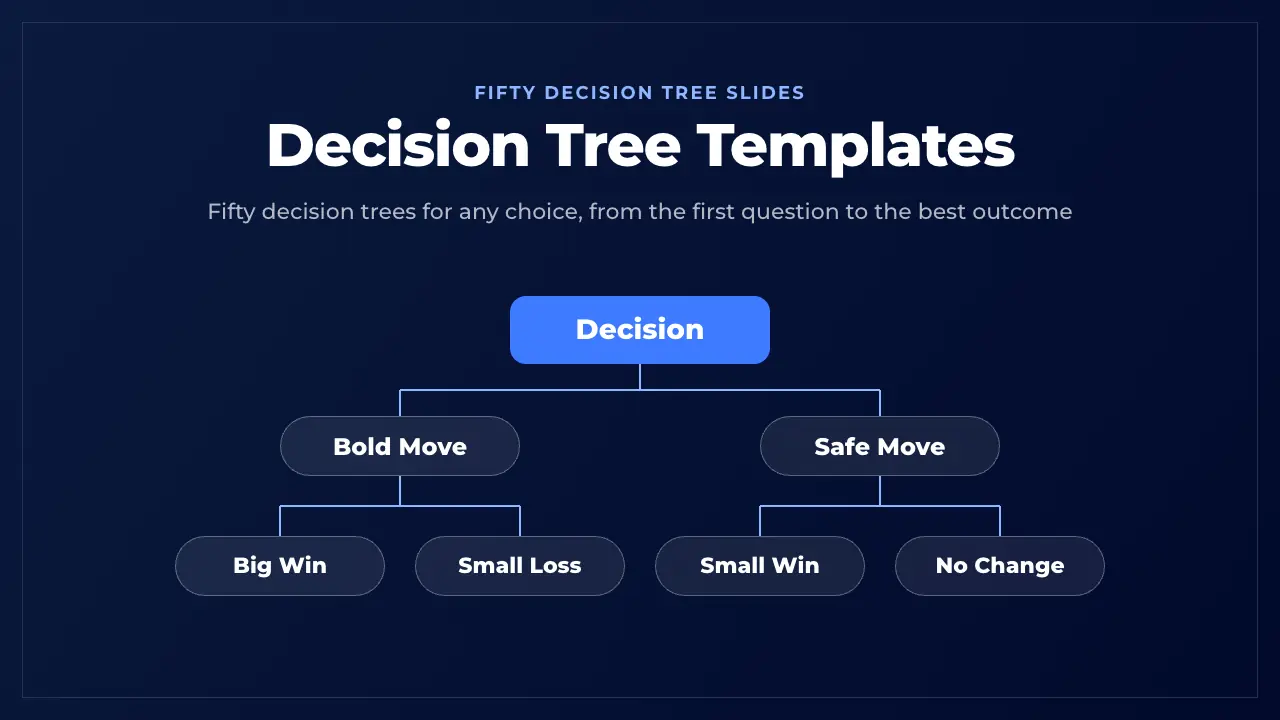
1 · Title Slide With A Decision TreeA title slide that is a decision tree itself: kicker, headline and lead stand centred over one calm tree with a decision at the root, two options and four outcomes. Use it to open a decision paper, a workshop or a board session, and put your own choice and outcomes into the nodes.
2 · Anatomy Of A Decision TreeOne small tree from left to right shows the four parts every decision tree is made of: the decision node, the branches, the chance node and the end nodes. Under it a row of four captions names each part and what it stands for. Use it to teach the method before the real trees of a decision paper.
3 · Two-Question Tree Beside A PhotoA staffing decision in two yes-or-no questions on one vertical trunk, beside a tall photo. Each No branch leads to the right, each Yes branch further down, and the last outcome is highlighted. Use it for any choice that two questions settle, and replace the questions, the outcomes and their costs with your own.
4 · Three Steps Over A TreeThree numbered columns explain how a decision tree is read: start at the root, follow a branch, end at an outcome. Under them one tree from left to right stands with its three levels in the three columns. Use it to introduce the method, and put your own decision into the tree.
5 · Classic Yes Or No TreeA classic decision tree from left to right: one root question, two follow-up questions and four answers, with Yes always on the upper branch. A short caption beside each answer says who decides and how fast. Use it for approvals, sign-offs and any rule that two questions settle.
6 · Top-Down Tree With Expected ValuesThe textbook decision tree from top to bottom: one decision, two options, a chance node for each and four outcomes with their probabilities and values. The expected value stands in each circle, and the better option is filled. Use it for any choice between two dates, offers or plans whose results depend on chance.
7 · Tree On A Full PhotoA decision tree drawn with lines only on a full photo under a navy overlay: one root, two options and four outcomes, each with its probability and its gain as a large figure on one right edge. Use it for an expansion, an investment or any choice with chances, where the picture sets the scene.
8 · Pruned Tree With The Chosen PathA decision tree that has been decided: the option with the lowest expected cost stays as a thick blue path, and the other branch is cut with two short strokes. Its chance node holds the expected cost, and the outcome cards show what each event costs. Use it to present a recommendation together with the reasoning behind it.
9 · Yes Or No Tree With IconsA top-down yes-or-no tree in three levels: one question at the root, one on each branch, and four outcomes with an icon, a title and a short caption. Yes always runs to the left. Use it as a quick guide for a team: which channel, which form or which next step fits a case.
10 · Left-To-Right Tree Beside A PhotoA yes-or-no tree from left to right beside a tall photo: one question at the root, two follow-up questions and four answers, each with a short note under it. Yes is always the upper branch. Use it for equipment, vehicles or software: any choice between buying, financing, leasing and renting.
11 · Two-Sided Mirrored TreeA two-sided decision tree with its root in the middle of the slide: one option grows to the left, the other to the right, and each ends in two outcome cards with their chances. The mirrored halves make two options easy to compare side by side. Use it for any choice between two ways, such as promoting or hiring, building or buying.
12 · Top-Down Tree In Three LevelsA top-down decision tree in three levels: one plan at the root, three ways to grow on the second level and two ways to go each of them at the foot, six in all. A short caption under each end names its cost or its time. Use it for a strategy in two stages: first the direction, then the means.
13 · Left-To-Right Tree With PayoffsA decision tree from left to right whose five outcomes run out into one column of payoffs at the right edge. The chance nodes hold the expected value of each option, and the best one is filled. Use it for a bid, a tender or an offer, where each option can be won or lost.
14 · Photo Band Over A Two-Level TreeA two-level decision tree under a wide photo band: one decision at the root and four options side by side, each on a card with its cost or its terms. Use it to lay out the options before the deeper analysis, for a new market, a new channel or a new location.
15 · Tree In Three Level BandsA top-down decision tree set into three bands that name its levels: the decision, the options and the outcomes. Each option and each outcome carries one short line with its cost or its effect. Use it to teach how a tree is built, or to walk an audience level by level through one real decision.
16 · Chance Tree As A FanA chance node at the top fans out into five scenarios, each with its probability, its name and its revenue. The node holds the expected value: the sum of every scenario weighted by its chance. Use it for a forecast, a budget or a business case that must show more than one possible future.
17 · Two-Level Tree With Photo CardsA two-level decision tree whose three options are cards with a photo, a title and a short description. The photos make each option tangible at a glance. Use it for any choice between a few clear models: where a team works, which format an event takes, which channel a product uses.
18 · Tree Whose Outcomes Are BarsA decision tree from left to right whose outcomes are drawn as bars: each bar is as long as its payoff, so the spread of each option shows at a glance. The chance nodes hold the expected values, and the better one is filled. Use it to compare two projects, offers or investments with uncertain results.
19 · Two-Level Tree With Option CardsA two-level decision tree whose three options stand on tall cards with an icon, a title and the key facts. The chosen option is filled and tagged, so the recommendation is clear at once. Use it for make-or-buy choices, supplier decisions or any choice between three ways to reach one goal.
20 · Tree That Ends In PortraitsOne question sorts every case into three ranges, and each range ends at the role that decides it, shown as a round portrait with a short rule. Use it for approval limits, escalation rules or any case where the size of a matter decides who handles it.
21 · Yes Or No Tree With Shaded TilesA top-down yes-or-no tree whose four answers stand on large tiles in four shades, from the strongest response to the lightest. Two questions about impact and likelihood lead every risk to one of them. Use it in a risk register, a project review or any guide that sorts cases into four clear answers.
22 · Findings Tree With Five VerdictsA decision tree from left to right that turns the findings of a review into verdicts: three findings in the middle column and five outcomes at the right, each marked as a go, a delay or a stop. Use it for launch reviews, stage gates and quality checks.
23 · Tree With Its Result On A CardThe classic decision tree of a choice made before the weather is known, with its result set apart on a card: the best option, its expected value as a large figure and how far it leads. Use it whenever the audience should take away one number from the tree.
24 · Round Photo As The RootA decision tree that starts at a round photo of the situation and branches into three options, each followed by the outcome it leads to. Use it when a team must react to a problem, such as a late project, a lost client or a budget cut, and the choices must be weighed side by side.
25 · Tree In Numbers With Weighted BranchesA decision tree in numbers whose branches are as thick as the share of cases that take them: 100 leads split by budget and then by the next step, down to 12 deals. The path to the deals is highlighted. Use it for a sales funnel, a screening process or any flow where cases are sorted by yes-or-no questions.
26 · Top-Down Tree With Icon TilesA top-down decision tree whose six ends are icon tiles: one question at the root, three answers on the second level and two fitting choices under each. Use it as a quick guide for a team, here to pick the right chart, or for tools, formats and templates of any kind.
27 · Tree Of Words On LinesA light decision tree with no boxes but the root: the options stand on their branches as words, and the five outcomes end in a column of dots with their conditions. Use it where a tree should feel calm and text-led, for product decisions, policies or guidelines.
28 · Question On A Photo PanelA decision tree whose root question stands on a tall photo panel, with five branches to five answers, each marked by the range it covers. Use it for any rule that sorts by size or amount: training formats, approval levels, shipping options or support tiers.
29 · Indented Tree Like A Folder TreeA decision tree drawn like a folder tree: the root at the top-left, the options indented under it and their outcomes indented once more, each with a short note on one left edge. Use it for routing rules, responsibilities or any long list of cases that must stay readable.
30 · Tree With Chances Drawn As RingsA decision tree of costs from left to right whose chance nodes are rings: the highlighted arc shows the chance of a loss, and the ring holds the expected cost. The five outcome rows end in one column of costs. Use it for insurance, warranties, reserves or any choice between paying now and carrying a risk.
31 · Top-Down Tree Beside A PhotoA top-down decision tree with chances and expected values beside a tall photo: one decision, two options, a chance node for each and four outcomes. Use it to show what a pilot or a test is worth before a full rollout, a launch or a large purchase.
32 · Two-Level Tree With Figure CardsA two-level decision tree that splits one goal into five options, each on a card with its saving as a large figure, its name and a short note. The savings add up to the goal at the root. Use it for cost programmes, budget plans or any target that several measures share.
33 · Top-Down Tree With Hexagon NodesA top-down decision tree whose decision and options are hexagons with icons: first where to host, then how to pay for it. The four outcome cards carry the cost of each way. Use it for IT choices, sourcing decisions or any choice in two stages.
34 · Left-To-Right Tree With Eight EndsA decision tree from left to right with eight ends: four customer states on the second level and two actions behind each, one for high-value customers and one for all others. Use it for customer journeys, service levels or any rule that pairs a state with a value.
35 · Top-Down Tree With Slanted BranchesA top-down decision tree with straight slanted branches: one yes-or-no question, one follow-up question on each side and six one-word actions at the foot, each branch named by its condition. Use it for portfolio reviews, product line decisions or any choice by two measures.
36 · Tree Whose Options Are Photo CardsA top-down decision tree whose two options are cards with a photo, each splitting into two outcomes by what may happen next. Use it for property, equipment or any choice between two clear alternatives whose value depends on how the future turns out.
37 · Pruned Left-To-Right TreeA decision tree after the decision: the option with the highest expected value stays as a thick bright path, and the two others are cut with two short strokes and set quiet. Each option keeps its chance node and its two outcomes, so the reasoning stays visible. Use it to present a decision that has been made.
38 · Two Questions From A PortraitA decision tree that starts at the person it is about: a round portrait, then two yes-or-no questions on one line, with Yes running on to the final outcome and each No dropping to its own answer. Use it for hiring, admissions, approvals or any case decided step by step.
39 · Two-Sided Tree With Eight EndsA mirrored decision tree with eight ends: the budget stands in the middle, four areas branch to the left and right, and each area ends in two options at the outer sides. Use it to split a budget, a team or a programme into areas and then into concrete choices.
40 · Tree With Soft Curved BranchesA decision tree from left to right drawn with soft curves: one gap at the root, two ways to close it and three options on each way, each with its cost beside it. Use it where a tree should feel open and calm, for staffing, learning or sourcing choices.
41 · Yes Or No Tree That Ends In ArrowsA yes-or-no decision tree from left to right whose four answers are arrows that point to the next step, each with a short note beside it. Yes is always the upper branch. Use it for sales qualification, triage or any process where a case moves on to one clear action.
42 · Tree Over A Recommendation BandA compact top-down decision tree with chances and expected values, closed by a wide photo band that states the recommendation in one line. Use it when the slide must end with a clear answer: a pricing decision, an offer or an investment.
43 · Key Figure Beside A Textbook TreeA decision tree in the textbook's own symbols, a square for the decision, a circle for chance and triangles for the ends, beside its result as one large figure. Use it to teach the method or to present an investment case whose answer is a single expected value.
44 · Tree With Its Assumptions On A CardA decision tree of costs with the assumptions it rests on set beside it on a card. The cheaper option is filled, and each outcome card shows its cost. Use it whenever the audience should see what has to be true for the answer to hold.
45 · Top-Down Tree With Five Outcome CardsA top-down decision tree with an uneven split: the first kind of case has two outcomes and the second has three, all on five equal cards with their conditions. Use it for quality decisions, claims or any process whose branches end in a different number of answers.
46 · Tree With One Bright PathA whole decision tree drawn quietly, with one bright path from the root to the outcome that was chosen. The audience sees every option that was weighed and the one that was taken. Use it to present a decision after the fact, in a review, a board paper or a project kick-off.
47 · Top-Down Tree With Stacked EndsA top-down decision tree whose ends are stacked under their branch: one root, three sources and seven ways in all, each with a short note. The stacked ends keep a tree with many outcomes calm and readable. Use it for options, channels or suppliers grouped by kind.
48 · Tree With Figure Cards In The MiddleA decision tree from left to right whose middle level is three figure cards: the time since the purchase decides which of seven outcomes the customer may choose. Use it for returns, warranties, service levels or any rule that sorts cases by a number first.
49 · Tree Beside A Large Round PhotoA decision tree from left to right with chances and expected values beside a large round photo. Each outcome names the event and what it means in money. Use it for timing decisions: buying, hiring, launching or investing now or later.
50 · Closing Slide With Three Next StepsA calm closing slide that is a decision tree itself: one question at the root and three answers, each leading to a next step on a card with an icon. Use it to end a decision paper or a workshop with a clear call to act.
Fifty Forms Of A Decision Tree In One Blue Look
A title slide that is a decision tree itself, the four parts of a tree and how to read one in three steps; yes or no trees from left to right and from top to bottom, with icons at their ends, with four shaded tiles, with arrows that point to the next step and as two questions that start at a portrait; trees that split into options on two levels, in three bands named decision, options and outcomes, with three option cards and the chosen one tagged, with five figure cards that add up to one goal, with hexagon nodes, with soft curved branches and as a two-sided tree mirrored around its root; trees with chances and expected values, from the textbook tree with its circles and a column of payoffs to outcomes drawn as bars, chance nodes drawn as rings, a fan of five scenarios, a result on its own card, the assumptions beside the tree and a recommendation band at the foot; pruned trees with the chosen path in blue and the cut branches struck through, and a tree drawn quietly with one bright path; trees that sort cases, as an indented folder tree, as a chart chooser with icon tiles, by contract value to three roles, by group size, by the time since a purchase and by the findings of a launch review; and trees in numbers, with branches as thick as their share. Seventeen slides stand on navy, seventeen on light blue and sixteen on white, thirteen of them with a photo.
How To Use This Decision Tree Template
01
Pick Your Decision Tree Slides
Look through the 50 slides and note the forms that fit your decision: a yes or no tree for a rule, a tree with expected values for a choice under uncertainty, a pruned tree for the result. Most decks need three to five of them.
02
Set Colours And Fonts
Choose your colours and your font in the bar above the slides. The whole decision tree template changes at once, so you see your brand on every form before you download anything.
03
Put In Your Options
Press Fill With AI and describe your decision, or press Edit Slides and replace the sample question, options, chances and outcomes by hand, slide by slide, in the editor.
04
Download Or Present
Download the slides as a PPTX file with a free account and copy them into your own PowerPoint deck, or present them straight from the browser.
Which Decision Tree Fits Which Decision
A rule that sorts cases wants a yes or no tree. The classic tree from left to right (slide 5) takes two questions to four answers, the top-down tree with icons (9) does the same for a team guide, and the tree that ends in arrows (41) points each case to its next step. For more than four answers, the indented folder tree (29) keeps seven outcomes readable, and the tree with eight ends (34) pairs four states with two actions each.
A choice under uncertainty wants chances and expected values. The textbook tree from top to bottom (6) shows two options, a chance node for each and four outcomes; the tree with a column of payoffs (13) and the tree whose outcomes are bars (18) let the audience compare the results at a glance. When one number should stay in the room, put it on the result card (23) or beside the tree as a key figure (43), and when the answer rests on assumptions, list them on the card beside the tree (44).
A decision that has been made wants the chosen path. The pruned trees (8 and 37) keep the winning branch thick and blue and strike the others through, and the tree with one bright path (46) shows every option that was weighed and the one that was taken. The tree over a recommendation band (42) states the answer in one sentence at the foot.
A forecast or a funnel wants a tree in numbers. The fan of five scenarios (16) weighs each future by its chance, and the tree with weighted branches (25) follows 100 cases through two questions, each branch as thick as its share.
How To Make A Decision Tree In PowerPoint With This Pack
Download the pack as a PPTX file and open it in PowerPoint. Every text is a text box, and the nodes, pills and cards are shapes, so you rename an option by typing over it and recolour a node by clicking it. Copy the slides you need into your own presentation and delete the rest.
Keep the number of levels the slide was drawn for. A decision tree with one root, one level of options and up to eight outcomes is read in a few seconds; with five levels and twenty ends the labels shrink until nobody at the back can read them. If your decision has more branches, split it into two slides: the first choice on one, the follow-up on the next.
Use the symbols the way the pack does. A rounded box is a choice you make, a circle is an event you cannot control and holds its expected value, and a pill or a card is an outcome with its figure. Check that the chances of every circle add up to 100 % and that each expected value is the sum of chance times result. That is what makes a decision tree template trustworthy: one root, few levels, figures that hold.
Set colours and fonts before you download. The bar above the slides recolours all 50 at once, which is quicker than changing shape after shape in PowerPoint. If your organisation has a Design Kit in ExpertSlides, the slides take its colours, fonts and logo instead.
Questions About The Decision Tree Template
Is This Decision Tree Template Free?
Yes. All 50 slides of the decision tree template are free. You can look at every slide and try colours and fonts on this page without an account; a free account, with no credit card, downloads the PPTX file or opens the slides in the editor.
Can I Use It As A Decision Tree Template In PowerPoint?
Yes. Press Download PPTX and open the file in PowerPoint. Texts stay text boxes and nodes, pills and cards stay shapes, so you edit the decision tree template there like any slide of your own, and you can copy single slides into an existing presentation.
Which Slides Show Expected Values?
The top-down tree with expected values (slide 6) is the textbook example. The tree with a column of payoffs (13), the outcomes as bars (18), the result card (23), the chance nodes as rings (30), the tree beside a key figure (43), the assumptions card (44) and the timing tree beside a round photo (49) all hold an expected value in each chance node.
Which Slide Is Best For A Simple Yes Or No Decision?
The classic yes or no tree from left to right (slide 5) settles most rules in two questions. Take the tree with icons at its ends (9) for a team guide, the four shaded tiles (21) for a risk response and the arrows (41) when every answer leads to a next step.
Can The AI Draw My Own Decision Tree?
Yes. Press Fill With AI and describe your decision, or attach a business case, a report or a spreadsheet. The AI builds your own decision tree deck in this look, with your options, your chances and your outcomes, and you can ask for changes slide by slide afterwards.
Can I Change The Colours And Fonts?
Yes. The bar above the slides sets the colours and the font of all 50 slides at once, and the download and the editor take over what you chose. In the editor you can also change a single slide, or put your own Design Kit on the whole deck.
Are There Decision Tree Slides With Photos?
Yes. Thirteen slides carry a photo, among them the two questions beside a photo (slide 3), the tree on a full photo (7), the photo band over a tree (14), the photo cards at the ends (17), the round portraits (20), the round photo as the root (24), the question on a photo panel (28) and the tree beside a large round photo (49). Replace each picture with your own in the editor or in PowerPoint.
Try ExpertSlides AI For Free — The Ultimate AI Presentation Maker
Describe any topic or upload a document, and ExpertSlides designs and writes the whole deck — editable in the browser and as a PowerPoint file.