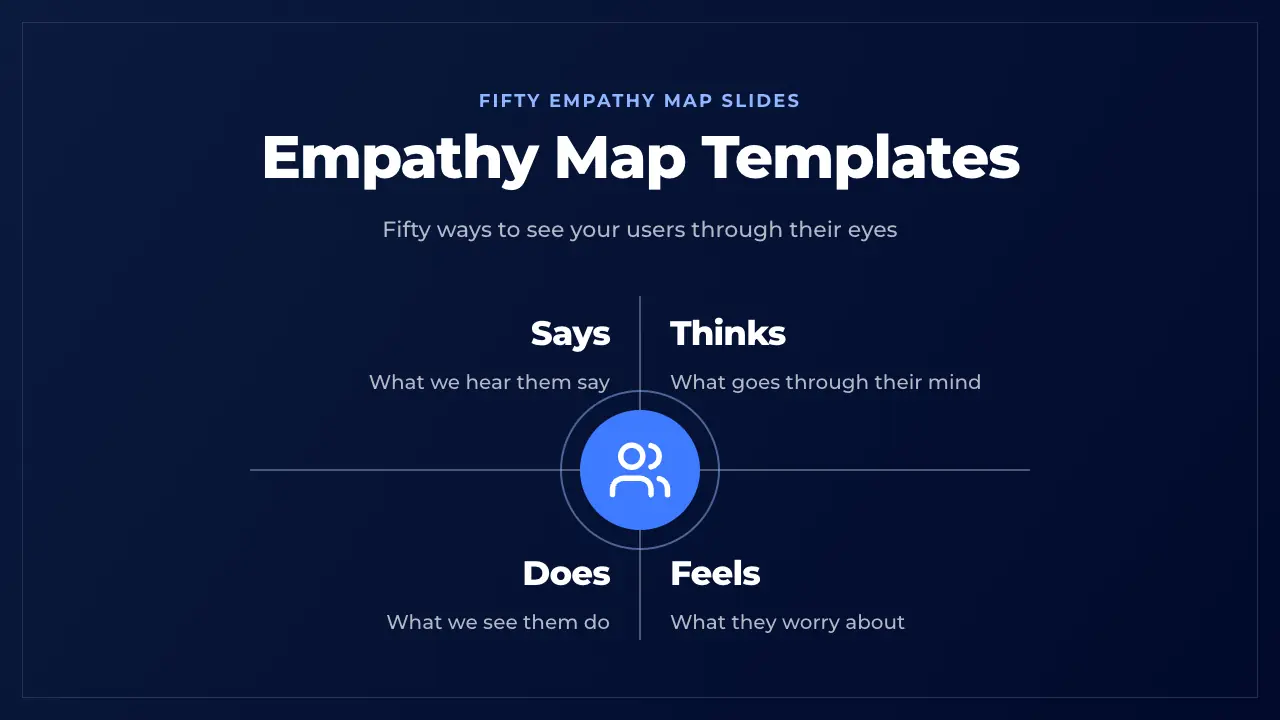
Fifty empathy map slides in one calm blue look, from the classic four quadrants to the extended map with pains and gains. Every slide puts one user at the centre, named by a role, so you can drop in your own research and present it the same day.
This empathy map template brings together 50 slides that show what a user says, thinks, does and feels, each one a different form of the same method. You will find the classic 2 × 2 map, the extended map with Sees, Hears, Pains and Gains, single quadrants in focus, maps beside photos and maps that end in insights and design questions.
If you were looking for an empathy map powerpoint template free of charge, you can download the whole pack as PPTX with a free account, change the colours and fonts in the bar above, or describe your own users and let the AI build a new deck in this look. The sample content is neutral: roles such as a new customer, a patient or a team lead, short quotes and round figures that fit any project.
Your Own Empathy Map In Minutes
Describe the users you researched or attach your interview notes, and the AI builds a deck in this blue look around them.
Every slide with its words. Open any of them in the editor, change the colours above or download the whole pack.
1 · Title Slide With An Empathy MapA title slide that is an empathy map itself: kicker, headline and lead stand centred over a calm cross with the user at its centre and the four classic quadrants around it. Use it to open a design workshop, a research readout or a customer review. Replace the captions with the questions your team will answer.
2 · Classic Four-Quadrant Empathy MapThe classic empathy map: four floating cards for what a new customer says, thinks, does and feels, with the user at the centre where the quadrants meet. Use it to sum up interviews or a workshop in one view. Write two short findings into each card.
3 · Empathy Map Beside A PhotoA tall photo sets the scene; beside it a quiet cross divides the four quadrants of a new employee’s first weeks. Use it for onboarding research or an employee experience review. Swap the photo for one of your own setting and keep two findings a quadrant.
4 · Six-Field Map With Pains And GainsA role card names the user and the goal; beside it the four quadrants, and under them the two fields of the extended map: pains and gains. Use it when a map should lead straight to what to fix and what to offer. Keep one line a field.
5 · Four Quadrants As ColumnsThe four quadrants stand side by side as tall columns, each with its icon, its label and three short findings. Use it when the map is read from left to right in a presentation, or when each quadrant holds a short list. Keep the findings to three words or so.
6 · Persona Card With An Empathy MapA persona card introduces the user with a round photo, a short context and three facts; beside it a cross divides the four quadrants of the empathy map. Use it when the audience first needs to meet the person behind the map. Replace the facts with what matters for your project.
7 · Feels Quadrant In FocusA small key of the four quadrants shows which one is in focus; the large card beside it holds the Feels quadrant of a patient in four named emotions. Use it when one quadrant deserves a slide of its own. Name each feeling in one word and say when it appears.
8 · Says Quadrant As Speech BubblesThe Says quadrant on a slide of its own: six short quotes in speech bubbles stand around the user, three on each side. Use it to let your interviews speak in the users’ own words. Keep each quote short and true to what was said.
9 · Pains And Gains SplitThe two extra fields of the extended empathy map side by side: pains on the left, gains on the right, the user between them. Use it to turn a map into priorities for a product or a service. Give each pain a gain that answers it.
10 · Sees And Hears In FocusThe two outer fields of the extended empathy map: what the user sees on the left, what they hear on the right, the user in the middle. Use it to describe the setting a person moves in before you ask what they think. Keep each item to one line.
11 · Diamond Map Around A Round PhotoA round portrait stands at the centre and the four quadrants float around it as cards, one in each corner. Use it when the person behind the map should be seen first. Swap the portrait for one that fits your user and keep two findings a card.
12 · Empathy Map As Four BandsThe four quadrants read from top to bottom as bands, each with a navy label and two findings beside it. Use it when a map has to be read line by line, in a report or on a call. Keep each finding to one line.
13 · Says Versus Does ComparisonTwo quadrants of the empathy map face each other: what the user says on the left, what they do on the right, a gap marked on every row. Use it to show where interviews and data disagree. Close with the insight the gap teaches.
14 · Extended Empathy Map With Eight FieldsThe extended empathy map in one view: what the user sees and hears at the sides, what they think and feel above, what they say and do below, and their pains and gains across the foot. Use it when the full canvas is needed, for a workshop or a final readout. One line a field keeps it calm.
15 · Empathy Map Under A Photo BandA photo band sets the scene under the headline; under it the four quadrants stand as equal cards in a row. Use it for field research in a shop, a branch or any place you observed people. Replace the photo with your own setting.
16 · Empathy Map With Key FiguresEach quadrant of the empathy map carries one large figure from a survey and a line that says what it means. Use it when your research has numbers behind it and the room should remember them. Round the figures and keep one per quadrant.
17 · Hexagon Empathy MapThe user stands in a large hexagon at the centre; four smaller hexagons around it name the quadrants, with two findings beside each on the outer side. Use it for a lighter, more graphic take on the classic map. Keep the findings to a few words.
18 · Before And After Empathy MapTwo empathy maps of the same user, before and after a change, read row by row with the quadrant named in the middle. Use it to show the effect of a new tool, a process or a service. Keep the rows short so the contrast speaks.
19 · Round Photo At The CentreA round portrait sits where the four quadrants meet, so the map is read around a face. Use it when the audience should remember the person, not only the findings. The fields at the corners hold two short lines each, aligned to the outer edges.
20 · Feels Quadrant As A ScaleThe Feels quadrant drawn as a scale from frustrated to confident, the users’ place on it marked, and under it the reasons from the other quadrants. Use it to show where a group of users stands and why. Move the marker to where your research puts them.
21 · From Interview Quotes To A MapThree quotes from the interviews stand on the left; an arrow leads to the empathy map they were sorted into. Use it to show how research becomes a map, in a readout or a workshop. Keep the quotes word for word and the map’s lines short.
22 · Two Empathy Maps Side By SideTwo users mapped side by side, quadrant by quadrant, so the differences can be read across each row. Use it to compare segments, a new and a returning user, or two roles in one process. Keep the rows in the same order on both sides.
23 · Empathy Map Rows Beside A PhotoThe four quadrants read as rows from top to bottom, each with an icon, beside a tall photo of the user at work. Use it when one line per quadrant says enough and the setting matters. Replace the photo with your own field research.
24 · Thinks Quadrant As Thought BubblesThe Thinks quadrant on a slide of its own: five thoughts in bubbles curve around the user, and a key under the headline shows which quadrant is in focus. Use it for the doubts and hopes people rarely say out loud. Write each thought in the first person.
25 · Does Quadrant As A List Of ActionsThe Does quadrant on a slide of its own: five actions seen in observation, each with an icon and a short note, and a key that marks which quadrant is shown. Use it after field observations, when behaviour tells more than words. Name each action with a verb.
26 · Pains And Gains Around The UserThe user stands as a tall column in the middle; three pains on the left face three gains on the right, row by row. Use it to show what a service should take away and what it should give. Pair each pain with the gain that answers it.
27 · Empathy Map As A Workshop WallThe empathy map as a team builds it on a wall: four quadrants divided by a cross, the role at the centre and sticky notes in each field. Use it to share the raw result of a workshop before it is condensed. Keep each note to two or three words.
28 · Empathy Map On A Plus CrossTwo pale bars cross at the user and divide the slide into four numbered quadrants. Use it when each quadrant holds one strong line and the slide should feel open and calm. Number the quadrants in the order you will speak to them.
29 · Quadrants With Note CountsEach quadrant becomes a column with the number of notes it received in the workshop and the pattern that stood out. Use it to show where the research weighed most. Put the source under the row so the numbers can be trusted.
30 · Empathy Map As A CircleThe map as one circle around the user, split into four quarters; each quarter carries its label, and the findings stand outside the circle at its corners. Use it for a softer, more graphic map on a title or summary slide. Two short lines a quadrant are enough.
31 · Empathy Map On A Full PhotoA full photo of the setting lies under a navy overlay; the user and the goal stand on the left, the four quadrants as translucent cards on the right. Use it to bring the audience into the place where the research happened. Swap the photo for your own location.
32 · Four Quadrants Around One NeedThe four quadrants lead to one need at the centre of the slide, where the user would stand on a classic map. Use it to close a research readout with what the user really needs. Write the need as something the user wants, not as a solution.
33 · Observed Above, Inferred BelowOne line divides what the team observed from what it inferred: Says and Does above, Thinks and Feels below, the user on the line. Use it to be honest about which parts of a map are seen and which are interpreted. Mark the inferred half as a hypothesis to test.
34 · Six Fields In Two RowsThe six fields of the extended empathy map as six equal cards in two rows, each with its icon and one line. Use it when the setting matters as much as the person: what they see and hear around them. Keep the order of the fields the same in every map you show.
35 · One Quote With A Round PortraitOne quote from the Says quadrant takes the stage beside a round portrait; the other three quadrants follow as small cards. Use it when a single sentence sums up the user better than any list. Pick the quote that the team keeps repeating.
36 · From Empathy Map To InsightsA compact empathy map on the left, three insights read from it on the right, an arrow between them. Use it to show the step from research to what the team will act on. Write each insight as a short statement with one line of evidence.
37 · Feels Quadrant As BarsThe Feels quadrant counted: five feelings named by users, each as a bar with its share, beside a card for the role. Use it when a survey stands behind the map and the mix of feelings matters. Order the bars from the most named to the least.
38 · Role Card Above The QuadrantsA wide role card names the user, the goal and three facts; the four quadrants follow as cards underneath. Use it to open a map where the audience does not yet know the role. Replace the tags with the facts that shape the user’s day.
39 · Empathy Map With A Half-Slide PhotoA photo fills the right side of the slide; on the left a calm cross divides the four quadrants around a small user disc. Use it when the setting tells part of the story, as a home, a shop or a workplace. Keep two short lines a quadrant.
40 · Gains Field In FocusThe Gains field of the extended empathy map on a slide of its own: three hoped-for gains as cards with icons, and a key that shows which field is in focus. Use it to turn a map towards the value a product or service should create. One clear gain a card.
41 · Hears Field In FocusThe Hears field of the extended empathy map on a slide of its own: six voices that reach the user, each with what they say, around a central disc. Use it to show whose opinion shapes a decision before you design for it. Name the voice by its role, never by a person.
42 · Inner And Outer WorldTwo zones, one inside the other: the outer world holds what others can see the user say and do, the inner world what they think and feel. Use it to show the gap between how someone appears and how they feel. Keep the inner world in the middle, where it belongs.
43 · Four Quadrants On A Night PhotoA full photo under a navy overlay sets the mood; a thin white cross divides the four quadrants around the user, kicker and headline centred above. Use it to open a map with atmosphere, for a talk or a keynote. Replace the photo with the setting of your own users.
44 · Goal-First Empathy Map CanvasThe updated empathy map canvas: it starts with who the user is and what they need to do, then maps what they see, say, do and hear, and closes with what goes on inside. Use it when a team should keep the goal in view while mapping. Write the goal as an action the user wants to finish.
45 · Sees Field Beside A PhotoThe Sees field of the extended empathy map on a slide of its own: a photo of the setting on the left and what the user sees in it on the right. Use it after an observation, to let the audience look through the user’s eyes. List what is there, not what you think of it.
46 · Four Cards Around The UserFour large cards hold the quadrants, each with an icon and three short lines, and the user stands in the gap where the cards meet. Use it when each quadrant has a little more to say. Keep the lines short so every card reads at a glance.
47 · Empathy Map With A Photo StripA tall photo strip at the left edge shows the user in their setting; the four quadrants follow as cards in two rows, each with an icon tile. Use it for research on learners, members or customers you met in their own place. Replace the photo with one of your own users.
48 · Empathy Map As A Research SummaryThree figures say how the map was made; under them a slim map of the four quadrants gives the top finding of each. Use it as the closing slide of a research readout, so the map is read with its evidence. Replace the figures with your own sample.
49 · Pains Field In FocusThe Pains field of the extended empathy map on a slide of its own: four pains named in the interviews, numbered, and one key figure that shows how much they weigh. Use it to agree on what to fix first. Order the pains by how often they were named.
50 · Design Questions From The MapThe last step of an empathy map: each quadrant becomes a How might we question that the team can design for. Use it to close a workshop and hand the map over to ideation. Write one question a quadrant, open but specific.
Fifty Forms Of An Empathy Map In One Blue Look
A title slide that is an empathy map itself; the classic map with four floating cards around the user, as four tall columns, as four full-width bands, on a plus cross, as one circle, as a hexagon map, as a diamond around a round portrait and as four navy cards; the map beside a tall photo, on a photo band, on a full photo under a navy overlay, with a photo strip at the edge and with a half-slide photo; a persona card beside the map and a wide role card above it; the extended map with eight fields around the user, six fields in two rows and the goal-first canvas that starts with who and what they need to do; one quadrant in focus: the Says quadrant as speech bubbles, Thinks as thought bubbles, Does as a list of actions, Feels as named emotions, as a scale and as bars; one field of the extended map in focus: Sees beside a photo, Hears as six voices, Sees and Hears side by side, Pains with a key figure and Gains as three cards; pains and gains split left and right and mirrored around the user; comparisons: says versus does with the gap marked, before and after a change, two users side by side, what we observe above a line and what we infer below it, the outer and the inner world; the research behind the map: interview quotes that become a map, a key figure in each quadrant, note counts from a workshop, a workshop wall of sticky notes and a summary with three research figures; and what follows: one need at the centre, three insights and four How might we questions. Seventeen slides stand on navy, seventeen on light blue and sixteen on white, fourteen of them with a photo.
How To Use This Empathy Map Template
01
Pick The User
Name one user by role and goal, such as a new customer who wants to buy without regret. Slide 2 shows the classic map, slide 6 adds a persona card and slide 44 starts with the goal.
02
Fill The Quadrants
Sort your notes into Says, Thinks, Does and Feels. Write quotes word for word, keep each line short and use the empathy map template's extended forms, such as slide 14, when the setting matters.
03
Show The Evidence
Add the research behind the map: interview quotes on slide 21, a key figure per quadrant on slide 16, workshop note counts on slide 29 or a research summary on slide 48.
04
Turn It Into Action
Close with what the map means: one core need on slide 32, three insights on slide 36 and How might we questions on slide 50 hand the work over to the next design sprint.
Which Empathy Map Fits Which Moment
Use the classic four quadrants (slides 2, 5 and 12) when the audience is new to the method or the map should be read in seconds. Use the extended map (slides 14, 34 and 44) when what people see and hear around them explains their behaviour, as in a shop, a hospital or a busy office.
When one quadrant carries the story, give it a slide of its own: quotes for Says on slide 8, doubts for Thinks on slide 24, observed actions for Does on slide 25 and feelings for Feels on slides 7, 20 and 37. For decisions about what to build, the pains and gains slides (9, 26, 40 and 49) are the strongest.
Tips For A Map People Believe
Map one user per map. Two roles on one canvas blur both; compare them side by side instead, as slide 22 does for a new and a loyal customer. Keep thoughts and feelings apart from what you observed: slide 33 draws a line between what was seen and what was inferred.
Say where the map comes from. A small source line, such as 12 interviews and 4 observations, makes the quadrants credible, and a gap between what people say and what they do (slide 13) is often the most useful finding of all.
Empathy Map Template FAQ
What is an empathy map?
An empathy map is a simple canvas that puts one user at the centre and collects what they say, think, do and feel. Teams use it after interviews or observations to agree on who they are designing for before they look for solutions.
Is there an empathy map powerpoint template free to download?
Yes. With a free ExpertSlides account you can download all 50 slides of this empathy map template as a PPTX file and edit every text, shape and photo in PowerPoint.
What are the four quadrants of an empathy map?
Says holds direct quotes, Thinks what goes through the user's mind, Does the actions you observed and Feels their emotions. The classic order is Says top left, Thinks top right, Does bottom left and Feels bottom right.
What is the extended empathy map?
The extended map adds what the user sees and hears around them, and their pains and gains. Slides 14, 34 and 44 show the full canvas, and slides 9, 10, 26, 41 and 45 put single fields of it in focus.
How is an empathy map different from a persona?
A persona describes who a user is: role, context, goals. An empathy map shows how they experience one situation. Many teams use both, which is why slides 6 and 38 combine a persona card with the map.
Can the AI build an empathy map from my interview notes?
Yes. Attach your notes or a survey export and describe the user, and Fill with AI builds your own deck in the look of this empathy map template, with quotes, thoughts, actions and feelings sorted into their quadrants.
Can I change the colours and fonts?
Yes. The colour and font bar above recolours every slide at once, and a Design Kit applies your brand's colours, fonts and logo to the whole deck.
Try ExpertSlides AI For Free — The Ultimate AI Presentation Maker
Describe any topic or upload a document, and ExpertSlides designs and writes the whole deck — editable in the browser and as a PowerPoint file.