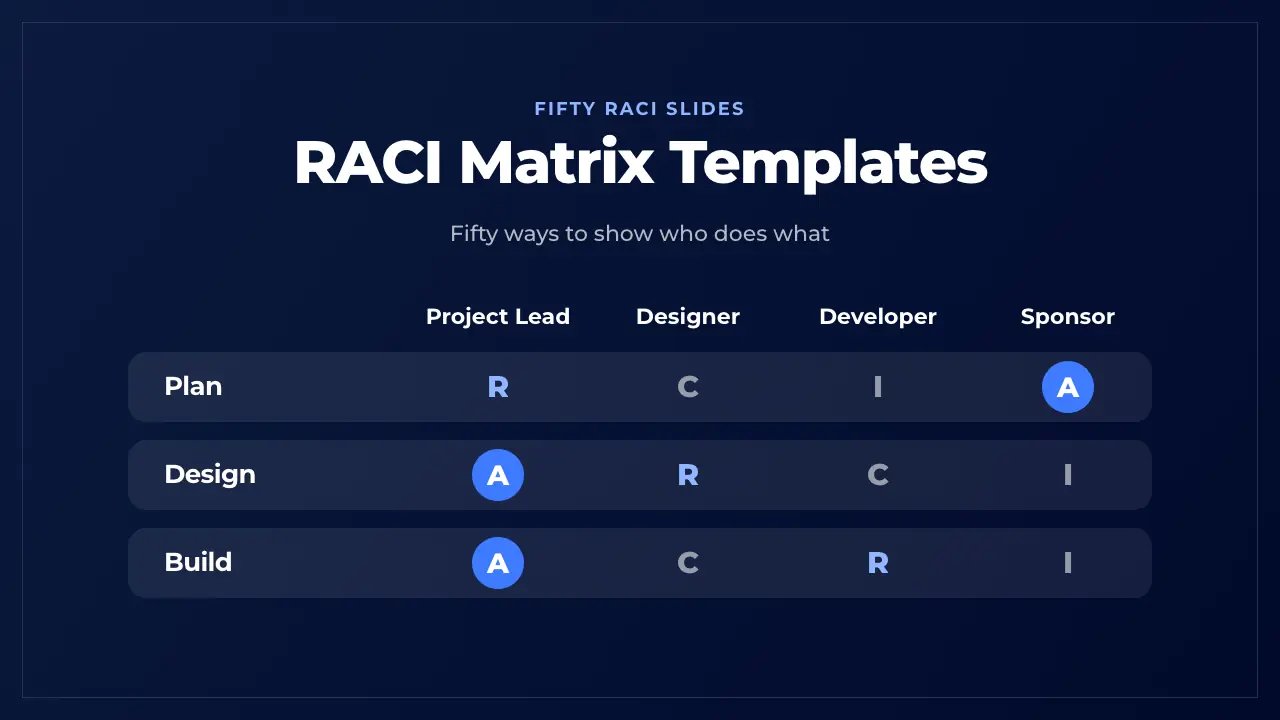
Framework Template: 50 Editable Framework Slides For PowerPoint
Fifty framework slides in one blue look, each a different structure for thinking and working: layered stacks, building blocks, a canvas of labelled fields, a core with modules, tiers, a capability map and the frameworks for decisions, governance and delivery. Change the colours and fonts of all of them at once, let the AI build your own framework deck in this look, download them as PowerPoint or edit each slide in the editor.
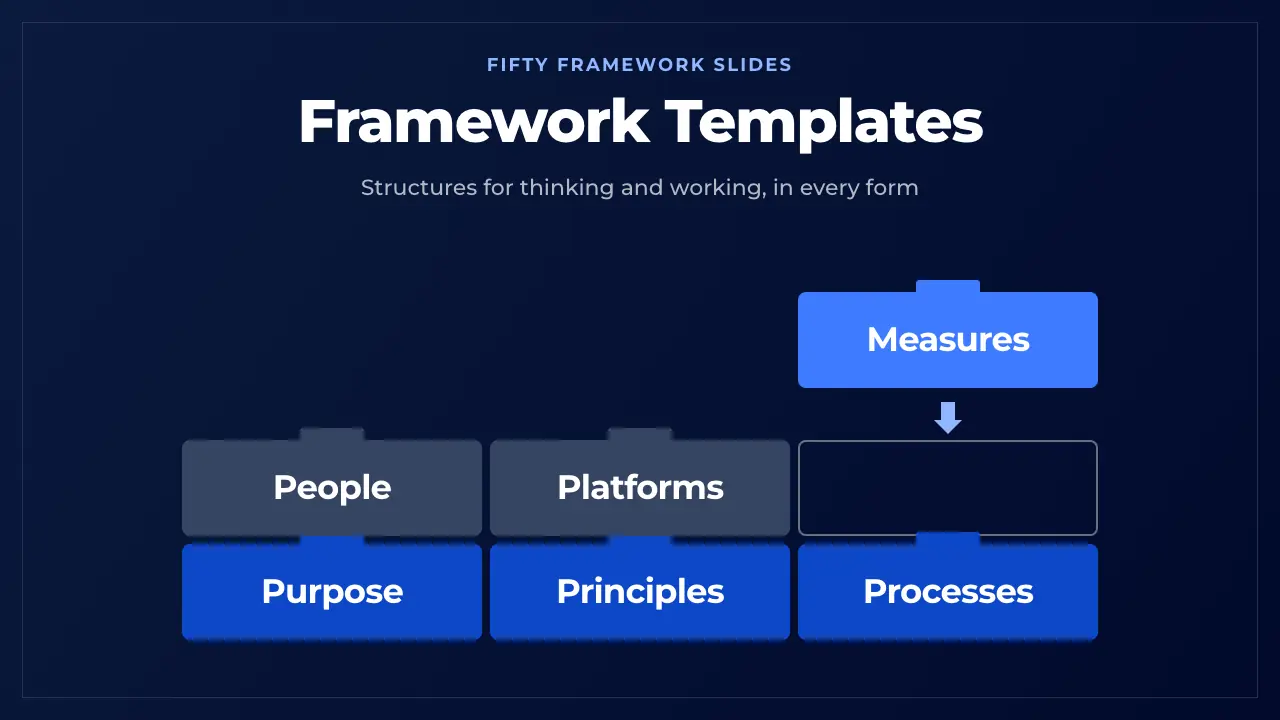
This framework template pack holds 50 slides, and each one draws a framework in a different form: a stack of five layers, a wall of building blocks, a canvas of nine labelled fields, models of three, four, five and six parts, inputs that become outputs, a core with six modules around it, three tiers of depth and a map of twelve capabilities. All of them share one blue look on light, white and navy grounds, so any five of them sit in one deck without looking borrowed.
Most files offer one empty diagram and leave the thinking to you. Here every slide is a finished framework with neutral sample content that any organisation can use: five layers from purpose to platforms, four domains called plan, build, run and improve, five delivery phases from assess to improve, roles instead of names and round sample figures that agree from slide to slide. You see how many parts each form carries before you choose it.
A framework slide has one job: it shows how the parts of a way of working fit together, so that a room can discuss them. The pack therefore also covers how to read a framework, how to build one, how to roll it out in waves and how to keep it alive. A free account downloads the slides as a PPTX file whose texts, shapes and charts stay editable, or you can stay in the browser, pick your colours and fonts in the bar above the slides and let the AI build your own deck in this look.
Your Own Model In This Framework Look
Describe your model, its parts and who works with it, or attach your notes, a process description or a report. ExpertSlides builds your own framework deck in this look in a few minutes, with your layers, your modules and your figures.
Every slide is a complete framework with neutral sample content — general parts, roles instead of names and round figures — that fits any organisation. Replace its layers, modules and measures with yours.
1 · Modular Blocks Framework CoverThe opening slide of the pack. Six labelled blocks lock into a single structure while the last one drops into its slot. Use it to open any talk about how a way of working is built.
2 · Isometric Five-Layer StackFive slabs stacked from Purpose to Platforms, each with one line on what it holds. Use it to show that the upper layers depend on the ones beneath them. Rename the layers to match your own model.
3 · Masonry Wall Of Building BlocksEight blocks in three courses, laid like bricks so that every joint is bridged. Foundations sit at the bottom, ways of working in the middle and results on top. Use it to name the parts of your framework.
4 · Canvas Of Nine Labelled FieldsOne page with nine fields of different sizes, from Purpose and Scope to Measures and Risks. Fill it in together in a workshop to agree what your framework covers. Principles stand in the middle because every other field answers to them.
5 · Three Interlinked RingsThree rings linked like a chain, one each for Why, How and What. Use it for a simple model whose parts only work together. Take one ring away and the chain falls apart.
6 · Four Arrows Into One ResultFour arrows run into a single bar: People, Process, Data and Tools all serve one result. Use it when you want to show that no part of the model stands alone. Swap the four parts for your own.
7 · Pentagon With Five CalloutsA single pentagon holds the model, and each of its five corners leads to one part: Goal, Scope, Method, Roles and Measures. Use it for a compact model with five equal parts. Replace the callouts with the parts of your own.
8 · Honeycomb Of Six CellsSix hexagons touch one another and share a core, so each part is visibly linked to its neighbours. Use it for a model of six parts with one purpose at its centre. Add a title and a short line for each cell.
9 · Inputs, Process And OutputsThree inputs enter a central block that filters, decides and delivers, and three outputs leave it. Use it to explain what a framework actually does with what it receives. Change the inputs and outputs to fit your case.
10 · Hub With Six ModulesA stable core in the middle with six modules on spokes around it. Use it when a framework has a fixed centre and parts that teams can add, swap or leave out. Name the core and each module.
11 · Three Rising TiersThree cards rise from Core to Extended to Full, and each adds capabilities to the one before. Use it when teams can take on a framework at different depths. Put what each tier includes on its card.
12 · Capability Map In Four DomainsA map of twelve capabilities sorted into the four domains Plan, Build, Run and Improve. Use it to show what an organisation must be able to do, and to mark where the gaps are. Rename the domains and the chips to suit your own map.
13 · Decision Tree With Two QuestionsTwo questions lead every decision to one of three routes: decide, consult or escalate. Use it to agree who may decide what without a meeting. Replace the questions with the two that matter most in your organisation.
14 · Governance Hierarchy With CadenceThree levels of governance, each with its own rhythm: the sponsor every quarter, the steering group every month and the domain leads every week. Use it to make clear who decides what and how often. Change the forums and the rhythm to fit.
15 · Five Phases Over Three StreamsFive phases run across the top and three workstreams run beneath them, so everyone sees what happens when. Use it to plan the delivery of a framework or any larger change. Move the bars to fit your own phases.
16 · Anatomy With Numbered CalloutsA small sample structure with four numbered markers explains how to read any framework: its goal, its parts, the links between them and its measures. Use it to introduce a model to people who have not seen it before.
17 · Rising Staircase Of Five StepsFive steps climb from Define to Publish, with what to do written on each tread. Use it as a simple recipe for building a framework from nothing. Each step only makes sense once the one below it stands.
18 · Three Waves On A Quarter ScaleThree staggered waves carry a framework from 3 pilot teams in Q1 2027 to all 8 teams by Q2 2028. Use it to show that a roll-out is planned in stages. Move the bars to fit your own quarters and teams.
19 · Five Principles Beside A PhotoFive numbered principles stand beside a photo of people at work. Use them to set the rules that keep every part of a framework consistent. Keep each principle short enough to remember.
20 · Three Statements On A Full PhotoA full photo under a navy overlay carries one message and three short statements. Use it as a pause in a longer talk, to say why a framework matters. Keep the words few so that the slide can breathe.
21 · Adoption Column ChartA real column chart follows adoption over six quarters, with the start and the target beside it. Use it to report how far a framework has spread. Edit the chart data to show your own quarters.
22 · Budget Donut With Four RowsA real donut chart splits the budget of $400K into four parts, with the amount and the share of each beside it. Use it when you ask for funding or report on spending. Edit the chart data to change the slices.
23 · Maturity Line ChartA real line chart shows maturity rising year by year against a flat target line, from Level 2 today to Level 4 by 2029. Use it to show how a capability grows over time. Edit the chart data to fit your own scale.
24 · Five-Segment Maturity MeterOne meter in five segments runs from Initial to Leading, with a marker for today and one for the target. Use it to say honestly where you stand and how far you want to go. Move the two markers to your own levels.
25 · Nested Frames Of Four LevelsFour frames sit one inside the other, from the Enterprise down to a single Role. Use it to show that each level works within the limits set by the level around it. Rename the frames to match your organisation.
26 · Inverted Stack To PracticeFour bands narrow from broad principles through standards and methods to what people do each day. Use it to show how an abstract idea becomes concrete work. Keep the lowest band as specific as you can.
27 · Scaffold With Four PlatformsA scaffold of thin poles carries four platforms, from the basics at the bottom to results at the top. Use it to explain that a framework supports the work while it grows. Name each platform after a stage of your own.
28 · Architecture Layers And Cross-CutsFour horizontal layers are crossed by two vertical bands, Security and Data, which run through all of them. Use it for any model with concerns that cannot be left to one layer. Rename the layers and the bands to suit.
29 · Interlocking Bars Beside A PhotoFour bars lock into each other, because each one hands something to the next: an aim, the steps, a result and a lesson. Use it to show how the parts of a framework depend on one another. Add a photo of your own team.
30 · Funnel Of Candidate PracticesA real funnel chart narrows 40 candidate practices to the 12 capabilities that make up the framework, with the three questions used to filter them. Use it to show that what is in the framework was chosen on purpose. Edit the chart data to fit your numbers.
31 · Scorecard With Four MetersFour key figures show whether a framework is working, each with a thin meter under it. Use it for a quarterly review with the steering group. Replace the figures with the measures you have agreed.
32 · Layer Bands With Role PillsFive bands name the layers of the framework, and a pill at the right of each names the one role accountable for it. Use it to end any doubt about who looks after what. Replace the roles with those in your organisation.
33 · Six Large NumeralsSix large numerals name the rules of a well-designed framework, from Simple to Owned. Use it as a checklist when you design a new model or review an old one. Keep each rule to a single short line.
34 · Scattered To Aligned BlocksThe same eight blocks appear twice: scattered before the framework and aligned after it. Use it to show in one glance what a framework changes, with one figure under each side. Here the time to a decision falls from 15 days to 5.
35 · Readiness Checklist With PhotoSix plain questions check whether a team is ready to start, with a tall photo beside them. Use it before a pilot to see what is still open. Answer each question with a clear yes or no.
36 · Horizontal Breakdown TreeOne goal at the left splits into three workstreams and six deliverables at the right. Use it to break a large piece of work into parts that people can own. Keep the parts of each level at the same size of task.
37 · Central Spine With ModulesA central spine of standards runs down the slide and carries six modules, left and right in turn. Use it for a framework where every module hangs on the same shared base. Rename the modules to fit your work.
38 · Six Methods Into One BracketSix local ways of working run into one bracket and come out as a single standard. Use it to explain what a framework replaces and why that helps. Name the methods people really use today.
39 · Module Rack With Open SlotsEach domain is a rack with slots: filled slots are modules in use, open slots are modules still to come. Use it to show what a team has taken on and what it can add later. Here 8 of the 12 modules are installed.
40 · Round Photo With Four CalloutsA large round photo stands at the centre with four callouts around it, each naming a part of daily work that changes. Use it to make a framework feel real and close to the people who use it.
41 · Panel Of On And Off SwitchesFive switches show which optional parts of a framework a team has turned on. Use it to make clear what may be adapted and what stays fixed. Set each switch to match the context of your team.
42 · Three Day Numerals On An AxisThree large day numerals mark the start, the middle and the end of a 90-day pilot with 3 teams, with one card for each. Use it to show that a pilot has a clear beginning and a clear decision. Adjust the days to the length of your own pilot.
43 · Stacked Bars Of EffortA real stacked bar chart shows how many person-days each delivery phase takes, split into People, Process and Tools. Use it to plan capacity or to explain where the effort goes. Edit the chart data to match your plan.
44 · Four Diamond Gates On One LineFour diamond gates stand on one line, and each closes a phase with a single question. Use it to agree when a project may move on and when it may not. Write the question that matters most at each gate.
45 · Three Depth Cards Under A PhotoThree cards compare the depths at which a framework can be taken on, with what each adds and how many capabilities it covers. The middle one is highlighted as the usual choice. Use it to help teams pick what they need.
46 · Horizontal Bars By TeamA real horizontal bar chart ranks all 8 teams by adoption, with the average of 85 % beside it. Use it to see who is ahead and who needs support. Edit the chart data with your own teams.
47 · Arc With Five MarkersFive markers on an arc carry the five questions that test any framework, over the key figure of 12 capabilities. Use it to review a model before you adopt it. Replace the figure with the one that matters to you.
48 · Photo Band Over Four StepsA photo band runs across the top and four rising steps stand below it: train, coach, measure and review. Use it to explain what keeps a framework alive after the launch. Put your own actions on the steps.
49 · Framework On One PageOne slide holds the whole framework: the purpose across the top, the layers at the left, the phases and key numbers in the middle and the measures at the right. Use it as a summary or a handout. Keep it as the page everyone can point to.
50 · Three Next Steps With PhotoThe closing slide names three concrete next steps beside a calm photo: name the owner, choose 3 pilot teams and start the 90-day pilot. Use it to end a talk with a clear call to action.
Fifty Forms Of A Framework In One Blue Look
A title slide of modular blocks locking into one structure; the structures themselves: a stack of five layers, a masonry wall of eight blocks, a canvas of nine fields, nested frames, a scaffold with four platforms, architecture layers crossed by two bands and a spine that carries six modules; models by their number of parts: three linked rings, four arrows into one result, a pentagon of five and a honeycomb of six cells around a core; how a framework works: inputs to outputs, a core with six modules, parts that interlock, a breakdown tree, six methods gathered into one standard and a rack of modules with open slots; the frameworks an organisation runs on: a capability map, a decision tree, a governance hierarchy with its rhythm, a delivery plan of five phases over three workstreams and four gates to pass; how to read, build and roll out a framework, with an anatomy in numbered parts, a staircase of five steps, three waves on a scale of quarters and a 90-day pilot; the figures, as real charts you edit by their data: adoption by quarter and by team, a budget donut, maturity over time, a funnel of candidate practices and the effort per phase; and the slides that decide and close: a maturity meter, a scorecard, owners for each layer, six rules of good design, a before and after, a readiness checklist, on and off switches for tailoring, three depths to pick from, five test questions on an arc, the whole framework on one page and three next steps. Eighteen slides stand on navy, sixteen on light blue and sixteen on white, twelve of them with a photo.
How To Use This Framework Template
01
Pick Your Framework Slides
Look through the 50 slides and note the forms that fit your model: the layer stack for dependencies, the core with modules for a flexible design, the capability map for a whole organisation. Most decks need three to five of them.
02
Set Colours And Fonts
Choose your colours and your font in the bar above the slides. The whole framework template changes at once, so you see your brand on every form before you download anything.
03
Put In Your Parts
Press Fill With AI and describe your framework, or press Edit Slides and replace the sample layers, modules and figures by hand, slide by slide, in the editor.
04
Download Or Present
Download the slides as a PPTX file with a free account and copy them into your own PowerPoint deck, or present them straight from the browser.
Which Framework Slide Fits Which Purpose
A model whose parts depend on each other wants a structure that shows it. The five-layer stack (slide 2) and the masonry wall (3) put the foundations at the bottom and the results on top, the nested frames (25) show what each level may decide inside the one around it, and the architecture layers (28) carry concerns such as security and data straight through all the others.
A model with a fixed centre and parts that change wants a core. The hub with six modules (10), the honeycomb (8) and the central spine (37) keep the shared part in the middle, and the module rack (39) shows what a team has installed and which slots are still open. When teams can take on different amounts, use the three rising tiers (11) or the three depth cards (45).
A whole organisation wants a map and clear rules. The capability map (12) sets out twelve capabilities in four domains, the decision tree (13) says who may decide what, the governance hierarchy (14) names the levels and how often they meet, and the layer owners (32) put one accountable role beside each layer.
A change that has to reach people wants a plan and proof. The delivery framework (15) lays five phases over three workstreams, the three waves (18) and the 90-day pilot (42) stage the roll-out, the four gates (44) say when work may move on, and the adoption chart (21), the scorecard (31) and the before and after (34) report what it changed.
How To Build A Framework In PowerPoint With This Pack
Download the pack as a PPTX file and open it in PowerPoint. Every text is a text box, the blocks, layers and connectors are shapes and the figures are real charts, so you rename a part by typing over it and change a chart by editing its data. Copy the slides you need into your own presentation and delete the rest.
Start from the question the framework answers, not from its shape. The canvas (slide 4) is a good first page for a workshop, because an empty field shows what is still undecided. The staircase (17) gives the order of the work: define the goal, name the parts, link them, test them with a pilot and publish.
Keep the number of parts the slide was drawn for. A framework of three to six parts can be remembered and explained in a minute; with fifteen it becomes a list. If you have more, group them first, as the capability map (12) does with twelve capabilities in four domains, or break them down level by level with the tree (36).
Set colours and fonts before you download. The bar above the slides recolours all 50 at once, which is quicker than changing shape after shape in PowerPoint. If your organisation has a Design Kit in ExpertSlides, the slides take its colours, fonts and logo instead.
Questions About The Framework Template
Is This Framework Template Free?
Yes. All 50 slides of the framework template are free. You can look at every slide and try colours and fonts on this page without an account; a free account, with no credit card, downloads the PPTX file or opens the slides in the editor.
Can I Use It As A Framework Template For PowerPoint?
Yes. Press Download PPTX and open the file in PowerPoint. Texts stay text boxes, blocks and connectors stay shapes and the six charts stay real charts, so you edit the framework template there like any slide of your own, and you can copy single slides into an existing presentation.
Which Slide Should I Start With?
For a new model, start with the canvas (slide 4) to agree what it covers, then pick its form: the five-layer stack (2) for dependencies, the core with six modules (10) for a flexible design or the capability map (12) for a whole organisation. If the room has not worked with frameworks before, open with how to read one (16).
Are There Slides For Governance And Decisions?
Yes. The decision tree (slide 13) leads two questions to decide, consult or escalate, the governance hierarchy (14) shows three levels with their rhythm, the layer owners (32) name one role for each layer and the four gates (44) close each phase with one question.
Which Slides Show Figures?
Six slides hold a real chart you edit by its data: adoption by quarter (slide 21), the budget donut (22), maturity over time (23), the funnel of candidate practices (30), the effort per phase (43) and adoption by team (46). The scorecard (31) and the maturity meter (24) show key figures in shapes you can resize.
Can The AI Build My Own Framework?
Yes. Press Fill With AI and describe your model, or attach notes, a process description or a report. The AI builds your own framework deck in this look, with your parts, your roles and your figures, and you can ask for changes slide by slide afterwards.
Can I Change The Colours And Fonts?
Yes. The bar above the slides sets the colours and the font of all 50 slides at once, and the download and the editor take over what you chose. In the editor you can also change a single slide, or put your own Design Kit on the whole deck.
Are There Framework Slides With Photos?
Yes. Twelve slides carry a photo, among them the guiding principles (slide 19), the statements on a full photo (20), the interlocking parts (29), the readiness checklist (35), the round photo with four callouts (40) and the closing next steps (50). Replace each picture with your own in the editor or in PowerPoint.
Try ExpertSlides AI For Free — The Ultimate AI Presentation Maker
Describe any topic or upload a document, and ExpertSlides designs and writes the whole deck — editable in the browser and as a PowerPoint file.