List Presentation Template Pack: 50 Editable Slides
Fifty list slides in one calm blue look, from numbered and lettered lists to a ranked top five, pros and cons and a list on a full photo. Change the colours and fonts, fill them with your own points, and download them as PowerPoint.
This list presentation template pack gives you 50 slides that put points in order so an audience reads them at a glance: priorities, benefits, steps, rules, tips, values, risks, requirements, lessons and next steps. Every slide is a complete list with sample content you can replace in minutes.
Use it as a list PowerPoint template or edit it right here. The forms range from large outlined numerals, two columns of icon bullets and four cards in a row to a ranked top five with shortening bars, dos and don'ts, hexagon tiles, a glossary, a list of questions and lettered columns from A to E, on navy, light and white grounds.
Your Own List In This Look
Describe your topic and the AI builds a deck of your own in this blue list style, with your points, your figures and your words.
Every slide with its words. Open one in the editor to change it 1:1.
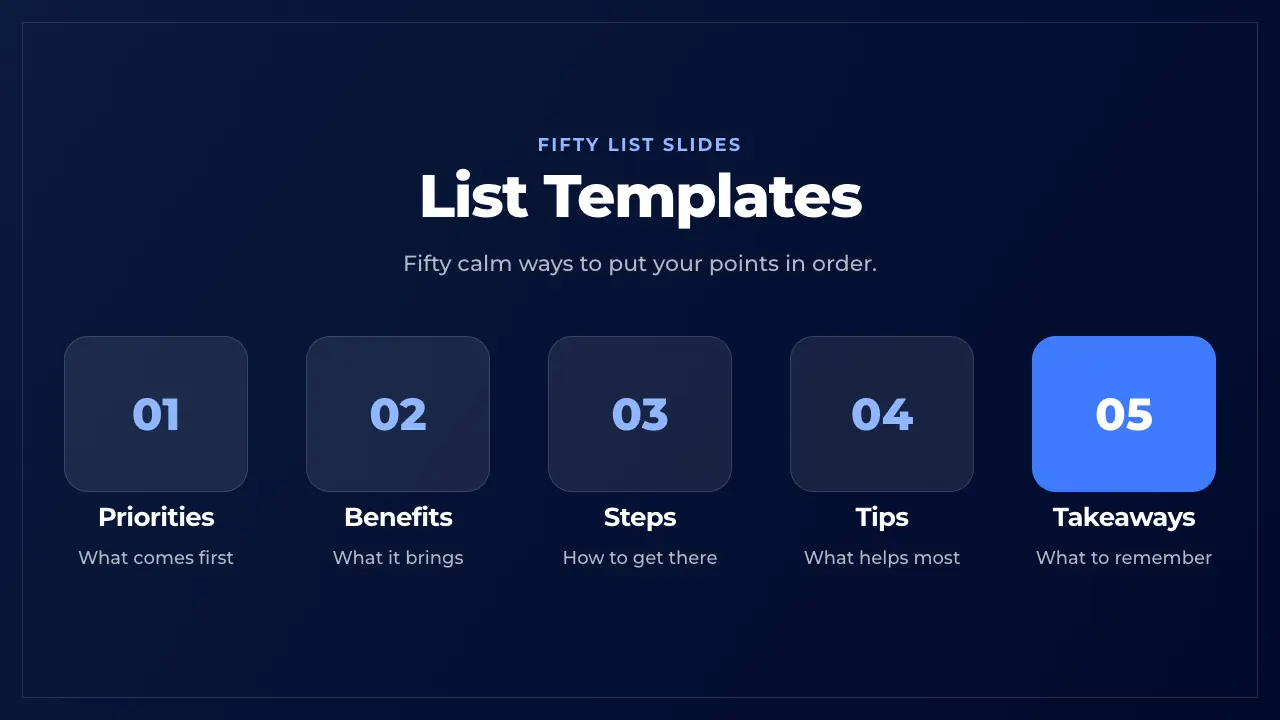
1 · Title Slide With Five Numbered TilesThe pack's title slide is a list itself: five numbered tiles in one row, each with a bold label and a short caption, the last one filled as the point to remember. Use it to open a deck of list slides or to name the five parts of your talk. Replace the labels with your own five points.
2 · Numbered List With Large NumeralsFive priorities in ranked order, each with a large numeral, a bold title and one sentence on what it means, parted by fine rules. Use it for goals, priorities or any ranked points. Keep each title to two words and each sentence short.
3 · Icon List In Two ColumnsSix benefits in two calm columns, each marked by a white icon in a blue tile with a bold title and two lines of text. Use it for benefits, features or reasons that carry the same weight. Swap the icons to match your own points.
4 · Numbered List Beside A PhotoA photo on the left and four numbered rules on the right, each with a bold title and one line of text. Use it for rules, principles or short guidelines that need a human face. Change the photo to show your own setting.
5 · Ranked Top Five With BarsA ranked top five: each point has its rank, a label and a bar that shows its share, the first one highlighted. Use it for survey results, top reasons or the most frequent requests. Change the labels and set each bar to its own value.
6 · Pros And Cons In Two ColumnsA pros and cons list in two calm columns, each under a coloured header, with a plus or minus icon, a bold title and one line per point. Use it to weigh a decision, an option or a change. Keep the same number of points on both sides.
7 · Four Cards With Icons In A RowFour equal cards side by side, each with a white icon in a blue disc, a bold title and a short caption. Use it for pillars, focus areas or the main parts of a plan. Change the icons and titles to your own four points.
8 · List With Key Figures In RowsFour results in white rows, each led by a large figure in blue, then a bold title and one short line. Use it for key results, metrics or facts that need their numbers seen first. Swap the figures and lines for your own.
9 · Two-Column Numbered List Of EightEight numbered points in two columns of four, each with a blue number disc, a bold title and a one-line caption. Use it for longer lists such as requirements, parts of a brief or steps of a method. Keep every caption to one line.
10 · Three-Point List On A Full PhotoThree numbered takeaways in centred columns over a full photo under a navy overlay. Use it to close a talk or a section with the points people should remember. Change the photo to one of your own team or topic.
11 · List Of Five With One HighlightedFive goals in white rows with the middle one filled blue and tagged as the focus. Use it when one point of a list needs the room's attention, such as the goal of the quarter or the decision of the day. Move the blue fill to the row you want to stress.
12 · Dos And Don'ts In Two RowsTwo rows of three points: the habits to keep, led by a blue tile, and the habits to drop, led by a navy one. Use it for guidelines, house rules or good and bad practice. Keep the points short so each fits two lines.
13 · Hexagon List Of Five ValuesFive values in a calm row of blue hexagons, each with a white icon, a bold name and a two-line caption. Use it for values, principles or the building blocks of a culture. Change the icons and captions to match your own words.
14 · Icon List Beside A PhotoFour points with blue icon tiles, bold titles and one line each, set beside a rounded photo on the right. Use it for traits, qualities or principles that you want to show with a human face. Swap the photo for one of your own team.
15 · List With Progress BarsFive goals in a list, each with its name, the per cent reached and a slim progress bar across the slide. Use it for status reports, goal reviews or any list where progress matters. Set each bar to its own value.
16 · Glossary List Of TermsA glossary as a list: five terms on the left, each with a one-sentence definition on the right, parted by fine rules. Use it to explain the words of a field before a talk or in an appendix. Keep each definition to one line.
17 · List Of Questions In Two ColumnsFour questions in two columns, each marked by a Q tile, set in bold with a short answer under it. Use it for the questions a project, a pitch or a review must answer. Replace the questions with the ones your audience asks.
18 · Lettered List From A To EFive columns, each led by a large blue letter from A to E, a short rule, a bold title and a three-line text. Use it for tips, options or methods whose order does not matter. Keep each title to one short word or two.
19 · Three-Item List With PhotosThree items side by side, each with its own photo on top, a bold title and two lines of text. Use it for options, ways of working or offers that are easier to grasp with a picture. Choose three photos of one style.
20 · Nested List In Three ColumnsA nested list: three main points in columns, each with its number, a bold title and two bulleted sub-points. Use it when every point of a list breaks down into concrete actions. Keep the sub-points short and the same number under each.
21 · List Beside A Key-Figure PanelA navy panel with one key figure on the left and a list of five reasons with arrow markers on the right. Use it when a list argues for one number, such as a deadline, a saving or a target. Replace the figure and the reasons with your own.
22 · Six Round Icons In A RowSix points in one calm row, each a white icon in a blue circle with a short title and a two-line caption. Use it for tools, channels, services or any list of six equal parts. Swap the icons to fit your own points.
23 · Before And After ListsTwo lists of four side by side: how things were, on a quiet card, and how they are after the change, on a blue card, with an arrow between them. Use it to show the effect of a project, a new tool or a new process. Keep the points in the same order on both sides.
24 · Roles With Round PortraitsFour roles side by side, each with a round portrait, the role in bold and two lines on what it owns. Use it for a project team, a board or the contacts of a programme. Change the portraits and keep roles rather than names if the team may change.
25 · Cascading List Of Four CardsFour numbered cards that step down from the top left to the bottom right, the last one filled blue as the result. Use it for a short sequence of steps that leads to one outcome. Keep each card to a title and one short line.
26 · Six-Row List In One CardSix lessons in one calm card, each row with its number, a bold title, one line of text and a figure on the right, parted by fine rules. Use it for lessons learned, findings or results that each carry one number. Keep every row to one line.
27 · Icon List Under A Photo BandA wide photo band across the top, the headline under it and four habits in columns, each with an icon tile, a bold title and a short text. Use it for habits, routines or principles that set a mood. Swap the photo for a scene of your own.
28 · Ranked Top Three CardsA ranked top three on cards that step down in height, the first one filled blue with a large rank numeral. Use it for top risks, top priorities or the three most important findings. Put the most important point first.
29 · Seven-Point List With ChevronsSeven short tips in one column, each with a chevron marker, a bold name and one line of text, closed by a takeaway line. Use it for tips, rules or guidelines that fit in one line each. Keep the names short so the column stays calm.
30 · Grouped List Of Must And Nice To HaveTwo groups side by side, the must-haves in blue pills and the nice-to-haves in pale ones, each under a bold heading and a short line. Use it to sort requirements, features or wishes into two groups. Keep the same number of items in both.
31 · Four Cards In Two RowsFour cards in two rows, each with a blue icon tile on the left, a bold title and two lines of text. Use it for departments, services, areas of work or any four points that need a little more text. Change the icons to suit your own areas.
32 · Numbered List On A Panel With PhotoA white panel with a numbered list of five, each with a bold name and one line, beside a rounded photo on the right. Use it for signs, criteria or checks that you want to keep short and readable. Swap the photo for one of your own project.
33 · List Of Five Figures In TilesFive figures in pale tiles in one row, each with a large number, a short rule, a bold label and a caption. Use it for a year in numbers, key results or facts about a team. Replace the figures with your own and keep the captions short.
34 · Centred Icon List Of FourA centred list of four promises, each with a white icon in a blue circle, a bold name and one line of text. Use it for promises, guarantees or service levels that should feel calm and certain. Keep each line short so the list stays centred.
35 · Task List With Status PillsSix tasks in rows, each with a bold name, one line of detail and a status pill on the right: done, in progress or next. Use it for weekly updates, project status or any list where the state of each item matters. Change the pills as the work moves on.
36 · Diamond List Beside A Tall PhotoFive points with small blue diamond markers, each with a bold name and one line, beside a photo that fills the right side of the slide from top to bottom. Use it for qualities, features or reasons that belong to a place. Change the photo to your own space.
37 · Arrow-Tag List Of Next StepsFive next steps in one column, each led by an arrow tag that names its timing, with a bold title and one line of detail. Use it to close a meeting or a proposal with clear actions. Change the tags to dates, weeks or owners.
38 · Ranked List Of Eight With VotesEight ideas ranked in two columns, each with its rank, its name, its votes and a slim bar that shows the count. Use it for workshop results, polls or any ranked list of up to eight items. Set each bar to its own value.
39 · Start, Stop And Continue ListsThree short lists side by side under coloured headers: what to start, what to stop and what to continue. Use it for retrospectives, team reviews or any feedback round. Keep three items in each column.
40 · List In A Card On A Full PhotoA full photo under a navy overlay with the headline and a short statement on the left and a white card with four icon points on the right. Use it for reasons, offers or benefits that need a strong mood. Swap the photo for your own team or place.
41 · Five Columns Parted By RulesFive columns parted by fine vertical rules, each with a blue icon tile, a bold name and a two-line caption. Use it for channels, services or options that sit side by side as equals. Swap the icons and keep the captions to two lines.
42 · Big Number Beside A List Of SevenA giant numeral on the left names the count, and seven short numbered rules on the right, parted by fine rules. Use it for rules, habits or tips where the number itself is part of the message. Change the numeral when you change the count.
43 · Two-Column Icon List Of EightEight short features in two columns of four, each a white icon in a blue tile beside a bold name. Use it for features, services or benefits that need no more than two words each. Swap the icons to match your own points.
44 · List With Round Photo BulletsThree points in a column, each led by a round photo instead of a bullet, with a bold title and one line of text. Use it for options, places or situations that a picture explains faster than words. Choose three photos in one style.
45 · List Beside A Takeaway CardFour numbered lessons in a column on the left and one large blue card on the right that states the takeaway. Use it to close a review or a project with the one sentence people should remember. Keep the takeaway to a single short line of thought.
46 · List With Progress RingsFour goals in a row, each with a ring that fills to its progress, the per cent in its middle and a title and caption under it. Use it for quarterly goals, targets or any list where each point has a state of progress. Change the arc of each ring to its per cent.
47 · Photo Beside A Six-Step ListA rounded photo on the left and six numbered steps in two columns on the right, each with a short title and a two-line caption. Use it for onboarding, a process in six steps or any ordered checklist. Read it down the first column, then the second.
48 · Contents List In Two ColumnsAn agenda or table of contents: six sections in two columns of three, each led by a large numeral in an outlined square, with its title and a one-line caption. Use it at the start of a deck to show what comes. Keep each caption to one short line.
49 · Accent-Bar List With TagsFive rows, each with a blue bar on its left edge, a bold title, a one-line body and a tag on the right. Use it for requirements, criteria or a checklist where each point has an owner or a category. Put the owner's role or a status into the tag.
50 · Closing List Beside A PhotoA closing slide: a photo fills the left half, and three numbered takeaways stand on the right, each a bold title and a two-line body. Use it at the end of a deck for what was learned, decided and comes next. Keep every takeaway to one short thought.
What Is Inside The Pack
Numbered and lettered lists, two-column icon bullets, lists beside a photo on the left or right, a ranked top five with bars, pros and cons, dos and don'ts, four list cards in a row, a list with figures, an eight-item numbered list, a list on a full photo, a list with one highlighted item, hexagon tiles, progress bars for goals, a glossary and a list of questions. Every number, icon, text and colour stays editable.
How To Use This List Presentation Template
01
Pick A Form
Choose the list presentation template that fits your points: numerals for an order, a ranking for a top five, two columns for pros and cons.
02
Set Your Colours
Use the colour and font bar to match your brand; every slide follows at once.
03
Write Your Points
Replace the sample items and figures with your own priorities, steps, rules or takeaways, and drop the rows you do not need.
04
Present Or Download
Present straight from the browser or download the slides as a PPTX file for PowerPoint.
Which List Form To Choose
A numbered list shows an order, such as steps or priorities, and a ranked top five with bars shows which item leads and by how much. A bulleted list with icons suits points of equal weight, and cards give each point room for a title and a short body.
Use pros and cons or dos and don'ts when two sides are weighed, a list with figures or progress bars when every point carries a number, and a glossary or a list of questions when terms or open points are the message.
Tips For Clear List Slides
Keep to five or six items on a slide and start each with the word that matters most. Give every item the same form, a short title and at most one line under it, so the audience can compare them.
Mark the one item you want remembered with the highlight colour, and move longer explanations into the speaker notes rather than onto the slide.
Frequently Asked Questions
Is this list presentation template free?
Yes. You can view and edit every slide of this list presentation template for free, and download the deck as PPTX with a free account.
Can I use it as a list PowerPoint template?
Yes. Download the slides as a PPTX file and open them in PowerPoint; the numbers, icons and texts stay editable there.
How many items should a list slide hold?
Most slides hold four or five items, which keeps each one readable from the back of a room. The two-column numbered list takes eight short items; for more, split the list over several slides.
Can I add or remove items?
Yes. Every item is a group of shapes and texts you can duplicate, move or delete in the editor, and the numbers and icons change like any other element.
Can I change the colours and fonts?
Yes. The colour and font bar changes every slide of the list presentation template at once, and you can still adjust single shapes in the editor.
Can the AI build a deck from my topic?
Yes. Fill With AI takes your topic and builds a new deck of your own in this look, with your points, figures and words.
Which slides suit a comparison of two sides?
The pros and cons slide sets two columns side by side, and the dos and don'ts slide stacks two bands, one for each side.
Try ExpertSlides AI For Free — The Ultimate AI Presentation Maker
Describe any topic or upload a document, and ExpertSlides designs and writes the whole deck — editable in the browser and as a PowerPoint file.