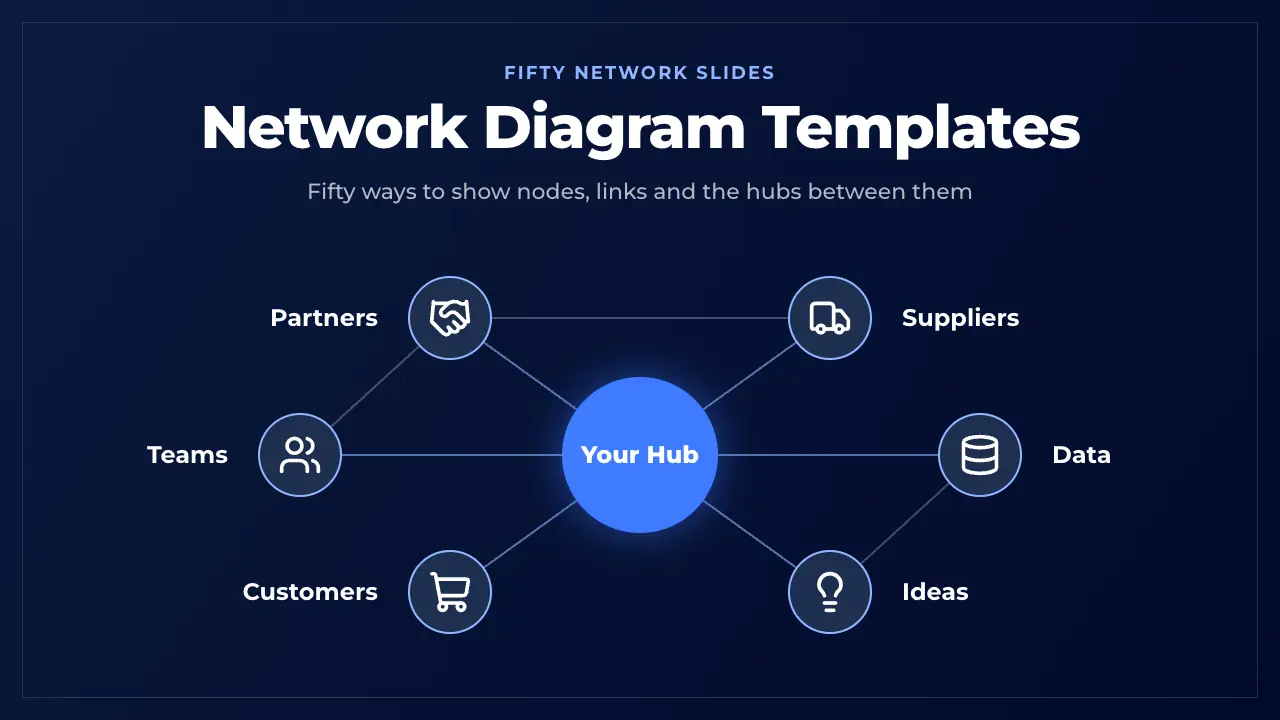
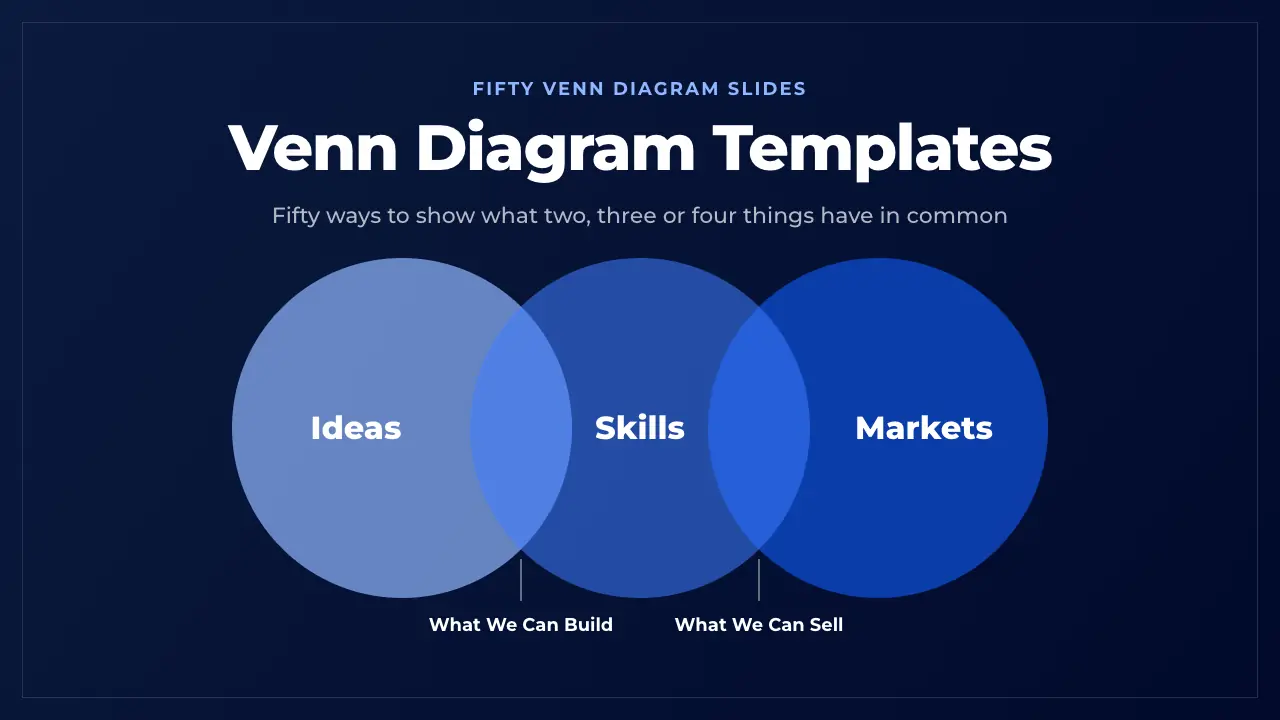
Fifty network slides in one calm blue look, from a hub with spokes and a full mesh to clusters, a bus backbone and a layered network. Change the colours and fonts, fill them with your own content, and download them as PowerPoint.
This network diagram template pack gives you 50 slides that show nodes and the links between them: business networks, partner ecosystems, teams, communities, IT systems and supply networks. Every slide is a complete network you can read at a glance, with sample content you can replace in minutes.
Use it as a network diagram PowerPoint template or edit it right here. The forms range from a hub and spoke, a mesh on a pentagon and a dumbbell of two hubs to a bus network, three clusters, weighted links, bubbles sized by a figure, round portrait nodes and an IT landscape of icon tiles, on navy, light and white grounds.
Your Own Network In This Look
Describe your topic and the AI builds a deck of your own in this blue network style, with your nodes, your figures and your words.
Every slide with its words. Open one in the editor to change it 1:1.
1 · Title Slide With A Hub NetworkA title slide that is a network itself: kicker, headline and lead stand centred over one hub and six linked nodes, with spokes from the hub and a few cross links between neighbours. Use it to open a talk about partners, teams, systems or a community. Put your own topic into the hub and your six parts into the nodes.
2 · Hub And Spoke With Six CardsA hub-and-spoke network: one hub in the centre and six spokes that lead to six cards, three on each side. Each card carries an icon, a title and a two-line caption. Use it to show who a central team, platform or organisation works with.
3 · Star Network Beside A PhotoA photo on the left and a small star network on the right: the project lead in the middle and four supporters around, each with a title and a short caption. Use it to show who backs a person, a project or a team. Swap the roles for your own.
4 · Full Mesh Of Five NodesA full mesh: five nodes on a wide pentagon, every node linked to every other with ten links. Labels and short captions stand outside the nodes. Use it to show teams, systems or partners that all work directly with one another.
5 · Two Hubs Linked As A DumbbellTwo hubs joined by one strong link, each with three partners of its own on its outer side. A label on the middle link says what the hubs share. Use it for two sites, two teams or two platforms that split the work.
6 · Layered Network From Core To DevicesA layered network: one core node at the top, three distribution nodes in the middle and six access nodes at the bottom, each linked to the layer above. Each device group has an icon, a name and a count. Use it for an office network, a sales structure or any network that branches out level by level.
7 · Expert Network On A Full PhotoA network on a full photo: a navy overlay keeps the nodes readable, one hub of shared knowledge sits in the middle and six expert roles stand around it, with two cross links between neighbours. Use it to show a circle of specialists, a board of advisors or a community of practice.
8 · Bubble Network Sized By ShareA bubble network: each source of new customers is a bubble sized by its share and linked to the largest one in the middle. The figure stands inside each bubble, its name and count beside it. Use it to show where customers, leads, ideas or funds come from.
9 · Three Network Types Side By SideThree small networks side by side: centralised with one hub, decentralised with three hubs and distributed as a mesh. A title and a two-line caption under each explain how it behaves. Use it to compare ways of organising teams, systems or partners.
10 · Bus Network On One BackboneA bus network: one backbone runs across the slide and seven systems hang off it, alternately above and below. Every system talks to the others through the shared line. Use it for a shared platform, a data bus or a common service that many teams plug into.
11 · Round Portraits As Network NodesSix round portraits stand as the nodes of a working network, linked to the people they work with most. A role names each portrait. Use it to show who works with whom in a project, a team or a committee.
12 · Three Clusters Joined By Their LeadsThree clusters of three nodes each: every team works closely inside its own cluster and links to the others through its lead. The strong blue line between the leads shows how the clusters connect. Use it for teams, regions or business units.
13 · Hub With Weighted LinksA hub with five partners, each link drawn as thick as the contact behind it, with the number of contacts a month on the link. Use it to show which ties in a network are strong and which are weak, for partners, suppliers or teams.
14 · Numbered Network With A LegendA network of six numbered nodes on the left and a legend on the right that names and explains each one: the hub, a node, a link, a cluster, a bridge and an edge node. Use it to teach the parts of a network or to walk through any diagram step by step.
15 · Supply Network Beside A PhotoA supply network read from left to right: three suppliers deliver to two hubs, and the hubs serve three customer groups. A photo on the right gives the network a place. Use it for supply chains, distribution networks or any flow through a few central points.
16 · System Landscape With Icon TilesA system landscape: six systems as icon tiles, each linked to one central gateway, with a short name over or under each tile. Use it to show how cloud, servers, data, devices and security connect in an IT network or a software platform.
17 · Hub With A Key FigureA hub that carries the network's key figure, with six groups around it, each with its own count, name and share. Use it for a community, a customer base or a membership that splits into groups of different size.
18 · Network Growing In Three StagesThree panels show one network as it grows: a founder with two first contacts, a small group of five and a working community of eight with cross links. A stage title, a caption and a count stand under each. Use it to show how a community, a partner network or a customer base grows.
19 · Round Photo As The HubA round photo is the hub of this network: six teams that touch the customer stand around it, each with an icon, a name and a short caption. Use it to put a customer, a patient, a user or a member at the centre of everything a business does.
20 · Referral Tree Spreading OutA referral network that spreads from left to right: one customer refers three people, and each of them refers two more. Column labels name the generations. Use it to show word of mouth, invitations, a viral loop or how a message spreads through a network.
21 · Fan Of Five Channels From One HubA fan-shaped network: one hub at the bottom centre sends out to five channels set on an arc above it, each linked by a soft curve. Every channel has an icon, a name and how often it is used. Use it for a communication plan, a distribution network or any one-to-many flow.
22 · Concentric Network With A LegendA concentric network: the core team in the middle, three close partners on the inner orbit and five wider contacts on the outer one, linked from the inside out. A legend on the right explains the three circles. Use it to show how close each part of a network stands to its centre.
23 · Mentoring Network Beside A PhotoA two-sided network: three mentors on the left, five mentees on the right, and links that show who learns from whom; some mentees have two mentors. A photo on the right shows mentoring at work. Use it for mentoring, coaching, training or buddy programmes.
24 · Shortest Path Through A NetworkA loose network of eight nodes with one route marked: the shortest path from a request to its answer, three hops long, drawn in the highlight colour while the other links stay quiet. Use it to show the fastest route through a support desk, a process or a supply network.
25 · Two Routes For RedundancyA redundant network: a source and a target joined by two parallel routes of two nodes each. The main route is drawn strong, the backup route quiet, ready to take over when a node fails. Use it for IT resilience, supply chains or any plan B.
26 · Star Network Sized By ShareA star network with the total in the hub and six channels around it, each node sized by its share of sales, the share inside and the amount beside it. Use it for sales by channel, budget by department or traffic by source.
27 · Partner Network With A Key FigureA photo on the left and a partner network on the right whose hub is a key-figure card: 48 partners in four groups, each group with an icon, a name and a count. Cross links show which groups work together directly. Use it for a partner programme, an alliance or a supplier base.
28 · Constellation Of Linked TopicsA network drawn like a constellation: knowledge topics as small glowing points, joined by fine lines wherever people share knowledge between them, with product as the bright centre most links pass through. Use it for a knowledge map, a skills network or the links between research fields.
29 · Network Coded By Node TypeA business network where every node is coded by its kind: partners as blue discs, suppliers as navy hexagons and clients as rounded squares, with a legend of the three kinds under the headline. Use it to map who a team works with and what role each contact plays.
30 · Four Teams With Flows On LinksFour teams linked to each other, with a label on every link that names what passes along it: targets, plans, orders, budget, forecasts and reports. Use it to show how information, money or goods move between departments, partners or systems.
31 · Round Photos Of Places As NodesFive round photos of places of work stand as the nodes of one network, linked to the places they work with most. Each photo has a name and a head count under it. Use it for teams spread over several offices, sites, studios or labs.
32 · Card Network Around A ProjectA network of cards: the project sits in the centre card and links to four groups around it, each card with an icon, a name and a two-line role. Use it to show who a project, a product or an initiative connects, and what each group brings.
33 · Skills Linked To TeamsA two-sided network: four skills on the left, three teams on the right, and a link wherever a team draws on a skill. Some skills serve several teams, some teams need several skills. Use it for skills maps, shared services or resource planning.
34 · Hexagon Partner EcosystemA partner ecosystem in hexagons: the platform in the centre, six kinds of partners around it, each with an icon, a name and a short role. Use it for a platform, a marketplace or any business that grows through partners.
35 · Community Hub Beside A PhotoA photo on the left and a community network on the right: 2,000 active members in the hub and five parts around it, each pill with its name and member count. Use it for a community, an association, a club or a user group.
36 · Before And After: Silos To NetworkOn the left five departments stand alone as silos, on the right the same five are linked into one network. Use it to show the change a programme of collaboration, shared tools or a new organisation brings. Rename the five departments to your own units.
37 · Stakeholder Network By InfluenceThe project sits in the centre; four stakeholders with strong influence stand close and are linked with thick lines, four with weak influence stand further out on thin lines. Use it for a stakeholder map at the start of a project or a change. Move a stakeholder closer or further out as its influence changes.
38 · Regional Hub Network MapAn abstract dotted map with six regional hubs linked by their routes; each hub shows the shipments it handles a week. Use it for a supply or logistics network, regional offices or service centres. Replace the region names and figures with your own.
39 · Hub Network Beside A Tall PhotoThe alumni office stands as the hub, linked to five alumni groups by graduating year from 2027 to 2031, with the members of each group under its node. A tall photo fills the right side. Use it for alumni, member or community networks organised by cohort.
40 · Bridge Node Between Two GroupsTwo groups of four roles are each linked inside, and only one connector node in the middle joins them. Use it to show a bridge role, a liaison or a single point of contact between two teams, and the risk if that person leaves.
41 · Data Flow In Five StepsFive system nodes linked by arrows show which way the data travels, from where it is entered to where it is read. Each node has a step label, an icon, a name and a short caption. Use it for data pipelines, reporting chains or any flow of information between systems.
42 · Large Hub With Eight SpokesOne large hub in the centre is linked by eight even spokes to eight small nodes, each with an icon and a one-word label. Use it for a shared service centre, a central platform or any team that serves many others.
43 · Mesh Over A PhotoA full photo lies under a navy gradient that deepens to the right, where six places of work form one mesh of links. The headline and a short statement stand on the left. Use it for distributed teams, remote work or any group that works across several sites.
44 · Network With Health FiguresA network of six system nodes runs across the upper part of the slide, and three white cards under it give its health in figures: uptime, active links and response time. Use it for IT reviews, service reports or any status update on a network.
45 · One-Sided Fan From A HubA large hub at the left edge sends five curved links to five team nodes stacked on the right, each with an icon, a name and a one-line caption. Use it for a head office and its teams, a platform and its users, or any one-to-many flow of work.
46 · Network Before And After GrowthTwo networks side by side show growth: on the left a hub with four partners, on the right the same hub with ten, the six new partners filled. A big figure over each names the count. Use it to show how a partner network, a community or a client base grows between two dates.
47 · Onboarding Network Around A PhotoA round photo of a new colleague stands in the centre, linked to the five people a newcomer meets first. Each node names the role and what it does in one short line. Use it for onboarding plans, welcome packs or a first-day briefing.
48 · Staggered Peer-To-Peer MeshSix equal peers stand in two staggered rows, each one linked to its neighbours, with no hub in the middle. Every node is a pill with an icon and a name. Use it to explain peer-to-peer systems, file sharing, decentralised teams or any network without a centre.
49 · Network Map With Member CountsSeven chapters of a community form one network: each disc carries its member count and is sized by it, with the chapter's name below. The largest chapter sits in the centre, linked to its neighbours. Use it for associations, user groups, regional teams or any network where the size of each node matters.
50 · Closing Slide With Photo And NetworkThe closing slide pairs a photo of people meeting with a small network of five moves: map, connect, share, grow and measure. A short closing line invites the audience to act. Use it to end a talk on networking, partnerships or community building.
What Is Inside The Pack
Hub and spoke networks, a full mesh, a dumbbell, layered and bus networks, three clusters, weighted links, bubble networks sized by a figure, a diagram with a legend, a flow network from suppliers onwards, an IT system landscape, a hub with a key figure, growth in three stages and networks on photos. Every node, link, text and colour stays editable.
How To Use This Network Diagram Template
01
Pick A Form
Choose the network diagram template that fits your story: a hub for one centre, a mesh for equal partners, clusters for groups.
02
Set Your Colours
Use the colour and font bar to match your brand; every slide follows at once.
03
Name Your Nodes
Replace the sample nodes and figures with your own teams, partners, systems or sites, and drop the links you do not need.
04
Present Or Download
Present straight from the browser or download the slides as a PPTX file for PowerPoint.
Which Network Form To Choose
A hub and spoke shows one centre that everything runs through, such as a platform and its partners. A mesh shows equals that all reach each other, and a bus shows many parts that share one backbone.
Use clusters when groups work mostly among themselves, a layered network when there is a core and an edge, and weighted links or bubbles when the strength of a link or the size of a node carries the message.
Tips For Clear Network Slides
Keep to ten nodes or fewer and give each a short name. Draw the links under the nodes and leave enough space between them so that every line can be followed.
Mark the node that matters most with size or the strongest colour, and put longer explanations in a legend beside the diagram rather than on the links.
Frequently Asked Questions
Is this network diagram template free?
Yes. You can view and edit every slide of this network diagram template for free, and download the deck as PPTX with a free account.
Can I use it as a network diagram PowerPoint template?
Yes. Download the slides as a PPTX file and open them in PowerPoint; the nodes, links and texts stay editable there.
How many nodes can a network slide hold?
The slides use at most ten nodes, which keeps every link easy to follow. For a larger network, split it over several slides or group nodes into clusters.
Can I add or remove nodes and links?
Yes. Every node and link is a shape you can move, duplicate or delete in the editor, and the texts change like any other text.
Can I change the colours and fonts?
Yes. The colour and font bar changes every slide of the network diagram template at once, and you can still adjust single shapes in the editor.
Can the AI build a deck from my topic?
Yes. Fill With AI takes your topic and builds a new deck of your own in this look, with your nodes, figures and words.
Which slides suit an IT system landscape?
The IT system landscape draws nodes as icon tiles, and the bus and layered networks show a shared backbone or a core with its edge.
Try ExpertSlides AI For Free — The Ultimate AI Presentation Maker
Describe any topic or upload a document, and ExpertSlides designs and writes the whole deck — editable in the browser and as a PowerPoint file.