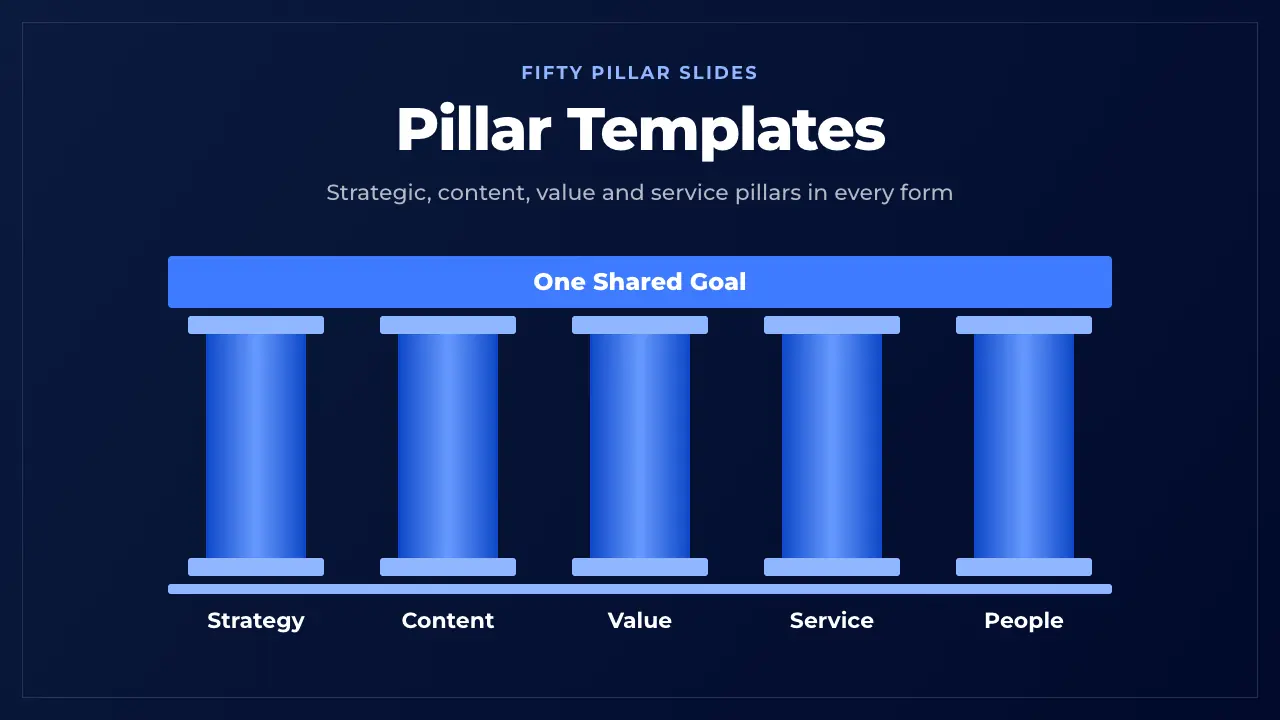
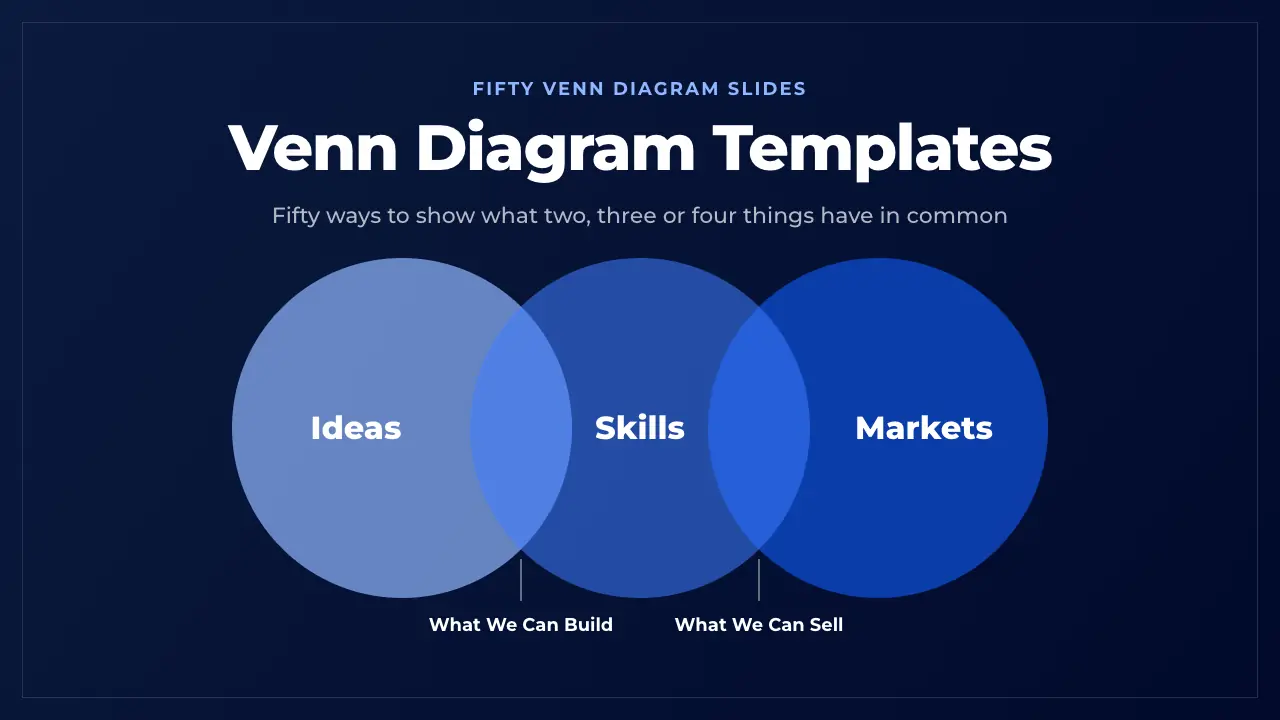
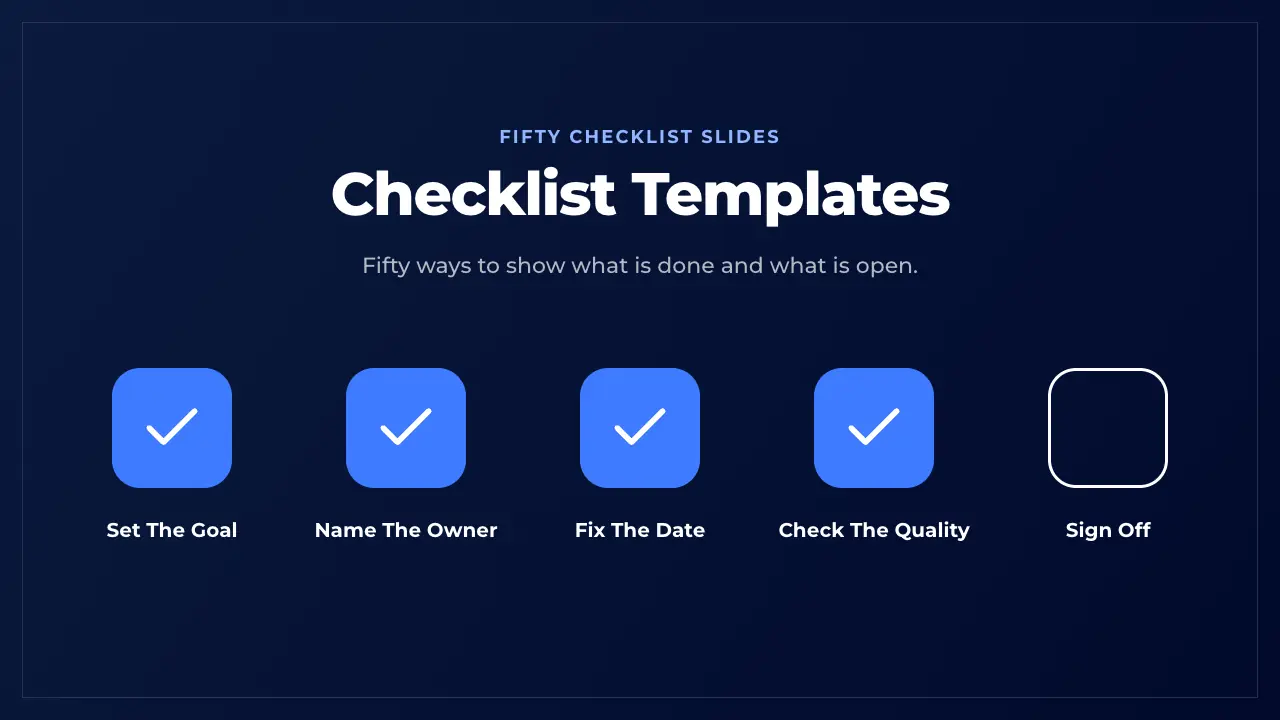
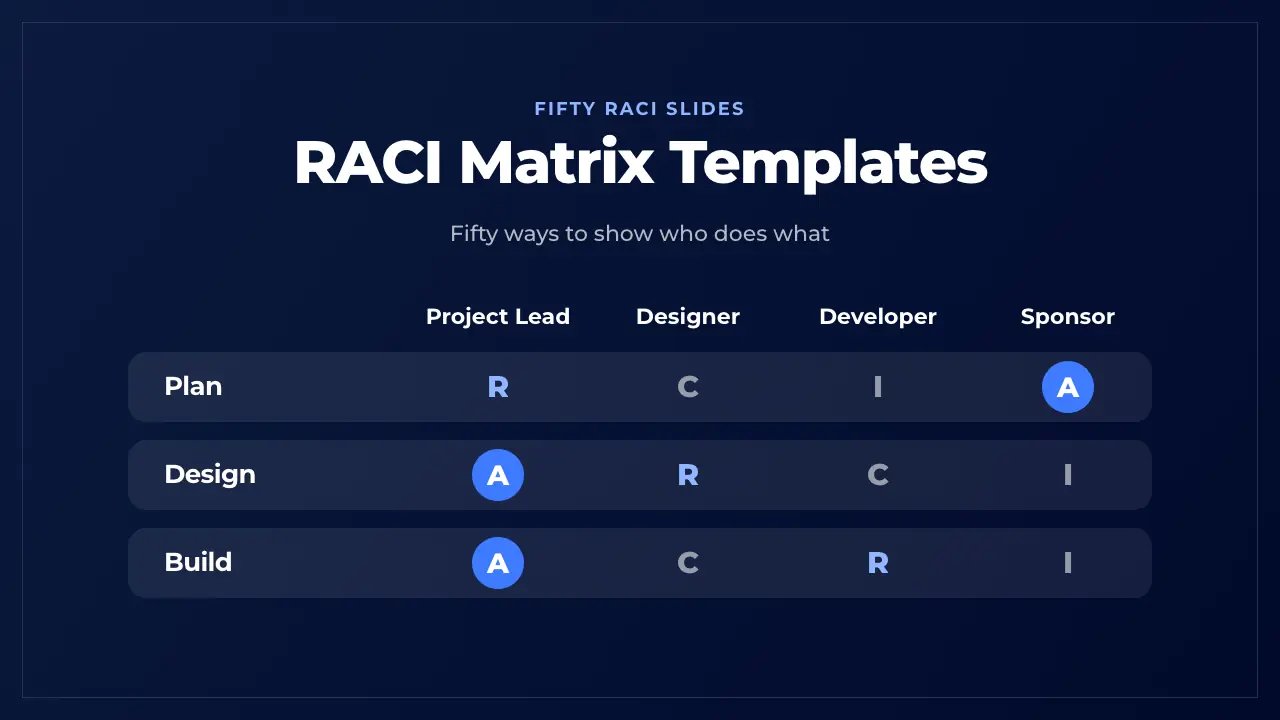
Fifty pillar slides in one blue look, each a different form: classical columns, pillars by weight, pillars on a foundation, a missing or weak pillar, lying pillars and pillars with charts inside. Change the colours and fonts of all of them at once, let the AI build your own deck in this look, download them as PowerPoint or edit each slide in the editor.
This pillar PowerPoint template holds 50 slides, and each one shows upright columns carrying a shared goal in a different form: a row of classical columns under one beam, pillars sized by their budget, pillars on a stepped foundation, one pillar picked out, a gap where a pillar is missing and horizontal bands as lying pillars. All of them share one blue look on light, white and navy grounds, so any ten of them sit in one deck without looking borrowed.
Many a pillar template stops at three boxes under a roof. Here the roofed house is only one form among fifty, and every slide is finished and written out with neutral sample content that any organisation knows: four core pillars, a revenue goal, a yearly budget, scores against a target and the roles that own each pillar. Roles stand in place of names and the figures are round samples, with a few parts, short words and plenty of air on every slide.
A free account downloads the slides as a PPTX file whose texts, shapes and charts stay editable. You can also stay in the browser: pick your colours and fonts in the bar above the slides, describe your topic and let the AI build your own pillar deck in this look, or open the slides one to one in the editor.
Your Pillars In This Blue Look
Describe your goal and the pillars that carry it, or attach your notes or a strategy document. ExpertSlides builds your own pillar deck in this look in a few minutes, with your themes, your figures and your owners.
Every slide is a complete pillar diagram with neutral sample content — one shared goal, a few named columns, short lines and round figures — that fits any organisation. Replace its pillars, roles and figures with yours.
1 · Classical Colonnade CoverA title slide with five classical columns, built from editable shapes, that carry one shared beam. Use it to open any deck about strategic, content, value or service pillars. Rename the beam and the five labels to suit your topic.
2 · Three Solid Pillars With IconsThree wide columns, each with an icon, a title and a short text. Use it to name the three things a plan stands on. Replace the words with your own pillars.
3 · Four Pillars Under A BeamFour pillars carry a beam that names the shared goal and stand on one foundation. Use it to show how the parts of a strategy support one result. Change the goal, the pillars and the foundation line.
4 · Five Outlined Content PillarsFive slim outlined columns, each topped by a large numeral. Use it for content pillars or any five themes. Replace the five verbs and their captions.
5 · Pillars Sized By WeightFour columns whose heights show how much weight each pillar carries. Use it for a budget, an effort or a priority split. Resize the columns to your own shares.
6 · Photo Strips As PillarsFour tall photos stand as pillars, each on a plate with its name and team size. Use it to put faces and places to your pillars. Swap the photos and the numbers.
7 · Pillars On Stepped FoundationsFour columns stand on three stepped layers that widen towards the ground. Use it to show what your pillars rest on, such as values, capabilities and data. Rename the layers and the pillars.
8 · One Pillar Picked OutFive columns with one picked out in the highlight colour and joined to a detail card. Use it to zoom in on one pillar during a review. Move the highlight and rewrite the card.
9 · The Missing PillarA beam rests on four columns, with an open gap where a fifth should stand. Use it to show what a plan lacks and why it matters. Name the missing pillar and the scores of the others.
10 · Lying Pillars As BandsFour pillars laid on their side as horizontal bands, each with a name, an aim and a score. Use it when your pillars need longer text than an upright column can hold. Replace the aims and the scores.
11 · Column Chart Of Pillar ScoresA real column chart compares the scores of four pillars, with a card for the target beside it. Use it in a review to show where each pillar stands. Edit the chart data to update the bars.
12 · Arched Pillars With IconsFour arch-topped columns stand side by side like an arcade, each with an icon, a title and a short text. Use it for the stages or principles of a service. Change the icons and the words.
13 · Slim Service Pillars With PhotoA tall photo stands beside three slim upright pillars, each with an icon at its head and its text at its foot. Use it to give a service promise a human face. Swap the photo and name your own three pillars.
14 · Six Hexagon-Capped PillarsSix narrow columns, each with a hexagon cap and an icon. Use it for a set of company values or principles. Replace the words and pick your own icons.
15 · Lying Pillars As GaugesFour lying pillars are filled to their score, with one upright line for the target. Use it to show at a glance how strong each pillar is. Resize the fills to your own scores.
16 · Pillars Built From BricksEach pillar is built brick by brick, with one brick for every initiative. Use it to show what is being done under each pillar and how much. Add or remove bricks as your plan changes.
17 · Paired Columns, Today And TargetA real column chart sets each pillar’s score today beside its target, with the remaining gap listed on the right. Use it to show how far each pillar still has to go. Edit the chart data to update it.
18 · Weak Pillar With PropsA short, weak column is propped up by two struts between two sound ones, with the actions that will restore it on the right. Use it to discuss the weakest part of a plan. Name the pillar and your three actions.
19 · Line Charts Inside PillarsThree tall cards each hold a real line chart with its key figure on top. Use it to show how each pillar has moved over time. Edit the data of each chart.
20 · Glass Pillars On A PhotoThree translucent columns stand on a full photo under a navy overlay. Use it for values or culture, where the mood matters as much as the words. Change the photo and the three pillars.
21 · Seven Tapered PillarsSeven slim tapered columns stand in one row, each with a number, a title and a short caption. Use it for a longer list of service standards or principles. Rename the seven pillars.
22 · The Classic Pillar HouseThe classic house: a vision as the roof, three pillars beneath it and shared values as the floor. Use it to show a whole strategy on one page. Replace the vision, the pillars and the values.
23 · Pillars In Rising OrderFive columns rise from left to right, one for each stage of maturity. Use it to show how a capability grows step by step. Rename the stages and their captions.
24 · Donut Resting On Four PillarsA real donut chart of the yearly budget rests on a beam that four columns carry. Use it to show how money or effort is divided across your pillars. Edit the chart data, then update the four columns.
25 · Pillars Of Large FiguresFour pillars made only of type and thin rules, each with one large figure. Use it for a calm summary of the key numbers. Replace the figures and their captions.
26 · Photo Beam On Three PillarsA wide photo rests like a beam on three columns. Use it when the work itself should be seen above the pillars that carry it. Swap the photo and rename the three pillars.
27 · Value Pillars With Proof PointsThree dark columns each list the proof points of one value pillar, beside a tall photo. Use it to back up a value proposition with evidence. Replace the three lists and the photo.
28 · Columns Split Into What And HowEach column is split in two: what the pillar wants above, how it gets there below. Use it to link goals to methods on one page. Replace the two texts of each pillar.
29 · Slender Pillars With DiscsFive thin stems carry large discs with icons, all standing on one base line. Use it for a light, airy view of brand or culture pillars. Change the icons and the five names.
30 · Stems From Pillar To OwnerFour pillar heads are joined by thin stems to plates that name the role in charge, with the number of initiatives on each stem. Use it to make clear who answers for which pillar. Replace the roles with those in your organisation.
31 · Pillars Crowned By PortraitsFour columns are each crowned by a round portrait of the person who leads that pillar. Use it to introduce the pillar leads to a wider team. Swap the portraits and the roles.
32 · Lying Pillars Bar ChartA real horizontal bar chart shows the budget of each pillar as a lying column, with the total on a card beside it. Use it where names are long or the ranking matters. Edit the chart data.
33 · Slim Pillars By Year On A PhotoFour slim columns stand on one line over a darkened photo, with a year above each and its stage below. Use it to show how a strategy is built up pillar by pillar. Change the years and the stages.
34 · Stacked Effort By PillarA real stacked column chart splits the effort of each pillar into run, change and new work. Use it to show whether a pillar is only keeping the lights on. Edit the chart data.
35 · Ghost Columns Show The GapOutlined columns mark the target height, and a solid fill shows where each pillar stands today. Use it to make the gap to a goal visible. Resize the fills to your own scores.
36 · Lying Brand Pillars With PhotoA full-height photo stands beside four brand pillars laid flat and stacked. Use it to explain what a brand stands for. Replace the photo and the four statements.
37 · Content Pillars With TopicsFive content pillars each list three sample topics beneath their name. Use it to plan an editorial calendar. Replace the topics with your own.
38 · One Beam, Three GoalsOne long beam is divided into three goals, and each is carried by its own column. Use it to tie every pillar to one measurable result. Change the goals and the pillars.
39 · Pillar Health CheckFour columns each show a score, a status and a small progress bar. Use it for a regular review of how healthy each pillar is. Update the scores and the status words.
40 · With And Without A PillarTwo small colonnades side by side: one complete, one with a pillar gone and its beam sagging. Use it to argue why one part of a plan cannot be dropped. Rewrite the two statements.
41 · One Column Of Three DrumsOne column is built of three stacked drums, each with a reason beside it, next to a tall photo. Use it to explain why a pillar structure is worth having. Change the three reasons and the photo.
42 · Six Gradient PillarsSix gradient columns of equal height, each with an icon and its name on a base plate. Use it for the levers of growth or any set of six themes. Rename the pillars and pick your icons.
43 · Pillars Of Five DrumsEach pillar is a stack of five drums, one for each maturity level, filled up to the level it has reached. Use it to show how far each pillar has developed. Change the fills and the names of the levels.
44 · Deliverables As Stacked DrumsA photo stands beside four columns of three stacked drums, with one result on each drum. Use it to turn pillars into concrete deliverables. Replace the words on the drums.
45 · The Messaging HouseA roof holds the core message, three pillars hold the supporting messages and a floor holds the proof. Use it to agree what everyone says about an offer. Replace the messages and the proof.
46 · Photo Capitals On Text ShaftsThree columns each carry a photo as their capital above a shaft of text. Use it to show the stages of a customer relationship with real scenes. Swap the photos and the three pillars.
47 · Anatomy Of A PillarOne large column is taken apart into capital, shaft, base and footing, each labelled with its meaning. Use it to explain how to define a good pillar. Rewrite the four labels.
48 · Bar Charts Inside PillarsFour columns each hold a real bar chart of their score from 2027 to 2030. Use it to show the planned path of every pillar to the target. Edit the data of each chart.
49 · Upward Pillars Beside A PhotoA full-height photo stands beside three pillars shaped as upward arrows, one for each habit that keeps a structure strong. Use it near the end of a strategy deck. Change the photo and the three habits.
50 · Next Steps On Slim PillarsA closing slide with three slim numbered pillars of next steps beside a tall photo. Use it to end a pillar presentation with clear actions. Replace the steps and the date of the first review.
Fifty Forms Of A Pillar In One Blue Look
A title slide of classical columns carrying one beam; the structure, as three solid columns, four pillars under a goal, arches, hexagon caps, seven tapered columns, slim stems with discs and a pillar taken apart into its anatomy; the weight, as columns sized by budget, rising pillars, bricks for each initiative and a donut resting on four columns; the condition, as a missing pillar, a weak pillar on props, a health check, stacked drums of maturity and a gap to the target; the data, as real column, bar, area and stacked charts you edit by their figures; and the people, as owners, pillar leads and next steps. Lying pillars and two roofed houses round it off. Seventeen slides stand on navy, sixteen on light blue and seventeen on white, thirteen of them with a photo.
How To Use This Pillar Template
01
Pick Your Pillar Slides
Go through the gallery of this pillar PowerPoint template and choose the forms your story needs. A short strategy update may need five slides: the goal on four pillars (slide 3), the budget by weight (slide 5), the scores (slide 11), the weak pillar (slide 18) and the next steps (slide 50).
02
Set Colours And Fonts
Choose a palette and a font in the bar above the slides. Every slide follows at once, so the whole deck stays in one look and matches your organisation.
03
Replace The Sample Content
Open a slide in the editor and write in your own pillars, goals, owners and figures. Every text, shape and icon can be moved or changed, the charts follow their data, and the photos can be swapped for your own.
04
Present Or Download
Present straight from the browser, share a web link or download a PPTX file with a free account and go on working in PowerPoint.
What Makes A Strong Pillar Slide
A pillar slide says one thing: these few themes together carry this goal. Keep to three to seven pillars, give each a short name and one line of meaning, and state the goal they hold up, as on the beam of slide 3. Show what the pillars rest on when it matters, such as the values and data of the foundation on slide 7.
Then make the pillars measurable. Give each an owner (slides 30 and 31), a share of the budget (slides 5 and 24) and a score against a target (slides 11 and 17). A pillar without an owner or a measure is a slogan, and the anatomy on slide 47 is a simple way to check that each of yours has all four parts.
Choosing The Right Pillar Form
Use equal columns when the pillars matter equally, and columns of different heights (slides 5 and 23) when they do not. Lying pillars (slides 10 and 15) suit longer texts and long names. To argue that something cannot be dropped, show the gap of a missing pillar (slide 9) or a colonnade with and without it (slide 40).
For a review, use the health check (slide 39), the gap to the target (slide 35) or the maturity levels (slide 43). For content planning, the five content pillars and their topics (slides 4 and 37) give a team a ready structure. The strategy and messaging houses (slides 22 and 45) are here as well, but a full strategy deck has a template pack of its own.
Frequently Asked Questions
What Is A Pillar Template?
A pillar template is a ready-made set of slides that shows a few themes as upright columns carrying one shared goal. This pillar PowerPoint template covers strategic, content, value and service pillars in 50 different forms.
Is The Pillar PowerPoint Template Free?
Yes. You can view all 50 slides, change their colours and fonts and download this pillar PowerPoint template as a PPTX file with a free account.
Are The Pillars And Charts Editable?
Yes. The columns are shapes you can move and resize, the texts can be retyped, and the charts are real charts that follow their data, in the editor and in PowerPoint.
How Many Pillars Should A Slide Have?
Three to five is easiest to remember, and most slides here use three or four. For longer lists the pack has forms with six and seven slim columns (slides 14, 21 and 42), each with a short title and caption.
Can The AI Build My Own Pillar Deck?
Yes. Press Fill With AI, describe your goal and your pillars or attach your notes, and ExpertSlides builds your own deck in this look. You can then change any slide by hand or by asking the AI.
How Is A Pillar Slide Different From A Strategy House?
A strategy house is one kind of pillar diagram, with a roof above the columns and a floor below them. This pack shows that form on two slides (22 and 45) and the rest without a roof: on a beam, by weight, with charts, lying flat or with a pillar missing.
Can I Change The Colours And Fonts?
Yes. Pick a palette and a font in the bar above the slides and all 50 follow at once. In the editor you can also apply your own Design Kit with your logo, colours and fonts.
Try ExpertSlides AI For Free — The Ultimate AI Presentation Maker
Describe any topic or upload a document, and ExpertSlides designs and writes the whole deck — editable in the browser and as a PowerPoint file.