Fifty puzzle slides in one blue look, from two interlocking halves to a board of nine pieces. Each one shows how the parts of a strategy, a team or a process fit together, in shapes and charts you can edit.
This PowerPoint puzzle template holds 50 jigsaw slides whose pieces truly interlock: round knobs reach from one piece into the next. It is a puzzle template for anything made of parts that depend on each other, such as a strategy, a team, a process or a solution.
The pack covers rows, columns, squares, rings, pyramids and brick walls, along with a missing piece, a piece being placed and a puzzle that shows progress. All sample content is general, with roles instead of names and round figures, so you only replace the words and numbers with your own.
Turn Your Topic Into A Deck In This Look
Describe your topic or attach your notes, and the AI builds your own presentation in the blue look of this pack.
Every slide is a complete puzzle with neutral sample content: general sections, roles instead of names and round figures that fit any organisation. Replace the words on the pieces with yours.
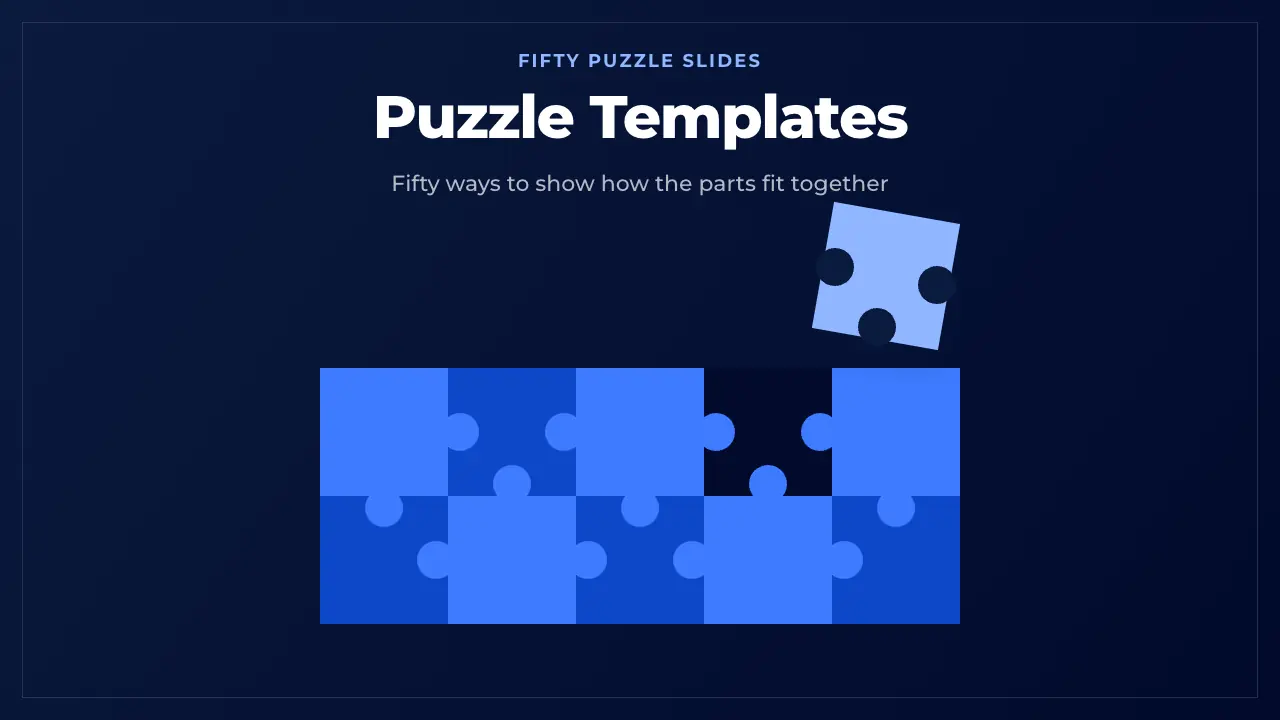
1 · Interlocked Pieces With One LiftedThe title slide of the pack: a band of interlocked jigsaw pieces, one of them lifted out of its slot. Use it to open any talk about how the parts of a plan, a team or a solution fit together. Every piece is an editable shape, so you can recolour or move it.
2 · Four-Piece Square With NotesFour interlocking pieces form one square, and a note beside each piece says what it stands for. Use it to show the four parts of a strategy. Replace the names and the notes with your own.
3 · Row Of Three Pieces With IconsThree large pieces lock into one row, each with an icon, a title and a short text under it. Use it for any solution or offer built from three parts. Swap the icons and the words for your own three.
4 · Band Of Five PiecesFive numbered pieces form one continuous band across the slide, with a title and a short text under each. Use it for a process of five steps. Rename the steps and keep the order.
5 · Nine-Piece BoardNine interlocking pieces show the parts of a business on one board, with the product at its centre. Use it as an overview before you go through the parts one by one. Each name sits on its own editable piece.
6 · Missing Piece With CalloutA square of four pieces with one slot empty, the missing piece floating beside it. Use it to show the one thing a plan still lacks. Name the missing part and say in the callout why it matters.
7 · Column Of Four PiecesFour pieces stack into one column, and a line leads from each to its text. Use it for the layers of a team, a service or a system. Rename the layers from top to bottom.
8 · Photo Beside Four PiecesA photo stands beside a square of four interlocking pieces, one for each team. Use it to introduce how a team of 24 people is organised. Swap the photo and the team names for your own.
9 · Last Piece Being PlacedFive of six pieces are in place and the sixth is on its way into the empty slot. Use it to announce the final step of a project. Name the parts and say what the last piece completes.
10 · Ring Of Pieces Around A FigureA closed ring of eight interlocking pieces surrounds one key figure in its centre. Use it when many parts serve one goal. Put your target in the middle and name the parts around it.
11 · Pyramid Of Six PiecesSix pieces build a pyramid: three foundations, two priorities and one goal at the top. Use it to show what has to stand before the next level can hold. Rename the levels and keep the shape.
12 · Two Interlocked HalvesTwo large pieces lock together with one big knob: the problem on the left, the solution on the right. Use it wherever a challenge and its answer belong on one slide. Keep both texts about equally long.
13 · Pieces On A Full PhotoA photo of a team fills the slide under a navy overlay, with a column of three interlocking pieces on the right. Use it as a strong statement about teamwork. Swap the photo and name what each person brings.
14 · Rising Stairs Of PiecesFive pieces climb from the lower left to the upper right, each locked into the one before it. Use it to show a path to a goal in five steps. Rename the steps and keep the last piece for the goal.
15 · Six Pieces With IconsSix interlocking pieces in two rows, each with an icon and a name. Use it for the parts of a delivery chain or any service in six parts. Swap the icons and the names for your own.
16 · Honeycomb Of Six CellsSix hexagonal pieces lock around one central cell that holds the goal. Use it when each part touches the goal and its neighbours. Name the six parts and put your target year in the middle.
17 · Budget Band Sized To ShareOne band of four interlocking pieces shows a budget, each piece as wide as its share. Use it for any total that splits into a few parts. When you change a figure, drag the piece to the matching width.
18 · Photo As One PieceThree coloured pieces and one photo lock into a square, with a short statement beside them. Use it to put the people behind a plan into the picture. Swap the photo and rename the three parts.
19 · Two Rows Of Four PiecesEight interlocking pieces in two rows name the sections of a plan. Use it as an agenda or an overview of a plan. Replace the sections with your own eight.
20 · Progress PuzzleSeven of nine pieces are in place and two slots are still open, beside a large progress figure. Use it for a status report on any programme. Fill or empty the slots as the work moves on.
21 · Offset Chain Beside A PhotoFour pieces form a vertical chain that steps left and right, with a photo beside it. Use it for the stages from an idea to a launch. Rename the stages and swap the photo for one of your own.
22 · Scattered Pieces To SolvedFour loose pieces lie scattered on the left, and an arrow leads to the same four joined on the right. Use it for any change from disorder to order. Name the four parts on the solved side.
23 · Cross Of Five PiecesFour pieces lock onto a central piece in the shape of a cross. Use it when several disciplines serve one purpose. Write the purpose in the middle and the disciplines around it.
24 · Columns Of Pieces ClimbingFour interlocking columns stand on one line and grow taller from left to right, each with a year and a milestone. Use it to show a plan that builds year by year. Change the years and the names.
25 · Four Pieces Around A PhotoFour quarter-circle pieces lock into a ring around a round photo, with a role beside each. Use it to introduce a team and what each part of it does. Swap the photo and rename the four roles.
26 · Inverted Pyramid Of PiecesSix pieces narrow from three sources over two options to one decision. Use it to show how a team moves from many ideas to one choice. Rename the three levels and the pieces on them.
27 · Tall Strip Beside A PhotoFour interlocking pieces run down the left of the slide as one tall strip, with a large photo beside them. Use it to present the core functions of an organisation. Rename the functions and swap the photo.
28 · Donut With A Legend Of PiecesA real donut chart shows the budget, and a column of interlocking pieces names each part with its figure. Use it for any total of four parts. Edit the chart data and the figures on the pieces together.
29 · Bar Chart With Puzzle Of YearsA real bar chart shows revenue by year, and four interlocking pieces say what carried each year. Use it to link figures to the steps behind them. Edit the chart data and rename the pieces.
30 · Two Puzzles About To JoinTwo columns of three pieces face each other, the knobs of one matching the notches of the other. Use it for a merger, a partnership or two teams that start to work together. Rename both sides.
31 · Row Ending In A GoalFour interlocking pieces form a row, and an arrow leads from the last one to a round goal marker. Use it for a short path with a clear target. Rename the steps and swap the icon.
32 · Row Locked Under A PhotoA wide photo sits on a row of five interlocking pieces, each with a knob reaching up into the picture. Use it for the steps of a project with a picture of the people doing it. Rename the steps and swap the photo.
33 · T-Shaped PuzzleOne wide piece lies across three pieces under it and locks into each of them. Use it for a vision or a goal that rests on three pillars. Write the vision on top and name the pillars below.
34 · L-Shaped PuzzleFive pieces run down one side and along the bottom in an L, with a text in the open corner. Use it for the foundations of a team or a company. Rename the parts and write your message in the corner.
35 · Checklist Of Pieces With PhotoFive rows, each a small piece with a tick locked into a white bar, beside a photo. Use it as a go or no-go list before a launch. Rename the checks and swap the photo.
36 · Three Pieces Beside A Tall PhotoA tall photo fills the left of the slide, and three numbered pieces stack up beside it. Use it for a service or a method in three parts. Swap the photo and rename the parts.
37 · Hub With Four PiecesOne wide piece in the middle holds two pieces above it and two below it. Use it for a platform, a system or a role that connects everything else. Name the centre and the four parts.
38 · Challenges Locked To AnswersTwo columns of three pieces lock together row by row, a challenge on the left and its answer on the right. Use it to show how you respond to known problems. Keep each line short.
39 · Zigzag Of Six PiecesSix pieces step up and down across the slide, each locked into the next. Use it to tell the honest story of a project with its highs and lows. Put the good phases high and the hard ones low.
40 · Pinwheel Of Four PiecesFour long pieces lock around a central piece like a pinwheel, with a tall photo at the right edge. Use it for four moves that all serve one aim. Rename the moves and write the aim in the middle.
41 · Quarters Along A LineFour interlocking pieces name the quarters of a year, with a line of markers and a short text under each. Use it for an annual plan. Change the quarters and what happens in them.
42 · Brick Wall Of PiecesSeven pieces are laid like bricks, each upper block resting on two blocks below. Use it to show how goals and plans stand on people, culture, systems and budget. Rename the blocks.
43 · Mosaic Of Three Key FiguresOne large piece and two smaller ones lock into a mosaic, each with a key figure. Use it when one number leads and two support it. Replace the figures and what they measure.
44 · Four Portraits Joined As PiecesFour portraits stand side by side, joined by round knobs like the pieces of a puzzle, with a role under each. Use it to introduce a leadership team. Swap the portraits and write the roles.
45 · Three Wide LayersThree wide pieces lie on top of each other like strata, joined by one knob each. Use it to explain the layers of a company or a system. Keep one short sentence on each layer.
46 · One Piece In FocusEight interlocking pieces stay quiet while one lights up, with a callout that explains why. Use it to set the focus of a quarter or a meeting. Recolour the piece you want to talk about.
47 · Photo With Two Large PiecesA photo stands beside two large pieces that lock together, one for each partner. Use it to propose or explain a partnership. Say in one sentence what each side brings.
48 · Pieces In MotionSix loose pieces float around one centred message. Use it as a section opener or a statement slide about change. Replace the message and move the pieces as you like.
49 · Cascade Of Next StepsThree pieces step down to the right as a cascade, beside a tall photo. Use it to close a meeting with clear next steps. Write what happens, who does it and when.
50 · Closing With The Finished PuzzleThe closing slide shows the finished puzzle, all ten pieces in place and the goal among them. Use it to end a talk on the idea that everything now fits. Change the closing line to your own.
Fifty Forms Of A Puzzle In One Blue Look
A cover with one piece lifted out of its slot and a closing slide with the finished puzzle; squares of four pieces with notes, with a photo beside them and with a photo as one of the pieces; rows and bands of three to five pieces, one of them with each piece as wide as its share of a budget; columns, tall strips and wide layers; a board of nine pieces and a grid of six with icons; a closed ring of eight pieces around a key figure, a ring of four quarter pieces around a round photo and a honeycomb of six cells; pyramids that rise and narrow, a brick wall, a cross, a T, an L, a pinwheel and a mosaic of key figures; stairs, a zigzag, a cascade and columns that grow year by year; the missing piece, the last piece falling in and a progress puzzle with seven of nine pieces in place; and a donut chart and a bar chart that you edit by their data.
How To Use This PowerPoint Puzzle Template
01
Pick The Form That Fits
Count your parts and choose a slide with as many pieces. This PowerPoint puzzle template runs from two pieces on slide 12 to nine on slide 5 and ten on the cover.
02
Write On The Pieces
Click a piece's text and type your own. Keep each name to one or two words, so that it stays clear of the knobs reaching in from the neighbouring pieces.
03
Mark What Matters
Recolour the piece you want to talk about, as on slide 46, or leave one slot open, as on slide 6, to show what is still missing.
04
Present Or Download
Present in the browser, or download the PPTX with a free account. Pieces stay ordinary shapes and charts stay charts, so you can go on editing them in PowerPoint.
When A Puzzle Template Makes Your Point
A puzzle says one thing better than any list: these parts only work together. Use it when a strategy rests on several pillars, when teams depend on each other, or when a solution joins people, process and technology.
It is also a clear way to show what is not done yet. An empty slot makes a gap visible at a glance, which is why status reports and project reviews work well with slides such as the progress puzzle on slide 20.
How To Choose The Right Puzzle Form
Use a row or a band for parts in order, a column or layers for levels, and a pyramid when the lower parts carry the upper ones. A ring or a honeycomb suits parts that all serve one goal, as on slides 10 and 16.
Where the size of each part matters, use a form that shows it: the band on slide 17 draws each piece as wide as its share of the budget, and slides 28 and 29 carry a real donut chart and a real bar chart.
Questions About The Puzzle Template
What Is A PowerPoint Puzzle Template?
A PowerPoint puzzle template is a set of slides that shows ideas as interlocking jigsaw pieces. Each piece stands for one part of a strategy, a team or a process, and the way they lock together shows that the parts depend on each other.
Are The Puzzle Pieces Editable?
Yes. Every piece in this PowerPoint puzzle template is built from ordinary shapes: a rectangle and round knobs. You can retype, recolour and resize them. To move a piece, select it together with its knobs.
How Many Pieces Can A Puzzle Slide Have?
The slides in this pack run from two pieces to ten. Slide 12 has two large halves, slide 5 a board of nine, and the cover and the closing slide show ten.
How Do I Show A Missing Piece?
Slide 6 shows a square with one empty slot and the missing piece beside it, slide 9 shows the last piece on its way in, and slide 20 shows a puzzle with two slots still open.
Do The Slides Contain Real Charts?
Yes. Slide 28 has a donut chart and slide 29 a bar chart. Both are real charts that you edit by their data, and they stay charts in the PowerPoint file.
Can I Change The Colours And Fonts?
Yes. Pick colours and fonts in the bar above the slides and all 50 follow, or apply your own Design Kit. Every colour belongs to the theme, so the pack stays consistent in any palette.
Can The AI Build A Deck On My Own Topic?
Yes. With Fill With AI you describe your topic or attach your notes, and the AI builds your own deck in the look of this pack.
Is The Puzzle Template Free?
Yes. You can view all 50 slides here, and a free account lets you download the PPTX or open the slides in the editor.
Try ExpertSlides AI For Free — The Ultimate AI Presentation Maker
Describe any topic or upload a document, and ExpertSlides designs and writes the whole deck — editable in the browser and as a PowerPoint file.