Fifty slides built around one sign: a huge question mark, a quiz, an FAQ, a poll, a path of questions and a Q&A close. Every mark is editable text and every chart is a real chart.
This question mark template pack gives you 50 slides for the moments when a talk turns on a question: the opening that wakes up a room, the quiz in the middle, the FAQ near the end and the Q&A that closes the session.
The slides speak about asking good questions in general, with sample figures that fit anyone, so you can replace the words and present. Slide 3 sets out the six question words, slide 7 is a multiple-choice quiz, slide 9 an FAQ, slide 16 the five whys and slide 49 a closing slide that invites the room to ask.
Turn Your Topic Into A Deck In This Look
Describe your topic and the AI builds your own presentation in this blue question mark style, ready to edit.
Every slide of the pack with its words, from the cover to the final Q&A.
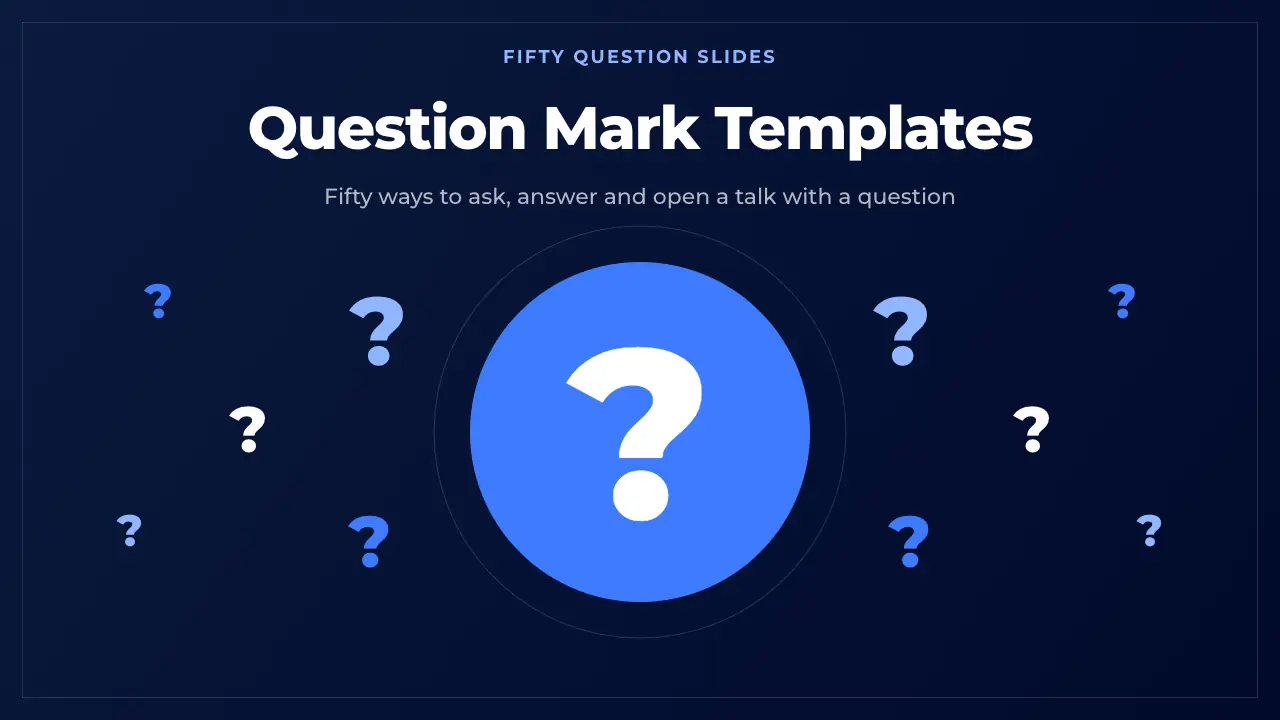
1 · Question Mark CoverThe title slide of the pack: one very large question mark stands at the centre, smaller ones fall away on both sides. Use it to open a talk, a workshop or a Q&A. Every mark is editable text.
2 · Giant Question Mark With PromptsA giant question mark beside the one question a talk has to answer. Three short prompts say who asks it, why it matters now and what changes. Replace the question with your own.
3 · Six Question Word TilesThe six question words as tiles in two rows, each with its own question mark and what it uncovers. Why is lit as the word to start with. Use it to brief a project or to structure a discussion.
4 · One Lit Among ManyA field of quiet question marks with one lit in a blue disc, beside the size of the question bank. Use it to single out the question that matters most. Move the disc to any other mark.
5 · Photo With Question BubblesA photo of a conversation beside three questions to ask a customer before offering a solution. Each card has a speech bubble with a question mark. Swap the questions for your own discovery questions.
6 · Zigzag Path Of QuestionsFive questions stand on a zigzag path, their labels alternating above and below. Read from left to right they lead from what is happening to what happens next. Use it to structure a discussion or a problem review.
7 · Multiple Choice QuizA multiple-choice quiz slide: one question and four lettered options, with the right answer lit. Show it before the reveal or keep it as the answer slide. Change the letters, the wording and the lit card.
8 · True Or False StatementsFour statements, each with a pair of true and false pills and the right one filled. Use it as a warm-up or a knowledge check. Swap the statements and move the fill to the right pill.
9 · FAQ AccordionA frequently asked questions list in the form of an accordion: five rows with a question mark, the first opened with its answer. Use it at the end of a talk or in a handout. Open any other row by moving the dark card.
10 · Large Mark On A Full PhotoA pause in the middle of a talk: one large question mark in a blue disc over a photo of an audience under a navy overlay. Use it between two parts of a presentation. Keep the line short and invite a question.
11 · Questions And Answers Side By SideThree questions on navy cards, each linked to its answer on a white card beside it. Reveal the answers one by one. Use it for a briefing or an FAQ with few but important questions.
12 · Question Bank Column ChartA real column chart shows how the 120 questions of a bank split by topic, with the total on a navy card beside it. Edit the chart data to fit your own categories.
13 · Three Opener CardsThree tall cards with large numerals, each a way to open a talk with a question: a show of hands, a bold figure and a what-if. Pick one and put your own question on it.
14 · Round Portraits With QuestionsFour round portraits on one line, each with a speech bubble holding the question that person can answer best. Use it to plan interviews or to show whose view a project needs.
15 · Funnel Of QuestionsA real funnel chart narrows 120 collected questions to the single one worth asking, with the four steps beside it. Use it to show how a team moves from many questions to one focus.
16 · Five Whys ChainA vertical chain of five whys: each answer becomes the next question until the root cause stands lit at the bottom. Use it in problem reviews and retrospectives. Replace the five answers with your own case.
17 · Question And Answer ChatA short conversation in four alternating bubbles shows how one follow-up question changes the answer. Use it to teach better questions or to tell a customer moment. Rewrite the four lines with your own exchange.
18 · Interview Questions With PhotoFour numbered interview questions beside a tall photo of a conversation, each with what the answer reveals. Use it for hiring, onboarding or user interviews. Replace the questions to fit the role.
19 · Poll Donut ChartA real donut chart shows the result of a live poll, with one card for each answer beside it. Use it right after you ask the room a question. Edit the chart data and the three cards.
20 · Yes Or No Decision TreeA simple decision tree: one question in a diamond splits into a yes branch and a no branch, each with the next step. Use it to make a decision rule visible. Replace the question and both outcomes.
21 · Audience Questions Bar ChartA real horizontal bar chart ranks the topics behind the questions of an audience, with the leading topic as a large figure beside it. Use it after a survey or a live Q&A. Edit the chart data to show your own topics.
22 · Three Arched DoorsThree arched doors with a question mark in each stand for three options, the favoured one lit. Use it to present a choice and keep the room guessing. Replace the three options with your own.
23 · What-If Question With Side PhotoA what-if question with a question mark in a disc, two short prompts on cards and a full-height photo on the right. Use it to open a strategy session or a workshop. Replace the question with your own.
24 · Open And Closed CirclesTwo large circles compare open and closed questions, each with an example and what it is good for. Use it in a training or a meeting guide. Replace the two examples with questions from your own work.
25 · Stepped Questions On A Full PhotoThree questions step across a full photo of a workshop under a navy overlay. Use it for a group exercise or a retrospective. Give each question a minute and let people answer in pairs.
26 · Honeycomb Of Question WordsA honeycomb of seven hexagons: a question mark at the core and the six question words around it. Use it to explore a topic from every side. Put your key question in the middle of the discussion.
27 · Segmented Q&A Time BarOne bar divided in proportion shows how to spend the 15 minutes of a Q&A: collect, group, answer and close. Change the minutes and resize the segments to fit your own session.
28 · Iceberg Of Open QuestionsAn iceberg shows the little we know above the waterline and the many open questions below it. Use it to show a team how much it still has to find out. The tip, the body and the line are editable shapes.
29 · Question Checklist With PhotoA checklist of five questions beside a photo: three are ticked and two still carry a question mark. Use it before a decision to show what is still open. Swap a mark for a tick as each question is answered.
30 · Tile Grid With A Missing PieceA grid of twelve tiles in which eleven carry an icon and one holds a question mark. Use it to show the one thing still missing from a plan. Replace the icons with the parts of your own project.
31 · Round Photo With Question BubbleA round portrait beside one large question bubble and two follow-up questions. Use it to introduce a guest, an interview or a panel. Replace the portrait and write your own question.
32 · Flash Card Front And BackA flash card shown from both sides: the question on a navy front, the answer on a white back and a turn mark between them. Use it for training or a quiz. Duplicate the slide for each new card.
33 · Question To Idea CascadeThree linked discs step down the slide from a question to an idea to an action. Use it to show how a single question turned into a result. Write your own example beside each disc.
34 · Magnifying Glass With CalloutsA magnifying glass enlarges one question mark, with three callouts around the lens naming what to examine. Use it to teach careful listening or to slow a discussion down. The lens, the handle and the lines are editable shapes.
35 · Rising Stairs Of QuestionsFive rising steps climb from a plain what to a practical now what, each with its question. Use it to deepen a review or a coaching talk. Replace the small questions on the steps with your own.
36 · Photo Band With Three QuestionsA wide photo of an audience runs across the top, with three questions from the floor on cards beneath it. Use it to report what people asked after a talk. Replace the three questions with those of your own session.
37 · Pixel Question MarkA large question mark built from small square tiles, each standing for one small question. Use it to show how a big problem breaks down into parts. Every tile is an editable shape you can recolour.
38 · Bubbles Sized To The FiguresFive circles, their areas in proportion to the number of questions on each topic. Use it to show at a glance where most questions come from. Resize the circles to fit your own figures.
39 · Asked And Answered Line ChartA real line chart follows the questions asked and answered from 2027 to 2031, with the two latest figures on cards. Use it to report how well a team keeps up with questions. Edit the chart data to fit your own years.
40 · Question Wall Of NotesSix notes at staggered heights form a wall of open questions. Use it to show what a team is wondering about or to collect questions in a workshop. Replace the notes with the questions of your team.
41 · Signpost With PhotoA signpost with a question mark on top and three arrow boards pointing both ways, beside a photo of a road. Use it when a team has to choose a direction. Replace the three options with your own.
42 · Ranked List With Vote CountersA live Q&A board: five questions ranked by their votes, each with a counter and a bar sized to the figure. Use it to decide what to answer first. Change the counts and resize the bars.
43 · Live Poll Panel On A PhotoA live poll panel with one question and three answer bars stands on a full photo of an audience. Use it to show the result of a vote during a talk. Resize the bars to your own percentages.
44 · Large Question Word StackFour question words stacked in very large type, in the order to ask them, each with a short caption. Use it as a simple framework for a briefing. Keep the words short so that they stay large.
45 · Quiz ScorecardA scorecard of ten round marks shows a quiz result at a glance: eight right, one wrong and one still open. Use it to close a training or a knowledge check. Change the marks to fit the real result.
46 · Four Rules Around A Question MarkFour ground rules for a Q&A stand in four quadrants around a central question mark. Use it at the start of a question round so that it stays fair and short. Replace the rules with those of your own session.
47 · Round Photo Between QuestionsA round photo at the centre with two closing questions on each side . Use it for the last minutes of a talk. Replace the four questions with those that fit your topic.
48 · Question Of The Week PosterA poster of one question for the week with a row of five week chips and a photo beside it. Use it for a recurring team ritual. Move the lit chip each week and change the question.
49 · Closing Slide With Large BubbleA closing slide with one large question mark in a speech bubble, a thank-you and an invitation to ask. Leave it on screen during the Q&A. Change the line to fit the time you have.
50 · Q To A PathA closing slide with a large Q on the left, a large A on the right and the three steps that lead from one to the other. Use it to promise an answer to every open question. Replace the steps and the date of the review.
What Is Inside The Pack
Giant question marks, word tiles, one mark lit among many, a zigzag path, quizzes, true or false, an FAQ accordion, questions with answers side by side, a question bank chart, a funnel, the five whys, a chat, a poll donut, a decision tree, doors, an iceberg, a honeycomb, flash cards, stairs, a live vote board, a scorecard and Q&A closing slides, on navy, light and white grounds, 13 of them with photos.
How To Use This Question Mark Template
01
Choose Your Slides
Open the question mark template and pick the forms you need, such as the quiz on slide 7 or the poll on slide 19.
02
Set Your Colours
Use the colour and font bar. Every slide follows the choice, so the whole deck stays in one look.
03
Write Your Questions
Click any text to replace it. Question marks are plain text and charts open with their own data.
04
Present Or Download
Present from the browser, share a link or download a PowerPoint file with a free account.
When A Question Works Better Than A Statement
A statement asks a room to agree, while a question asks it to think. That is why many strong talks open with a show of hands, a surprising figure or a what-if, the three openers on slide 13.
Questions also help in the middle of a talk. A short poll like slide 19 shows who is following, and a pause like slide 10 gives people a moment to ask before you move on.
How To Run A Good Q&A
Plan the time before the session. Slide 27 divides 15 minutes into collecting, grouping, answering and closing, and slide 46 sets four ground rules that keep the round fair and short.
Let the room decide what comes first with a ranked board like slide 42, then promise a written answer for anything left open, as the closing path on slide 50 does.
Frequently Asked Questions
What Is A Question Mark Template?
A question mark template is a set of presentation slides built around questions: large question marks, quizzes, FAQs, polls and Q&A slides that you fill with your own words.
Is This Question Mark Template Free?
You can view and edit this question mark template in the browser, and a free account lets you download it as a PowerPoint file.
Can I Edit The Question Marks?
Yes. Each question mark is ordinary text, so you can move it, resize it, recolour it or replace it. Tiles, bubbles and connectors are editable shapes.
Are The Charts Real Charts?
Yes. The column, bar, funnel, line and donut charts open with their data in the editor and stay native charts in the PowerPoint export.
Which Slide Should I Use To End A Talk?
Slide 49 is a simple thank-you with an invitation to ask, slide 47 offers four closing questions and slide 50 shows what happens to open questions afterwards.
Can I Use It For A Quiz In Class Or Training?
Yes. Slide 7 is a multiple-choice quiz, slide 8 is true or false, slide 32 is a flash card and slide 45 is a scorecard for the result.
Can The AI Build A Deck On My Topic?
Yes. Choose Fill With AI, describe your topic and the AI builds your own deck in this look, which you can then edit slide by slide.
Try ExpertSlides AI For Free — The Ultimate AI Presentation Maker
Describe any topic or upload a document, and ExpertSlides designs and writes the whole deck — editable in the browser and as a PowerPoint file.