Spider Diagram Template: 50 Editable Spider Diagram Slides For PowerPoint
Fifty spider diagrams in one blue look, each a different form: full circles, half circles, linked spiders, legs of different lengths, side branches, icons, real charts and photos. Change the colours and fonts of all of them at once, let the AI build your own spider diagram deck in this look, download them as PowerPoint or edit each slide in the editor.
This spider diagram template pack holds 50 slides, and each one draws a central topic with straight legs out to its main points in a different form: a full circle of six questions, a wide spider of eight legs, a half circle on a base line, a tripod, two and three linked spiders, a corner spider, legs whose length shows a priority and a spider on a full photo. All of them share one blue look on light, white and navy grounds, so any five of them sit in one deck without looking borrowed.
Every slide is a finished diagram with neutral sample content that any organisation knows: a project plan, a workshop, a customer profile, a budget of $1.2M, a team of 12 people, a launch in Q3 2028. Roles stand in for names and the figures are round, so you can see how many legs and words each form carries before you choose it. No form has more than eight legs, which keeps every slide calm and readable from the back of the room.
If you need a spider diagram for PowerPoint, a free account downloads the slides as a PPTX file whose texts and shapes stay editable. You can also stay in the browser: pick your colours and fonts in the bar above the slides, describe your topic and let the AI build your own spider diagram deck in this look, or open the slides one to one in the editor.
Your Topic In This Spider Diagram Look
Describe your topic and its main points, or attach your workshop notes or a report. ExpertSlides builds your own spider diagram deck in this look in a few minutes, with your hub, your legs and your details.
Every slide is a complete spider diagram with neutral sample content — one central topic, its main points and short details, round figures — that fits any organisation. Replace the hub, the legs and the labels with yours.
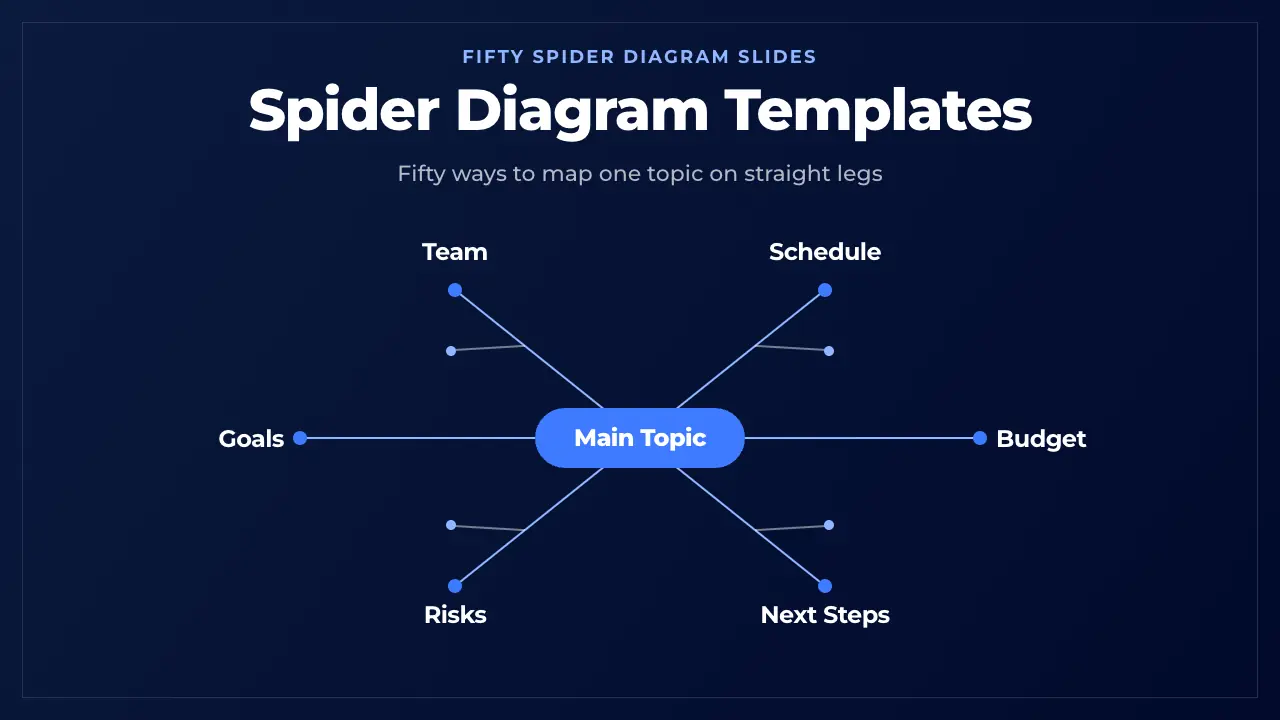
1 · Spider Diagram CoverThe opening slide of the pack: a central topic with six straight legs and short side branches under a centred title. Use it as the title of a workshop or a planning session and write your own topic into the hub.
2 · Anatomy Of A Spider DiagramOne spider diagram with its four parts called out: the central topic, the legs, the side branches and the labels. Use it to explain the method before a workshop.
3 · Spider Diagram Beside A PhotoA project at a glance: the hub on the left and four legs fanning out to goals, team, budget and schedule, beside a photo. Use it to open a kick-off meeting.
4 · Six-Question SpiderA full circle of six legs, one for each classic question. Use it to look at a new topic from every side and write a short answer beside each question.
5 · Eight-Leg Spider DiagramThe widest spider of the pack: eight legs in a full circle, each with a title and a short caption. Use it for a full overview of a plan or a topic.
6 · Half-Circle Spider DiagramFive legs fan upward out of a hub that stands on a base line, like half a wheel. Use it when one topic opens into a handful of parts, such as the sections of a marketing plan.
7 · Spider Diagram On A PhotoA six-leg spider on a full photo under a navy overlay. Use it for a strong opening to a session and replace the six points with what your own workshop needs.
8 · Spider With Side BranchesThe classic spider diagram: four legs for the main points and two short side branches on each for the details. Use it to take notes in a planning meeting.
9 · Two Linked Spider DiagramsTwo spiders joined by one thick leg: what each side brings and what links them. Use it to show how two teams or two plans work towards one shared goal.
10 · Spider With Legs By PrioritySix legs of different lengths: the longer the leg, the higher the priority, and the number on each node gives its rank. Use it to rank goals or tasks at a glance.
11 · Spider With Icon TilesSix legs end in icon tiles, so every point can be recognised at a glance. Use it for values, benefits or features and change the icons to match your own points.
12 · Spider With A Photo HubA round photo takes the place of the hub and five legs carry the values around it. Use it to talk about people, culture or a team.
13 · Spider From A Half DiscA large half disc on the slide edge is the hub and five legs fan out to the right. Use it when the topic deserves a strong visual anchor and the points read from top to bottom.
14 · Spider Beside A Key FigureA white card holds the key figures and a fan of four legs carries the findings. Use it to report a survey or any result that has one strong number behind it.
15 · X-Shaped Spider With CardsFour diagonal legs lead from the hub to a card in each corner. Use it when every main point needs a short explanation of its own.
16 · Spider Beside A Tall PhotoA five-leg spider on the navy ground with a tall photo along the right edge. Use it for onboarding or any topic that benefits from a human face.
17 · Spider Of Budget SharesThe hub holds the total and four legs carry its shares, the thicker the leg the larger the share. Use it for a budget, a time split or any total that divides into a few parts.
18 · Three-Legged SpiderA calm tripod: three long legs for three pillars, each with two short side branches. Use it when a topic really rests on three things.
19 · Top-Down Spider DiagramThe goal sits at the top and six legs fan down to the actions that lead to it. Use it to break one target into a row of concrete measures.
20 · Numbered Spider DiagramSix numbered legs on an even circle, read clockwise from the top. Use it when the points have an order, such as the steps of a method.
21 · Before And After SpidersTwo spiders joined by an arrow: how things work today on the left and how they will work on the right. Use it to explain a change to a team.
22 · Spider With Role PortraitsEach leg ends in a round portrait and a role, so everyone sees who owns which part. Use it to introduce a project team.
23 · Corner Spider DiagramA disc in the bottom corner sends five long legs across the slide. Use it for a list of ideas with a clear starting point and plenty of air.
24 · Spider Over A Takeaway BandFive legs for the lessons and a navy band under them with the one sentence to remember. Use it to close a project review.
25 · Hexagon Spider DiagramA hexagon hub with six legs to hexagon tiles gives the diagram a technical, structured look. Use it for skills, capabilities or the parts of a system.
26 · Spider Under A Photo BandA photo band sets the scene and a wide, flat spider sits under it. Use it for events and projects with many practical parts.
27 · Sunburst Of Long And Short LegsFour long legs carry the main points and four short legs between them carry the details. Use it when some points clearly matter more than others.
28 · Spider With Status PillsEach leg ends in a pill that shows where the workstream stands. Use it for a project status meeting and change the pills as the work moves on.
29 · Butterfly Spider DiagramThree legs on each side form the wings of a butterfly, and each leg carries one side branch. Use it for a customer profile or any topic with two halves.
30 · Spider Beside A Bar ChartFour legs name the drivers and a real bar chart shows the result. Use it when a spider should explain a number, and edit the chart data directly.
31 · Spider Around A Donut ChartA real donut chart takes the place of the hub and each share runs out on its own leg. Use it to present a budget or any split, and edit the data in the chart.
32 · Three Linked SpidersThree small spiders stand on one shared line. Use it to compare three teams, products or phases that belong together.
33 · Icon Spider With A PhotoFive legs with icon tiles on the left and a large square photo on the right. Use it to describe a place, an offer or a way of working.
34 · Spider With One Leg OpenedA thick leg leads from the main topic to a second hub with legs of its own. Use it to zoom into the one part of a plan that needs more detail.
35 · Spider With Diamond NodesFive legs end in numbered diamonds, the classic mark of a decision. Use it to list what has to be decided before a project can start.
36 · Spider With Speech BubblesEach leg ends in a speech bubble, so the diagram reads like a conversation. Use it to collect quotes, suggestions or feedback from a workshop.
37 · Spider On A Split SlideThe slide splits into a full-height photo and a navy half with a five-leg spider. Use it for a topic that needs a strong picture beside its structure.
38 · Spider On Three Guide RingsThree faint rings mark near, middle and far, and the node on each leg stands on the ring of its goal. Use it for a roadmap of goals at a glance.
39 · Spider Of Radial BarsEach leg is a pale track and its strong part shows the votes. Use it to rank ideas or options and keep the hub for the total.
40 · Now, Next, Later SpiderThree legs for three horizons, each with two actions on short branches. Use it for a simple roadmap that everyone can repeat from memory.
41 · Customer Spider With PortraitA round portrait stands in the middle and six legs describe the person. Use it for a customer profile or a persona.
42 · Seven-Leg Spider DiagramSeven legs in an open circle with plenty of air between them. Use it for a checklist of signs, criteria or qualities.
43 · Key Figure Spider On A PhotoA large figure fills the hub and five legs give the reasons behind it, on a dimmed photo. Use it when one number is the message of the slide.
44 · Pros And Cons SpiderPros run out to the left and cons to the right of one question. Use it to lay out a decision before the team votes on it.
45 · Spider With A Detail CardOne leg is drawn strong and opens into a card with its details. Use it to walk through a plan one part at a time, duplicating the slide for each leg.
46 · Spider With A Photo And A RuleA photo along the left edge, four legs and one highlighted rule at the foot. Use it when the audience should leave with a single sentence.
47 · Five-Point Star SpiderFive legs form a star around a pentagon hub, each ending in an icon. Use it for values, principles or the five parts of a promise.
48 · Spider On A Dot GridSix legs of even length on a quiet dot grid, like a sketch on squared paper. Use it to outline a report, a document or a talk.
49 · Double Spider DiagramTwo rings of legs on one hub: short legs for what lies inside the organisation, long legs for what lies outside. Use it to separate what you can change from what you can only watch.
50 · How To Draw A Spider DiagramFour numbered legs explain the method itself, beside a photo of a team at work. Use it to close a workshop or to hand the method over to a team.
Fifty Forms Of A Spider Diagram In One Blue Look
A title slide that is a spider itself and the anatomy of the diagram in four numbered parts; full circles of four to eight legs, a half circle on a base line, a fan from a large half disc, a corner spider and a top-down spider from one goal to six actions; the classic with two side branches on every leg, a tripod, a butterfly and a sunburst of long and short legs; two and three linked spiders, a before and after and one leg opened into a second spider; legs that carry a meaning, by their length, their thickness, a status pill, a guide ring or a track filled by votes; nodes as icons, hexagons, diamonds, numbers, speech bubbles and round portraits; a real bar chart and a real donut chart you edit by their data; and thirteen slides with a photo beside, behind or inside the diagram.
How To Use This Spider Diagram Template
01
Name Your Central Topic
Pick a form from the spider diagram template and write your topic into the hub, in one short phrase. Slide 2 shows the four parts of the diagram if your team is new to the method.
02
Write One Main Point Per Leg
Give each leg a title of one or two words and, where the form has one, a short caption. Choose a form with as many legs as you have points, from three to eight.
03
Add Details On Side Branches
Where a point needs more, use a form with short side branches, such as slide 8 or slide 18, and keep each branch to a few words.
04
Set Your Look And Present
Pick your colours and fonts in the bar above the slides, then download the PPTX or edit the slides in the browser. Each leg is its own thin shape, so you can turn, stretch or delete it.
When A Spider Diagram Is The Right Choice
A spider diagram suits any moment when one topic has several parts of equal standing and the audience should see them all at once: the first page of a project plan, the result of a brainstorming session, a customer profile, the outline of a report or a talk. Because every point starts from the same hub, nobody reads an order into it that is not there.
Where the points do have an order or a weight, the form can say so. The numbered legs of slide 20 are read clockwise, the legs of slide 10 grow with their priority, the legs of slide 17 grow thicker with their share of the budget, and the tracks of slide 39 fill up with the votes of a workshop.
Spider Diagram, Mind Map Or Bubble Map
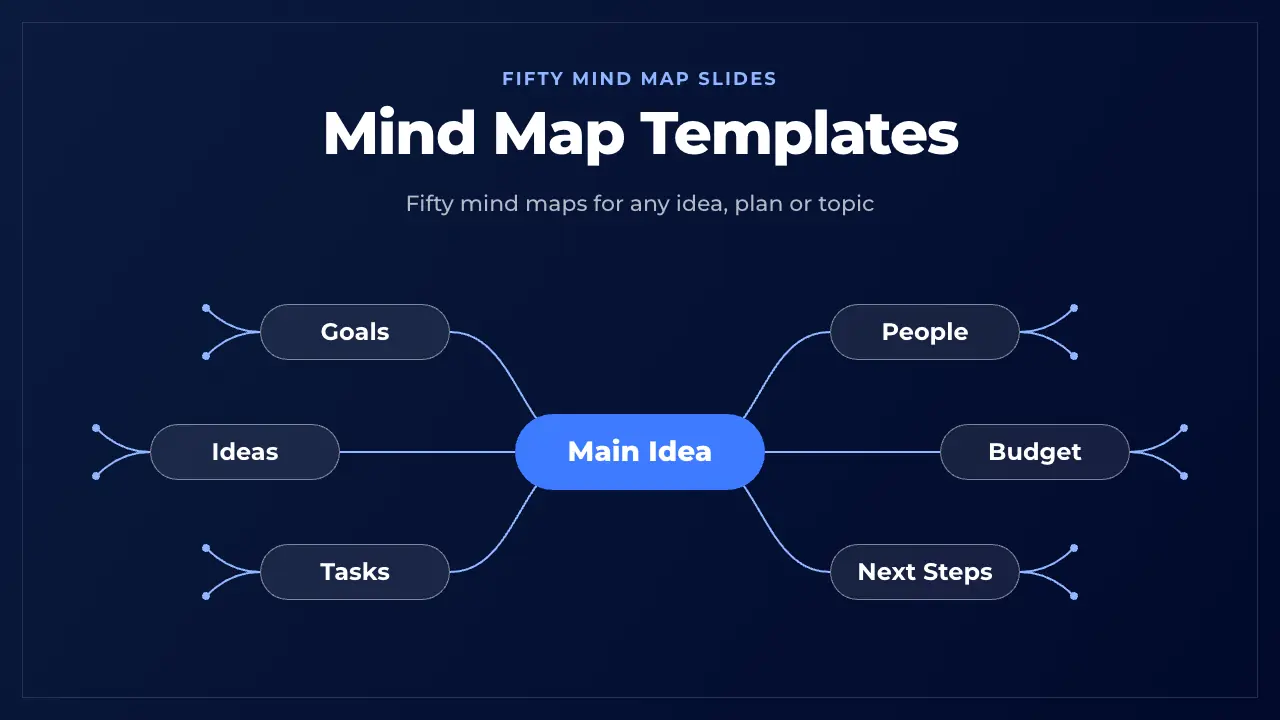
The three are close relatives. A spider diagram uses straight legs and short side branches and stays on one or two levels, which makes it quick to draw and easy to read on a slide. A mind map grows further outwards on curved, organic branches, and a bubble map describes a topic with words in circles around it.
Choose a spider diagram when the structure matters more than the decoration and when you want to fit the whole topic on one page. If one leg turns out to need a page of its own, slide 34 shows how to open it into a second spider, and slide 45 explains it in a detail card.
Spider Diagram Template FAQ
What Is A Spider Diagram?
A spider diagram is a simple map of a topic: the topic stands in the middle and straight legs run out to its main points, with short side branches for the details. It is used to plan projects, collect ideas, describe customers and prepare talks.
Is This Spider Diagram Template Free?
Yes. You can look through all 50 slides, change their colours and fonts on the page and download this spider diagram template as a PPTX file with a free ExpertSlides account.
Can I Edit The Spider Diagrams In PowerPoint?
Yes. The hubs, legs, nodes and labels are ordinary PowerPoint shapes and text, so you can retype, move, turn or delete them. The bar chart on slide 30 and the donut chart on slide 31 stay real charts that you edit through their data.
How Many Legs Should A Spider Diagram Have?
Between three and eight main legs work best on a slide. This spider diagram template covers each of those sizes, and if you have more than eight points it is usually clearer to group them first or to link two spiders, as slide 9 does.
What Is The Difference Between A Spider Diagram And A Mind Map?
A spider diagram has straight legs and usually one level of short branches, so it stays compact. A mind map branches further on curved lines and suits larger collections of ideas.
Can The AI Build A Spider Diagram On My Own Topic?
Yes. Press Fill With AI, describe your topic or attach your notes, and ExpertSlides builds your own deck in this look, with your topic in the hub and your points on the legs.
Can I Use My Own Colours, Fonts And Photos?
Yes. The colour and font bar changes every slide at once, a Design Kit applies your brand, and every photo can be replaced in the editor or in PowerPoint.
Try ExpertSlides AI For Free — The Ultimate AI Presentation Maker
Describe any topic or upload a document, and ExpertSlides designs and writes the whole deck — editable in the browser and as a PowerPoint file.