
Audiences make up their minds fast. In the first thirty seconds they decide whether this talk is worth their attention; in the last thirty they file away what it was about. Psychologists call these the primacy and recency effects: we remember beginnings and endings better than middles. Most presenters waste both — with “Thanks for having me, my name is…, today I am going to talk about…” at the start and “So, yeah, that’s it — any questions?” at the end.
Write your first and last three sentences word for word, even if you speak everything else freely. Learn them. They carry you through the nervous first moments and make sure you land the ending when time runs short.
Seven ways to start a presentation
Each of these openers does the same job: it gives the audience a reason to listen before you ask for their attention. Pick the one that suits your topic and your personality; a forced joke is worse than none.
- A question they want answered. “What would you do with an extra hour every week?” Pause for real — let them think.
- A surprising fact. “Half of what we spend on onboarding goes into the first two days.” It must be true, sourced and relevant.
- A short story. “Last March, a customer called us at 11 pm…” Concrete, with a person, a time and a problem. Under a minute.
- The end first. “By the end of this talk you will know the three changes that cut our delivery time by half.” Clear, confident, especially good at work.
- A picture with no words. Show one striking photo, say nothing for three seconds, then explain why it is there.
- A quote from someone in the room’s world. A customer, a well-known figure in the field, a colleague. Never an invented or misattributed quote.
- A show of hands. “Who here has sat through a meeting that should have been an email?” It wakes the room and tells you about it.
Opening lines by occasion
| Occasion | Example opening |
|---|---|
| Project update at work | “We are two weeks ahead on the build and two weeks behind on testing. Here is what that means for the launch.” |
| Sales pitch | “You told us last month that reporting takes your team three days. Let me show you how it takes three minutes.” |
| School or university | “Every one of you used this invention today before breakfast. Most of you have never heard its inventor’s name.” |
| Conference talk | “Two years ago we made a mistake that cost us our biggest customer. This talk is about what we learned.” |
| Team kick-off | “Last quarter, this team did something no team here has done before. Let us start there.” |
| Job interview presentation | “You asked how I would grow this channel in six months. Here is my plan, and the one risk I would watch.” |
How to introduce yourself
Your introduction answers one question: why should this audience listen to you on this topic? It is not a CV. Two sentences are enough: your name and role, and the experience that connects you to the subject. “I’m Maria, I run customer support. For the last year my team has answered every complaint about the new app — so I know exactly where it hurts.”
Many speakers introduce themselves after the opener, not before it: hook first, then “I’m…”. If someone else introduces you, give them two prepared lines so they do not read your whole profile. A title slide with your name, role and the talk’s title does the rest silently.
Prepare a title slide that introduces youPowerPoint (Windows and Mac)
Use the Title Slide layout
Select the first slide and choose Home → Layout → Title Slide. Put the talk’s promise in the title, not just its topic: “Halving delivery time: three changes that worked”.
Home → Layout → Title Slide Add your name and role
In the subtitle placeholder type your name, role and the date or event. Keep it to one or two lines.
Write your opener into the notes
Choose View → Notes and type your first three sentences word for word. In Presenter View they appear on your screen while the audience sees the title.
Speaker notes under the title slide
Signal the ending
Audiences re-engage when they sense the end — use it. A clear transition (“Let me bring this together”) or a summary slide tells them to listen again. Never say “one last thing” three times; if you announce the end, end.
The conclusion slide
A good conclusion slide is not a “Thank you” slide. It repeats your one message and asks for the action you want. Three formats work well:
- The three takeaways. Three short statements, each a sentence, numbered. The audience photographs this slide; make it worth photographing.
- The one message and the ask. Your core sentence large, the decision or next step under it: “Approve the pilot budget by 15 November.”
- Back to the opening. Return to the question, story or picture you opened with and resolve it. It makes the talk feel complete.
Leave the conclusion slide on screen during questions instead of a slide that says “Questions?” — the message stays visible while people talk. Our guide to questions and closing slides covers Q&A slides in detail.
End the slide show cleanly in PowerPointWindows and Mac
Remove the black end slide if you do not want it
PowerPoint shows a black screen saying “End of slide show” after the last slide. To end on your conclusion instead, choose File → Options → Advanced and untick End with black slide (on a Mac: PowerPoint → Preferences → Slide Show).
File → Options → Advanced → End with black slide Keep a backup slide handy
Put detailed slides after the conclusion and hide them with right-click → Hide Slide. If a question needs one, type its number and press Enter during the show.
Exit without the editor showing
Press B to black the screen while you take questions, or stay on the conclusion. Press Esc only when you are done, so the audience never sees your slide list.
What to say at the end of a presentation
Your last sentence should be the one you want them to repeat afterwards. Write it, learn it, and say it slowly, then stop talking. Examples:
- “If you remember one thing from today: the fastest fix is the one your customer never notices. Thank you.”
- “We can start the pilot on the first of December. All we need is your yes today.”
- “Next time you open a report, ask who it is for. That question changed everything for us.”
- “Two years ago we lost our biggest customer. Last month they came back. Thank you.”
“Thank you” belongs after the last line, not instead of it. And if questions follow, take them, then close again with one sentence of the message — so the last word is yours, not the last question’s.
Endings to avoid
- Running out of time and skipping the conclusion. Rehearse with a timer and know which slides you would skip.
- A new point at the end. The ending repeats; it does not add.
- Trailing off — “so… yeah… that’s about it.” Stop on the line you prepared.
- Apologising for length, content or nerves. Nobody remembers the flaw until you name it.
Designs for this kind of deck
Every design brings its own colours, fonts and layouts to the whole deck.
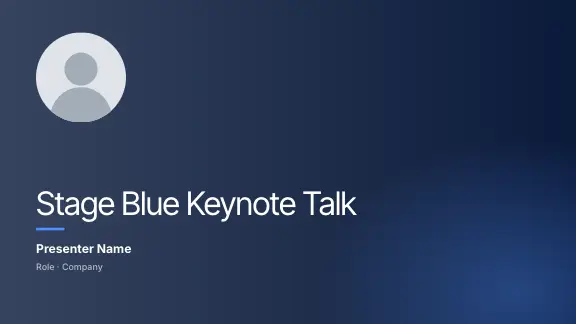



Opening and closing slides in ExpertSlides
When ExpertSlides writes a deck from your prompt or your documents, the opening and the ending come from the content itself: a title slide that states what the talk delivers, an introduction or agenda where the length needs one, and a closing slide that sums up the key takeaways in the deck’s own words. The library has dozens of title, introduction, statement, key-takeaway and closing layouts — big single statements for an opening question, a quote slide for an opening quote, full-bleed picture slides for an opening image.
In an open deck, instructions such as “add a closing slide with the three key takeaways”, “make the first slide a bold question” or “add a slide before slide 2 with a short story about a customer” do the same for a single slide. Speaker notes can be switched on under Settings → General (Show speaker notes) for your scripted first and last lines, and Present with Presenter view shows them to you alone.
More for the start and end of a deck: agenda and contents slides and presentation ideas. Find a design that suits your opening in Design Templates, or read how the AI presentation maker builds a deck.
Questions, answered
What is a good way to start a presentation?
Open with something that gives the audience a reason to listen: a question, a surprising and true fact, a short story, the result you will deliver, a striking picture or a show of hands. Introduce yourself and the agenda after the hook.
How do I introduce myself in a presentation?
In two sentences: your name and role, and the experience that connects you to this topic. It is not a CV; say why this audience should listen to you on this subject.
What should be on the last slide of a presentation?
Your one message and the action you want, or three takeaways. Keep it on screen during questions instead of a slide that only says thank you or questions.
What do you say at the end of a presentation?
A prepared last sentence that repeats your core message or asks for the next step, said slowly, then thank you. After questions, close again with one sentence of the message.
How do I stop PowerPoint showing a black slide at the end?
On Windows choose File, Options, Advanced and untick End with black slide. On a Mac the setting is under PowerPoint, Preferences, Slide Show.
