
AI Slides Generator
Turn a prompt into slides with the AI slides generator
One sentence in, a slide deck out: the AI writes each slide, chooses its layout and adds charts and pictures where they help.
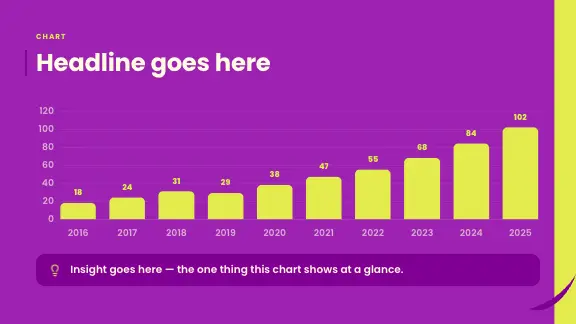
What AI slides are — and what they are not
AI slides are slides written and laid out by a language model from a description you give it. An AI slides generator takes a prompt such as “a 10-slide deck for new hires on how our support team works”, plans what the deck must say, writes every slide and places it in a layout — so you start from a complete draft instead of an empty page.
What they are not: finished thinking. The AI is fast at structure and wording, and it knows a lot about common topics, but it does not know your company, your numbers or what your audience already believes. The best AI slides come from a prompt that says those things, and from a person who reads the result before presenting it.
How AI slides are made
Three stages run one after another when you press Create Slides.
The plan
The AI reads your prompt and any files, then plans the deck: the story, the number of slides and what each one must say.
The slides
Each slide is written and placed in the layout of the design that fits its content — a list, a chart, a timeline, a comparison.
The finish
Pictures, icons and charts are added; the slides arrive in the editor one after another, ready to change.
How to generate slides with AI
From a blank prompt to slides you can present. The first draft takes about a minute; the rest is yours.
Write a prompt that names the purpose
Say what the slides are for, who will see them and what should change in their heads: “A 10-slide deck for new hires on how our support team works — friendly, practical, with the three tools we use.”
A prompt with purpose, audience and tone. Choose how many slides and whether pictures are made
Set the slide count beside the prompt, or leave it on Auto. In Settings, Image generation decides whether the AI makes pictures for the slides (Auto) or leaves them out (Never), and Audience whom the slides are written for. On Free a deck has up to 5 slides; Pro and Business make decks of as many slides as you choose.
Image generation and the audience shape the slides. Pick the design the slides are made in
Every design is a full set of layouts in several colour styles. Choose one on Home or on Design Templates — the AI then picks, slide by slide, the layout of that design that fits what the slide says.
The design decides the look of every layout. Generate and read the headlines
Press Create Slides. When the deck is in, read only the headlines from first to last. If they tell the story, the structure is right; if not, fix the structure before polishing single slides.
The overview shows the whole deck at a glance. Edit by asking
Type what should change into the editor’s prompt: “split this into two slides”, “add a chart of Q3 revenue”, “make the headline shorter”. Select elements first to aim an instruction at them.
An instruction aimed at a selected element. Tidy, then present or export
After moving things by hand, Magic Fix sets the slide back into a clean layout. Then present in the browser or export the deck. Download an editable PowerPoint file on Pro and Business. Every plan exports PDF; on Free a PDF carries the ExpertSlides mark.
Magic Fix composes a slide without changing its content.
An AI slide deck generator that leaves you in charge
Edit by hand
Click any element and change it — text, picture, chart or shape. Move, resize, group and align as in any slide editor.
Edit by asking
Tell the AI slides maker what to change, on one slide or on several selected in the slide rail.
Tidy in one click
Magic Fix sets a slide whose elements you moved back into a clean layout.
Pictures that fit
Generated or uploaded pictures are framed to the design; a description is enough to make a new one.
Charts with real data
Charts and tables keep their data in a table you can edit — or replace by uploading a CSV.
Interactive elements
On Pro and Business, tabs, checklists, quizzes, polls and more can be added to a slide and used live while you present.
Watch AI slides being generated
What to check before you present AI slides
An AI writes fluently, which makes its mistakes easy to miss. Before a deck goes in front of people, read it once with these questions in mind.
Facts and figures
Every number, name and date: is it from your source, and is it right? A deck made from your document keeps to what the document says; a deck from a prompt alone draws on what the model knows, which can be out of date.
The story
Do the headlines, read alone, make the argument you want to make? Is anything there that you would not say out loud, or missing that your audience will ask about?
The amount of text
Slides are for the room, not for reading at a desk. If a slide carries a paragraph, ask the AI to shorten it or split it, and say the rest yourself — speaker notes are the place for it.
Designs the AI slides creator works in
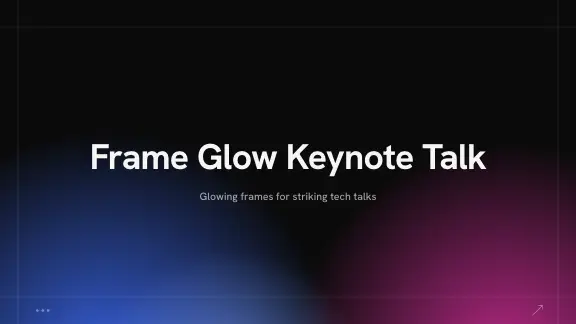
The slides are made in the design you pick — each a full set of layouts in several colour styles.







Weak and strong prompts for AI slides
The same topic, asked two ways. The left column is what we suggest writing.
| Compared | ExpertSlides | Weak prompt |
|---|---|---|
| Topic only | “Our support team: how it works, for new hires, 10 slides, friendly” | “Support presentation” |
| A decision | “Three options for our office move, compared on cost and commute, ending in a recommendation” | “Office move options” |
| A lesson | “Photosynthesis for 12-year-olds: one idea per slide, a diagram, three quiz questions at the end” | “Photosynthesis slides” |
| From data | “Q3 results for the leadership team from the attached CSV, one chart per region” | “Make charts” |
The left column also works for any other AI slides creator: purpose, audience, length and source say more than any keyword.
Who uses AI slides
Anyone who presents more often than they would like to design. The AI slides creator takes the first draft off their hands; their judgement stays in it.
People with a meeting tomorrow
A complete draft in a minute means the evening goes into the argument, not into aligning boxes.
Teachers
Lessons and revision decks from a curriculum point or a handout, one idea per slide, readable from the back row.
Product and project teams
Sprint reviews, roadmaps and launch plans that follow the same structure every time.
Anyone presenting in another language
Choose the deck’s language in Slide Settings, or ask the AI to translate a finished deck.
Prompts that make better AI slides
- “A 10-slide deck for new hires on how our support team works” beats “support presentation”.
- Name the tone: formal, friendly, energetic, academic.
- Say what the audience already knows, so the slides skip the basics or explain them.
- List the points that must appear — the AI builds around them.
- Upload the source if there is one: a report, notes or a spreadsheet.
- Ask for fewer words per slide than you think you need; you will say the rest out loud.
- Fix the structure first (which slides, in which order), the wording second, the look last.
Questions, answered
What is an AI slides generator?
A tool that turns a description — or a document — into a finished slide deck: the words, the layout, charts and pictures.
Is the AI slides maker free to try?
Start free — no credit card required. Download an editable PowerPoint file on Pro and Business. Every plan exports PDF; on Free a PDF carries the ExpertSlides mark.
Which is the best AI slides generator?
The one whose decks you would present without rebuilding them. Try a deck on your own topic and judge the content, the design and how easily you can change it.
Can I add slides later?
Yes. Ask for a new slide in a sentence, or add one from the layouts of the design.
Can I change several slides at once?
Yes. Select the slides in the slide rail and type the instruction; it is carried out on each of them.
Are the pictures on AI slides generated?
Where a slide needs a picture, the AI can generate one from a description, or you upload your own. For a deck without generated pictures, set Image generation to Never in Slide Settings.
Can I make AI slides in another language?
Yes. A deck is written in the language of your prompt or the one you choose in Slide Settings.

Create Slides in Under 90 Seconds
No credit card required · Instant access