
Email was not built for large files. Gmail accepts attachments up to 25 MB per message and offers a Google Drive link beyond that; Outlook.com allows about 20 MB and suggests OneDrive for larger files; many company mail servers set their own, often lower, limits. The recipient’s server matters too — a file your server sends may still bounce on theirs.
Step 1: find out what makes the file large
A .pptx file is already a compressed archive, so zipping it again gains almost nothing. The size comes from what is inside:
| Cause | How to spot it | Fix |
|---|---|---|
| Photos straight from a camera or phone | Many large pictures, each several MB | Compress Pictures |
| Cropped pictures that keep their hidden parts | Pictures cropped heavily | Delete cropped areas |
| Embedded videos and audio | Media on slides | Compress Media, or link to the video |
| Embedded fonts | File → Options → Save → Embed fonts ticked | Untick, or embed only used characters |
| Many unused layouts and masters | View → Slide Master shows many layouts | Delete unused layouts |
| Embedded Excel workbooks | Charts and objects pasted with their workbook | Paste as chart without full workbook, or as picture |
Step 2: compress the pictures
Compress all pictures at onceWindows and Mac
Select any picture
Click one picture in the deck so the Picture Format tab appears.
A selected picture with Picture Format active Open Compress Pictures
Choose Picture Format → Compress Pictures (the small icon in the Adjust group on Windows).
Picture Format → Compress Pictures Apply to all
Untick Apply only to this picture so every picture in the deck is compressed. Tick Delete cropped areas of pictures.
Choose the resolution
For a deck to be read on screen, Web (150 ppi) is a good balance; E-mail (96 ppi) gives the smallest file; Print (220 ppi) for printing. On a Mac, choose the quality under Picture Quality in the same dialog. Click OK and save.
To stop PowerPoint from keeping full-size pictures in future, set File → Options → Advanced → Image Size and Quality → Default resolution to 150 ppi (Windows). Compressing is permanent once saved — keep the original file for printing.
Step 3: compress videos and audio
Compress media in the deckWindows
Open Compress Media
Choose File → Info → Compress Media. The button only appears when the deck contains video or audio.
File → Info → Compress Media Choose a quality
Standard (480p) makes the smallest file and is enough for email previews; HD (720p) keeps more detail. PowerPoint compresses every video and shows the saving.
Or link instead of embedding
For long videos, remove the video and add a link to it on YouTube, Vimeo, OneDrive or SharePoint with Insert → Video → Online Video or a simple hyperlink.
On a Mac, if your PowerPoint has no Compress Media, compress the video before inserting it: open it in QuickTime Player and choose File → Export As → 720p (or 480p).
Step 4: other quick savings
- Fonts: File → Options → Save — untick Embed fonts in the file, or choose Embed only the characters used in the presentation.
- Unused layouts: in View → Slide Master, delete layouts no slide uses (hover a layout to see whether it is used).
- Hidden slides and backups: delete what the recipient does not need, in a copy of the deck.
- Save as a fresh file: File → Save As with a new name sometimes sheds leftovers of earlier edits.
Step 5: send a PDF instead
If the recipient only needs to read the deck, a PDF is usually smaller, opens on every device and cannot lose fonts. On Windows choose File → Export → Create PDF/XPS, then Options, and Optimize for: Minimum size (publishing online). On a Mac choose File → Export, format PDF. Animations and videos do not survive; the slides show their final state.
Step 6: share a link instead of a file
Share a PowerPoint as a linkWindows, Mac and web
OneDrive or SharePoint
Save the deck to OneDrive, click Share at the top right of PowerPoint, choose who can open it (Can view or Can edit) and send the link by email or copy it.
PowerPoint → Share with a link Google Drive
Upload the .pptx to Drive, right-click it, choose Share, add the recipient or set General access to anyone with the link, and copy the link. Gmail does this automatically for attachments over 25 MB.
Transfer services
For one-off sends to people outside your organisation, file transfer services upload the file and email a download link that expires after some days. Check your company’s rules for confidential material.
Links have advantages beyond size: you can update the file after sending, see who has access, and revoke it. For decks that change, a link is simply better than an attachment.
Which option for which recipient
| The recipient needs to … | Send | Why |
|---|---|---|
| read it once, on any device | A PDF | Small, fonts cannot go missing, opens everywhere |
| edit it or reuse slides | A compressed .pptx or a OneDrive link with edit rights | Keeps everything editable |
| see the latest version over time | A share link | One link, updated in place |
| present it in a meeting you are not at | The .pptx with embedded media, by link | Videos and animations travel with it |
| receive it outside the company firewall | A PDF or a transfer link | Many company mail servers block large attachments |
Before you press send
- Check the size in the file’s properties (Windows: right-click → Properties; Mac: Get Info).
- Open the compressed copy and look at the photos at full screen — compression should not be visible.
- Remove speaker notes if they are not for the recipient: File → Info → Check for Issues → Inspect Document on Windows finds and removes notes, comments and hidden content.
- Name the file clearly, with the date: “Project report – client – 2026-10.pptx”.
- Test the link in a private browser window to see exactly what the recipient sees.
Sending through Teams, Slack and messengers
Chat tools take larger files than email, but they bring their own trade-offs. In Microsoft Teams a file shared in a chat or channel is stored in OneDrive or SharePoint, so colleagues open the same copy and can edit it together. Slack and messengers keep a copy per message; a corrected deck means a new upload, and old versions stay in circulation. For decks that will change, post a link to the stored file rather than the file itself, and say in the message which version it is.
Designs for this kind of deck
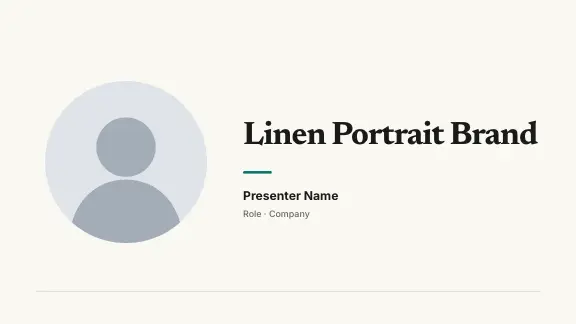
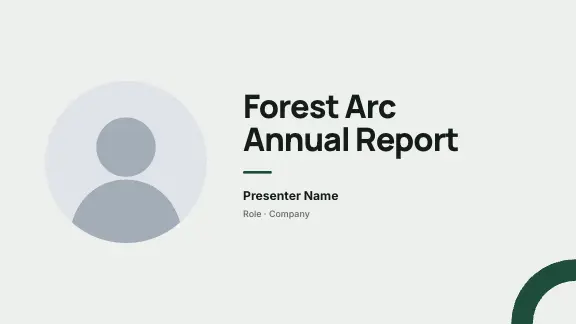
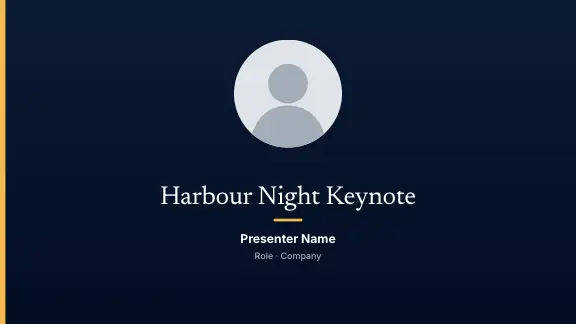
Every design brings its own colours, fonts and layouts to the whole deck.

Sending decks from ExpertSlides
The ExpertSlides way to send a deck is a link: Web link in the editor’s top bar publishes the presentation read-only, and the recipient opens it in any browser, with Present and Presenter view, without a download or an attachment limit. If you change a slide and publish again, the same link shows the new version; Stop sharing takes it down.
When a file is needed, it stays lean by design: every picture that enters the editor is compressed and scaled down to what a slide needs, and the PowerPoint export (Pro and Business) writes photos at no more than twice their frame’s size and a picture used on several slides only once. Every plan exports PDF; on Free the PDF carries the ExpertSlides mark.
Related: converting files to PowerPoint, showing a PowerPoint on a TV and slide sizes. Plans and exports are on Pricing.
Questions, answered
How do I send a PowerPoint that is too large for email?
Compress the pictures and media to make it smaller, save it as a PDF if the recipient only reads it, or upload it to OneDrive or Google Drive and send a share link instead of the file.
How do I compress a PowerPoint file?
Select a picture, choose Picture Format, Compress Pictures, untick Apply only to this picture, tick Delete cropped areas and choose a resolution. Then use File, Info, Compress Media for videos.
Does zipping a PowerPoint make it smaller?
Hardly. A .pptx is already a compressed archive. Shrink the pictures and videos inside it instead.
What is the attachment limit in Gmail and Outlook?
Gmail accepts attachments up to 25 MB and switches to a Google Drive link above that. Outlook.com allows about 20 MB and suggests OneDrive for larger files; company servers may set their own limits.
How do I share an ExpertSlides presentation without a file?
Publish a Web link from the editor’s top bar. The recipient opens the slides in any browser with Present and Presenter view; when you publish again, the same link shows the new version.
