Fifty calendar slides in one blue look, each a different view of time: a day by the hour, a week in cards, a two-week sprint, a month as a grid of days, a quarter in weeks and a whole year at a glance. Change the colours and fonts of all of them at once, let the AI build your own calendar deck in this look, download them as PowerPoint or edit each slide in the editor.
This calendar PowerPoint template pack holds 50 slides, and each one lays out dates in a different form: a day agenda on an hour scale, a week of seven cards, a calendar-app week in time blocks, a two-week sprint grid, a month as an airy dot calendar, a work month of twenty days, a quarter in thirteen week columns, a year strip of twelve months and a year at a glance in twelve cells. All of them share one blue look on light, white and navy grounds, so any five of them sit in one deck without looking borrowed.
Most files offer one empty calendar template and leave the dates to you. Here every slide is a finished calendar with neutral sample content for the fixed dates of working life — kick-offs, team days, workshops, reviews, launches, deadlines, trainings and content posts — with roles instead of names. The dates are real: every weekday matches the calendar of its year between 2027 and 2035, and every week starts on a Monday, so you can see how a month, a sprint or a quarter really falls before you choose a form.
A free account downloads the slides as a PPTX file whose texts and shapes stay editable in PowerPoint. You can also stay in the browser: pick your colours and fonts in the bar above the slides, describe your plan and let the AI build your own calendar deck in this look, or open the slides one to one in the editor.
Your Dates In This Calendar Look
Describe your plan, the dates you already know and who takes part, or attach a schedule or a project plan. ExpertSlides builds your own calendar deck in this look in a few minutes, with your days, your weeks and your milestones.
Every slide is a complete calendar with neutral sample content — real weekdays, weeks from Monday, a few marked days and short titles — that fits any team. Replace its dates and titles with yours.
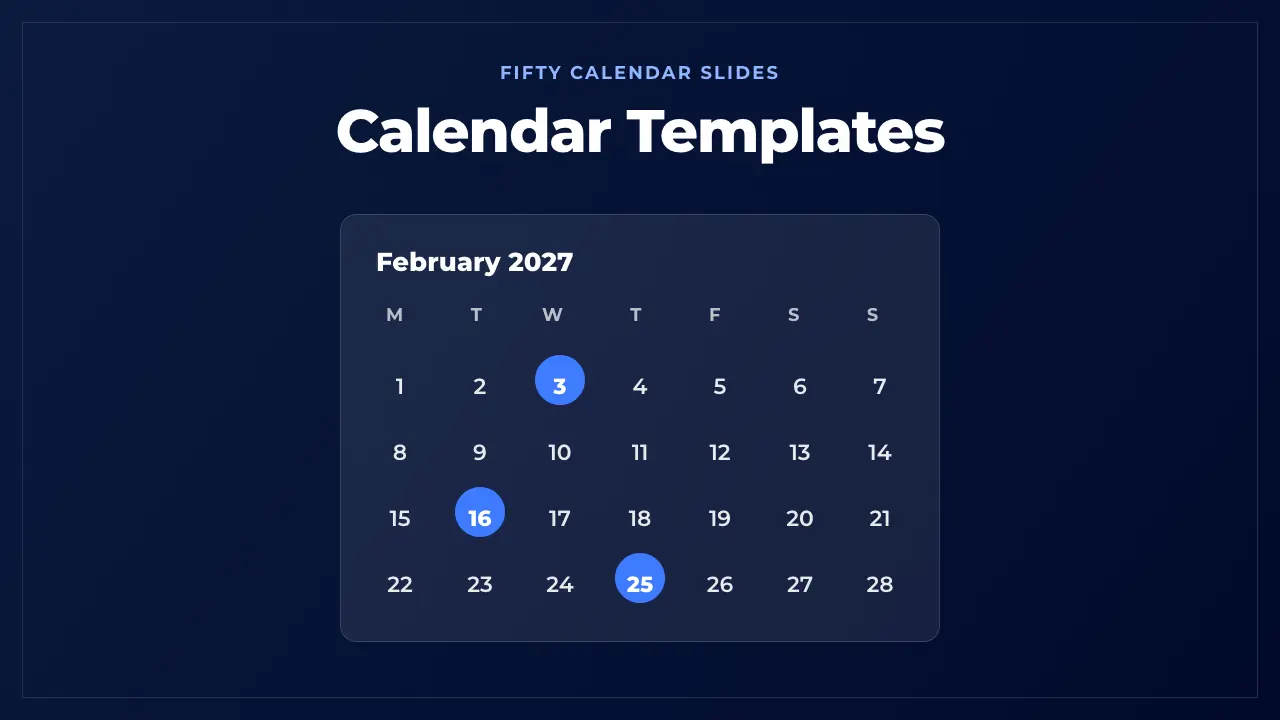
1 · Month Grid Calendar CoverThe title slide of the calendar pack: a calm month card of February 2027 with its weekdays and all 28 days, three of them marked in royal blue. Use it to open a planning deck, a team calendar or a schedule review. Change the month, move the marks to your own key dates and keep the rest as it is.
2 · Week View In Seven CardsA week view in seven equal cards, Monday to Sunday, the weekend in a quieter blue. Four event pills stand in their days at their times, the main one in royal blue. Use it for a team week, a project week or an event week and write your own fixed dates into the cards.
3 · Work Month Beside A PhotoA work month of four weeks, Monday to Friday, beside a tall photo of a team at a wall calendar. Three days are marked in royal blue and named in one legend line under the grid. Use it to show the working days of a month and its few fixed dates.
4 · Year At A Glance In Twelve CellsThe whole year 2028 in twelve month cells, two rows of six on a quiet hairline grid. Six cells hold a key date with its weekday and a short title, the other months stay quiet. Use it for an annual plan, a board calendar or the fixed dates of a team year.
5 · Day Agenda On An Hour ScaleA day calendar on an hour scale from 08:00 to 17:00, with faint hairlines for every hour. Five event blocks sit at their times and are as long as they last; the key block is royal blue. Use it for a workshop day, an event day or the agenda of a busy team day.
6 · Quarter Plan In Three Month CardsA quarter plan in three white month cards, January to March 2028, each with three dated rows. A royal blue chip carries each weekday and date, the event title stands beside it. Use it for a quarterly plan, a project quarter or the fixed dates of a team.
7 · Save The Date On A PhotoA save the date: a large calendar leaf with the month, a huge day number and the weekday stands on a photo of a team under a navy overlay. Beside it the event, a lead and three details with icons for the time, the place and the people. Use it to announce a team day, an event or a launch well ahead.
8 · Two-Week Sprint GridA two-week sprint as a calendar grid: seven weekday columns, two week rows, the ten working days on a royal blue band and the weekend on a pale panel. Three fixed meetings are named under their days. Use it for a sprint, a two-week project phase or a short training plan.
9 · Events List By DateAn events list by date: five rows, each with a royal blue date block, the event title, its weekday and time, and a pale tag with the type of event. Use it for upcoming events, a programme of team dates or the next milestones of a project.
10 · Wall Calendar With A PhotoA wall calendar: a landscape photo across the top, the month and year in large type and an airy dot calendar of May 2028 with three marked days. Each mark is named beside its week row. Use it as the monthly page of a team calendar or a project month.
11 · Year Strip In Twelve ColumnsA year strip: twelve equal month columns under one pale band of month names, with quiet hairlines between them. Five flags hang in their months at different heights, each with its date and a short title. Use it for the key dates of a year, a release plan or an annual team calendar.
12 · Content Calendar Of One WeekA content calendar of one working week: five white cards, Monday to Friday, each with its date, an icon for the post type, the type and the channel with its time. Use it to plan posts, newsletters and videos a week ahead.
13 · Countdown On A MonthA countdown on a month: a large key figure of the days left beside a dot calendar of September 2031. The days already passed are quieter, today is ringed in light blue and the launch day is a royal blue disc. Use it to show how much time is left before a launch, an event or a deadline.
14 · Round Photo Beside Three DatesThree dates beside a large round photo: each row has a royal blue date block with the day and month, a title and a short line on what happens. Use it for team days, events of a season or three milestones that everyone should keep free.
15 · Quarter In Thirteen WeeksA quarter in weeks: thirteen equal week columns from W14 to W26, each with the date of its Monday, grouped under the months April, May and June. Four milestones sit in their weeks as royal blue pills. Use it for a quarterly plan, a project phase or a release quarter.
16 · Six Calendar Leaves In A RowSix calendar leaves in one row, one for each month from January to June 2030, each with the month, a large day number and the weekday. A recurring meeting on the second Tuesday becomes visible at a glance. Use it for monthly reviews, board meetings or any fixed monthly date.
17 · Three-Day Agenda Beside A PhotoA three-day agenda: one column per day under a royal blue day pill, three sessions each with a time and a title, and a tall workshop photo on the right. Use it for workshops, trainings, offsites or the programme of a short event.
18 · Year By Quarters In Four ColumnsThe year by quarters: four columns from Q1 to Q4, each headed by a bold quarter label over a royal blue bar, with its three months as rows and one dated entry in each. Use it for an annual plan, the rhythm of reviews or the fixed dates of a team year.
19 · Week In Time BlocksA week as a calendar app shows it: five day columns, an hour scale from 09:00 to 17:00 and seven time blocks at their days and times, in three tones. Use it to show a team week, the meeting load of a role or the plan of a busy week.
20 · Month With A Selected RangeA month with a selected range: a dot calendar of March 2032 in which two work weeks are blocked on a pale band, the first and last day as royal blue discs. A key figure names the number of working days. Use it for focus weeks, holidays, a project phase or any blocked period.
21 · Photo Half With A List Of DatesA list of dates beside a photo that fills the left half: five rows, each with a date chip, a title and a short caption. The next date is filled in royal blue so it stands out. Use it for team days, events of a year or the next dates of a programme.
22 · The Weeks Of A Year As DotsThe weeks of a year as dots: four rows of thirteen weeks, one row per quarter, with four marked weeks as royal blue discs and a caption with the date of their Monday. A key figure names the 52 weeks. Use it for a year plan in weeks, a release rhythm or the key weeks of a team.
23 · Month Content Plan In Four WeeksA month content plan in four week cards, each with its dates, an icon, a theme and a short line on what is posted. Use it for a content calendar, a campaign month or the weekly focus of a team.
24 · Desk Calendar Beside A PhotoA desk calendar leaf with the month, a large day number and the weekday, beside a short agenda of three sessions and a calm desk photo. Use it to announce one key day — a review day, an offsite or a launch — with its plan.
25 · Key Figure Beside A Work MonthA work month as a grid of twenty working days, Monday to Friday, beside a large key figure. Four fixed dates are royal blue discs and named in one legend line. Use it to show the working days of a month, its milestones or the capacity of a team.
26 · Week Strip With A Day In DetailA week strip of seven day pills with dots on the days that have appointments; the selected Wednesday opens as a large card with three time cards. Use it to zoom from a week into one day: a workshop day, a busy client day or the key day of a sprint.
27 · Half Year In Six Month CardsHalf a year in six month cards, July to December 2033, each with its month, a short royal blue rule and two dated entries. Use it for a half-year plan, a programme of events or the fixed dates of a team from summer to the end of the year.
28 · Launch Week On A PhotoA launch week on a photo: seven day cells from Monday to Sunday along the bottom, the launch day filled in royal blue with a rocket icon, the title and a short lead above on a navy overlay. Use it to set the scene for a launch, an event week or a big release.
29 · Meeting Rhythm Of A MonthThe meeting rhythm of a month in one dot calendar: the Monday column on a pale band for the weekly meeting, two Wednesdays in royal blue for the fortnightly one and the last Friday in navy for the monthly review. A legend names each rhythm. Use it to agree on a meeting cadence for a team or a project.
30 · Training Calendar In Six CardsA training calendar in six course cards, two columns of three: a royal blue date badge, the course title and one line with the weekday, the time and the seats. Use it for a training programme, a course catalogue or a series of workshops.
31 · Year Of Months Beside A PhotoA year at a glance in twelve month pills, three rows of four, the busy months in royal blue and the quiet ones in a soft navy, beside a tall photo of a planner. A legend line says why each busy month peaks. Use it to plan capacity, holidays or the workload of a team across a year.
32 · Two-Month Spread Of Dot CalendarsA two-month spread: June and July 2034 as two airy dot calendars side by side, each with its weekdays. Four Thursdays are marked in royal blue and named under their month. Use it for a project phase across two months, a summer plan or a run of fortnightly dates.
33 · Sprint Calendar Of A QuarterA sprint calendar of a quarter: twelve week columns from W2 to W13 under the months January to March, and six two-week sprints as bands in stair order, each with its dates. Use it for an agile release plan, a quarter of sprints or any rhythm of two-week cycles.
34 · Four Calendar Leaves To A LaunchA countdown in four calendar leaves: four Mondays from day −28 to the launch day, each with its month, a large day number and a short title, the launch leaf in royal blue. Use it for the last weeks before a launch, an event or a deadline.
35 · The Week Ahead Beside A PhotoThe week ahead as five rows from Monday to Friday, each with its date, one key appointment and its time in a pale pill, beside a photo that fills the left of the slide. Use it to open a weekly meeting, share a team week or plan a busy week ahead.
36 · Twelve Dates In Twelve ColumnsTwelve dates in twelve narrow month columns: each column names its month, its date as a large royal blue figure and the weekday under it. Use it for every recurring date of a year — month-end closes, payroll dates, board meetings or reporting deadlines.
37 · Month With A Key-Date ListA month and its key dates side by side: a dot calendar of January 2029 with four days marked in royal blue, and a list of the same four dates with a title and a short caption each. Use it for the plan of a month, a launch month or the dates a team must not miss.
38 · Three Event Cards With PhotosThree event cards side by side, each with a photo, a royal blue date badge, the event and one line on what happens. Use it to announce the key events of a year, a season of team days or three dates a whole company should keep free.
39 · Days Of A Month On One LineA month on one line: thirty days as small ticks, the weekends on pale panels and the Mondays numbered under the line. Four deadlines stand over their days as royal blue flags with a date and a title. Use it for the deadlines of a project month, a delivery plan or a review cycle.
40 · Team Week By RoleA week by role: five day columns and one lane per role, with blocks that show where each person works — in the office, remote or at a workshop. Use it to plan office days, coordinate a hybrid team or show who is where during a busy week.
41 · Three Dates As Large FiguresThree dates as large figures: each column has a big royal blue day number, its month and weekday, a short rule, a title and two lines on what happens. Much air and no cards. Use it for the three dates of a year that everyone must remember.
42 · Month In Four Weeks Beside A PhotoA month in four stacked week rows, each with its dates in a royal blue pill, a focus and a short caption, beside a tall photo of a planning board. Use it for a monthly plan, a sprint month or the steps of a short project.
43 · Quarterly Reviews In Four BlocksFour quarter blocks, each with its months, a calendar leaf showing the review date and the focus of that review. Use it for quarterly business reviews, board meetings or any date that closes a quarter.
44 · Two-Week Booking GridA two-week booking grid: seven weekday columns, two week rows and the open slots as royal blue discs, with a key figure and a short legend. Use it to offer workshop dates, interview slots or free days in a shared calendar.
45 · Year Strip Under A PhotoA year strip under a wide photo: twelve months in one row, four launch months marked in royal blue, each with its date and the name of the release under it. Use it for a release calendar, a launch plan or the key months of a product year.
46 · A Week Of Posts As A ListA week of posts as a calm list in two columns, Monday to Thursday and Friday to Sunday: each post with an icon, its type and its day and time. Use it for a social media week, a newsletter plan or the content rhythm of a channel.
47 · Annual Event Calendar In Three BlocksAn annual event calendar in three blocks of four months each, every event with a pale date chip and its title. Use it for the events of a year, a conference season or the fixed dates of a community.
48 · Eight Weeks As ChipsEight weeks of a project as eight chips, each with its week number and the date of its Monday; three marked weeks are filled in royal blue and named under their chip. Use it for a short project, an eight-week programme or a release cycle.
49 · Month Card Beside A PhotoA white month card with an airy dot calendar of November 2032 and three marked days, beside a tall photo and a short list that names each date. Use it for a planning month, a budget season or the key dates of one month.
50 · Every View Of A CalendarThe four views of a calendar side by side — day, week, month and year — each drawn as a small picture with a title and a line on when to use it. Use it to close a planning deck or to agree on which view a team works in.
Fifty Forms Of A Calendar In One Blue Look
A title slide that is a month card itself; the day by the hour: an agenda on an hour scale, a desk calendar leaf with three sessions and a week strip that opens one day in detail; the week: seven day cards, a calendar-app week in time blocks, a launch week on a photo, the week ahead beside a photo, a team week by role, a content week in five cards and a week of posts as a list; the short cycles: a two-week sprint grid, a two-week booking grid with open slots and a three-day workshop agenda; the month: a wall calendar under a landscape, a work month beside a photo, a work month beside a key figure, a countdown to a launch, a month with a selected range, a meeting rhythm, a month with its key dates, a month card beside a photo, a content plan in four weeks, a month in four week rows and a month of thirty days on one line with deadline flags; two months side by side; the quarter: three month cards, thirteen week columns, a sprint calendar of six sprints and four quarterly reviews; the year: twelve cells at a glance, a strip of twelve month columns, twelve month pills beside a photo, a strip of months under a photo, the 52 weeks as dots, the year by quarters, half a year in six cards, twelve month-end dates and an event calendar in three blocks; the single dates: a save the date on a photo, six and four calendar leaves, three dates as large figures, three event cards with photos, an events list by date, team days beside a round photo or a photo half, a training calendar and eight weeks as chips; and a closing slide with the four views of a calendar. Seventeen slides stand on navy, seventeen on light blue and sixteen on white, fourteen of them with a photo.
How To Use This Calendar Template
01
Pick Your Calendar Views
Look through the 50 slides and note the views your plan needs: a year at a glance for the big picture, a month grid for the milestones, a week or a day for the detail. Most decks need three to five of them.
02
Set Colours And Fonts
Choose your colours and your font in the bar above the slides. The whole calendar PowerPoint template changes at once, so you see your brand on every view before you download anything.
03
Put In Your Dates
Press Fill With AI and describe your plan, or press Edit Slides and replace the sample dates and titles by hand, slide by slide, in the editor.
04
Download Or Present
Download the slides as a PPTX file with a free account and copy them into your own PowerPoint deck, or present them straight from the browser.
Which Calendar View Fits Which Plan
A plan for one day wants the hours. The day agenda on an hour scale (slide 5) shows every block as long as it lasts, the desk calendar leaf (24) puts one key day and three sessions on a slide, and the week strip with a day in detail (26) zooms from the week into its busiest day.
A plan for a week or a sprint wants its days side by side. The week of seven cards (2) and the calendar-app week in time blocks (19) show the fixed dates and the free time, the team week by role (40) shows who is where, and the two-week sprint grid (8) and the sprint calendar of a quarter (33) show the rhythm of a team that works in cycles.
A plan for a month wants the grid. The wall calendar (10), the countdown to a launch (13), the month with a selected range (20) and the month with its key dates (37) mark a few days in an airy dot calendar, the work month beside a key figure (25) counts the working days, and the month on one line (39) lines up its deadlines.
A plan for a quarter or a year wants the overview. Take the year at a glance in twelve cells (4), the year strip with flags (11), the 52 weeks as dots (22) or the year by quarters (18) for the big picture, and the quarter in thirteen weeks (15) or the four quarterly reviews (43) when the quarter is the unit your team reports in.
How To Keep A Calendar Slide Readable
Mark few dates. A month with three or four marked days is read at a glance; a month with fifteen marks is a schedule, not a slide. Keep the full list in a document and put the dates that matter on the calendar, with one short title each.
Keep the calendar true. When you change the year or the month, move the weekdays with it: every slide of this pack starts its weeks on a Monday, so a month that begins on a Thursday starts in the fourth column. The AI does this for you when you fill the slides with your own dates.
Calendar Template FAQ
Is This Calendar PowerPoint Template Free?
Yes. You can look at all 50 slides, change their colours and fonts and download the calendar PowerPoint template as a PPTX file with a free ExpertSlides account.
Can I Edit The Calendar Template In PowerPoint?
Yes. Every date, title and caption is a text box and every card, disc and bar is a shape, so you change a date by typing over it and move a marked day by dragging its disc. The PPTX opens in PowerPoint and in the other common presentation apps.
Are The Weekdays Correct?
Yes. Every sample date sits on its real weekday in its year, from 2027 to 2035, and every week starts on a Monday. When you change the month or the year, move the marked days to their new weekdays, or let the AI do it when it fills the slides.
Which Calendar Views Are In The Pack?
A day by the hour, weeks in cards and in time blocks, two-week sprints, months as dot calendars and work-day grids, quarters in weeks and months, and whole years at a glance, plus single dates such as a save the date or a countdown.
Can The AI Fill The Calendar With My Own Dates?
Yes. Press Fill With AI and describe your plan or attach a schedule. ExpertSlides builds your own calendar deck in the look of this calendar PowerPoint template, with your dates, your titles and the views that fit them.
Can I Use My Own Colours And Fonts?
Yes. The bar above the slides changes the colours and the font of the whole pack at once, and a Design Kit puts your brand on every slide you build with it.
Do The Slides Name Any Holidays?
No. The pack marks general working dates such as kick-offs, reviews and launches and names no public holidays, so it fits teams in any country. Add the holidays of your own region where you need them.
Try ExpertSlides AI For Free — The Ultimate AI Presentation Maker
Describe any topic or upload a document, and ExpertSlides designs and writes the whole deck — editable in the browser and as a PowerPoint file.
Pick the calendar views you need, set your colours and let the AI fill them with your own dates, or download the 50 slides and edit them in PowerPoint.