Decision Making Template: 50 Editable Slides For PowerPoint
Fifty decision slides in one blue look, each a different way to reach and explain a choice: weighted scoring, pros and cons, urgent and important grids, decision roles, group methods, common biases, a decision log and a review. Change the colours and fonts of all of them at once, let the AI build your own deck in this look, download them as PowerPoint or edit each slide in the editor.
This decision making template pack holds 50 slides, and each one shows a different part of how people and teams decide: the steps of a decision, options set against criteria, a weighted scoring matrix, pros and cons on a balance scale, an urgent and important grid, who decides and who is consulted, reversible and irreversible choices, group methods, common biases, a decision log and the review afterwards. All of them share one blue look on light, white and navy grounds, so any five of them sit in one deck without looking borrowed.
Every slide is finished and written out with neutral sample content that fits any organisation: three options, four weighted criteria, roles instead of names and round sample figures. The same example runs through the pack, so the scores, costs and results agree from one slide to the next. Charts are real charts you edit by their data, and scores, grids and scales are shapes you can move and retype.
If you need a decision making template for PowerPoint, a free account downloads the slides as a PPTX file whose texts, shapes and charts stay editable. You can also stay in the browser: pick your colours and fonts in the bar above the slides, describe your decision and let the AI build your own deck in this look, or open the slides one to one in the editor.
Your Decision In This Look
Describe the choice in front of you, your options and what matters most, or attach your notes or a report. ExpertSlides builds your own decision deck in this look in a few minutes, with your options, your criteria and your figures.
Every slide is complete, with neutral sample content: three options, four weighted criteria, roles instead of names and round figures that fit any organisation. Replace them with your own.
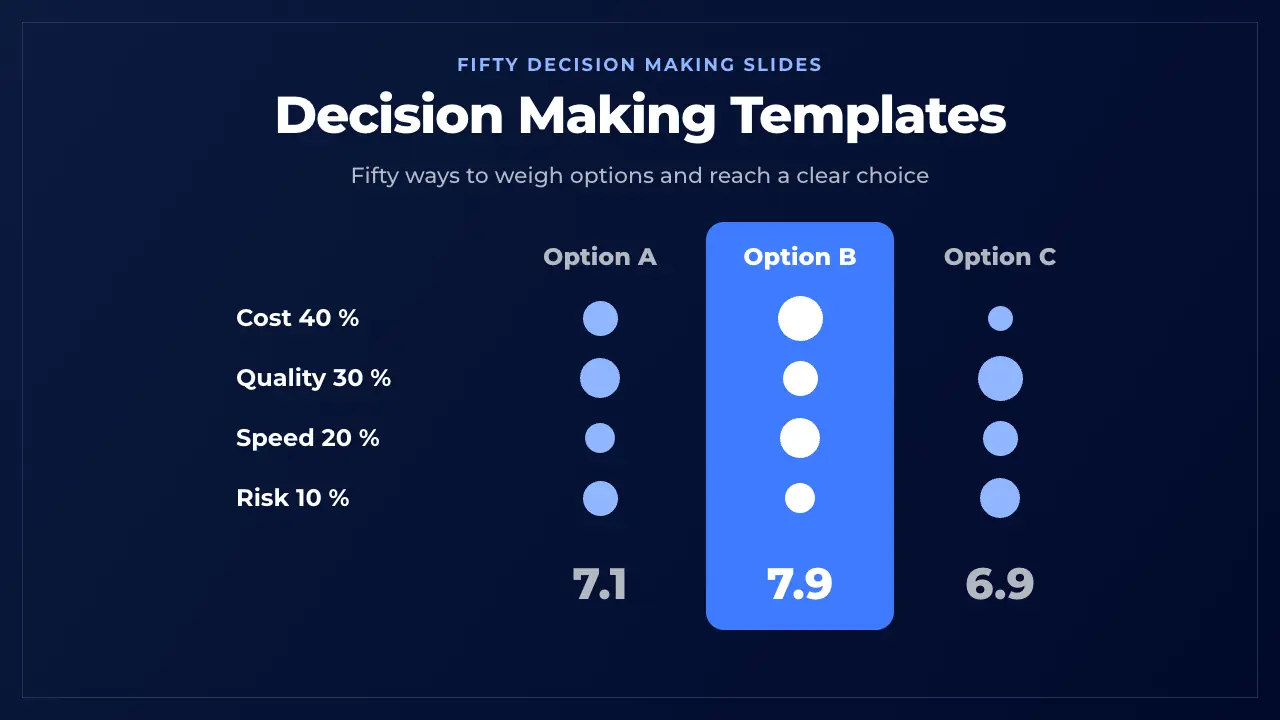
1 · Options Weighed Against CriteriaThe title slide of the pack shows what a decision is made of: options in columns, weighted criteria in rows and a dot for each score. The best option stands out with its total. Use it to open any talk on how a team decides.
2 · Five Chevron Decision StepsFive chevrons lead from the question to the review of the result. Each step has a short line on what happens in it. Use it to agree on a shared process before a larger decision.
3 · Question Card Beside A PhotoA navy card states the question to be decided, and three lines give the reason, the deadline and the owner. Use it at the start of a decision, so that everyone answers the same question.
4 · Stepped Pyramid Of Decision LevelsA stepped pyramid sets strategic, tactical and operational decisions apart by horizon and by who takes them. Use it to show which decisions belong at which level of an organisation.
5 · Seven Numbered Step CardsSeven numbered cards in two rows lead from the question to the follow-up. Use it for larger choices that need more preparation than the five basic steps.
6 · One-Page Decision BriefOne panel holds the six things a decision maker needs: the question, the options, the criteria, the recommendation, the risks and the next step. Use it as a pre-read before the meeting.
7 · Ten-Block Information MeterA meter of ten blocks shows how much information is enough to decide. Three short zones name when it is too early, the right moment and too late. Use it when a team keeps asking for more data.
8 · Must-Have Criteria CheckThree options are checked against four must-have criteria, and a filled tick marks each pass. Only Option B passes all four. Use it to narrow a long list before any detailed scoring.
9 · Weighted Scoring MatrixCriteria with their weights run down the side, three options across the top, and the weighted total closes each column. The winning column is highlighted. Replace the scores with your own to compare any set of options.
10 · Donut Of Criteria WeightsA real donut chart shows how the four criteria are weighted, and four cards give the reason for each weight. Edit the chart data to set your own weights.
11 · Stacked Bars Of Weighted PointsA real stacked bar chart splits the total of each option by criterion, and three cards name the totals. Use it to show why an option wins, not only that it wins.
12 · Podium Of Three OptionsA podium ranks the three options by their weighted total, with the winner in the middle. A short line says what sets each one apart. Use it for the moment you present the result.
13 · Balance Scale Of Pros And ConsA balance scale tips towards the side with more weight, here four pros against two cons. Use it for a simple choice where a full scoring matrix would be too much.
14 · Five Trade-Off SlidersFive sliders show where a choice stands between two goals that pull apart, such as cost and quality. Move the knobs to your own position. Use it to make the price of a decision visible.
15 · Pros And Cons With A PhotoThree pros and three cons of one option stand side by side next to a photo. Use it for a clear, honest summary of a single option before the team decides.
16 · Urgent And Important GridFour fields sort every task by urgency and importance: do it now, schedule it, delegate it or drop it. Use it when a team has more requests than time and must decide what comes first.
17 · Impact And Effort GridSix options are placed by their impact and the effort they take, in four fields from quick wins to time sinks. Move the dots to your own options. Use it to choose what to do first.
18 · Risk And Reward BubblesThree circles place the options by risk and net benefit, and their size shows the cost. Three cards repeat the figures. Use it when the highest reward also carries the most risk.
19 · Three Scenarios Beside A PhotoThree stacked cards show the net benefit of one option in the best, base and worst case. Use it to test whether a decision still makes sense when the plan does not hold.
20 · Sensitivity Of The WinnerA real horizontal bar chart recalculates the three options under three other sets of weights. A result card says whether the winner holds. Use it to answer the question of whether the weights decided the outcome.
21 · Pre-Mortem Beside A PhotoThe team imagines the decision has already failed and names the likely reasons, each with a safeguard. Use it before committing to a large or irreversible choice.
22 · One-Way And Two-Way DoorsTwo doors separate decisions that are hard to undo from those that are easy to undo, with the share of each. Use it to argue that most decisions can be taken faster and closer to the work.
23 · Scale Of ReversibilityOne scale runs from a decision undone in a day to one that can never be taken back, with five examples on it. Use it to agree how much care each decision deserves.
24 · Intuition Or Analysis ScaleA scale runs from intuition to analysis, and two short lists say when to trust experience and when to run the numbers. Use it to agree how a particular decision should be approached.
25 · Four Decision Role CardsFour cards name the roles in a decision: who drives it, who approves it, who contributes and who is informed. Use it at the start of a project to settle who decides what.
26 · Four Round Portraits With RolesFour round portraits stand for the roles around one decision, each with a line on what it brings. Replace the pictures with your own team to show who takes part.
27 · Responsibility MatrixA matrix of steps and roles marks who is responsible, accountable, consulted and informed. Each step has exactly one accountable person. Use it to prevent a decision from stalling between people.
28 · Rising Stairs Of DelegationFive rising steps show how much of a decision a leader hands over, from telling to full delegation. Use it to agree with a team on the level that fits each kind of decision.
29 · Stakeholder GridFour fields sort the people affected by a decision by their influence and their interest, from those to manage closely to those to monitor. Replace the groups with your own stakeholders.
30 · Approval Limits As BarsFour ascending bars show who may approve how much, from the team to the board. Enter your own limits so that nobody has to ask whose signature a decision needs.
31 · Meeting Agenda On A Vertical LineA vertical line divides a decision meeting of 45 minutes into five parts with their minutes. Use it as the agenda for any meeting that has to end with a decision.
32 · Four Group Method RowsFour rows compare consensus, consent, majority and delegation, and a bar shows how fast each one is. Use it to choose how a group will decide before the discussion begins.
33 · Bar Chart Of Dot VotesA real bar chart counts the dots each option received, and three cards give the size of the vote. Use it to show where a group leans before the final discussion.
34 · Column Chart Of A Fist Of FiveA real column chart shows how many people raised zero to five fingers, and two cards sum up the mood of the room. Use it to test support for a proposal in under a minute.
35 · Three Steps Beside A PhotoThree numbered cards describe a simple group method: write in silence, read out, then discuss. Use it when the loudest voices tend to settle a question too early.
36 · Six Hexagons Of PerspectivesSix hexagons name six ways of looking at one decision, each with its guiding question. Use it in a workshop, so that the group examines a choice from every side in turn.
37 · Commitment Over A Full PhotoOver a full photo under a navy overlay, three cards state how a team moves from debate to commitment. Use it to close a difficult discussion and to set the expectation for afterwards.
38 · Eight Bias CardsEight cards name the biases that most often distort a decision, each in one short line. Use it as a checklist before a final vote or in a training on better decisions.
39 · Bias And Antidote PairsFour biases stand on the left, each joined by an arrow to the habit that counters it on the right. Use it to turn awareness of bias into concrete rules for your meetings.
40 · Line Chart Of Decision FatigueA real line chart shows how the quality of decisions falls from morning to evening. Two cards say what to do about it. Use it to argue for moving important decisions to the morning.
41 · Checklist Beside A PhotoFive checks must be ticked before a decision is taken, from a written question to a review date. Use it as the last gate before the meeting or the vote.
42 · Four-Part AnnouncementFour cards answer what was decided, why, what changes and who to ask. Use it to tell everyone affected by a decision, so that it does not have to be explained twice.
43 · Decision Log In RowsFive rows record what was decided, when, by whom and how it turned out. Use it as a living record, so that a team can look up its decisions instead of arguing about them again.
44 · Single Decision RecordOne card records a single decision with its context, options, reasons, owner and review date. Use it as the standard form for every important decision.
45 · Expected Against Actual BarsA real clustered bar chart compares what a decision was expected to bring with what it brought. Three cards name the gaps and their causes. Use it in the review of any larger decision.
46 · Donut Of Decision OutcomesA real donut chart shows how many of 100 logged decisions held, were adjusted or were reversed. Three cards explain each group. Use it in a yearly review of how well a team decides.
47 · Bars Of Days To DecideA real bar chart shows how the average time to decide falls year by year, and a card names the gain. Use it to show what a better decision process has brought.
48 · Five Review QuestionsFive numbered questions guide a short review of a decision after its result is known. Use it to learn from good and bad outcomes alike, without looking for someone to blame.
49 · Decision ScorecardFour cards show the key figures of how a team decides: how many decisions, how many held, how fast and how many were reversed. Replace them with your own to report once a year.
50 · Closing With Three ActionsA full-height photo stands beside three actions that turn an open question into a decision. Use it as the last slide, so that the audience leaves knowing what to do next.
Fifty Forms Of A Decision In One Blue Look
A title slide that weighs three options against four criteria; the process in five chevrons, seven numbered steps and a three-level pyramid; a question card, a one-page brief and a meter that shows when you know enough; options checked against must-haves, a weighted scoring matrix, a donut of the weights, stacked points and a podium of the result; pros and cons on a balance scale and in two columns, and trade-offs on five sliders; grids of urgency and importance, impact and effort, and risk and reward; three scenarios, a test of whether the winner holds and a pre-mortem; one-way and two-way doors and a scale of how reversible a choice is; intuition against analysis; decision roles on cards and in portraits, a responsibility matrix, a delegation ladder, a stakeholder map and approval limits; a 45-minute decision meeting; group methods with dot voting, a fist of five and silent writing; six perspectives, eight common biases and their antidotes, and decision fatigue through the day; a final checklist and an announcement; and the follow-up with a decision log, a single decision record, expected against actual, the outcomes of 100 decisions, the days to decide, five review questions and a scorecard. Seventeen slides stand on navy, seventeen on light blue and sixteen on white, fourteen of them with photos.
How To Use This Decision Making Template
01
Pick Your Decision Slides
Look through this decision making template and note the forms that fit your choice: the scoring matrix on slide 9 to compare options, the grid on slide 16 to set priorities, the roles on slide 25 to settle who decides. Most decks need three to six of them.
02
Set Your Colours And Fonts
Choose a colour scheme and a font in the bar above the slides. All 50 slides change at once, on their navy, light and white grounds.
03
Put In Your Options
Open the slides in the editor and replace the sample options, criteria and scores. Edit a chart through its data, and move or retype any shape. Or describe your decision and let the AI build your own deck in this look.
04
Present Or Download
Present straight from the browser, share a web link or download a PPTX file that stays editable in PowerPoint.
Which Decision Slide Fits Which Situation
For a choice between a few clear options, start with the must-have check on slide 8, then score what remains in the weighted matrix on slide 9 and test the result on slide 20. For a quick choice, the pros and cons on slide 15 are often enough. When too many requests compete for attention, the urgent and important grid on slide 16 or the impact and effort grid on slide 17 sorts them.
When the trouble is less the choice than the people around it, use the roles on slide 25, the responsibility matrix on slide 27 or the delegation ladder on slide 28. For a group that has to agree, slide 32 compares four methods, and slides 33 and 34 show two quick polls. After the decision, the log on slide 43 and the review questions on slide 48 keep what the team has learned.
How To Present A Decision So That It Sticks
Say the question first, then the options and the criteria, and only then the result. An audience that has seen how the options were weighed will challenge the reasoning instead of the outcome. Agree the weights before anyone sees a score, and name what you are giving up as clearly as what you gain.
Close with an owner, a date and a moment to look back. A decision that is written down, shared with everyone it affects and reviewed against what was expected becomes something a team can learn from, whether it turned out well or not.
Decision Making Template FAQ
Is This Decision Making Template Free?
Yes. You can view all 50 slides, change their colours and fonts and try them here. A free account downloads this decision making template as a PPTX file, with no credit card.
Can I Use It In PowerPoint?
Yes. The download is a normal PPTX file. Texts and shapes stay editable, and the charts are PowerPoint charts that you change through their data.
Which Slide Is Best For Comparing Options?
The weighted scoring matrix on slide 9 is the strongest choice for comparing options against criteria. Slide 8 checks the must-haves first, and slide 11 shows where each total comes from.
Does The Pack Show Who Decides?
Yes. Slide 25 sets out four decision roles, slide 27 is a responsibility matrix, slide 28 a delegation ladder and slide 30 shows approval limits by amount.
Does It Cover Group Decisions And Biases?
Yes. Slides 32 to 36 cover group methods such as consent, dot voting and silent writing. Slide 38 names eight common biases, and slide 39 pairs four of them with a habit that counters them.
Can The AI Build My Own Decision Deck?
Yes. Describe your decision or attach your notes, and the AI builds your own deck in the look of this decision making template, with your options, criteria and figures.
Can I Change The Colours And Fonts?
Yes. The colour and font bar above the slides changes all 50 at once, and the same choice carries into the editor and the download.
Try ExpertSlides AI For Free — The Ultimate AI Presentation Maker
Describe any topic or upload a document, and ExpertSlides designs and writes the whole deck — editable in the browser and as a PowerPoint file.