Executive Summary Template: 50 Editable Slides For PowerPoint
Fifty executive summary slides in one blue look, each a different way to put the whole story on one page: the key message with its three points, situation, complication and resolution, the recommendation and the decision asked, key figures, options, risks and next steps. Change the colours and fonts of all of them at once, let the AI build your own summary deck in this look, download them as PowerPoint or edit each slide in the editor.
This executive summary template pack holds 50 slides, and each one tells a decision-maker the whole story in a different form: the key message in a card with the three points that carry it, the classic situation, complication and resolution, the pyramid with the answer on top, problem, solution and benefit as a chain of arrows, today set against the target, three options with one recommended, the budget as one split bar, the risks with their answers and the decision asked with its amount, its deadline and who decides. All of them share one blue look on light, white and navy grounds, so any five of them sit in one deck without looking borrowed.
Most files offer an empty page with a heading and leave the writing to you. Here every slide is a finished executive summary, written out with one neutral sample that fits any organisation — a growth plan with revenue of $10M, an investment of $2.0M in three initiatives and a goal of $15M by 2030 — beside summaries of the year, the market, a customer survey and a project's status. Roles stand in place of names, and the figures are round, so you see at once how many points each form carries before you choose it.
If you are looking for an executive summary PowerPoint template, a free account downloads the slides as a PPTX file whose texts and shapes stay editable. You can also stay in the browser: pick your colours and fonts in the bar above the slides, describe your plan or report and let the AI build your own executive summary deck in this look, or open the slides one to one in the editor.
Your Summary In This Look
Describe your plan, report or proposal, its key message and the figures behind it, or attach the full report or a spreadsheet. ExpertSlides builds your own executive summary deck in this look in a few minutes, with your findings, your recommendation and your ask.
Every slide is a complete executive summary with neutral sample content — one general growth plan, a few findings, round figures and roles instead of names — that fits any organisation. Replace its message, findings and figures with yours.
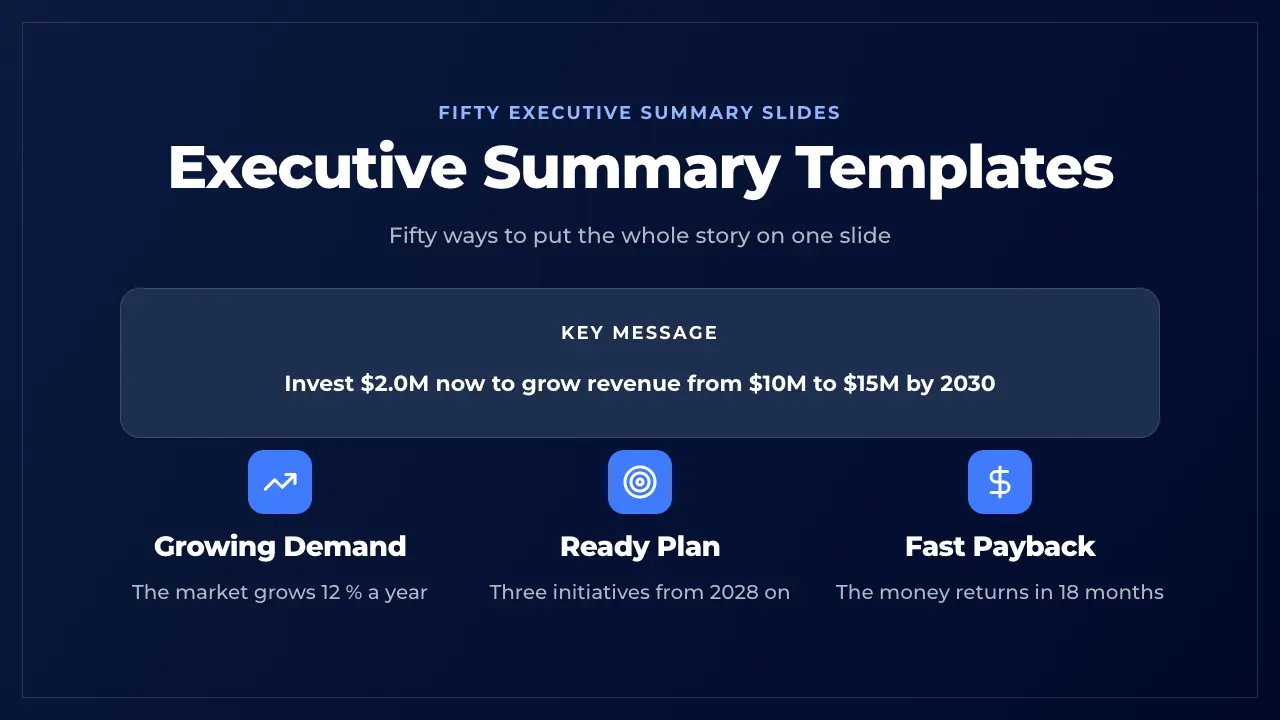
1 · Key Message With Three PointsThe cover of the pack is an executive summary in miniature: one key message in a wide card and the three points that carry it. Use it as the opening of a board paper or a plan. Put your own conclusion into the card and the three strongest reasons under it.
2 · Three Findings With Large NumeralsThree findings stand under large numerals, each with a short title and a three-line explanation. Use it when the summary rests on a few facts that every later slide builds on. Keep each finding to one idea and one figure.
3 · Four Key Figures In One RowFour key figures of the year stand in one row, divided by hairlines, each with an icon, a label and a two-line caption. Use it as the first page of an annual or quarterly report. Choose the four figures a reader should remember.
4 · Situation, Complication, ResolutionThe classic story of an executive summary in three cards: what is true today, what has changed and what we propose. The third card, the resolution, stands out in blue. Use it to open a proposal that needs a clear reason for acting now.
5 · Four Lines Beside A PhotoThe whole proposal in four lines beside a tall photo: the goal, the approach, the investment and the return. Use it for the opening page of a board paper or a funding request. Each line holds one title and one short fact.
6 · Recommendation And Decision CardThe two things a decision-maker looks for first stand side by side: what we recommend and what we need decided. The navy card holds the recommendation, three checked reasons sit under it, and the pale card names the amount, the deadline and who decides. Use it as the last slide before the discussion.
7 · Five Results On Slim CardsFive results of the year stand on five slim cards, each with an icon, a large figure, a label and a short caption. Use it for the one slide a reader looks at when there is no time for the report. Keep each caption to a few words.
8 · Problem, Solution, Benefit ArrowsThe shortest form of a summary for a proposal: what is wrong, what we do about it and what it brings, on three arrow bands that follow each other. Each band carries a title and a three-line text. Use it to open a proposal or a funding request.
9 · Key Message With Figures And PhotoOne statement on why the investment pays, carried by three figures: the amount, the time to payback and the return. A tall photo on the right gives the slide a calm, human side. Use it for the cost and return part of a proposal.
10 · One Hero Figure With Four FactsThe goal of the plan stands as one large figure on the left; four facts on the right describe what it means. Use it when one number sums up the whole plan. Put the goal on the left and the figures that explain it on the right.
11 · Action List With Decision DateThe next steps after the decision as an action list: five numbered steps, each with its owner by role and its date. The navy card on the right names the date by which the decision is needed. Use it at the end of a summary so that everyone knows what happens after the yes.
12 · Pyramid Of The SummaryThe pyramid principle on one slide: the answer at the top, the three reasons under it and the evidence at the base. Each level points to its own short text. Use it when a decision-maker wants the conclusion first and the proof only on request.
13 · Key Message On A Full PhotoThe key message stands as the headline on a full photo under a navy overlay, with three figures that carry it. Use it to open a board presentation or to close it with the one sentence everyone should remember. Keep the headline short and the figures few.
14 · Today Against The TargetTwo cards set today against the target: four figures each, row by row, so that every figure faces its counterpart. The white card shows where we stand in 2027, the navy card where we want to be in 2030. Use it to show the size of the step a plan has to take.
15 · Three Options, One RecommendedThree options side by side, each with its cost and its result, the recommended one raised on a navy card in the middle. Use it when the decision-maker should see the alternatives before the recommendation. Keep each result to one line of two.
16 · Three Rings Of Key SharesThree rings show three shares at a glance: how satisfied customers are, how many stayed and how many orders arrived on time. Each ring carries its figure in the middle and a label under it. Use it for the customer or quality part of a summary.
17 · Six Reasons Around A PhotoSix short reasons stand around a round photo, three on each side, each with a bold title and one line of proof. Use it when a decision needs several arguments at once and the slide should still feel calm. Keep each reason to two words and one figure.
18 · Key Message Beside BarsThe growth of the plan stands as one key figure in a navy card, and five bars beside it show the revenue year by year up to the goal and an outlook. Use it when the summary rests on one trend. Mark the goal year and keep the bars to one scale.
19 · Risks And Answers In Four RowsFour risks of the plan stand on the left, each with a warning icon, and the answer to each on the right, row by row. Use it to show a board that the risks are known and handled. Name each risk in two words and its answer in one line.
20 · Four Quarters As Large FiguresThe four quarters of the year stand side by side, each under its own rule, with the quarter, its revenue, a title and a short caption. The best quarter is marked in blue. Use it for a quarterly or annual summary.
21 · Three Initiatives With PhotosThe three initiatives of the plan stand on three photo cards, each with its share of the budget, a title and a two-line caption. Use it to show where the money goes in a way that is easy to remember. Change the photos to match your own initiatives.
22 · The Summary In Five BandsThe whole executive summary in five bands, one sentence each: the situation, the complication, the proposal, the benefit and the decision asked. The last band, the decision, stands out in blue. Use it as the one-page summary at the front of a report or a board paper.
23 · Budget As One Split BarThe budget appears as one long bar split into its shares, with the amount, a title and a short caption under each part. The total stands at the top right. Use it for the cost part of a summary, when a reader should see at once where the money goes.
24 · What Went Well And What Did NotThe review of the year in two columns: four things that went well and four that did not, each with a short title and one line of proof. Use it for an honest annual or project summary. Keep both columns the same length so they read as a pair.
25 · Five Takeaways Beside A PhotoFive numbered takeaways stand on the navy ground, each with a title and one line, beside a photo that fades into the background. Use it as the closing slide of a summary, with the points the audience should take home.
26 · Five Answers On Five CardsFive cards answer the five questions every executive summary has to answer: why, what, how, how much and when. Each card holds an icon, a short answer and one line of detail. Use it as the one slide that covers a whole proposal.
27 · Plan Versus Actual BarsFour figures of the year compared with the plan: a pale bar for the plan, a blue bar for the actual figure and the difference in a pill at the end of each row. Use it for the results part of an annual or project summary.
28 · Owners By Role With PortraitsFour owners of the plan by role, each with a round portrait, the task in a pill and a two-line caption. Use it to show who is responsible for what once the plan is approved. Replace the portraits with your own team and keep the roles.
29 · Four Rising Steps To The GoalFour steps rise like stairs from the decision to the goal, each with its number and date on the block and a title above it. Use it to show the way from today to the target in a summary, without a full project plan.
30 · Seven Numbered LinesThe whole summary in seven numbered lines, from the key message to the ask, one sentence each. The last line, the decision asked, sits on a pale band. Use it when a reader wants the complete argument on one page without any graphics.
31 · Eight Key Figures In Two RowsEight figures of the year in two rows of four, each with a short rule, a large figure, a label and one line of context. Use it for the results page of an annual report or a board update. Choose the eight figures that matter most and leave out the rest.
32 · Five Wins Under A Photo BandFive wins of the year stand in a row under a wide photo band, each with a check icon, a short title and a two-line caption. Use it to open an annual summary on a positive note. Keep the wins concrete, each with one figure.
33 · Three, Two, One CountdownA countdown in three tiles: three findings, two options and one decision. Each tile carries a large numeral, with a title and a short text under it. Use it to lead an audience from the facts to the decision in a few seconds.
34 · Arc Over A Key FigureA half ring shows how far the plan has come: two thirds of the revenue goal reached, with the figures for today, the gap and the goal under it. Use it for a progress summary or to show the size of the gap a proposal closes.
35 · Five Hexagon Building BlocksFive hexagons name the building blocks of the plan, each with an icon, a short title and a two-line caption. Use it to show what a proposal is made of before you go into the figures. Highlight the block that matters most in navy.
36 · Project Status Beside A PhotoThe status of a project in four fields, each with its share as a figure and a slim progress track, beside a tall photo. The kicker states the verdict in a few words. Use it for a status report to a steering committee or a board.
37 · Three Views In Speech BubblesThree short statements on the plan in speech bubbles, each signed by a role rather than a name. Use it to show that the people who carry a plan stand behind it. Keep each statement to one or two sentences.
38 · Three Findings Lead To One ActionThree findings on white cards lead by thin lines to one point and from there to the action in a navy card, with the key figure it brings. Use it when a summary has to show how the facts lead to a single proposal.
39 · Seven Areas In Seven ColumnsSeven areas of the business stand in seven narrow columns, each with an icon, its name and one key figure; a single line at the foot says what each figure means. Use it for a summary of the whole business at a glance.
40 · The Decision On A Full PhotoThe decision asked stands on a white card over a full photo: the amount, the deadline and who decides. On the left the headline and one sentence say what follows from a yes. Use it as the last slide of a board presentation.
41 · Six Takeaways On CardsSix takeaways on six white cards in two rows, each with an icon, a number, a short title and one line of proof. Use it at the end of a longer summary, so that the audience leaves with the six points that matter.
42 · One Rising Line To The GoalOne rising curve runs through four points, from today to the goal, with the figure above each point and the year under it. Use it when the whole summary rests on one trend and the audience should see the path at a glance.
43 · Four Questions With AnswersFour questions a board will ask, each answered in two lines on its own card. Use it before the discussion to take the most common doubts off the table. Replace the questions with the ones your audience really asks.
44 · The Summary As One SentenceThe whole executive summary as one sentence in large type, said by a role beside a round portrait, with three figures under it. Use it when one person presents the plan and the message has to stay with the audience.
45 · The Summary In 30 SecondsA thirty-second summary in three parts on one bar: the point, the proof and the ask, each with its seconds above it and the sentence to say under it. Use it to prepare a short pitch in a lift, a hallway or the opening of a meeting.
46 · Six Survey Facts Beside A PhotoSix figures from a customer survey in two calm columns beside a photo, each under a short rule with a one-line label. Use it to summarise what customers or employees said, with the verdict in the lead.
47 · The Summary As A MemoThe executive summary as a memo: a white sheet with the head rows (to, from, subject) and the key message, and beside it the three points that carry it. Use it when the summary goes out in writing before a meeting.
48 · Market Summary With Key FigureThe market on one slide: a photo and the market size in a navy card on the left, four figures that describe the market on the right. Use it for the market part of a business plan or an investment proposal.
49 · Four Rising ArrowsFour arrows rise from one baseline, each taller than the one before, with the growth figure above its tip and the figure it describes under it. Use it to show what a plan delivers by its goal year.
50 · Next Steps Beside A PhotoThe closing slide of an executive summary: three next steps, each with a number, a date in a pill and a short text, beside a full-height photo. Use it to end a summary with what happens after the decision.
Fifty Forms Of An Executive Summary In One Blue Look
A title slide that is an executive summary itself, with one key message and three supporting points; three findings under large numerals and the year in four figures; the classic structures, each in a form of its own: situation, complication and resolution on three cards, problem, solution and benefit as arrows, the pyramid with the answer first, why, what, how and when on five cards, the whole story in five bands or seven numbered lines, the summary as one sentence, as a memo and as a 30-second pitch; the results of a year as five slim cards, eight figures in two rows, four quarters, plan against actual and what went well and what did not; the proposal as today against the target, three options with one recommended, the budget as one split bar, three initiatives on photos and five hexagon building blocks; the decision as a recommendation card, a decision on a full photo and the questions a board will ask; the way forward as an action list, rising steps, a rising line and four rising arrows; and summaries of one field: the market, a customer survey and a project's status. Slides 5, 9, 13, 17, 21, 25, 28, 32, 36, 40, 44, 46, 48 and 50 carry photos you can replace.
How To Use This Executive Summary Template
01
Choose The Form
Pick the slides of this executive summary template that fit your story: a key message with three points for a board paper, situation, complication and resolution for a proposal, key figures for an annual report, options and the decision asked for an investment.
02
Put Your Message First
Write your conclusion into the headline, the lead or the key message card, then keep three to eight short points under it, each with one figure or one short line.
03
Set Your Look
Pick the colours and fonts in the bar above the slides, or apply your Design Kit, and every slide of the pack changes with them at once.
04
Present Or Download
Open the slides in the editor to change any text, figure, icon or photo, present them from the browser or download them as an editable PowerPoint file with a free account.
What Makes A Good Executive Summary Slide
A good executive summary slide puts the conclusion first. The reader learns in the first line what you propose or what you found, and only then the few reasons that carry it. That is why every slide of this pack opens with a kicker that names the part of the summary and a headline that states the point, and why no slide holds more than eight short items.
The best summaries are concrete. Instead of describing a market as attractive, they say it grows by 12 % a year; instead of asking for support, they name the amount, the deadline and who decides. The sample content of these slides shows that habit on every page, so you can replace its figures with yours and keep the same clarity.
Which Structure Fits Your Summary
For a proposal or a funding request, situation, complication and resolution or problem, solution and benefit lead the reader from the facts to the ask in three steps. For a board that wants the answer at once, the pyramid and the key message with three points put the recommendation on top and the evidence under it.
For an annual or quarterly report, the slides of key figures, quarters and plan against actual give the results at a glance, and the review of what went well and what did not keeps the summary honest. For a project, the status slide with scope, schedule, budget and quality and the action list of next steps show where things stand and what follows.
Questions About The Executive Summary Template
Is The Executive Summary Template Free?
Yes. You can look at every slide of this executive summary template, change its colours and fonts and edit the slides in the browser for free. Downloading the slides as a PowerPoint file needs a free account.
Is There An Executive Summary PowerPoint Template I Can Download?
Yes. With a free account you download the 50 slides as a PPTX file. Texts, shapes, icons and photos stay editable, so you can finish the executive summary template in PowerPoint as well as in our editor.
What Should An Executive Summary Contain?
The key message first, then the few findings or figures that carry it, the recommendation, what it costs and returns, the risks and the decision you ask for, with the next steps after it. The slides of this pack cover each of these parts in several forms.
How Long Should An Executive Summary Be?
On slides, one to three pages are usually enough: one slide with the key message and its points, and if needed one with the figures and one with the decision asked. Everything else belongs in the appendix of the deck.
Can The AI Write My Executive Summary?
Yes. Describe your plan or report, or attach it, and Fill with AI builds your own executive summary deck in this blue look, with your key message, your findings and your figures. You can then change every slide in the editor.
Can I Change The Colours And Fonts?
Yes. The bar above the slides changes the colours and fonts of all 50 slides at once, and a Design Kit applies your own colours, fonts and logo. The slides keep their layout in every palette.
Do The Slides Name A Real Company?
No. The sample content is neutral: one general growth plan with round figures and roles such as CEO, CFO or Head Of Sales instead of names, so the slides fit any organisation and any topic.
Try ExpertSlides AI For Free — The Ultimate AI Presentation Maker
Describe any topic or upload a document, and ExpertSlides designs and writes the whole deck — editable in the browser and as a PowerPoint file.

 Organizational Chart Presentation Templates50 slides
 Business Case Presentation Templates50 slides
 Dashboard Templates50 slides
 OKR Presentation Templates50 slides
 Meeting Presentation Templates50 slides
 Business Presentation Templates50 slides
 Human Resources Presentation Templates50 slides
 Annual Report Presentation Templates50 slides