OKR Template: 50 Editable Slides For Objectives And Key Results
Fifty OKR slides in one blue look, each a different view of objectives and key results: an objective over its key results, progress bars and rings, scores from 0 to 1.0, weekly check-ins, OKRs by team and by quarter and the alignment from company to team. Change the colours and fonts of all of them at once, let the AI build your own deck in this look, download them as PowerPoint or edit each slide in the editor.
This OKR template holds 50 slides, and each one shows objectives and key results in a different form: one objective over three key results with their progress, ring gauges that explain the score from 0 to 1.0, a weekly check-in with confidence and status, OKRs by team and by quarter, the alignment from the company objective down to team key results, a cascade, a roll-up of team scores and a one-page OKR. All of them share one blue look on light, white and navy grounds, so any five of them sit in one deck without looking borrowed.
Most OKR files give you an empty table with a column for the objective and one for the key results. Here every slide is a finished OKR view with neutral sample content that fits any team: objectives such as delighting customers or growing recurring revenue, key results with a baseline, a target and the progress in per cent, roles such as Head of Sales or Customer Success Lead instead of names, and round sample figures. Beside the overviews you find the rhythm around them: the steps of an OKR quarter, the weekly check-in questions, the scoring guide, the retrospective and the draft for the next quarter.
If you searched for an OKR PowerPoint template, a free account downloads the slides as a PPTX file whose texts, bars and shapes stay editable. You can also stay in the browser: pick your colours and fonts in the bar above the slides, describe your objectives and let the AI build your own deck in this look, or open the slides one to one in the editor.
Your Objectives In This OKR Look
Describe your objectives for the quarter, the key results that measure them, who owns each one and where they stand today. Or attach your OKR sheet or your notes. ExpertSlides builds your own deck in this look in a few minutes, with your objectives, your figures and your scores.
Every slide is a complete OKR view with neutral sample content — objectives in a few words, key results with round figures and roles instead of names — that fits any company or team. Replace its texts, figures and scores with yours.
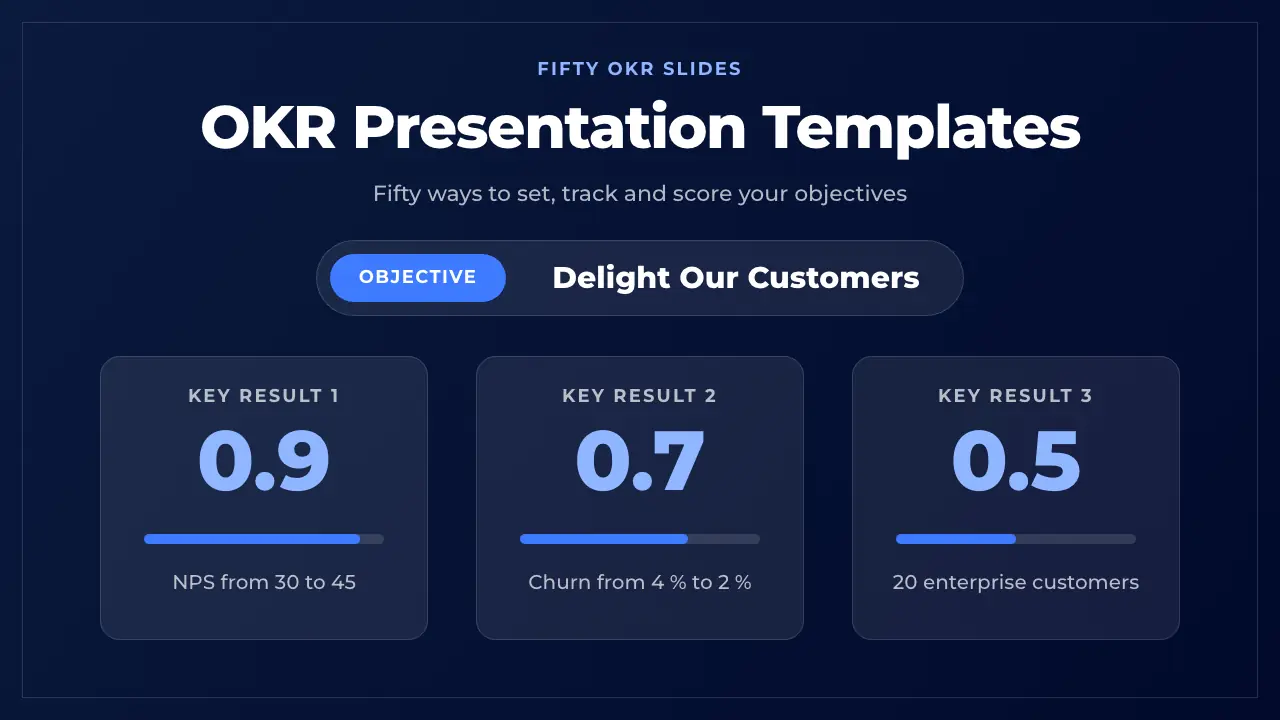
1 · Title Slide With Objective And ScoresA title slide that is an OKR itself: one objective in a wide pill and, under it, three key result cards with their scores and progress tracks. Use it to open a quarterly review, an OKR workshop or the presentation of next quarter's objectives.
2 · Objective Card Over Three Key ResultsThe classic OKR in one look: the objective stands in a wide blue card, and three key results follow in white rows, each with its progress bar and per cent. Use it whenever a team presents one objective and how far it has come.
3 · Objective With Photo And Four Key ResultsOne objective with four key results beside a photo: each key result has its own progress bar and per cent. Use it for a growth objective or any objective that deserves a face, and swap the photo for one of your own team.
4 · Three Score GaugesThree ring gauges explain the OKR score from 0.0 to 1.0: a missed key result, a delivered one and one fully met. Use it to teach a team how to read scores before the first scoring meeting.
5 · Scoring Scale In Three BandsOne scale from 0.0 to 1.0 in three bands, each with its name and a card that says what the score means and what to do next. Use it as the grading guide every team shares before the end of the quarter.
6 · Alignment From Company To TeamThree levels of OKRs connected by thin lines: the company objective at the top, three department objectives under it and one team key result under each. Use it to show how every team's work supports the company's goal.
7 · Objective On A Full PhotoA full-bleed photo under a navy overlay carries one objective and its three key results as large target figures. Use it to open a quarter with the objective the whole team should remember.
8 · Four Quarters On An AxisFour quarters of 2028 on one axis, each with its own objective in a card and the score it reached. Use it to show the focus of each quarter of a year at a glance.
9 · Weekly Check-In With StatusThree key results in rows, each with its owner, its progress, the team's confidence and a status. Use it for the 15-minute weekly OKR check-in so problems show up early.
10 · Team Cards With ProgressFour teams side by side, each with its icon, its objective for the quarter and its progress as a large figure over a bar. Use it to give leadership one view of every team's OKRs.
11 · Key Results Beside A Tall PhotoOne customer objective with three key results, each led by a large per cent, beside a tall photo. Use it for an objective about customers, service or quality, where one figure per key result says enough.
12 · Anatomy Of An OKR In ChevronsThree chevrons name the parts of an OKR: the objective, the key results and the initiatives, each with the question it answers and an example. Use it to introduce OKRs to a team before the first planning session.
13 · One Key Result From Baseline To TargetOne key result in detail: a large per cent and a progress track with three markers for the baseline, today's value and the target. Use it when a single key result needs the room of a whole slide.
14 · Four Progress RingsOne objective in a band and four key results under it, each as a progress ring with its per cent, a title and a short caption. Use it for a launch or any objective whose key results move at different speeds.
15 · Photo Band Over Three Key ResultsA wide photo band sets the scene for a people objective, and three cards under it carry the key results with an icon, a short line and a per cent each. Use it for objectives about the team, culture or hiring.
16 · Three Company Objectives With Key ResultsThree tall cards hold the company's objectives for the year, each with three short key results and the average progress at its foot. Use it for the annual kick-off or the yearly OKR review in front of the whole company.
17 · Vague And Measurable Key ResultsThree rows turn a vague wish into a measurable key result: the weak version on the left, the strong one on the right. Use it in an OKR workshop to show how a key result is written.
18 · Progress Bars Against A Target LineFour key results as horizontal bars on one scale, a thin line at 70 per cent for a good score, and the average in a card beside them. Use it in a mid-quarter review to see at once which key results are behind.
19 · Objective Beside A Half-Slide PhotoA photo fills the left half of the slide, and the right half carries the objective with three key results, each marked with a check. Use it for an engineering or product objective you want to give a face.
20 · OKR Quarter On One AxisOne axis runs through the quarter with five markers: set, align, review, score and reflect, each with its week, an icon and a short caption. Use it to explain the rhythm of OKRs to a team that starts with them.
21 · Rising Stairs To The ObjectiveFour blocks rise like stairs from left to right, one for each key result, with its target on top and its name inside; a flag on the top step marks the objective. Use it for an objective whose key results build on each other.
22 · OKR Pyramid From Mission To PersonA stepped pyramid shows how OKRs build on each other: the mission at the top, then company, team and personal OKRs, each explained beside its level. Use it to show where OKRs sit between mission and daily work.
23 · Round Photo With Key Result PillsA round photo stands beside one objective's three key results, each led by a pill with its progress. Use it for an objective about customers or onboarding, and swap the photo for a scene of your own.
24 · Confidence Sliders For Four Key ResultsFour key results, each with its owner and a slider that shows how confident the team is to hit it, on a scale from 1 to 10. Use it in a weekly check-in to start the talk where confidence is low.
25 · Score Arc Over Three Key ResultsA half-ring arc frames the quarter's final score, and the scores of the three key results stand under it. Use it at the end of a quarter to present the result of one objective at a glance.
26 · Two Team OKRs Side By SideTwo cards hold the OKRs of two teams, each with its objective and three key results with progress bars. Use it to show how two teams, such as marketing and sales, support one company goal together.
27 · From And To Figures With PhotoA photo in the top corner and three cards that each show a key result as two figures: where it stands today and where it should be. Use it for a quality or performance objective where the change in a number is the message.
28 · Baseline To Target In Three RowsThree rows show three key results as a short journey: the baseline on the left, today's value as a marker on the line and the target on the right. Use it to show where each key result started and how far it has come.
29 · Committed And Aspirational OKRsTwo cards compare the two kinds of OKRs: committed ones that must be met in full and aspirational ones where 0.7 is a success. Use it before scoring so every team reads its scores the same way.
30 · Monthly Columns Rising To TargetSix columns show one key result month by month, rising towards a target line, with the share of the target reached in a card beside them. Use it to report a single key result over half a year.
31 · Quarter Scores On A Full PhotoFour large scores stand over one axis, one for each quarter of 2028, on a full photo under a navy overlay. Use it for a yearly OKR review that shows how the company's scores developed quarter by quarter.
32 · Objective Hexagon With Four ResultsA large hexagon carries the objective's icon, and four smaller hexagons in one row show the progress of each key result with its name and a short caption. Use it for an expansion or launch objective with four measurable steps.
33 · Key Results In Three Status LanesThree lanes sort six key results by status, each card with its owner and its progress. Use it in a mid-quarter review to show at one glance where the team needs help.
34 · Cascade From Company To TeamsThree columns connected by lines show the cascade: a key result of the company becomes the objective of a department, and its key results become the objectives of two teams. Use it to explain how OKRs flow down an organisation.
35 · Check-In Questions Beside A PhotoA tall photo of a team stand-up sits beside the four questions every weekly OKR check-in answers, each with an icon. Use it to set up a short, regular check-in rhythm for any team.
36 · Personal OKR As A ChecklistA card holds one personal objective with its overall progress, and four key results stand beside it as a checklist with a per cent each. Use it for personal development OKRs that are kept apart from appraisals.
37 · Annual Objective Over Four QuartersOne annual objective runs across the top in a band, and four cards beneath it, one for each quarter, carry the key result that moves it with its score. Use it to show how a year's objective is broken into quarters.
38 · Eight Key Results As BarsEight vertical bars show the progress of eight key results against one line at 100 per cent, each with its per cent and a one-word name. Use it when leadership wants every key result of the company on one slide.
39 · Retrospective Beside A PhotoA tall photo of the team stands beside three numbered rows that answer the questions of an OKR retrospective after scoring: what worked, what we learned and what we change. Use it at the end of each quarter, before the next OKRs are drafted.
40 · OKRs And KPIs Side By SideTwo cards set OKRs and KPIs side by side on four points: purpose, time, target and how many. Use it when a team asks how OKRs relate to the KPIs it already reports.
41 · Objective, Key Results And InitiativesA shallow tree of three levels: the objective at the top, three key results under it and two initiatives under each key result. Use it to show the difference between the outcome a team measures and the work it does.
42 · Weekly Progress Line Over A QuarterOne key result tracked over a quarter: a line of real progress up to today and a lighter planned line to the end, with the per cent at every second week. Use it to show whether a key result is ahead of or behind its plan.
43 · Four Key Figures Beside A PhotoFour key results stand as large figures in two rows, each with a short title and caption, beside a photo that runs to the slide's edge. Use it for a revenue or growth objective whose key results are best told as numbers.
44 · Team Scores Rolling UpThree team cards with their objective and score are joined by lines into one large disc that holds the company score. Use it to explain how team results add up to the company's result at the end of a quarter.
45 · One-Page OKR With A Side PanelA blue side panel names the objective, its owner and its quarter, and four numbered key results with progress bars fill the rest of the page. Use it as the one page every team keeps for each objective.
46 · Rolling Out OKRs On One AxisOne axis with five quarters shows how a company introduces OKRs: train the leaders, pilot with two teams, set company OKRs, bring in every team and make it a routine. Use it to plan or report the roll-out of OKRs.
47 · Five Mistakes Beside A PhotoA tall photo stands beside five common mistakes teams make with OKRs, each with an icon and the fix in one line. Use it in an OKR training or before a team writes its first OKRs.
48 · Eight Quarters Of Average ScoresEight columns show the average score of all key results quarter by quarter over two years, with a line at the sweet spot of 0.7. Use it to show how a company gets better at setting and reaching its OKRs.
49 · One Owner For Every Key ResultOne objective in a pill and four key results under it, each with the role that owns it and its progress. Use it to make clear who is responsible for which number this quarter.
50 · Draft OKRs Beside A PhotoA draft label, the objective in a blue card and three numbered key results stand beside a tall photo of a team at work. Use it at the end of a quarter to present next quarter's draft OKRs for discussion.
Fifty Forms Of An OKR In One Blue Look
A title slide that is an OKR itself; one objective over its key results as a blue card with progress rows, beside a photo, on a full photo, as four progress rings, as hexagons, as rising stairs, as figures from today to the target, as rows from baseline to target and as a one-page OKR with a side panel; the score as three ring gauges, as a scale in three bands, as an arc over the final score, as columns of eight quarters and as committed and aspirational OKRs side by side; the rhythm of OKRs as a quarter on one axis, a weekly check-in with status, confidence sliders, four check-in questions, a line over thirteen weeks, status lanes, a retrospective and the draft for next quarter; OKRs by team, two team OKRs side by side, the company OKRs for the year, an annual objective over four quarters and eight key results as bars; the alignment from company to team, the cascade, the pyramid from mission to person, the roll-up of team scores and the owners of every key result; and the method itself: the anatomy of an OKR, vague and measurable key results, key results and initiatives, OKRs and KPIs compared, five mistakes and the roll-out of OKRs. Seventeen slides stand on navy and thirty-three on light blue or white, thirteen of them with a photo.
How To Use This OKR Template
01
Pick Your OKR Slides
Look through the 50 slides and note the forms your review needs: an overview of the objective and its key results, a slide on progress or scores, a check-in view and the alignment between teams. Most OKR decks need five to eight of them.
02
Set Colours And Fonts
Choose your colours and your font in the bar above the slides. The whole OKR template changes at once, so you see your brand on every slide before you download anything.
03
Put In Your Objectives And Figures
Press Fill With AI and describe your objectives, key results and current values, or press Edit Slides and replace the sample objectives, owners, per cents and scores by hand, slide by slide, in the editor.
04
Download Or Present
Download the slides as a PPTX file with a free account and copy them into your own PowerPoint deck, or present them at the quarterly review straight from the browser.
Which Slide Fits Which Moment Of The Quarter
At the start of a quarter, show what you set out to do. The objective card over three key results (slide 2) is the classic view; the photo beside four key results (3), the objective on a full photo (7) and the half-slide photo (19) give an objective more presence, and the company OKRs for the year (16) or the annual objective over four quarters (37) set the frame above the quarter. To show how teams support the company objective, take the alignment from company to team (6), the cascade (34) or the owners of every key result (49).
During the quarter, report progress. The weekly check-in with status (9), the confidence sliders (24) and the four check-in questions (35) fit the weekly meeting; the progress bars against a target line (18), the status lanes (33) and the weekly progress line (42) suit a mid-quarter review. When one key result needs a whole slide, use the key result from baseline to target (13) or the monthly columns rising to target (30).
At the end of the quarter, score and look ahead. The three score gauges (4) and the scoring scale (5) explain what a score means, the score arc (25) presents the final score of one objective, and the team scores rolling up (44) show how the company score is built. The retrospective (39) and the draft for next quarter (50) close the cycle, and the eight quarters of average scores (48) show how a company gets better at OKRs over two years.
How To Write OKRs That Teams Use
An objective says where you want to go in plain words; three or four key results say how you will know you got there, each as a number with a target and a date. The anatomy of an OKR (slide 12) and the vague and measurable key results (17) show the difference between a wish and a key result, and the slide on key results and initiatives (41) separates the outcome you measure from the work you do.
Keep OKRs few and owned. Three objectives at most, one owner for every key result, a short check-in every week and a score at the end of the quarter keep them alive; the five mistakes (47) and the comparison of OKRs and KPIs (40) help a team that starts with the method, and the roll-out on one axis (46) plans the first year from a pilot to a routine.
Questions About This OKR Template
Is this OKR template free?
Yes. You can look at all 50 slides, change their colours and fonts and edit them in the browser for free. Downloading the OKR template as a PPTX file needs a free account.
Can I use it as an OKR PowerPoint template?
Yes. The download is a PowerPoint file in which every text, bar, ring and shape stays editable, so you can copy single slides into your own deck and change the figures there.
Which slide should I use for a weekly check-in?
The weekly check-in with status (slide 9) shows progress, confidence and an on track, at risk or behind status for each key result. The confidence sliders (24) and the four check-in questions (35) work well beside it.
How are key results scored on these slides?
On a scale from 0.0 to 1.0. The three score gauges (slide 4) and the scoring scale (5) explain it: around 0.7 is a good result for an aspirational key result, and 1.0 is expected of a committed one.
Can I show OKRs for several teams?
Yes. The OKR template has slides for OKRs by team (10), two team OKRs side by side (26), the alignment from company to team (6), the cascade (34) and the roll-up of team scores into the company score (44).
Can the AI fill the slides with my own objectives?
Press Fill With AI and describe your objectives, key results and current values, or attach your OKR sheet. ExpertSlides builds your own deck in this look with your content; you can then change every slide in the editor.
Do the slides name any company or person?
No. The sample content is neutral: general objectives, round figures and roles such as Head of Sales or Product Manager, so you only replace the texts and figures with your own.
Try ExpertSlides AI For Free — The Ultimate AI Presentation Maker
Describe any topic or upload a document, and ExpertSlides designs and writes the whole deck — editable in the browser and as a PowerPoint file.

 Organizational Chart Presentation Templates50 slides
 Executive Summary Presentation Templates50 slides
 Business Case Presentation Templates50 slides
 Dashboard Templates50 slides
 Meeting Presentation Templates50 slides
 Business Presentation Templates50 slides
 Human Resources Presentation Templates50 slides
 Annual Report Presentation Templates50 slides