Meet The Team Template: 50 Editable Team Slides For PowerPoint
Fifty meet the team slides in one blue look, each a different way to introduce people: round portraits, photo cards, a leader in focus, departments, team figures, values and the way to work with you. Change the colours and fonts of all of them at once, let the AI build your own team deck in this look, download them as PowerPoint or edit each slide in the editor.
This meet the team template pack holds 50 slides, and each one introduces a team in a different form: five round portraits on a title slide, leadership cards with photos, one team member in focus beside a tall photo, departments as columns, bars or cards, the team in figures, values as pillars or numerals, a career path as rising stairs and the steps a client takes to work with you. All of them share one blue look on light, white and navy grounds, so any five of them sit in one deck without looking borrowed.
Most files offer one row of grey circles with blank captions under them. Here every slide is written out with neutral sample content that fits any organisation: roles instead of names, departments by their function and round sample figures that agree across the pack, for one team of 48 people in six departments. You see how many people, words and figures each form carries before you choose it.
If you are looking for a meet the team PowerPoint template, a free account downloads the slides as a PPTX file whose texts, shapes and photos stay editable. You can also stay in the browser: pick your colours and fonts in the bar above the slides, describe your team and let the AI build your own deck in this look, or open the slides one to one in the editor.
Your Team In This Look
Describe who is in your team, what each role does and how the departments are arranged, or attach the team list or company profile you already have. ExpertSlides builds your meet the team deck in this look in a few minutes, with your roles, figures and photos.
Every slide carries neutral sample content — roles, departments and round figures — that fits any team of any size. Replace the roles, photos and figures with yours.
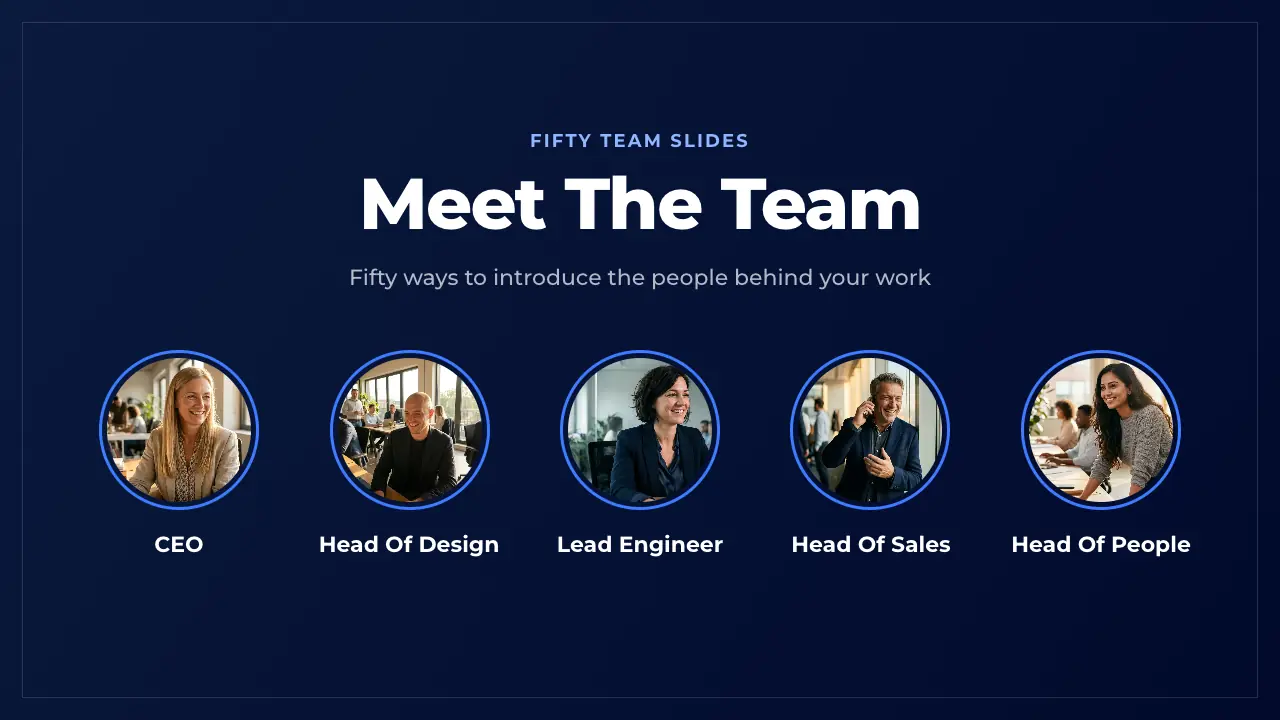
1 · Title Slide With Five PortraitsA title slide that is a team introduction itself: kicker, headline and lead centred over one calm row of five round portraits, each with a role under it. Use it to open a company profile, a pitch or an onboarding deck. Put a portrait and a role into each circle.
2 · Leadership Cards With PhotosFour equal cards in a row, each with a portrait photo, a role and a two-line remit. Use it to introduce a leadership team, a board or the heads of a project. Put a photo, a role and what the role is responsible for on each card.
3 · Six Department Columns With IconsThe team by department in six calm columns: an icon, the headcount as a large figure, the department and what it does. Use it to show how a team of any size is arranged. Put your departments, their headcounts and one line on each.
4 · Team Member In Focus With Tall PhotoOne person in focus: a tall photo on the left, the role as the headline, a quote and three facts as large figures. Use it to introduce a key person, a new lead or a speaker. Put a photo, the role, a sentence in their words and three figures about their work.
5 · Four Key Figure CardsThe team in four figures on four equal cards, each with an icon, a large number, a label and a short line. Use it to show the size and range of a team at a glance. Put in your own headcount, the mix of the team and its experience.
6 · Four Value Cards With HexagonsThe values a team works by on four equal cards, each with a hexagon icon, a one-word value and a sentence on what it means in daily work. Use it after the team slides to show how the people work together. Put your own values and one sentence each.
7 · Four Steps To Working TogetherHow a client starts working with the team, in four numbered steps on one calm line: hello, first call, workshop and kick-off. Use it at the end of a team introduction or in a proposal. Put your own steps and one line on what happens in each.
8 · Three Founders In Large PortraitsThe people who started it all, in three large round portraits, each with a role, the year they began and one line on what they did first. Use it in a company profile, an investor deck or an anniversary. Put a photo, a role, a year and one line under each.
9 · Five Leadership BandsThe leadership team as five calm bands, one role each: an icon, the role, what it leads and its years of experience. The top band stands out for the CEO. Use it to show who is responsible for what at a glance.
10 · Team Photo With Three FiguresThe whole team in one photo across the slide, under a navy overlay that keeps the white type readable, with three large figures along the bottom. Use it as an opener or a section divider of a team introduction. Put in a photo of your own team and three figures that describe it.
11 · Department In Focus With Role CardsOne department in focus: a large blue card with its headcount and mission, and four cards with the roles that make it up. Use it to introduce a single team in more depth. Put in the department, its size, one sentence on its job and the roles it holds.
12 · Six Round Portraits In Two RowsA project team of six in round portraits, three in each row, with the role and one short line beside each face. Use it to show a client who will work on their project. Put a photo, a role and what each person does.
13 · Three Values As Large NumeralsThree values of the team under large numerals, each with a short title and a sentence on what it means in practice. Use it to show how a team works before or after its people. Put your own three values and a sentence on each.
14 · Department With Photo And HeadcountsA department beside a photo: four roles listed with how many people hold each one and what they do. Use it to introduce one team of a company, a branch or a unit. Put in a photo of the team, its roles and their headcounts.
15 · Headcount By Department In BarsHow the team is split over its departments, as six horizontal bars from the largest to the smallest, each with its headcount. Use it to show the size and shape of a team at a glance. Put in your own departments and headcounts.
16 · Four Contact Cards By QuestionFour cards that tell a client which role to contact for what: a question, the role that answers it and what to ask. Use it at the end of a team introduction, a proposal or an onboarding pack. Put your own questions and roles on the cards.
17 · Whole Team Under One LeadThe whole team on one page: the top role over six department cards, each with its headcount and who leads it. Use it to give an overview before the slides on single teams. Put in your departments, their size and their leads.
18 · Profile Card With Skills And FactsOne team member on a profile card: a large round portrait, a sentence in their own words, three skills as tags and three facts as figures. Use it to introduce a key person, a new hire or a speaker. Put a photo, a quote, the skills and three figures about the person.
19 · Week Of Team RitualsHow the team works through a week: five days on one line, each with a ritual, an icon and one short line. Use it to show a client or a new colleague the rhythm of the team. Put in your own rituals for each day.
20 · Team Growth In Five ColumnsHow the team grew, year by year, as five columns with the headcount over each and the year under it; the last column is the plan. Use it to show the growth of a team, a department or a company. Put in your own years and headcounts.
21 · Six Departments Around One FigureThe whole team as one large figure in the middle, with its six departments and their headcounts around it, three on each side. Use it to show how a team is split without drawing a hierarchy. Put in your total and your departments.
22 · Four Tall Portraits On NavyOne department in four tall portraits on the navy ground, each with a role and one line on what the person does. Use it to introduce a team or the core of a department. Put a photo, a role and a short line under each.
23 · Five Leaders In HexagonsThe leadership team as five hexagons in a row, each with an icon, the role and the area it leads. Use it for a short overview of who leads what. Put in your leadership roles and one area each.
24 · Skill Bars With A Key FigureWhat the team is good at, as five bars with the share of the team strong in each skill, beside one key figure. Use it to show the range of a team in a pitch or a proposal. Put in your own skills, shares and one figure that matters.
25 · Office And Remote Split BarHow the team splits between the office and remote work, as one bar with two large shares, and three cards on how it stays close. Use it to explain a hybrid team to clients or new colleagues. Put in your own shares and rules.
26 · Eight Role Cards In Two RowsThe eight roles a client meets most often, on equal cards in two rows, each with an icon, the role and one short line on what it does. Use it to explain who does what in a project or a service. Put in your own roles and a line each.
27 · Photo Band Over Three RolesA wide photo of the team across the top of the slide and three roles under it, each with an icon and one short line. Use it to introduce a service, support or field team. Put in a photo of the team and its main roles.
28 · Career Path As Rising StairsHow people grow in the team, as five stairs rising from left to right, each with its level and one line on what it means. Use it in a recruiting deck, an onboarding pack or a team introduction. Put in your own levels.
29 · New Joiners With Round PortraitsThree new colleagues on three cards, each with a round portrait, the role, the month they joined and one line on what they do. Use it in an all-hands meeting, a newsletter deck or a client update. Put in your new joiners and their start dates.
30 · Four Values As PillarsThe values of the team as four pillars on one base, each with an icon, a one-word value and a sentence on what it means. Use it to show what holds a team together. Put in your own values.
31 · Five Leaders With A Central PortraitThe leadership team as five round portraits on one line, the top role larger in the centre, each with the role and its area under it. Use it to open the leadership part of a company profile or a pitch. Put a photo, a role and one area under each portrait.
32 · Department Spotlight With Sub-TeamsOne department in focus: its headcount as a large figure with one sentence on its job, and its sub-teams on three cards beside it. Use it to introduce one team in more depth. Put in your department, its size and its sub-teams.
33 · Four Promises As Key FiguresWhat every client can count on from the team, as four large figures, each with a label and a short line. Use it at the end of a team introduction, in a proposal or on a service page. Put in your own promises and the numbers behind them.
34 · Five Phases With Their Lead RolesThe phases of working together as five chevrons in a row, and under each the role that leads it with an icon and a short line. Use it to show a client who they will meet at each stage. Put in your own phases and roles.
35 · Team Pyramid By LevelThe team by level as a pyramid of four bands, narrow at the top, each with its headcount and a line on its role. Use it to show the shape of a team or how careers grow in it. Put in your levels and headcounts.
36 · Small Team With Stacked PortraitsA small team on one slide: a card with its headcount and job on the left, three round portraits with their roles on the right. Use it for any team of three to five people. Put in a photo, a role and one line for each person.
37 · Four Open Roles On CardsThe roles a team is hiring for, on four cards with an icon, the role, its team and the quarter it opens. Use it at the end of a team introduction or in a recruiting deck. Put in your own open roles and dates.
38 · Three Shares As RingsThe make-up of the team in three shares, each a ring filled to its share with the figure in the middle and a label under it. Use it to show the mix of a team or its growth. Put in your own shares.
39 · Three Groups Of RolesThe team as three groups of roles that work closely together, each on its own card with a label, three roles and one line on its job. Use it to show how a team is organised around the work rather than a chart. Put in your own groups and roles.
40 · Six Figures In One RowSix figures about the team in one calm row, each with an icon, a large number and one word. Use it as a quick profile of a team in a pitch or a company presentation. Put in your own six figures.
41 · Leader Spotlight With Focus PointsOne leader in focus: a large round portrait with the role under it, a sentence in their own words and the three things they care about most. Use it to introduce a key person in a pitch, an onboarding deck or a client meeting. Put a photo, a quote and three focus points.
42 · Five Values In RingsFive values of the team in one calm row, each a ringed icon with a single word and one short line under it. Use it in a team introduction, a culture deck or a recruiting presentation. Put in your own values.
43 · Five Service Roles On One LineA service team as five roles on one line, the lead larger in the middle, each an icon with the role and one short line under it. Use it to show a client who looks after them after a launch or a sale. Put in your own roles.
44 · Five Numbered Working PrinciplesThe principles a team works by, as a numbered list of five with a line on each, beside a card with one statement. Use it in an onboarding deck or a team introduction for clients. Put in your own principles.
45 · Five Tall Portraits, Lead In The MiddleA department in five tall portraits, the lead in the middle a little taller, each with a role and one short line. Use it to introduce a creative, product or project team. Put a photo, a role and a line for each person.
46 · Four Teams And What They OwnFour departments on four cards, each with an icon, its lead and what it owns. Use it to make clear who is responsible for what in a team. Put in your departments, their leads and their areas.
47 · Project Lead And Four Supporting RolesThe team a client works with on one project: a large card for the project lead and four supporting roles beside it, each with how much of their time they give. Use it in a proposal or at a kick-off. Put in your own roles and their time.
48 · Three Quotes From The TeamThree short quotes from people in the team, each on its own card and signed with a role and a team. Use it to let the team speak for itself in a culture deck, a recruiting talk or a pitch. Put in real sentences from your colleagues.
49 · Three Team Goals With ProgressWhere the team wants to go, as three goals with a large figure, a title, a line on what it means and a bar for how far it has come. Use it at the end of a team introduction or in a yearly kick-off. Put in your own goals.
50 · Closing Slide With Team PhotoA closing slide with a large photo of the team on the right and, on the left, a short thank you and three ways to reach the right role. Use it as the last slide of a team introduction or a proposal. Put in a photo of your team and your own contacts by role.
Fifty Ways To Introduce A Team In One Blue Look
A title slide with five round portraits; leadership as photo cards, stacked bands, hexagons and five portraits with the top role in the centre; one person in focus beside a tall photo, on a profile card with skills and as a leader with three focus points; departments as columns with icons, headcount bars, figures around one key number, a pyramid by level and single teams with their sub-teams and portraits; the team in figures as cards, rings, a split of office and remote work and growth by year; values as hexagon cards, numerals, pillars and rings; and how to work with you as four steps, contact cards, promises, phases with their lead roles and a closing slide with a team photo.
How To Use This Meet The Team Template
01
Pick Your Slides
Open the gallery and choose the forms that fit your team: a title slide, the leadership, one department in more depth, the team in figures and how to work with you.
02
Set Your Colours And Fonts
Use the bar above the slides to try your own colours and fonts on all 50 at once, or apply your Design Kit so every slide carries your brand.
03
Put In Your People
Replace the sample roles, captions and figures of the meet the team template with your own and drop your portraits into the round and tall photo frames.
04
Present Or Download
Present in the browser, share a web link or download the deck as a PowerPoint file whose texts, shapes and photos you can still edit.
What A Good Meet The Team Slide Shows
A team slide works when each person is a face, a role and one line on what they do for the audience. Slide 2 shows four leaders on photo cards with a two-line remit each, and slide 12 puts six roles of a project team beside their portraits, so a client sees at a glance who will work for them.
Figures make a team tangible without a long text. Slide 5 sums the team up in four cards, slide 20 shows how it grew year by year and slide 35 sorts it by level, from leadership to juniors and trainees.
Roles, Not Names, Until You Add Yours
Every slide is written with roles such as CEO, head of design or lead engineer, never with invented names, so the pack fits a start-up, an agency, a department or a school team. Replace the roles and captions with the people of your own team.
The photo frames are ready for your portraits: round ones on slides 1, 8 and 31, tall ones on slides 22 and 45, a large one for a single person on slide 4. Swap a sample photo for yours and the frame keeps its shape and size.
Questions About The Meet The Team Template
Is the meet the team template free?
Yes. You can view all 50 slides, change their colours and fonts and edit them in the browser for free. A free account also downloads the meet the team template as a PowerPoint file.
Can I use it as a meet the team PowerPoint template?
Yes. Download the slides as a PPTX file and open them in PowerPoint, Keynote or Google Slides. Texts, shapes and photo frames stay editable, so you can put in your own people and figures.
How do I add photos of my team?
Click a photo frame in the editor and replace the sample portrait with your own. Round, tall and wide frames keep their shape, so your photos sit exactly where the sample ones were.
Do the slides name real people or companies?
No. Every slide in this meet the team template uses roles, departments and round sample figures that fit any organisation. Nobody is named, so you only have to put in your own team.
Can the AI build a team deck for me?
Yes. Describe your team or attach a team list, and Fill with AI builds your own deck in this look, with your roles, departments and figures, in a few minutes.
Can I change the colours to my brand?
Yes. Pick colours and fonts in the bar above the slides, or apply your Design Kit, and all 50 slides change at once. Every slide keeps its two-tone look in any palette.
Which slides suit a client pitch?
Slides 7, 16, 33 and 47 show how a client works with you: the steps to start, who to talk to, what you promise and which roles join their project. Slide 50 closes the deck with a team photo.
Try ExpertSlides AI For Free — The Ultimate AI Presentation Maker
Describe any topic or upload a document, and ExpertSlides designs and writes the whole deck — editable in the browser and as a PowerPoint file.