
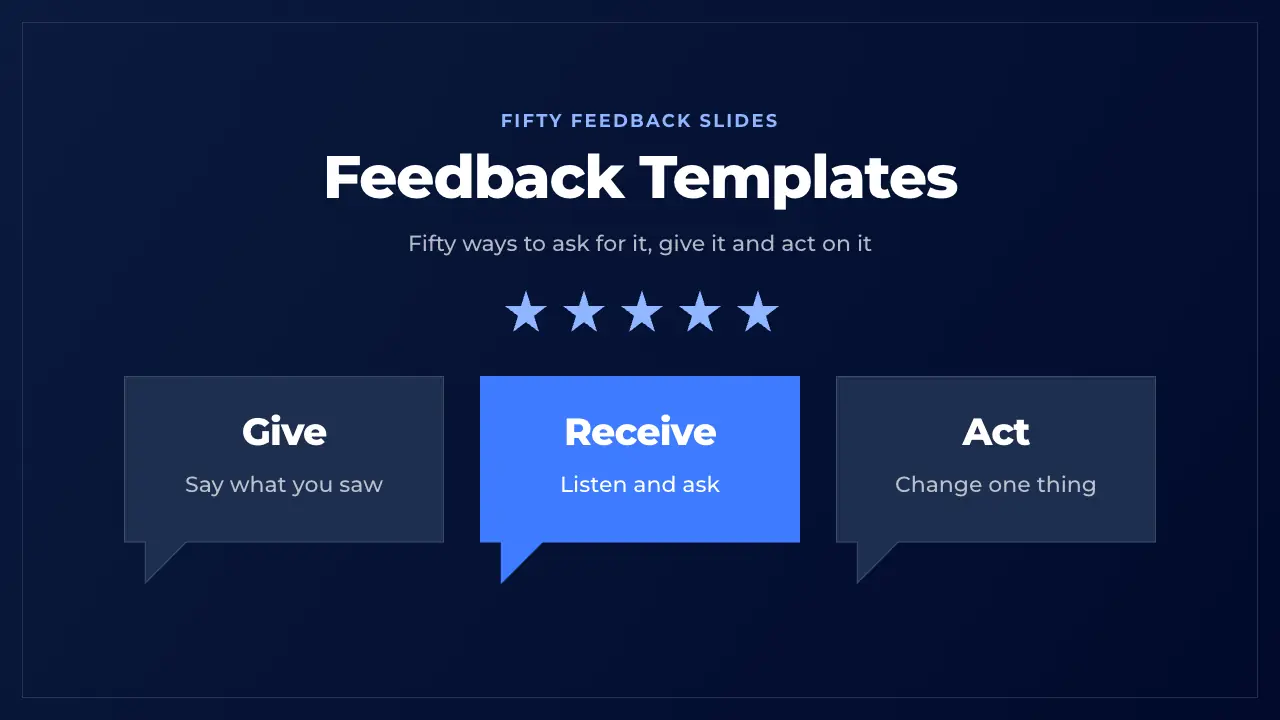
Template Pack · Feedback
Feedback Template: 50 Editable Feedback Slides For PowerPoint
Fifty feedback slides in one blue look, each a different form: feedback models, 360-degree reviews, survey results, star ratings, customer comments and action plans. Change the colours and fonts of all of them at once, let the AI build your own feedback deck in this look, download them as PowerPoint or edit each slide in the editor.
- 50 slides
- 16:9
- PowerPoint
This feedback template pack holds 50 slides, and each one shows feedback in a different form: the situation-behaviour-impact model in three chevrons, start, stop, continue in three columns, a 360-degree review with one person at the centre, a Net Promoter Score on a gauge, a rating summary with its star levels, customer comments by role and an action plan with owners and progress bars. All of them share one blue look on light, white and navy grounds, so any five of them sit in one deck without looking borrowed.
Most files offer one empty survey chart and leave the rest to you. Here every slide is finished and written out with neutral sample content that fits any organisation: roles instead of names, round sample figures and short comments on service, communication, workload and leadership. As a feedback presentation template it covers the whole conversation, from why feedback matters and how to give and receive it to what the survey said and what happens next.
A free account downloads the slides as a PPTX file whose texts and shapes stay editable. You can also stay in the browser: pick your colours and fonts in the bar above the slides, describe your topic and let the AI build your own feedback deck in this look, or open the slides one to one in the editor.
Similar Template Packs
 Organizational Chart Presentation Templates50 slides
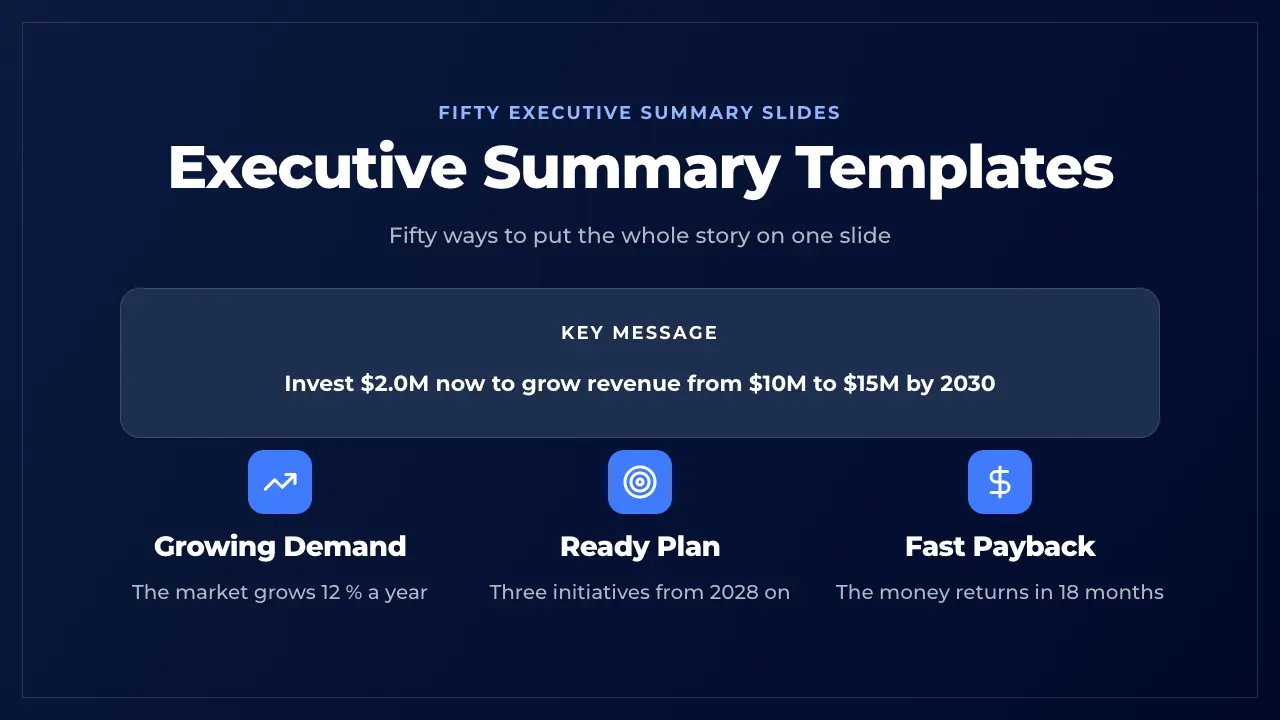 Executive Summary Presentation Templates50 slides
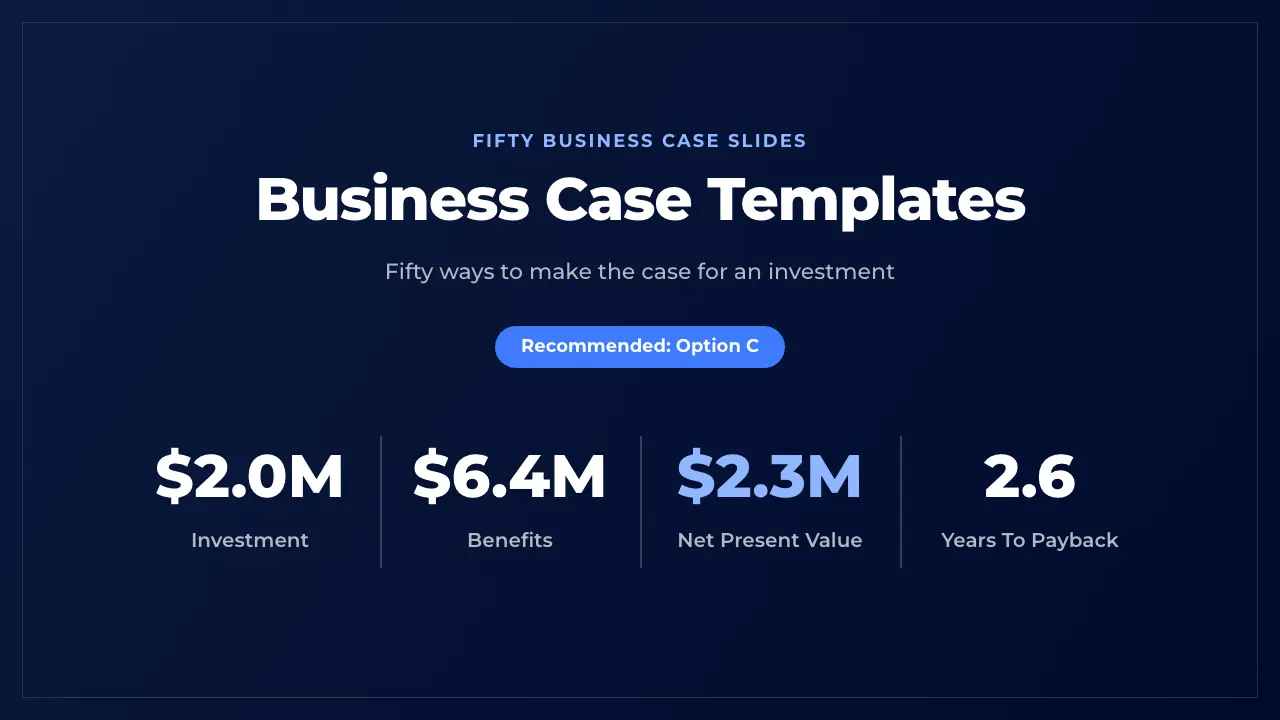 Business Case Presentation Templates50 slides
 Dashboard Templates50 slides
 OKR Presentation Templates50 slides
 Meeting Presentation Templates50 slides
 Business Presentation Templates50 slides
 Human Resources Presentation Templates50 slides
Fifty Forms Of Feedback In One Blue Look
A title slide of speech bubbles under five rating stars and three key figures on why feedback matters; the feedback models, each in a form of its own: situation-behaviour-impact in chevrons, COIN in hexagons, DESC in four large letters, STAR in arrows, the feedback sandwich in three layers and start, stop, continue in columns; how to give and receive feedback in vertical steps, rising stairs, stacked cards, a checklist, do and do not, four open questions, the five-to-one ratio and a rhythm from daily to yearly; 360-degree feedback as a radial, a peer scorecard, self against peers on a dumbbell chart and upward feedback for managers; survey results as bars, a five-point scale, stacked sentiment, diverging bars, donuts, bubbles of themes, a line over time, columns by department and by quarter; ratings and customer voices in a star summary, a Net Promoter Score gauge, speech bubbles by role, large quotes, a review wall and a form on one card; and the step from comment to change: you said, we did, a funnel, a pyramid of feedback culture, ranked priorities, an action plan and the next steps. Seventeen slides stand on navy, seventeen on light blue and sixteen on white, thirteen of them with a photo.
How To Use This Feedback Template
Pick Your Feedback Slides
Look through the 50 slides of this feedback template and note the forms that fit your session: a model for training, charts for a survey readout, an action plan for the follow-up. Most decks need five to eight of them.
Set Colours And Fonts
Choose your colours and your font in the bar above the slides. All 50 slides change at once, so you see your brand on every form before you download anything.
Put In Your Results
Press Fill With AI and describe your review or survey, or press Edit Slides and replace the sample questions, scores and comments by hand, slide by slide, in the editor.
Download Or Present
Download the slides as a PPTX file with a free account and copy them into your own PowerPoint deck, or present them straight from the browser.
Which Feedback Slide Fits Which Occasion
Training people to give feedback wants a model they can remember. Situation, behaviour, impact (slide 4) keeps a remark factual, COIN (25), DESC (33) and STAR (45) give a conversation its parts, and the feedback sandwich (12) shows one way to raise a difficult point. Vague versus specific (42) and do this, not that (13) turn the theory into examples.
A one-to-one or a performance review wants structure. Feedback in four steps (3), the five steps to give feedback (14) and how to receive feedback (23) lead through the talk, the four questions (22) open it, and the checklist (35) prepares it. For a full review, the 360-degree radial (8), the peer scorecard (28) and self rating versus peers (29) show how others see a person.
A survey readout wants the figures at a glance. Survey results (10), the Likert scale (16), sentiment by channel (17) and positive versus negative (18) report the answers, the response rates (34) show how many people took part, and the top themes (24) sum up the written comments. Satisfaction over time (26) and the score by quarter (46) show the trend.
Customer feedback wants real voices next to the numbers. The rating summary (5) and the Net Promoter Score gauge (9) give the headline, while comments by role (11), the large quote (15) and the review wall (38) let customers speak. To close the loop, show what changed with you said, we did (30), the funnel from comment to change (32), the action plan (48) and the next steps (50).
How To Build A Feedback Presentation In PowerPoint With This Pack
Download the pack as a PPTX file and open it in PowerPoint. Every text is a text box, and the cards, bars, stars and markers are shapes, so you change a score by typing over it and resize a bar by dragging it. Copy the slides you need into your own presentation and delete the rest.
Keep each slide to one message. Say what you asked, what people answered and what follows from it. A short deck often works best: why it matters (slide 2), the results (10), the themes (24), the priorities (49) and the action plan (48). Keep comments anonymous unless people have agreed to be quoted, and replace the sample roles with those that fit your organisation.
End with what changes. Feedback loses its value when nobody hears what became of it, so close with you said, we did (30) or what happens next (50), name an owner for each action and set a date for the next round.
Set colours and fonts before you download. The bar above the slides recolours all 50 at once, which is quicker than changing shape after shape in PowerPoint. If your organisation has a Design Kit in ExpertSlides, the slides take its colours, fonts and logo instead.
Questions About The Feedback Template
Is This Feedback Template Free?
Yes. All 50 slides of the feedback template are free. You can look at every slide and try colours and fonts on this page without an account; a free account, with no credit card, downloads the PPTX file or opens the slides in the editor.
Can I Use It As A Feedback Presentation Template In PowerPoint?
Yes. Press Download PPTX and open the file in PowerPoint. Texts stay text boxes and cards, bars and stars stay shapes, so you edit the feedback template there like any slide of your own, and you can copy single slides into an existing presentation.
Which Feedback Models Are Included?
Situation-behaviour-impact on slide 4, COIN on 25, DESC on 33 and STAR on 45, together with the feedback sandwich (12), start, stop, continue (6), the five-to-one ratio (36) and you said, we did (30). Every label is a text you can overwrite.
Is There A Slide For 360-Degree Feedback?
Yes. The radial on slide 8 places one person at the centre of five sources: manager, peers, direct reports, customers and self. The peer review scorecard (28), self rating versus peers (29) and feedback for managers (43) show the results of such a review.
Which Slides Show Survey Results?
Survey results as bars (10), the Likert scale (16), stacked sentiment (17), diverging bars (18), scores before and after (21), top themes (24), satisfaction over time (26), response rates (34), ratings by department (40) and the score by quarter (46). Enter your own figures and adjust the bars.
Can The AI Build My Own Feedback Deck?
Yes. Press Fill With AI and describe your review or survey, or attach your results, notes or a spreadsheet. The AI builds your own feedback deck in this look, with your questions, scores and next steps, and you can ask for changes slide by slide afterwards.
Can I Change The Colours And Fonts?
Yes. The bar above the slides sets the colours and the font of all 50 slides at once, and the download and the editor take over what you chose. In the editor you can also change a single slide, or put your own Design Kit on the whole deck.
Are There Feedback Slides With Photos?
Yes. Thirteen slides carry a photo, among them the steps beside a photo (slide 3), the statement on a full photo (7), comments with round portraits (11), the large customer quote (15), the quote on a photo panel (27), the checklist (35) and the closing next steps (50). Replace each picture with your own in the editor or in PowerPoint.
Try ExpertSlides AI For Free — The Ultimate AI Presentation Maker
Describe any topic or upload a document, and ExpertSlides designs and writes the whole deck — editable in the browser and as a PowerPoint file.
Use This Feedback Template
A free account, no credit card. The 50 slides open in the editor, every text and shape editable, and download as PowerPoint.