Fifty Plan-Do-Check-Act slides in one calm blue look, from the four-phase cycle and each phase in focus to repeated cycles, reviews and results. Change the colours and fonts, put in your own improvement and figures, and download them as PowerPoint.
This PDCA template pack gives you 50 slides for explaining and running the Plan-Do-Check-Act cycle: the four phases at a glance, each phase in detail, the roles, the checks against a target and the cycles that follow one another. As a PDCA PowerPoint template it opens in PowerPoint with every text and shape editable, and its short general texts and round sample figures fit any team.
Use it to introduce continuous improvement, to plan a pilot or to report on a running cycle. The forms range from a clear four-part wheel, a ring with a legend and a two-by-two field to phase cards, a twelve-week plan, target-versus-actual bars, a decision tree for the Act phase and a progress tracker, on navy, light and white grounds.
Your Own PDCA Deck In This Look
Describe the process you want to improve, and the AI builds a deck of your own in this blue PDCA style, with your target, your figures and your words.
Every slide with its words. Open one in the editor to change it 1:1.
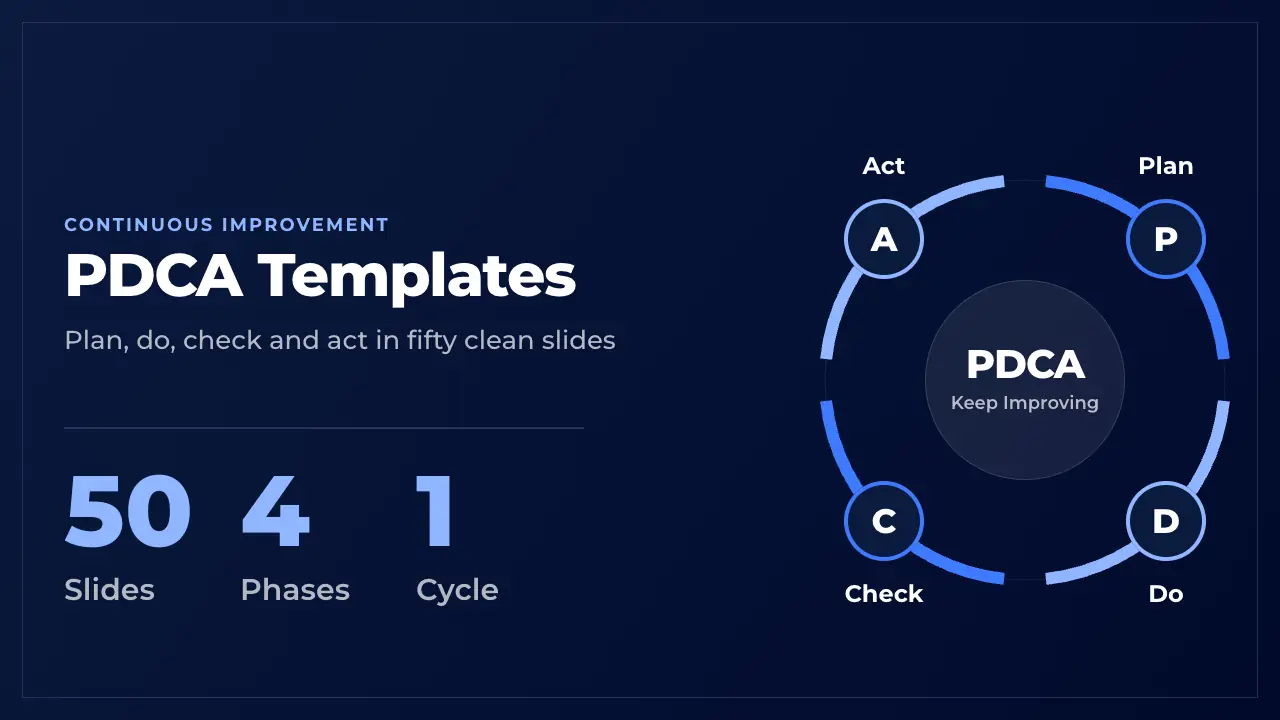
1 · PDCA Cycle CoverThe title slide of the pack: the four phases Plan, Do, Check and Act as one ring of four arcs around a centre, beside the headline and three key figures. Use it to open a deck on continuous improvement; change the figures to the number of cycles or phases of your own work.
2 · Four Quarter Circle PDCAThe classic PDCA circle: four quarters with the letters P, D, C and A, read clockwise, and a short explanation of each phase at its corner. Use it to introduce the cycle; keep each text to one sentence.
3 · PDCA Hub With Four CardsA round PDCA hub in the centre with the four phases around it as cards, each with an icon, a title and one sentence. Use it when each phase needs a short explanation of what the team does in it.
4 · Four Chevron PDCA ProcessPDCA read as a straight process: four chevrons from Plan to Act, each with a short sentence under it. Use it when the audience needs the order of the phases more than the loop; put the main task of each phase under its chevron.
5 · Stacked PDCA Phases With PhotoThe four phases from top to bottom, each with its letter tile and one line on what it means, beside a photo of a team at work. Use it to explain the cycle to a team that is new to it.
6 · Plan Phase In Five StepsThe Plan phase of the PDCA cycle in five steps on one line: the problem, its root causes, the target, the actions and the resources. A band at the foot names what the phase delivers. Use it when a team starts its first cycle.
7 · Do Phase As Four CardsThe Do phase of the PDCA cycle as four steps on one line: brief the team, run the pilot, record the data and learn from what happens. Use it to show how a change is tried on a small scale before it is rolled out.
8 · Check Phase KPI TilesThe Check phase of the PDCA cycle as four KPI tiles: each with its measure, the result as a large figure, the target and whether it was met. Use it to report the result of a pilot; mark a missed target honestly.
9 · Act Phase With PhotoThe Act phase of the PDCA cycle in three moves: standardise what worked, adjust what did not and start the next cycle. A photo on the right shows the team the standard is for. Use it to close a cycle and agree on the next one.
10 · PDCA Wheel On A SlopeThe PDCA wheel rolls up a slope of improvement while a wedge of standards keeps it from rolling back. The legend names what each phase does. Use it to explain why every cycle ends with a new standard.
11 · Rising Stairs Of Four CyclesFour PDCA cycles as rising stairs: each step stands for one cycle and shows the result it reached. Use it to show how repeated cycles build on each other; replace the defect rate with your own key measure.
12 · Timeline Of Six CyclesA timeline of six PDCA cycles, one a quarter from Q1 2027 to Q2 2028, each with a pill marker, a short focus and its goal. Use it to plan a programme of improvement over a year and a half.
13 · Four Cards Over A PhotoThe four PDCA phases as one calm row of translucent cards over a full photo under a navy overlay. Use it as an opener or a section slide; keep each phase to one short sentence.
14 · Checklist For Each PhaseFour columns, one for each PDCA phase, each with three items to tick before the team moves on. Use it as a gate review; write the items your team must finish in each phase.
15 · Large Letters As FiguresThe four letters P, D, C and A set as large figures in four equal columns, each with its phase name and its core question. Use it to explain the cycle at a glance before the phases in detail.
16 · Four Hexagons In A RowThe four PDCA phases as equal hexagons on one line, each with an icon, its name and its main activity. Use it for a short overview of the cycle; keep each text to one sentence.
17 · Cycle Ring With A LegendA ring of four arcs with the letters P, D, C and A shows the order of the cycle; a numbered legend beside it explains each phase in one line. Use it when the audience is new to PDCA.
18 · Key Question Per PhaseFour rows, one for each PDCA phase, each with its letter tile, its key question and a one-line answer, beside a photo. Use it in a workshop to guide the team through the cycle.
19 · Diamond Of Four PhasesThe PDCA cycle drawn as four diamonds around one centre, each holding its letter, with the phase name and its result outside. Use it to show what each phase delivers.
20 · Cycle Around A Key FigureOne PDCA cycle as a ring of four arcs around its result: a large key figure in the centre and the four phases around it with what was done in each. Use it to report the outcome of a finished cycle.
21 · Vertical PDCA Beside A PhotoThe four phases of the PDCA cycle from top to bottom on one vertical line, each with a ring marker, a title and one line of text, beside a photo. Use it to walk an audience through one cycle step by step; the filled last marker shows where the cycle closes.
22 · Roles Per Phase Under A PhotoA photo band over four cards, one for each phase, each with an icon, the phase and the role that leads it. Use it to agree on ownership before a cycle starts; replace the roles with those of your own team.
23 · Round Photo With Four Phase CardsA round photo of a team in the centre, the four PDCA phases on cards at the four corners, each joined to the photo by a thin line. Use it to show that people drive every phase; put the main task of each phase on its card.
24 · Twelve-Week PDCA BandsThe timing of one PDCA cycle as four staggered bands on a scale of twelve weeks: Plan, Do, Check and Act each with their weeks. Use it to agree on the rhythm of a cycle; move the bands to fit the length of your own phases.
25 · Before And After With PDCA BridgeA before and after slide: the problem and its figure on the left, the result after one cycle on the right and a small four-arc PDCA cycle as the bridge between them. Use it to report what one cycle achieved; replace the figures with your own measure.
26 · Two-By-Two PDCA FieldsThe classic four-field PDCA: one card for each phase, with its letter, its name and its main task, around a round tile with a cycle arrow. Use it as a one-page summary of the cycle; keep each task to one sentence.
27 · Outputs Per Phase On One AxisThe four phases on one horizontal axis, each with a document card under it that names what the phase delivers: an action plan, a data log, a results report and a new standard. Use it to agree on what a phase must hand over before the next one starts.
28 · PDCA Improvement CurveA rising curve across the slide with one marker for each PDCA cycle and the result it reached, here on-time delivery from 80 % to 96 %. Use it to show how repeated cycles add up; put your own measure and dates on the markers.
29 · First Cycle Steps With PhotoFour numbered steps on a thin vertical line that show how a team starts its first PDCA cycle, beside a photo of a workshop. Use it to launch continuous improvement in a new team; keep each step to one short line.
30 · Four Overlapping Arrow StepsPDCA as four arrow shapes in a row, each numbered and named, with a short sentence under each on what the phase does. Use it when the cycle should read as forward progress; put the main task of each phase under its arrow.
31 · Arc Around A Twelve-Week CycleThe four phases of one PDCA cycle sit on a single arc, each with its weeks, around the length of the whole cycle in the centre. Use it to show how long a cycle takes and how the time is shared between the phases.
32 · Pilot Cards Beside A PhotoThe Do phase of the PDCA cycle as a pilot: three cards say how to run it on a small scale, measure it every day and learn from it fast. A photo of operators at a machine shows where the pilot runs. Use it before a change is rolled out.
33 · Target Versus Actual BarsThe Check phase of the PDCA cycle as four pairs of bars: the target of each measure above its actual result, with the figures at the bar ends. Three measures met their target, one is still below the goal. Use it to report the result of a pilot plainly.
34 · Act Phase Decision TreeThe Act phase of the PDCA cycle as one decision. If the change worked, it becomes the standard; if it did not, the team adjusts it and runs the cycle again. Both branches lead into the next cycle. Use it to close a cycle with a clear choice.
35 · Eight Steps In Two RowsThe PDCA cycle broken into eight practical steps: the four steps of Plan on the top row, then Do, Check and the two steps of Act on the bottom row. Each step has its number, its phase, a title and a short caption. Use it as a working guide for a team's first cycle.
36 · Four Photo CardsThe four phases of the PDCA cycle as four white cards, each topped by a photo of the work it means: planning at a whiteboard, a pilot, checking the data and a team briefing. Use it to make the cycle concrete for a team that is new to it.
37 · Phase Pillars With Current PhaseFour tall pillars for the four phases of the PDCA cycle, each with an icon, its status and a short body. The Check pillar is highlighted as the phase the cycle is in now. Use it in a status meeting to show where the current cycle stands.
38 · Progress Tracker In Four SegmentsOne wide progress track split into the four phases of the PDCA cycle: Plan and Do are filled, a marker shows how far Check has come and Act is still ahead. Under each segment stand its dates and its status. Use it to report where a running cycle stands.
39 · PDCA In One WeekA small PDCA cycle in one working week: plan on Monday, do on Tuesday and Wednesday, check on Thursday and act on Friday. Each day has its pill, its phase and a short task. Use it to start daily improvement in a team.
40 · Problem Statement And Four PhasesA clear problem statement on a photo under a navy overlay, with the key figure of today, and beside it the four phases of the PDCA cycle that will close the gap. Use it as the opening slide of a new improvement cycle.
41 · Lessons Learned Per CycleThree cycles side by side, each with its result figure, what the team learned and what it changed in the next round. Use it in a review to show how every PDCA cycle builds on the one before; put your own figures and lessons in the cards.
42 · Phase Durations As Big FiguresThe length of each PDCA phase as a large number of weeks, with a thin bar under it showing its share of the whole cycle. Use it to plan the time of a cycle with the team; change the weeks and the bars to your own plan.
43 · Four Leaves Around One CentreThe four phases as four leaves of one flower, meeting in a centre that stands for the goal they all serve. The titles and bodies sit outside the leaves. Use it to show that Plan, Do, Check and Act are one whole, not four separate tasks.
44 · Photo Band With Four CardsA wide photo of a team at work across the top, and under it the four phases as four white cards, each with its letter tile, a title and one line. Use it to open a workshop on improving a process with the whole team.
45 · PDCA Review Meeting AgendaThe agenda of a one-hour PDCA review on one card: four items of 15 minutes, one for each phase, each with its time, its letter, what is discussed and the role who leads it. Use it to run a regular review of a cycle with the team.
46 · Action Board By PhaseThe open actions of one cycle as a board in four columns, one per phase, with two task cards in each and the role who owns the task. Use it in a weekly stand-up to see what is still open in each phase.
47 · Check Phase GaugesThe Check phase in three measures, each a round gauge with its figure in the centre, its name, a short note and the target it is read against. Use it to show at a glance where a pilot stands; change the figures and the arcs to your own measures.
48 · Alternating Phases With PhotoThe four phases on one horizontal line, their cards alternating above and below it, each with an icon tile, a title and a short body. A photo strip at the right edge shows a quality check. Use it to walk through one cycle step by step.
49 · Two Cycles ComparedTwo PDCA cycles side by side, each a ring with its four phases and the result in the centre: the second cycle builds on the first. Use it to show the progress from one cycle to the next; change the figures to your own measure.
50 · Closing With Key TakeawaysThe closing slide of a PDCA deck: three takeaways with check tiles beside a photo of a team, and a short line that starts the next cycle. Use it to end a review and agree on what comes next.
What Is Inside The Pack
The four phases as a wheel, a ring, a diamond, hexagons, chevrons and a two-by-two field, each phase in detail, a checklist and a key question per phase, roles and outputs, a twelve-week plan, a week-long cycle, target-versus-actual bars and gauges, a decision tree for the Act phase, a progress tracker, a review meeting agenda, an action board, lessons learned and cycles compared. Every text, shape and colour stays editable.
How To Use This PDCA Template
01
Pick Your Slides
Choose the slides of the PDCA template that your session needs: the four phases for an introduction, one phase in focus for a workshop, the bars and the tracker for a review.
02
Set Your Colours
Use the colour and font bar to match your brand; every slide follows at once.
03
Enter Your Improvement
Replace the sample problem, targets and dates with your own process, measures and owners.
04
Present Or Download
Present straight from the browser or download the slides as a PPTX file for PowerPoint.
What A PDCA Presentation Should Show
Start with the problem and one measurable target, then show what the team will change and where it will test it first. A small pilot keeps the risk low and gives the Check phase real figures to work with.
Close with the evidence and the decision: the result against the target, what becomes the new standard, what is adjusted and what the next cycle will address. The audience then sees the cycle as a working habit and not as a single project.
Tips For Clear PDCA Slides
Keep the four phases in the same order and the same place from slide to slide, read clockwise from Plan at the top right. Highlight only the phase you are talking about, so that everyone knows where the team stands.
Show one target per measure and put the actual value right beside it. Use the same measures from cycle to cycle, so that the improvement can be read at a glance.
Frequently Asked Questions
Is this PDCA template free?
Yes. You can view and edit every slide of this PDCA template for free, and download the deck as PPTX with a free account.
Is this a PDCA PowerPoint template?
Yes. Download the slides as a PPTX file and open them in PowerPoint; the texts, shapes and pictures stay editable there.
What does PDCA stand for?
PDCA stands for Plan, Do, Check, Act: plan a change, try it on a small scale, check the result against the target, then act by making it the standard or adjusting it for the next cycle.
Which slides show one phase in detail?
Slide 6 covers Plan, slide 7 Do, slide 8 Check and slide 9 Act. Slides 32, 33 and 34 go further into the pilot, the target-versus-actual check and the decision on what comes next.
Which slides work for a progress review?
A short review works with the progress tracker on slide 38, the target-versus-actual bars on slide 33 and the lessons learned on slide 41. The agenda on slide 45 gives the meeting its order.
Can I change the colours and fonts?
Yes. The colour and font bar changes every slide of the PDCA template at once, and you can still adjust single shapes in the editor.
Can the AI build a deck for my process?
Yes. Fill With AI takes your topic and builds a new deck of your own in this look, with your target, figures and words.
Try ExpertSlides AI For Free — The Ultimate AI Presentation Maker
Describe any topic or upload a document, and ExpertSlides designs and writes the whole deck — editable in the browser and as a PowerPoint file.