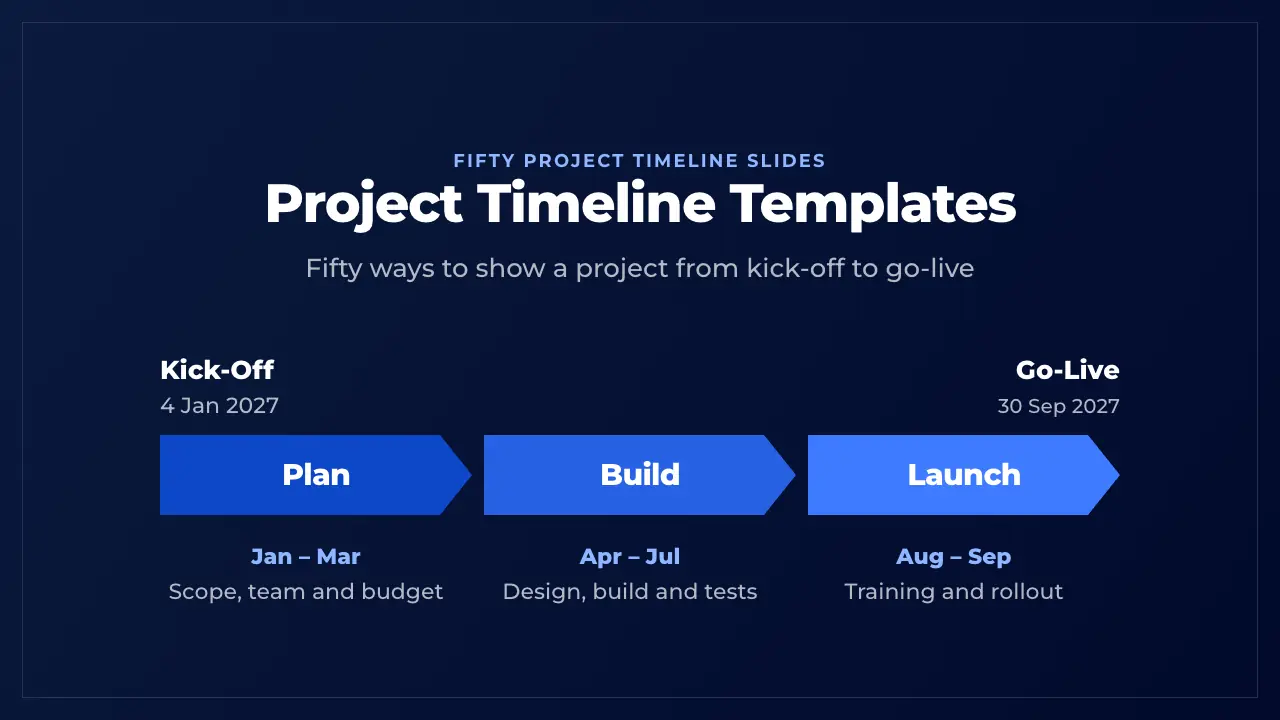
Fifty process slides in one calm blue look, from three simple arrows to eight numbered steps. Change the colours and fonts here, download the PPTX or let the AI build your own deck in this style.
A process template turns any piece of work into a clear sequence of steps, from the first request to the finished result. This pack gives you 50 of them as arrows, chevrons, stairs, numbered stages, roads and stage gates, each with three to eight steps that an audience can follow at a glance.
Every slide also works as a PowerPoint process template: shapes, text and icons stay editable after the download, and the sample content is neutral, so it fits hiring, purchasing, product launches, service delivery, quality checks and any other business process.
Describe Your Process, Get Your Deck
Name your process and its steps. The AI builds your own presentation in this look, with your words and your figures.
Arrows, chevrons, stairs, roads, stage gates and numbered stages, on navy, light and white grounds.
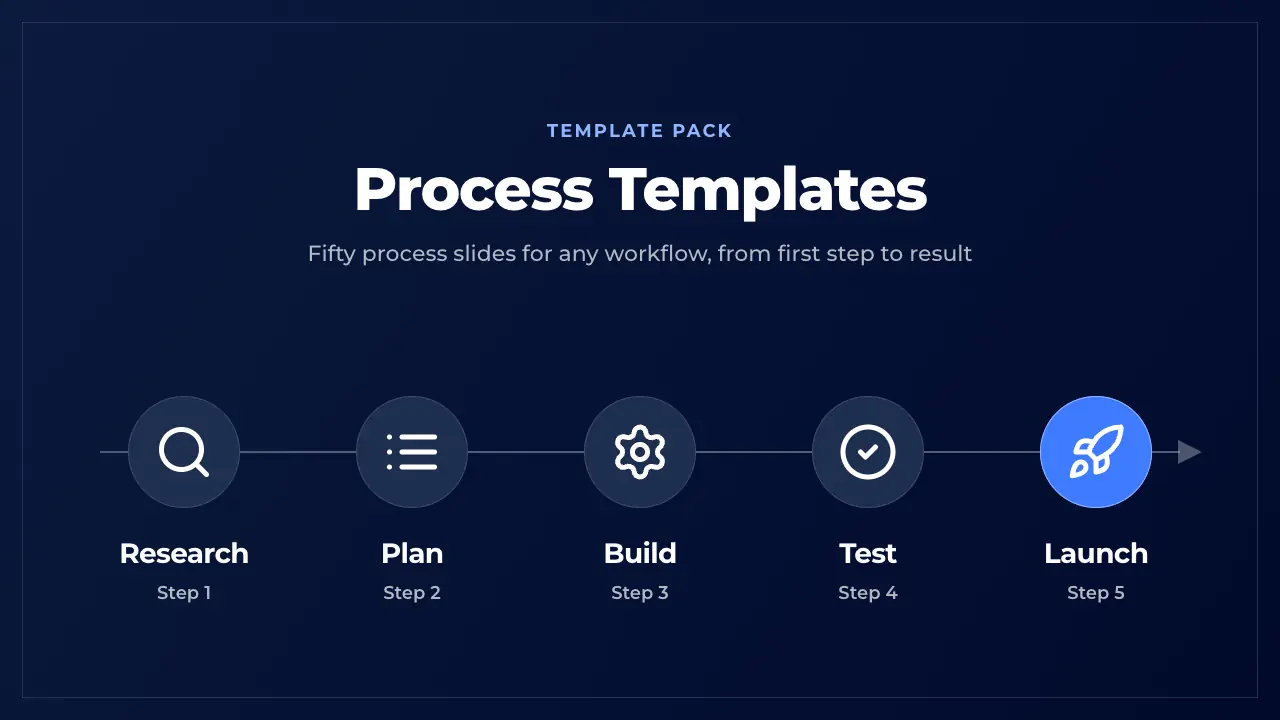
1 · Process Cover With Five StepsThe title slide of the process pack: a centred headline over one calm line of five steps, from Research to Launch, the last step marked as the result. Use it to open any presentation about a workflow or a way of working; rename the steps to your own process.
2 · Six Chevrons With IconsSix chevrons in one row, tip to notch, show a project process from research to launch; each has an icon and a short caption under it. Use it for any process of six steps; the tones grow darker towards the result.
3 · Alternating Steps On One LineFive numbered markers on one line show the way of a product from idea to launch; the labels alternate above and below the line so every step has room for a sentence. Use it for any process of four to six steps.
4 · Vertical Process Beside A PhotoA photo on the left and four numbered steps on a vertical line on the right show how a new hire is welcomed, set up, trained and reviewed. Use it for onboarding or any short process that reads from top to bottom.
5 · Rising Stairs Of Five StepsFive blocks rise like stairs from Define to Launch; each step carries its number, and its title and caption stand on top of it. Use it to show a process that builds up step by step towards a release or a goal.
6 · Snake Process In Two RowsSeven numbered steps run along one road that turns at the right: four in the top row, three back in the bottom row, the last one in the highlight. Use it for longer processes such as order to cash; each step has a title and one short line.
7 · Vertical Process On A Full PhotoA photo of a production line fills the slide under a navy overlay; four numbered steps run top-down on a thin line from sourcing to inspection. Use it for any production or operations process that you want to show with a strong picture.
8 · Process With Inputs And OutputsFour steps in one row, each with what it needs above and what it gives below: the output of one step is the input of the next. Use it to show hand-overs in a planning or delivery process and to make clear who waits for what.
9 · Process With One DecisionA request is reviewed and reaches one decision: if it is approved it is delivered, if not it goes back with feedback. Use it for any approval process with one clear yes or no, without loops or crossing lines.
10 · Offset Hexagon GearsFive hexagons stand in one row, alternately a little higher and lower, like gears that drive each other from Plan to Support. Use it for a delivery or supply process where each step keeps the next one moving.
11 · Photo Banner With Step CardsA wide photo sets the scene, and four white step cards under it walk through a hiring process from posting the role to the offer. Use it for any short process of four steps that benefits from a picture; replace the photo and the step texts with your own.
12 · Cascade Of Step DurationsFive bars step down like a waterfall: each starts where the one before ends and is as long as its step takes, on a scale of ten weeks. Use it to show how long a process takes and where the time goes; change the bar widths to your own durations.
13 · Big Numerals In ColumnsFour calm columns, each led by a large numeral, walk through a problem-solving process from defining the problem to checking the result; an arrow line across the top shows the direction. Use it for any process of four steps that needs a few words of explanation each.
14 · Two Parallel Tracks That MergeTwo tracks of three steps each run side by side, the business work above and the technical work below, and both lines bend into one launch at the right. Use it when two teams work in parallel towards one shared result.
15 · Current Step Beside A PhotoSix steps run top-down beside a photo: the first two are done and checked, the third is marked You Are Here with a short note, and the rest wait in quiet outlines. Use it in a status update to show where a project stands in its process.
16 · Rising Curved RoadOne curved road rises from the bottom left to the top right, with five steps of a growth process on it and a flag at the goal. Use it for any process where each step builds on the one before and takes you higher.
17 · Downward Chevron ColumnFive chevrons stack tip to notch in one column at the centre of the slide, from pale to deep blue, and the step texts alternate left and right. Use it for a process that is best read from top to bottom, such as an improvement process.
18 · Icon Cards With Round Arrow LinksFive equal pale cards show a content production process from the brief to publishing, each with an icon, a title and one sentence; small round arrows link the cards. Use it for any five-step process where each step needs a short explanation.
19 · Round Photo Beside Three StepsA large round photo in a thin blue ring sits beside three numbered steps of a service process: listen, solve and follow up. Use it for a short process of three steps that you want to give a human face.
20 · Zigzag Of Eight StepsOne zigzag road carries eight project steps from Initiate to Close, the labels alternating above and below. Use it for a longer process that should still fit on one calm slide.
21 · Numbered Squares With ArrowsFive large numbered squares in one row, joined by solid arrows, show a purchase from the first need to the delivered goods. Use it for any five-step process; give each step a short title and a two-line caption.
22 · Durations On Cards With A TotalFour cards in one row show the steps of an order with the days each takes; a wide band under them adds them up to the total lead time. Use it to show where the time of a process goes; put each step's duration on its card.
23 · Step Cards On A Photo's EdgeA wide photo across the top carries the headline on a navy band; four white cards rest on its lower edge, one for each step. Use it for a process with a strong visual subject, such as an event, a launch or a site build.
24 · Ascending Arrow BlocksFour arrow blocks climb from the bottom left to the top right, each step a little higher than the one before and a deeper blue. Use it for steps that build on each other towards one goal; give each a short title and a two-line caption.
25 · Two Paths After A DecisionA start, an order check and one decision lead into two parallel paths: standard above and express below, each with two steps. Both paths end in the same result. Use it where one question chooses between two ways to the same goal.
26 · Octagon ChainFour octagons joined by short thick bars form one chain, each link a step with a white icon, a title and a two-line caption. Use it for a process where every step depends on the one before, such as a quality inspection.
27 · Chevrons Beside A PhotoA photo with rounded corners fills the left half; at the right three chevrons lead tip to notch through the sales process, each with its number, a title and a short body. Use it for a three-step process that needs a human face.
28 · Seven Steps With The Current One MarkedSeven discs on one line show a software process: the first three are done with a check, the fourth is larger in the highlight with a You Are Here pill, the last three are still open. Use it to show where a project stands in its process.
29 · Inputs Converge, Outputs Fan OutThree input pills at the left run into one band of three steps in the centre; three output pills fan out at the right. Use it to show what a process takes in and what it gives back, such as a reporting or data process.
30 · Big Numerals On A Progress LineFive large numerals stand over one thin line, each with a dot, a title and a two-line caption; the last numeral is in the highlight. Use it for a short process where the order of the steps is the message.
31 · Process Line On A Full PhotoFive numbered steps run along one thin line across a full photo under a navy overlay, the last step filled as the goal. Use it to open a launch or to show a short process with its timing. Replace the steps and the weeks with your own.
32 · Descending Cascade Of CardsFive cards step down from the top left to the bottom right, each joined to the next by a thin elbow connector. Use it for a support or service process that moves through clear hand-overs. Put the total time in the free corner.
33 · Three Workstreams Into One ArrowThree workstreams each run three steps in parallel and end against one tall arrow that names the go-live. Use it when several teams must arrive at the same date. Rename the rows and steps for your own teams.
34 · Stem Cards On A Week LineFive dots on one week line each lead down a thin stem to an equal card with the step and a short caption. Use it for a rollout or any process with dates. Change the weeks to days or months as needed.
35 · Photo Beside A Numbered ChecklistA rounded photo stands beside five steps, each marked with a check disc and separated by a hairline. Use it for a checklist process that must be done in order. Replace the steps with your own quality or release checks.
36 · Vertical HoneycombFour hexagons nest in a vertical zigzag at the centre of the slide, the steps read from top to bottom at their outer sides. Use it for a strategy or any four-step process you want to present with some character. Swap the icons to match your steps.
37 · Request, Approve, DeliverThree large circles joined by bold arrows show the path of any request, with the role and the time under each step. Use it for approvals, purchasing or service requests. Change the roles and times to your own service levels.
38 · Arrow Bars Beside A PhotoA photo fills the left half while four equal arrow bars stack down the right, each with its number, title and a caption. Use it for a training, course or content process. Replace the photo with a scene from your own field.
39 · Eight Steps In Two ColumnsEight numbered steps run down two columns, joined by one curved arrow from the foot of the left column to the head of the right. Use it for a longer process that still has to fit on one slide. Shorten the captions to keep each on one line.
40 · Big Chevrons With The Current PhaseFour large chevrons carry the numbered phases, the current one in the highlight with a Now pill over it. Use it in a status update to show at a glance where a project stands. Move the pill and the highlight as the work moves on.
41 · Steps Over A Duration BarSix steps stand over one wide track whose segments are as long as the steps take, and a card at the right gives the total. Use it when the time each step takes matters as much as the order. Change the widths along with the durations.
42 · Photo Band Over A Process LineA photo band fills the top of the slide, and under it one thin line carries five numbered steps with a title and a caption. Use it for a supply chain or any process that starts in the real world. Replace the photo with your own setting.
43 · Stage GatesFour stage cards stand in one row with a diamond gate between each pair, where the decision to go on is taken. Use it for product development or any process with formal approvals. Name your own stages and what each gate checks.
44 · Bottom-To-Top LadderSix steps climb one vertical line from the bottom to the top, where a flag marks the goal. Use it for growth, careers or any process that builds level by level. Read it aloud from the bottom up.
45 · Big Numerals Beside A Tall PhotoThree very large numerals lead the steps of a month-end close, with a tall photo at the right. Use it for a short process that deserves room and calm. Replace the steps and the photo with your own.
46 · Three Wide ArrowsThree wide arrows run tip to notch across the slide, from a quiet navy to the highlight, each with an icon, a title and a short caption. Use it for the simplest form of a process, in an overview or an opening. Keep the captions to two lines.
47 · Steps With Times Beside A PhotoA rounded photo stands beside four stacked cards, each with a number, a step and the time it takes in a pill. Use it for delivery, service or any process with promised times. Change the pills to your own lead times.
48 · Steps Into A Result CardFour step tiles joined by arrows lead into one tall result card with the key figure. Use it to show what a better process achieved. Replace the figure with your own result.
49 · Three Glass Steps On A Full PhotoThree translucent cards joined by small arrows float on a full photo under a navy overlay, each with an icon, a large numeral, a title and a caption. Use it for a short process that should feel personal. Swap the photo for a scene from your field.
50 · Closing OverviewSeven icon tiles on one thin line end in one larger result pill, with a quiet note under the row. Use it to close a presentation with the whole process at a glance. Replace the seven steps with your own.
What Is Inside This Pack
Fifty slides with three to eight steps each: horizontal and vertical lines, chevron rows, rising stairs, snakes and zigzags, parallel tracks that merge, simple decisions, duration bars, current-step markers, and layouts with photos. All of them share one colour scheme and one type system, so any selection reads as one deck.
How To Use This Process Template
01
Pick Your Slides
Browse the process template gallery and choose the forms that match the number of steps you need.
02
Set Colours And Fonts
Use the bar above the slides to try your palette and typeface on all 50 slides at once.
03
Add Your Steps
Open a slide in the editor and replace the sample titles, captions and figures with your own.
04
Present Or Download
Present from the browser, or download a PPTX with a free account and keep editing in PowerPoint.
Choosing The Right Process Layout
Match the form to what the audience needs to see. Three to five steps read best as chevrons, arrows or numbered squares. Six to eight steps need more room, so a snake, a zigzag or two columns keeps them legible.
When time matters, use a duration bar or a cascade whose lengths show how long each step takes. When you report progress, use a slide that marks the current step, so everyone sees at once what is done and what comes next.
How A Process Slide Differs From A Flowchart
A process slide shows one clear path of steps from a start to a result. A flowchart maps decisions and branches, and a workflow shows which role does what. Choose a process slide when the order of the steps is the message.
Keep each step to a short title and one line of explanation. Name the result at the end, and add a time or an owner only where it helps the audience act on what you show.
Process Template Questions
What Is A Process Template?
A process template is a ready-made slide that shows work as a sequence of steps from a start to a result. You replace the sample steps with your own and keep the layout.
Is This A PowerPoint Process Template?
Yes. Download any process template from this pack as a PPTX with a free account. Shapes, text and icons stay editable in PowerPoint.
Are These Slides Free?
You can view all 50 slides, change their colours and fonts, and download the PPTX with a free account.
How Many Steps Can A Slide Show?
The slides in this pack show between three and eight steps. For a longer process, split it into phases and give each phase its own slide.
Can I Change The Colours And Fonts?
Yes. The colour and font bar on this page restyles every slide at once, and the editor lets you change any single element afterwards.
Can The AI Fill The Slides With My Content?
Fill With AI builds your own deck in this look from your topic or document. Describe the process, its steps and its goal, then edit the result in the editor.
Which Process Template Suits A Short Presentation?
For a short talk, choose a process template with three to five steps, such as three wide arrows or a row of chevrons. One clear slide is easier to follow than several detailed ones.
Try ExpertSlides AI For Free — The Ultimate AI Presentation Maker
Describe any topic or upload a document, and ExpertSlides designs and writes the whole deck — editable in the browser and as a PowerPoint file.