Project Roadmap Template: 50 Editable Project Roadmap Slides For PowerPoint
Fifty project roadmap slides in one blue look, each a different form of one project's road to go-live: workstream lanes, phase chevrons with stage gates, deliverables per phase, a critical path, a progress track, rollout waves, budget and team by phase and photos. Change the colours and fonts of all of them at once, let the AI build your own project roadmap deck in this look, download them as PowerPoint or edit each slide in the editor.
This project roadmap template pack holds 50 slides, and each one shows a project's road from kick-off to go-live in a different form: workstream lanes that end at one go-live line, a swimlane roadmap under four phase chevrons, five phases with four stage gates between them, three phase bands over the deliverables of each phase, a dependency staircase, staggered workstreams that arrive on one date, a critical path across three lanes, two metro lines that meet at go-live and a hypercare plan for the months after it. All of them share one blue look on light, white and navy grounds, so any five of them sit in one deck without looking borrowed.
A project roadmap answers a different question from a timeline or a Gantt chart: what the project delivers, in which phase and from which workstream, and what has to be done before the next step can start. Every slide here is a finished roadmap with neutral sample content on projects that any organisation runs — a system rollout, a website relaunch, a process change, a new site, a product launch — with roles instead of names and round sample dates, budgets and team sizes.
If you are looking for a project roadmap PowerPoint template, a free account downloads the slides as a PPTX file whose texts and shapes stay editable. You can also stay in the browser: pick your colours and fonts in the bar above the slides, describe your project and let the AI build your own project roadmap deck in this look, or open the slides one to one in the editor.
Your Project In This Roadmap Look
Describe your project, its phases, its workstreams and the deliverables you plan, or attach your project plan or a spreadsheet. ExpertSlides builds your own project roadmap deck in this look in a few minutes, with your phases, your owners and your go-live date.
Every slide is a complete project roadmap with neutral sample content — general phases, workstreams, deliverables with round dates and roles instead of names — that fits any project. Replace its phases, owners and dates with yours.
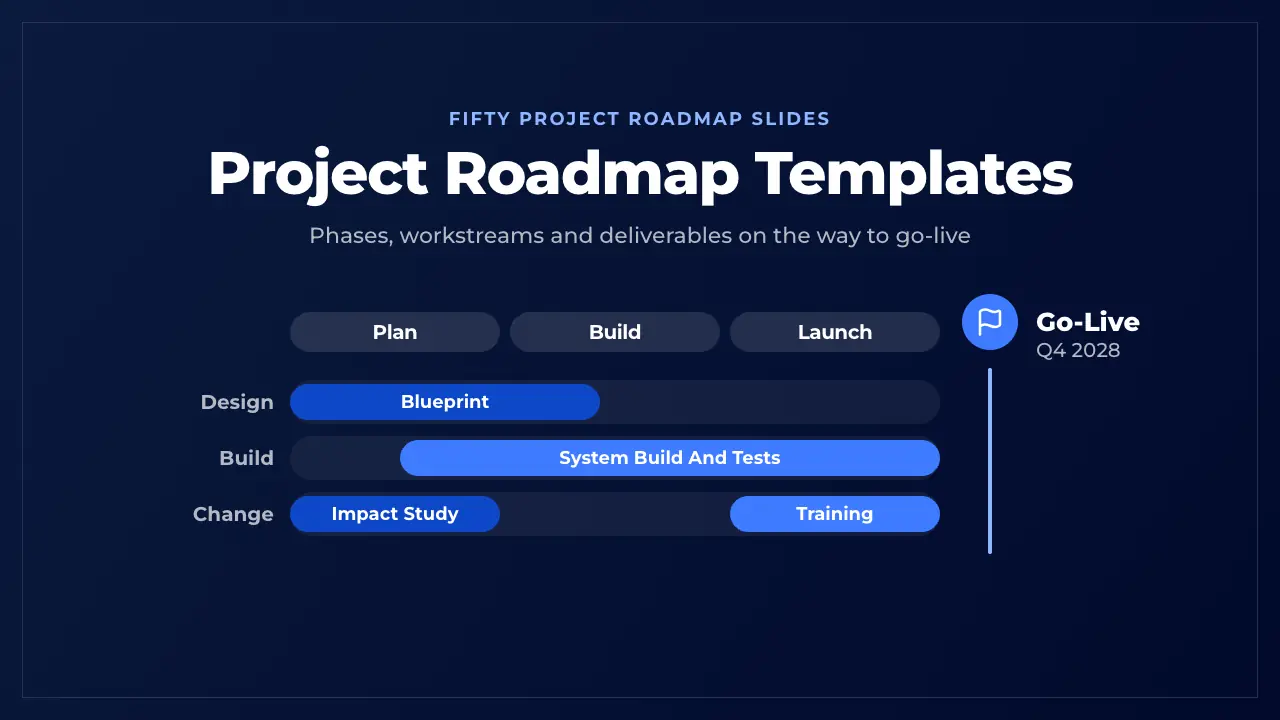
1 · Workstream Lanes To Go-Live CoverThe title slide of the pack shows a project roadmap itself: three phases across the top, three workstreams under them and the deliverable each lane brings to the go-live line. Use it to open a project plan or a steering committee update. Rename the lanes and bars after your own workstreams.
2 · Swimlane Roadmap With Phase ChevronsA classic swimlane project roadmap: four phases run across the top and each workstream has its own lane with the deliverables it hands over in each phase. The flag marks go-live. Use it as the one-page overview of a project and keep only the main deliverables in the lanes.
3 · Vertical Phases Beside A PhotoFour phases of a project run down one vertical line, each with its months and the deliverables it hands over. The photo at the left gives the roadmap a human face. Use it for a short project overview in a kick-off or steering meeting.
4 · Phase Chevrons With Stage GatesFive phases of a project in one row, with a stage gate between each two: the decision that lets the project move on. Each phase shows its months and the output that opens the next gate. Use it to explain how a project is governed from start to go-live.
5 · Phase Bands Over Deliverable CardsThree phases in one row of arrows, and under each a card with the outcome of the phase and its three main deliverables. Use it when a sponsor asks what exactly each phase hands over. Keep three short deliverables a card.
6 · Milestone Axis Ending In Go-LiveFive milestones of a project stand on one axis, each with its month and a short line on what it means, and the axis ends in a large go-live disc. Use it to show the few dates everyone in the project should know. Keep each line to three words.
7 · Quarters On A Full PhotoA project year in four quarters on one axis, set over a full photo under a navy veil. Each quarter carries its phase and what it delivers. Use it to open a project kick-off or an annual plan.
8 · Dependency Staircase Of Five StepsFive deliverables step down from the top left to the bottom right, and an arrow from each to the next shows that one must finish before the next can start. A key figure gives the length of the whole chain. Use it to explain why a late step moves the go-live date.
9 · Staggered Workstream Arrows To Go-LiveThree workstreams start at different times and all end at one go-live line. Each arrow names its workstream, its months and its length. Use it to show that late starters still have to arrive on the same day.
10 · Centred Spine Of PhasesFour phases run down a centred spine: each phase with its months at the left, and what it hands over at the right. Use it to agree the deliverables of each phase with the sponsor. One line of deliverables a phase keeps it readable.
11 · Numbered Axis Under A Photo BandA wide photo opens the slide, and under it the last four stages of a project stand on one axis, each numbered with a short line on what happens. Use it for the second half of a project, from the build to the handover to operations.
12 · Progress Track With We Are HereOne track of five phases shows where a project stands: the phases done are filled, the current one is half filled and marked, the rest wait. Three key figures under it give the status in numbers. Use it at the top of a status report or a steering committee update.
13 · Quarter Stairs Rising To LaunchFour quarters of a delivery year rise like stairs, each block carrying its quarter and, above it, the phase it holds and what it delivers. The top step is the launch. Use it to show a project year that builds towards one goal.
14 · Workstream Rows Beside A PhotoFour workstreams of one project, each with its icon, its months and a bar that shows when it runs within the year. The photo at the right bleeds off the slide. Use it to show who works when and how the streams overlap.
15 · Deliverable Pipeline Into Go-LiveA pipeline of four phases flows into one go-live disc, and each section carries the number of deliverables the phase hands over. The phase name and months stand under each section. Use it to show the size of each phase at a glance.
16 · Two Tracks: Quick Wins And Core BuildTwo tracks run to the same go-live line: above, four quick wins that users feel every few weeks; below, the core build with its three stages. Use it when a long project must show early results. Put a short name and a month on each quick win.
17 · Key Figures Over Phases To ScaleFour key figures give the project at a glance: its length, its budget, its team and its deliverables. Under them one bar shows the four phases drawn to scale across the year. Use it as the opening slide of a project plan or a funding request.
18 · Readiness Checklist Beside A PhotoThe last stretch of a project roadmap as five readiness checks on one vertical line, each with its week. The photo at the right bleeds off the slide. Use it in the weeks before go-live to show what still has to be ticked off.
19 · Curved Road With Six StopsOne curved road rises from the kick-off at the bottom left to the go-live flag at the top right, with five stops on the way. Each stop names its milestone and month. Use it to tell the story of a project as a journey.
20 · Vertical Lanes Into One Go-LiveFour workstreams stand side by side as vertical lanes, and time runs down the slide: each deliverable sits at its month. All four lanes end in one go-live band. Use it when the audience thinks in teams rather than in phases.
21 · Release Arrows Beside A PhotoThree releases step down from the core to the full scope, each an arrow with its month and what it brings. The photo fills the left third of the slide. Use it when a project goes live in stages rather than all at once.
22 · Two-Row Snake Of Eight DeliverablesEight deliverables follow one road that runs left to right, turns, and runs back in a second row. Each stop carries its month and the deliverable due. Use it for a project with many steps that must stay in one clear order.
23 · Round Portraits Of Workstream LeadsFour round portraits stand on one line, each under the phase it leads and over its role and workstream. Use it to show who owns which part of the roadmap. Replace the portraits with your own team and keep the roles.
24 · Budget Bars By PhaseFive bars stand on one base line, one for each phase of the project, with the budget over each and the phase and its months under it. The total stands in the top right. Use it to show where the money of a project goes along its roadmap.
25 · Week Countdown On A PhotoThe last sixteen weeks before go-live as a countdown: five large week figures over one axis, each with the milestone due and its date. The photo under a navy veil sets the scene. Use it in the final months of a project.
26 · Programme Rows To One Go-LiveA programme of three projects, each a row of three phases of its own length, starting at different times and ending at the same go-live line. Use it to show how several projects are planned to land together.
27 · Two Lanes With Handover ArrowsTwo lanes of one project: design above, build below. Each design deliverable is handed down to the build step that needs it, shown by a small arrow. Use it to make the dependencies between two teams visible.
28 · Monthly Deliverables Beside A PhotoFour deliverables, one a month, run down a vertical line beside a large photo. Each names its month, what is delivered and who owns it. Use it for the next stretch of a roadmap in a team meeting.
29 · Arc Of Phases Over A Key FigureA half ring arcs over the project's length, and five phases stand on it in order from the left to the right. The key figure in the middle gives the whole duration. Use it for a calm overview of one project year.
30 · Cards Around A Go-Live BandGo-live stands in the middle as one band: two phases lead up to it, and two follow it. Each phase is a card with its icon, months and a short description. Use it to show that a project does not end on go-live day.
31 · Icon Deliverables Under A Month AxisFive key deliverables of a project hang from one month axis: each with its month, an icon, a name and a two-line note. Use it for the few deliverables a sponsor signs off. Swap the icons for your own.
32 · Rollout Arrows Over A Photo BandThe rollout of a project in four waves, from a pilot at one site to all sites, as one row of arrows with the users each wave reaches. A photo band closes the slide at the bottom. Use it for the deployment part of a roadmap.
33 · Critical Path Across Three LanesThree workstream lanes carry the tasks of a project, and one bold line joins the six tasks of the critical path from the first needs to go-live. The other tasks stay pale: they have slack. Use it to show which tasks decide the go-live date.
34 · Goal Banner Over Phases And DeliverablesThree levels of one project roadmap: the goal at the top, the four phases that reach it in the middle, and the main deliverable of each phase at the bottom. Use it to show how the work hangs together from the goal down.
35 · Three Photo Cards In SequenceA project in three stages, each a card with its photo, its months and a short line of what happens. Small arrows lead from one stage to the next. Use it for a simple roadmap that a wide audience reads at a glance.
36 · Alternating Milestones On One AxisSeven milestones of one project stand on one axis, alternating above and below it so that each has room for its month, name and a short line. Use it for a project with many milestones that must all be shown on one slide.
37 · Growing Team Discs By PhaseFour discs on one line show how the team grows and shrinks over the phases of a project: the size of each disc follows the number of people. Use it to plan staffing along the roadmap or to explain a budget.
38 · Risk Cards Under A Phase AxisFour phases stand on one axis, and under each a card names the main risk of that phase and how the project answers it. Use it in a steering meeting to show that every phase has its risk in hand.
39 · Three Month Rows Beside A PhotoThe first three months of a project as three numbered rows, each with its goal and what is done by its end. The photo fills the right of the slide. Use it to open a new project with a clear first quarter.
40 · Four Year Columns Of A ProgrammeA programme of four years in four tall columns: each year carries its stage, what it delivers and where the programme stands at its end. Use it for a long transformation that runs over several budget years.
41 · Workstream Cards With Dated DeliverablesFour workstreams of one project, each on its own card with an icon and its three deliverables in date order. Use it when every team lead wants to see their own part of the roadmap at a glance.
42 · Month Strip With Phases And MilestonesOne strip of twelve months carries the whole project year: the phases sit above it, the milestones below it, and a line marks today. Use it for a status update that shows both the plan and where the project stands.
43 · Three Arrow Panels On A PhotoThree large arrow panels carry the rollout of a project over a full photo under a navy veil: a pilot, the expansion to every site, and the embedding in daily work. Use it to present the deployment stage to a wide audience.
44 · Zigzag Road Of Five MilestonesFive milestones of a project on one zigzag road: the road turns at each milestone, and the labels sit above the high turns and under the low ones. Use it for a lively roadmap with a few strong milestones.
45 · Role Lanes With Milestone DiamondsFour lanes, one for each role of the project, run across one year, and the diamonds mark the milestones each role owns. Use it to make clear who has to deliver or decide what, and when.
46 · Hypercare Axis From A Round PhotoThe roadmap does not stop at go-live: from a round photo of go-live day one axis runs through the hypercare, from the first day to the handover after three months. Use it to plan and explain the support after a launch.
47 · Long Arrow Into A TargetOne long arrow carries the three phases of a project and points straight into the target: the goal at go-live. Each phase has its months above the arrow and what it achieves under it. Use it for a short, goal-driven roadmap.
48 · Hexagon Deliverables On One LineSix deliverables of a project stand as hexagons on one line, each with its icon, its month above and its name under it, and all of them lead to one goal at the bottom. Use it to show the building blocks a project hands over.
49 · Two Metro Lines Meeting At Go-LiveTwo workstreams run like two metro lines, each with its own stations, and merge into one line that ends at the go-live station. Use it to show two teams that work apart and must arrive together.
50 · Next Steps Beside A PhotoThe roadmap ends with what happens next: three numbered steps, each with its owner and due date, beside a photo that bleeds off the slide. Use it as the closing slide of a project roadmap presentation.
Fifty Forms Of A Project Roadmap In One Blue Look
A title slide of three workstream lanes that end at one go-live line and the one-page swimlane roadmap under four phase chevrons; phases as chevrons with stage gates, arrow bands over deliverable cards, quarter stairs, a pipeline of deliverables and one long arrow into a target; workstreams as staggered arrows, rows beside a photo, vertical lanes, cards with dated deliverables and lanes by role; dependencies as a staircase, handover arrows from design to build and a critical path across three lanes; the status at a glance: a progress track marked We Are Here, a month strip with a Today line and a readiness checklist before go-live; the money and the people: budget bars, team discs and four key figures over phases drawn to scale; and the roads themselves: a curved road, a zigzag, a snake of eight deliverables, two metro lines that merge, rollout waves, a countdown on a photo and the hypercare months after go-live.
How To Use This Project Roadmap Template
01
Pick Your Colours And Fonts
Choose a colour scheme and a font in the bar above the slides. All 50 slides of the project roadmap template change at once, so you see your own look before you start.
02
Choose The Forms You Need
Open with the one-page swimlane roadmap of slide 2, add the stage gates of slide 4 for the steering committee, the critical path of slide 33 for the team and the next steps of slide 50 to close.
03
Fill With AI Or By Hand
Describe your project and let the AI build your own deck in this look, or open the slides in the editor and type your phases, workstreams, deliverables and dates over the sample content.
04
Download Or Present
Download the slides as an editable PowerPoint file with a free account, share a web link or present straight from the browser.
What A Project Roadmap Should Show
A good project roadmap fits on one slide and answers four questions: which phases the project runs through, which workstreams work in parallel, what each phase hands over and when the project goes live. The swimlane roadmap of slide 2 and the deliverable cards of slide 5 show all four at once; the gates of slide 4 add the decisions between the phases.
Keep the detail for other slides. A sponsor wants the phases and the go-live date, a steering committee wants the gates, the budget of slide 24 and the status of slide 12, and the team wants the dependencies of slide 8 and the critical path of slide 33. One roadmap, several views, all in the same look.
Roadmap, Timeline Or Gantt Chart
A project timeline puts dates on one band, a Gantt chart lists every task as a bar on a scale, and a project roadmap sits above both: it shows the phases, the workstreams and the deliverables on the way to go-live, without the noise of every task. That makes it the slide for the start of a project and for every status meeting with people who do not live in the plan.
Many decks use all three. Start with a roadmap from this pack to show where the project goes, then add a timeline or a Gantt chart for the weeks ahead. Because every slide here can take your colours and fonts, it sits beside the rest of your deck without a seam.
Frequently Asked Questions
Is This Project Roadmap Template Free?
Yes. You can look at all 50 slides, change their colours and fonts and edit them in the browser for free. A free account downloads the project roadmap template as an editable PowerPoint file.
Can I Use It As A Project Roadmap PowerPoint Template?
Yes. The download is a PPTX file in which every text, shape and icon stays editable, so you can change phases, workstreams and dates in PowerPoint as you would in any deck you built yourself.
What Is The Difference Between A Project Roadmap And A Project Timeline?
A project timeline puts the project's dates and milestones on one line. A project roadmap template shows more of the plan at once: the phases, the workstreams that run in parallel, what each phase delivers and what has to be done before the next step starts.
Which Slides Should A Project Roadmap Deck Include?
Most decks need four or five: a one-page overview such as the swimlane roadmap of slide 2, the phases and their gates (slide 4), the deliverables per phase (slide 5), the current status (slide 12) and the next steps (slide 50). Add the budget, the team or the risks where your audience asks for them.
Can The AI Fill The Slides With My Own Project?
Yes. Describe your project or attach your project plan, and the AI builds your own deck in this blue look with your phases, workstreams, deliverables and dates. You can then ask it for changes in plain words.
Can I Change The Colours To My Organisation's Brand?
Yes. Pick colours and fonts in the bar above the slides, or use your own Design Kit with your logo, colours and fonts. Every slide changes at once, and the slides keep their layout.
Do The Slides Contain Real Company Data?
No. Every slide holds neutral sample content: general phases, round sample dates, budgets and team sizes, and roles such as Project Sponsor or Technical Lead instead of names.
Try ExpertSlides AI For Free — The Ultimate AI Presentation Maker
Describe any topic or upload a document, and ExpertSlides designs and writes the whole deck — editable in the browser and as a PowerPoint file.