Project Scope Template: 50 Editable Project Scope Slides For PowerPoint
Fifty project scope slides in one blue look, each a different way to show what a project delivers and where it ends: in and out of scope, deliverables, a work breakdown, assumptions and constraints, acceptance criteria, change control and sign-off. Change the colours and fonts of all of them at once, let the AI build your own scope deck in this look, download them as PowerPoint or edit each slide in the editor.
This project scope template pack holds 50 slides, and each one shows the scope of a project in a different form: what is in scope and what is out of it, the deliverables, the boundaries, the assumptions and constraints, the acceptance criteria and the way changes are handled. You find two columns of in and out, three rings from core to out of scope, a work breakdown tree, a boundary box with its neighbours outside, a MoSCoW board, a change control process in five chevrons, a delivery gauge and a closing summary beside a photo. All of them share one blue look on light, white and navy grounds, so any five of them sit in one deck without looking borrowed.
Most files offer one empty table with the headings of a scope statement and leave the rest to you. Here every slide is a finished project scope, written out with neutral sample content that fits any team or organisation: a budget of $1.2M, twelve deliverables in four phases, nine months to go-live, thirty change requests of which eight were approved. The slides speak of sponsors, project leads, client leads and finance leads instead of names, so you see how much each form carries before you choose it.
If you are looking for a project scope PowerPoint template, a free account downloads the slides as a PPTX file whose texts and shapes stay editable. You can also stay in the browser: pick your colours and fonts in the bar above the slides, describe your own project and let the AI build your own scope deck in this look, or open the slides one to one in the editor.
Your Project Scope In This Look
Describe your project, what it delivers and what it leaves out, or attach a brief, a charter or a requirements list. ExpertSlides builds your own project scope deck in this look in a few minutes, with your deliverables, your limits and your dates.
Every slide is a complete project scope with neutral sample content — deliverables, limits, round figures and roles instead of names — that fits any organisation. Replace the items, dates and figures with yours.
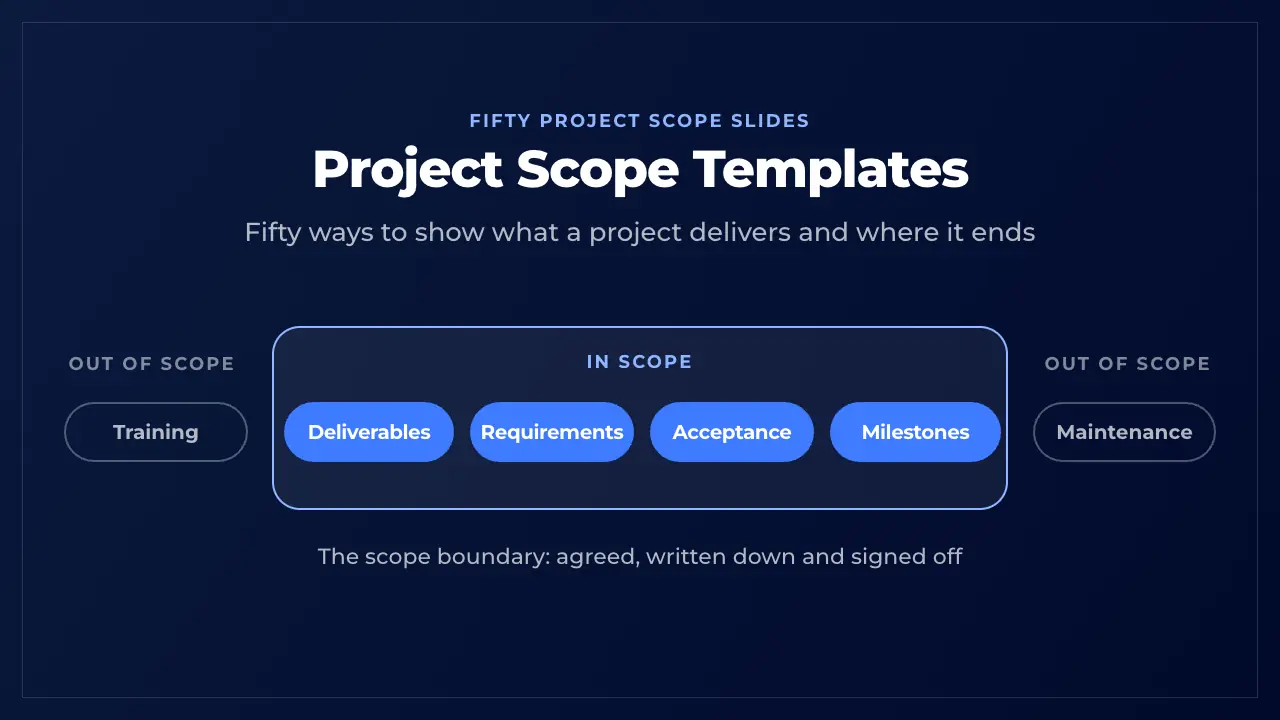
1 · Cover With Scope BoundaryThe opening slide of the pack: a centred title over one scope boundary that holds the four things a project delivers, with two items left outside it. Use it to open a scope review or a kick-off. Rename the pills to your own deliverables.
2 · In Scope And Out Of Scope ColumnsTwo equal cards set what the project delivers against what it does not. Use it early in a kick-off so everyone hears the limits as clearly as the promises. Keep each item to a few words.
3 · Scope Statement Beside A PhotoA complete scope statement in four parts: objective, deliverables, boundaries and success measure, next to a photo. Use it as the reference slide of a project charter. Write each part in one sentence.
4 · Concentric Scope RingsThree rings show the core that is always delivered, the extended scope that depends on time and budget, and what stays outside. Use it to explain priorities within the scope. Describe each ring in one line.
5 · Five Deliverable ColumnsFive equal columns name the deliverables of the project with an icon, a caption and the quarter each one is due. Use it to show what the client receives. Replace the quarters with your own dates.
6 · Work Breakdown TreeA classic work breakdown structure: the project at the top, four phases under it and three numbered work packages in each. Use it to show how the scope breaks down into manageable parts. Rename the phases and packages to your own.
7 · Assumptions And Constraints PanelsTwo panels set the assumptions the plan rests on beside the constraints it must respect. Use it in a scope review to make hidden conditions visible. Keep three items on each side.
8 · Acceptance Checklist With PhotoFive acceptance criteria, each with a check, a short title and a measurable target, beside a photo. Use it to agree when the work counts as done. Make every criterion measurable.
9 · Change Control In Five ChevronsThe change control process in five chevrons with a caption under each and one rule at the bottom. Use it to explain how scope changes are handled. Adapt the steps to your own board.
10 · Key Figures On A PhotoThree large figures sum up the scope: deliverables, duration and budget, on a full photo under a navy overlay. Use it as the opening of a scope presentation. Replace the figures with your own.
11 · Triple Constraint TriangleThe triple constraint as a triangle: scope, time and cost at its corners and quality in its centre, each corner explained on the right. Use it to show why a change of scope moves time or cost. Keep the explanations to one sentence.
12 · Scope Boundary BoxOne large boundary holds the four parts of the work in scope, while four neighbouring tasks stand outside it on the left and right. Use it to show exactly where the project ends. Rename the parts and the neighbours to your own.
13 · Six-Part Scope StatementA one-page scope statement in six numbered cards: purpose, objectives, deliverables, exclusions, assumptions and sign-off. Use it as the summary page of a project charter. Write one sentence in each card.
14 · Deliverables On A Quarter AxisFour ring markers on one axis name the quarters of 2027; under each a card holds the deliverable due then. Use it to show when each part of the scope is handed over. The filled marker shows the final delivery.
15 · In And Out Split By A LineA bold boundary line splits the slide: four items in scope above it and four items out of scope below it, each with a short caption. Use it to make the limit of a project visible at a glance. Name who handles the items below the line.
16 · Scope Creep Column ChartPaired columns compare the change requests raised and approved each month, with the total in a key figure card. Use it to show that the scope stayed under control. Replace the months and counts with your own log.
17 · Objectives Mapped To DeliverablesThree objectives on the left lead by arrows to the deliverables that serve them, beside a photo of a workshop. Use it to show that every part of the scope has a reason. Keep one deliverable for each objective.
18 · MoSCoW Priority ColumnsThe scope sorted into four columns: must, should, could and will not have, each with three items. Use it to agree priorities when time or budget are tight. The last column names what is out of this release.
19 · Stepped Funnel Of RequestsFour blocks shrink from left to right, from all requests collected to the few that made it into the scope. Use it to show how the scope was narrowed down. Replace the counts with your own.
20 · Dependencies Leading To A StartFour numbered dependencies, each with its owner and date, are joined by one connector to the block that marks the start of the project. Use it to show what must be in place before work begins. Name an owner for every dependency.
21 · Exclusions Beside A PhotoFive exclusions, each marked with a cross, a short title and the reason or the team that takes it over, beside a full-height photo. Use it to state clearly what the project will not do. Write every exclusion as a plain statement.
22 · Work Breakdown From Left To RightThe work breakdown read from left to right: one project block, three phases and two numbered work packages for each phase. Use it when a top-down tree would be too wide. Rename the phases and packages to your own.
23 · Sign-Off Cards With StatusFour cards name the roles that sign the scope, what each of them confirms and whether the signature is in. Use it before the work starts to show who has agreed. Update the status pills as signatures come in.
24 · Four Key Figures In ColumnsFour large figures in columns describe the size of the scope: deliverables, phases, months and budget. Use it as a summary at the start or end of a scope review. Replace the figures with your own.
25 · Vertical Steps Beside A PhotoFive steps on a vertical line, each with its month, a title and a caption, beside a photo of a meeting. Use it to show how the scope is defined before the work starts. The last marker is filled for the signed baseline.
26 · Numbered Assumptions With DatesFive assumptions in numbered rows, each with a short note and a pill for the date by which it is checked. Use it to make the conditions behind a scope visible and testable. Add an owner to each row if you need one.
27 · Six Constraint HexagonsSix hexagons with icons name the constraints the scope must respect, each with one line of detail and a rule underneath. Use it to show the fixed limits of a project. Replace the figures with your own.
28 · Acceptance Cards With FiguresThree cards, one for each deliverable, state when it is accepted and give the measurable target as a large figure. Use it to agree the test of done before work starts. Keep every criterion measurable.
29 · Vertical Change Log With StatusFive change requests on one vertical line, each with the month, who raised it and a status pill: approved, deferred, rejected or pending. Use it to report how the scope has changed. Filled markers show the approved changes.
30 · Scope Statement On A PhotoThe whole scope in one centred sentence over a photo under a navy overlay, with three facts in pills underneath. Use it to open or close a scope presentation. Keep the statement to one sentence.
31 · Rising Stairs Of ScopeFive steps rise from left to right, from the first idea to the signed scope baseline, each with a title and a caption above it. Use it to show how a scope is built up step by step. Rename the steps to fit your own method.
32 · Phase Chevrons With ListsFour chevrons name the phases of the project and a card under each lists what that phase delivers and when. Use it to show how the scope is spread over time. Keep three items to each phase.
33 · Delivery GaugeA half-circle gauge shows how much of the agreed scope is delivered, with the counts of done, in progress and removed deliverables underneath. Use it in a status report. Change the arc and the counts to your own progress.
34 · Round Photo Between In And OutA round photo sits in the middle, with three items in scope on its left and three out of scope on its right. Use it as a quick summary of the scope boundary. Swap the photo for your own team.
35 · Two-Circle Scope OverlapTwo overlapping circles show what is expected and what is possible; their overlap is the agreed scope, explained on the right. Use it to explain why not every wish makes it into the scope. Keep the explanations short.
36 · Baseline And Revised ColumnsTwo columns compare the scope as signed with the scope after a review: the same items, one marked removed and two marked added. Use it to report a change to the scope baseline. Keep the order of items the same on both sides.
37 · Stacked Bar Of Scope LayersOne bar splits the effort of the project into core, extended and future scope, with a short explanation of each layer below. Use it to show how much of the work is fixed and how much is optional. Change the shares to your own.
38 · Photo Band Over Three PartsA wide photo band runs across the top; under it three columns name the goals, the deliverables and the limits of the project. Use it as a simple summary of the scope. Keep each column to one sentence.
39 · Items Moved To A Later PhaseThe items of this release stand on the left, an arrow leads to the three items moved to a later phase on the right. Use it to show what was cut from a release without being dropped. Name the later phase and its year.
40 · Eight Work Package CardsEight numbered cards in two rows name the work packages of the scope and the role that owns each one. Use it to show how the work is split and who is responsible. Replace the packages and owners with your own.
41 · Budget Bars By Scope AreaFive horizontal bars show how the budget is spread over the areas of the scope, with the amount at the end of each and the total underneath. Use it to show where the money of a project goes. Replace the areas and amounts with your own.
42 · Validation Steps Beside A PhotoFour numbered steps on a vertical line show how each deliverable is checked against the scope, beside a photo. Use it to explain scope validation and acceptance. The last disc marks the formal sign-off.
43 · Change Request And Its ImpactOne change request on the left, its impact on time, cost and risk in three cards on the right, and the decision in a bar underneath. Use it to present a single scope change to a board. Fill in your own figures.
44 · Two-Column Scope ChecklistEight checks in two cards to run through before a scope is signed: deliverables, exclusions, criteria, assumptions, limits, dependencies, breakdown and sign-off. Use it as a final review. Tick the items your scope already meets.
45 · Four Roles On One LineFour roles on one line, each with an icon, a verb and one sentence: who defines, approves, delivers and accepts the scope. Use it to make responsibilities around the scope clear. Rename the roles to your own organisation.
46 · Vertical Milestones Beside A PhotoFive scope milestones of 2028 on a vertical line, each with its month, a title and a caption, beside a photo of a planning wall. Use it to show when the scope is checked during a phase. The filled marker shows the closing milestone.
47 · One-Sentence Scope With FiguresA photo on the left, the whole scope in one large sentence on the right and three key figures underneath: months, budget and deliverables. Use it to sum up a project in a single line. Keep the sentence short enough to say aloud.
48 · Product And Project Scope HalvesTwo halves set product scope, what is delivered, against project scope, the work it takes to deliver it, with three points each. Use it to explain the difference between the two to a new team. Adapt the points to your project.
49 · Inputs, Work And Handover ColumnsThree columns joined by arrows show what the project receives, the work inside its scope, highlighted in the middle, and what it hands over. Use it to make the edges of a scope clear to neighbouring teams. Keep three items in each column.
50 · Closing Summary Beside A PhotoA closing summary in four lines, what is in, what is out, the deliverables and the sign-off, beside a tall photo. Use it as the last slide of a scope presentation. Keep each line to one short sentence.
Fifty Forms Of A Project Scope In One Blue Look
A title slide that is a scope itself, with four items inside a boundary and two left outside it; in and out of scope: two columns of five items, three rings from core to out of scope, a boundary box with four neighbours outside, a bold boundary line with items above and below, a round photo between three items in and three out, five exclusions beside a photo and three columns for the inputs, the work and the handover; the statement: a four-part scope statement beside a photo, a six-part statement on one page, the whole scope in one sentence on a photo and beside a photo, key figures on a photo and in four columns; deliverables and work: five deliverable columns, deliverables on a quarter axis, a work breakdown tree from the top and from the left, eight work packages, phase chevrons with their lists, objectives mapped to deliverables and three layers of scope in one bar; limits: assumptions and constraints in two panels, five dated assumptions, six constraint hexagons, the triple constraint, key dependencies leading to a start and a budget split by scope area; acceptance: a checklist beside a photo, cards with a target figure for each deliverable, validation steps beside a photo and a delivery gauge at 92%; changes: change control in five chevrons, a scope creep chart, a change log with status pills, the impact of one change, a baseline against a revised scope, items moved to a later phase and a funnel from 40 requests to eight; and the people: sign-off cards, roles that define, approve, deliver and accept, the overlap of what is expected and what is possible, rising steps to a baseline, the steps of defining scope, milestones of 2028, a scope checklist, product against project scope and a closing summary beside a photo. Seventeen slides stand on navy, seventeen on light blue and sixteen on white, thirteen of them with a photo.
How To Use This Project Scope Template
01
Pick Your Project Scope Slides
Look through the 50 slides of the project scope template and note the forms that fit your project: in and out columns for the kick-off, a work breakdown for the team, a change log for the steering group. Most decks need four to six of them.
02
Set Colours And Fonts
Choose your colours and your font in the bar above the slides. The whole pack changes at once, so you see your brand on every form before you download anything.
03
Put In Your Scope
Press Fill With AI and describe your project, its deliverables and its limits, or press Edit Slides and replace the sample items, dates and figures by hand, slide by slide, in the editor.
04
Download Or Present
Download the slides as a PPTX file with a free account and copy them into your own PowerPoint deck, or present them straight from the browser.
Which Project Scope Slide Fits Which Meeting
A kick-off wants the limits said out loud. The two columns of in and out of scope (slide 2), the boundary box with its neighbours outside (12), the line with items above and below it (15) and the round photo between the two lists (34) show in one view what the project delivers and what it leaves to others. Name every exclusion with its reason on the slide of five exclusions (21) so nobody has to guess.
A charter or a project brief wants the statement. The four-part scope statement beside a photo (3), the six-part statement on one page (13) and the scope in one sentence (30 and 47) put the purpose, the deliverables, the boundaries and the success measure in writing. Add the deliverables by quarter (14) or the five deliverable columns (5) when the room asks what it will receive and when.
A planning session wants the work broken down. The work breakdown tree (6), the breakdown from left to right (22), the eight work packages with their owners (40) and the phase chevrons with their lists (32) turn the scope into parts a team can own. The assumptions and constraints (7), the dated assumptions (26), the six constraint hexagons (27) and the dependencies (20) show what the plan rests on.
A steering group wants control. The change control chevrons (9), the scope creep chart (16), the change log with its status pills (29), the impact of one change (43) and the baseline against the revised scope (36) report how the scope has moved and why. Close with the delivery gauge (33), the sign-off cards (23) or the closing summary beside a photo (50).
What A Good Project Scope Slide Holds
A scope is as clear as its limits. Every slide of this pack names what is out as plainly as what is in, gives each deliverable a date and a measurable test of done, and keeps the assumptions next to the constraints, because an assumption that fails is the most common reason a scope has to be agreed again.
The sample content is deliberately general: a portal project of nine months, twelve deliverables, a budget of $1.2M and a second phase in 2028. It is there to show how much text and how many figures each form holds, so you can replace it with your own project without changing the layout.
Project Scope Template — Questions And Answers
What Is A Project Scope Template?
A project scope template is a ready-made set of slides for describing what a project will deliver and what it will not: the objective, the deliverables, the boundaries, the assumptions and constraints, the acceptance criteria and the way changes are handled. This pack gives you 50 such slides in one look, each in a different form.
Is This Project Scope PowerPoint Template Free?
Yes. You can look at all 50 slides, change their colours and fonts and download them as an editable PPTX file with a free account. Filling the slides with AI from your own brief uses the credits of your plan.
Can I Edit The Slides In PowerPoint?
Yes. The download is a native PPTX file: every text, shape and chart stays editable in PowerPoint, Keynote or Google Slides. You can also edit each slide one to one in the ExpertSlides editor before you download it.
How Do I Show What Is Out Of Scope?
Use one of the slides that set both sides against each other, such as the two columns of in and out of scope (slide 2), the boundary box (12) or the boundary line (15), and list each exclusion with the team that takes it over, as the project scope template does on slide 21.
Can The AI Build A Scope Deck From My Project Brief?
Yes. Press Fill With AI, describe your project or attach a brief, a charter or a requirements list, and ExpertSlides builds your own project scope deck in this look, with your deliverables, exclusions and dates.
Which Slides Help When The Scope Changes?
The change control chevrons (slide 9), the scope creep chart (16), the change log (29), the impact of one change (43), the baseline against the revised scope (36) and the items moved to a later phase (39) each show a different side of a scope change.
Does The Template Name A Real Company?
No. All 50 slides use neutral sample content: roles such as sponsor, project lead and client lead instead of names, and round figures such as a budget of $1.2M, so the slides fit any team or organisation.
Try ExpertSlides AI For Free — The Ultimate AI Presentation Maker
Describe any topic or upload a document, and ExpertSlides designs and writes the whole deck — editable in the browser and as a PowerPoint file.
Pick your colours, describe your project and let ExpertSlides build your own scope deck in this look, or download the 50 slides as PowerPoint with a free account.

 Organizational Chart Presentation Templates50 slides
 Executive Summary Presentation Templates50 slides
 Business Case Presentation Templates50 slides
 Dashboard Templates50 slides
 OKR Presentation Templates50 slides
 Meeting Presentation Templates50 slides
 Business Presentation Templates50 slides
 Human Resources Presentation Templates50 slides