Fifty slides about Scrum itself in one calm blue look, from the three accountabilities and the five events to the backlog, the Sprint Goal, the Definition of Done and the burn-down. Change the colours and fonts, put in your own work and figures, and download them as PowerPoint.
This scrum template pack gives you 50 slides that explain and run the framework: the three accountabilities, the five events, the three artefacts with their commitments, sprint planning, the Daily Scrum, the review, the retrospective, the Definition of Done, the Product Backlog, the Sprint Goal and the burn-down. Every slide uses short general texts and round sample figures that fit any team, so you only replace the words and the numbers.
Use it as a scrum PowerPoint template for a team kick-off, a training or a sprint report. The forms range from a temple of three pillars and a sprint drawn as one container of events to a target for the Sprint Goal, a mood curve, a capacity waterfall, a forecast fan and a two-week calendar, on navy, light and white grounds.
Your Own Scrum Deck In This Look
Describe your team and its sprint, and the AI builds a deck of your own in this blue Scrum style, with your goals, your figures and your words.
Every slide with its words. Open one in the editor to change it 1:1.
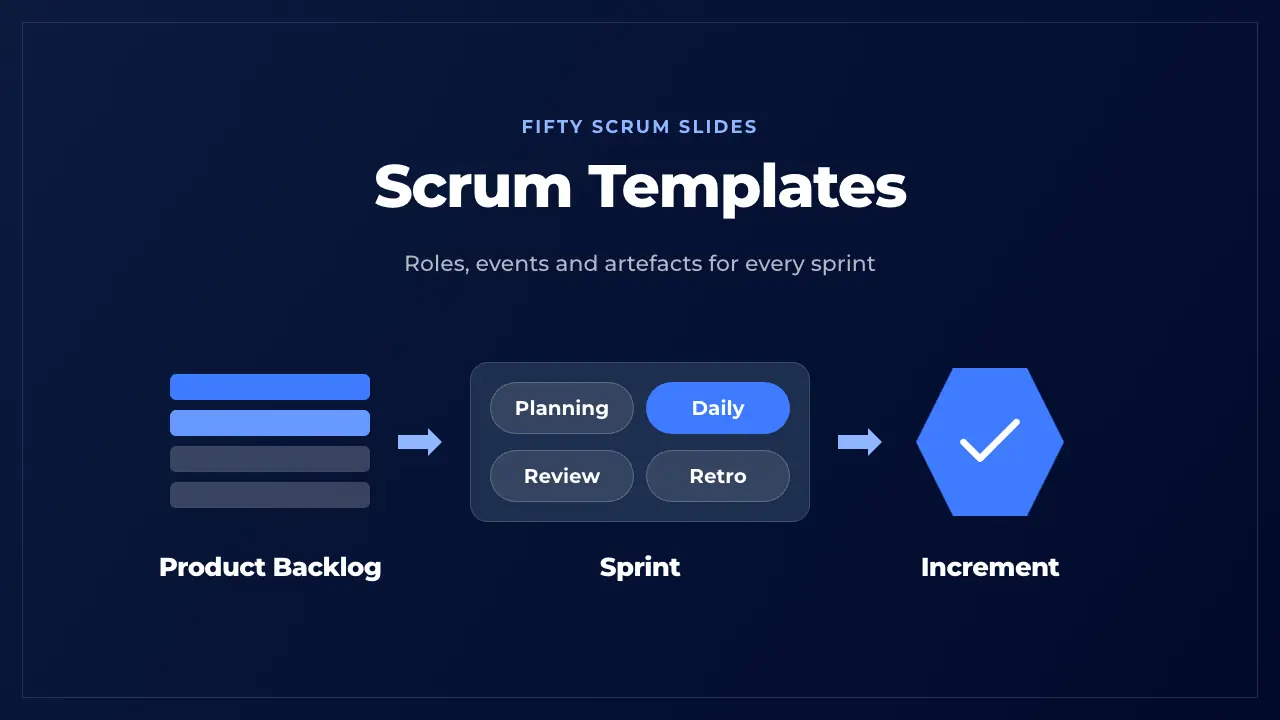
1 · Scrum Framework CoverThe opening slide of the pack shows Scrum in one calm flow: a product backlog, a sprint with its events and a finished increment. Use it to open any talk or training on Scrum, and change the title and lead to your own occasion.
2 · Five-Part Framework FlowThe whole framework on one line: the product backlog feeds sprint planning, planning fills the sprint backlog, the team works in daily rhythm and a usable increment comes out. Use it as the first explanation of Scrum for a new team.
3 · Statement Beside A PhotoOne sentence that explains Scrum, three words that describe how it thinks, and a full-height photo. Use it early in a talk, when the audience needs the idea before the details.
4 · Temple Of Three PillarsA temple carries the idea of empiricism on three columns: transparency, inspection and adaptation. Use it to explain why the Scrum events exist, then show how each event serves one of the pillars.
5 · Five Letter TilesCommitment, focus, openness, respect and courage, each with a large initial and one line on what it means in daily work. Use it in a kick-off or a team charter, and ask the team where each value already shows.
6 · Triangle Of AccountabilitiesThe Product Owner, the Scrum Master and the Developers stand at the corners of one triangle, with the Sprint Goal in its middle. Use it to show that three different accountabilities serve the same aim.
7 · Duty Bars Beside A PhotoFour duties of the Product Owner as calm horizontal bars beside a photo: the Product Goal, the order of the backlog, the stakeholders and the acceptance of work. Use it when you introduce the role or hand it to someone new.
8 · Round Photo With BranchesThe Scrum Master serves three groups, drawn as three branches from one round portrait: the Developers, the Product Owner and the organisation. Use it to explain that this is a role of service, not of command.
9 · Big Letter T Of SkillsOne large letter T explains how Developers work together: broad skills across the sprint and one deep specialism each. Use it when a team plans how to share knowledge and avoid waiting for one expert.
10 · Sprint Container With EventsThe Sprint is the event that holds all the others: planning at its start, a Daily Scrum on each working day, and the review and retrospective at its end. Use it to show the rhythm of Scrum in one picture.
11 · Bars On A Scale Of WeeksFour sprint lengths on one scale of weeks, with the two-week sprint marked as the most common choice. Use it when a new team decides its cadence, and keep that length once it is chosen.
12 · Three Big Words With PhotoSprint Planning answers three questions: why this sprint is valuable, what can be done and how the work will get done. Use the slide as the agenda of the meeting, with the photo showing a team at the table.
13 · Timebox Bars To ScaleThe upper limit of each event for a one-month sprint, drawn to scale: eight hours of planning, four of review, three of retrospective and fifteen minutes of Daily Scrum. Shorter sprints usually take less. Use it to keep meetings in proportion.
14 · Target With Three CriteriaA target with the Sprint Goal at its centre and three things that make a goal work: one objective, a clear value and a flexible scope. Use it when a team writes its next goal, and test the draft against the three points.
15 · Descending Staircase Of GoalsFour steps lead down from the long view to the next working day: the product vision, the Product Goal, the Sprint Goal and the daily plan. Use it to show how everyday work connects to the bigger aim.
16 · Arc Timer On A PhotoThe Daily Scrum as a timer of fifteen minutes on a photo of a team, its arc split into three parts: progress, plan and blockers. Use it to remind a team what the short daily meeting is for.
17 · Three Rising Speech BubblesThree speech bubbles carry one simple way to run the Daily Scrum: what is done, what comes next and what blocks the team. Use it for teams that are new to the event, then let them find their own format.
18 · Three Layered SheetsThe Sprint Backlog is three things in one: the Sprint Goal, the chosen items and the plan for doing them. Three stacked sheets show how they lie on top of each other. Use it in the first Sprint Planning of a new team.
19 · Ten-Day Progress TrackTen days of a sprint on one line, with day six marked as today and three figures under it: days gone, points done and impediments open. Use it to start a status conversation in seconds.
20 · Burn-Down Line ChartA burn-down chart for a ten-day sprint: a straight ideal line from forty points to zero and the stepped line of the work actually left, with a key figure beside it. Replace the sample values with your own sprint.
21 · Numbered Steps Beside A PhotoThe Sprint Review in four steps: show the increment, hear feedback, update the backlog and discuss what comes next. Use it as the agenda of the event, and remind people that it is a working session and not a presentation.
22 · Hexagon With Four StakeholdersThe increment stands in the middle and four groups look at it during the Sprint Review: customers, users, sponsors and management. Use it to decide whom to invite, and name the people behind each role in your own version.
23 · Three Signal DiscsThe classic format of a retrospective: what the team should start, stop and continue. Three signal discs stand on one line, with two sample points under each. Use it live and collect the team’s own points.
24 · Curve Above A Day AxisOne soft curve follows the energy of a team over a sprint, from the kick-off through a hard bug and a breakthrough to the review. Use it in a retrospective: each person draws their own line, then the team compares.
25 · Chevrons Under A Photo BandA well-run retrospective has five steps: set the stage, gather data, find insights, decide what to do and close. The steps run as chevrons under a photo band. Use it as the running order of the session.
26 · Full Ring With Five ChecksA piece of work is done only when all five checks are true: reviewed, tested, integrated, documented and accepted. The full ring shows that nothing counts at four of five. Replace the checks with your team’s own.
27 · Sprint Block With Two GatesOne sprint block in the middle, what must be true before an item enters on the left and what must be true when it leaves on the right. Use it to agree both lists with the team and stop half-prepared work from starting.
28 · Four Tall Letter CardsA healthy Product Backlog is detailed where it matters, estimated, emergent and prioritised. Each quality has its own tall card with a large letter. Use it to check your own backlog against the four words.
29 · Icon Chain Beside A PhotoRefinement keeps the backlog ready with four moves: split large items, clarify what they mean, estimate them and put them in order. The moves form a chain beside a photo of a team at work.
30 · Butterfly Chart Of Backlog ItemsFive backlog items down the middle, their value growing to the left and their effort to the right. The items with long left bars and short right bars come first. Replace the sample scores with your own.
31 · Pyramid Of Backlog DetailThe higher an item stands in the backlog, the smaller and clearer it is. Ideas at the bottom stay rough until they come close to a sprint. Use it to stop a team from detailing work it may never build.
32 · Five Growing CirclesFive circles from XS to XL make relative sizing easy to see. T-shirt sizes work well early, before a team uses story points. Anything at XL should be split before it enters a sprint.
33 · Three Criteria Beside A PhotoAn increment is a concrete step towards the Product Goal. It must be usable, meet the Definition of Done and add to every increment before it. Use it to make clear that half-finished work does not count.
34 · Velocity Inside A Range BandEight sprints on one line inside a band from 36 to 44 points, with the average marked. A steady velocity makes forecasts reliable; a single high value is not a goal. Replace the sample values with your own.
35 · Waterfall Of Sprint CapacityA waterfall from sixty person-days through leave, events, support and buffer to forty-two focus days. Use it in Sprint Planning to show why a team cannot commit to its whole calendar. Replace the sample values with your own.
36 · Forecast Fan ChartThe work done so far runs as a solid line; from today a widening cone shows the best, likely and worst case for reaching the scope. Use it to talk about a release in ranges rather than one fixed date.
37 · Two-Week Sprint CalendarA two-week sprint as a calendar of ten working days, with planning on the first, refinement in the middle and the review and retrospective on the last. A Daily Scrum takes place on every day.
38 · Pitfalls And Fixes With PhotoFive mistakes that teams make most often when they start with Scrum, each with its fix in one line. Use it in a retrospective or a coaching session, and ask which of the five the team recognises.
39 · Two Columns On A SpineScrum and Kanban side by side on five questions: cadence, roles, change, the main metric and the board. Use it when a team decides which way of working fits, or which parts of each it wants to combine.
40 · Tree Of Four TeamsFour Scrum Teams each send one delegate to a short shared sync, drawn as a tree. Use it when several teams build one product and need to remove dependencies between them quickly.
41 · Week Pills Beside A PhotoFour weeks of preparation lead to Sprint One: form the team, write the first backlog, agree what done means and plan the sprint. Use it as the starting plan when a team adopts Scrum.
42 · Four Donut GaugesFour simple measures of sprint health as donut gauges: goals met, commitment kept, work carried over and team mood. Use them in a review or a retrospective, and watch the trend rather than one value.
43 · Decision Flow With Two BranchesOne question decides: is the Sprint Goal still valid? If so the sprint continues. If not, only the Product Owner may cancel it, finished work is reviewed and the rest returns to the backlog.
44 · Linked Artefact PairsEach Scrum artefact carries one commitment: the Product Backlog has the Product Goal, the Sprint Backlog the Sprint Goal and the Increment the Definition of Done. Use it to show what each artefact is measured against.
45 · Ten Discs Beside A PhotoA Scrum Team has ten people or fewer: one Product Owner, one Scrum Master and the Developers. Ten discs in three tones make the balance visible. Use it when you set up teams or split a team that has grown too large.
46 · One Stacked Bar With CalloutsOne bar stands for the eighty hours of a two-week sprint: seventy for building and only ten for all the events together. Use it to answer the worry that Scrum is mostly meetings.
47 · Three Rising Year BlocksA rollout in three rising blocks: one pilot team in 2027, four teams in 2028 and all twelve teams in 2029. Use it to plan an adoption step by step, and replace the years and team numbers with your own.
48 · Three-Column Cheat SheetEverything Scrum defines on one page: three accountabilities, five events and three artefacts. Print it, hand it out in a training or keep it beside the team board as a quick reference.
49 · Four Checks On A Full PhotoA closing slide on a full photo: a team, a backlog, a goal and a date are all it takes to begin. Use it at the end of a training or a kick-off, and agree on the date before people leave the room.
50 · Two-Column GlossaryEight Scrum terms, each with a meaning in one line, for new team members and stakeholders. Use it as a reference at the end of a training, and add the terms your own team uses.
What Is Inside The Pack
The framework at a glance, the three pillars and five values, the Product Owner, the Scrum Master and T-shaped Developers, the five events and their timeboxes, sprint length, the three topics of planning, the Sprint Goal, the Daily Scrum, the Sprint Backlog, the review and its stakeholders, retrospective formats, the Definition of Ready and Done, a DEEP backlog, refinement, T-shirt sizing, velocity, capacity, a release forecast, a sprint calendar, common pitfalls, Scrum or Kanban, a Scrum of Scrums, a rollout, a one-page summary and a glossary. Texts, shapes and colours stay editable.
How To Use This Scrum Template
01
Pick Your Slides
Choose the slides of the scrum template that your session needs: the framework and events for a training, the burn-down and velocity for a sprint report, the rollout for leadership.
02
Set Your Colours
Use the colour and font bar to match your brand; every slide follows at once.
03
Enter Your Work
Replace the sample goals, points and dates with your own backlog, velocity and Sprint Goal.
04
Present Or Download
Present in the browser, or download the deck as PPTX and keep working in PowerPoint.
What A Scrum Presentation Should Show
Start with why Scrum works: short cycles, three pillars and five values. Then name who is accountable for what and show how one sprint runs, so that everyone sees where planning, the Daily Scrum, the review and the retrospective belong.
Close with the artefacts and what they commit to: the Product Goal, the Sprint Goal and the Definition of Done. A new team then knows both the rules of the framework and what finished work looks like.
Tips For Clear Scrum Slides
Give each event its own slide and say what it produces, not only how long it takes. A review that ends in an updated backlog is easier to explain than a list of meetings.
Show one measure per slide and say what it means for the next sprint. Use velocity to plan rather than to compare teams, and keep the same order of slides from sprint to sprint so that changes stand out.
Frequently Asked Questions
Is this scrum template free?
Yes. You can view and edit every slide of this scrum template for free, and download the deck as PPTX with a free account.
Is this a scrum PowerPoint template?
Yes. Download the slides as a PPTX file and open them in PowerPoint; the texts, shapes and pictures stay editable there.
How does this pack differ from the Agile pack?
This scrum template stays with the framework itself: its accountabilities, events, artefacts and commitments. The Agile pack covers agile ways of working more broadly.
Which slides work for a first Scrum training?
Start with the framework on slide 2, the pillars on slide 4, the events on slide 10 and the one-page summary on slide 48, then close with the glossary on slide 50.
Which slides work for a sprint report?
A short report works with the sprint status on slide 19, the burn-down on slide 20, the velocity on slide 34 and the health metrics on slide 42.
Can I change the colours and fonts?
Yes. The colour and font bar changes every slide at once, and you can still adjust single shapes in the editor.
Can I change the figures on the charts?
Bars, figures and labels are ordinary shapes and texts. The lines on the burn-down, velocity and forecast slides are part of the slide's ground, so draw a new line where your values differ.
Can the AI build a deck for my team?
Yes. Fill With AI takes your topic and builds a new deck of your own in this look, with your sprints, figures and words.
Try ExpertSlides AI For Free — The Ultimate AI Presentation Maker
Describe any topic or upload a document, and ExpertSlides designs and writes the whole deck — editable in the browser and as a PowerPoint file.

 Organizational Chart Presentation Templates50 slides
 Executive Summary Presentation Templates50 slides
 Business Case Presentation Templates50 slides
 Dashboard Templates50 slides
 OKR Presentation Templates50 slides
 Meeting Presentation Templates50 slides
 Business Presentation Templates50 slides
 Human Resources Presentation Templates50 slides