Fifty summary slides in one blue look, each a different way to close a talk, a meeting or a report: key takeaways, the three points to remember, a recap of what was covered, results in figures, what was agreed and the conclusion with its next step. Change the colours and fonts of all of them at once, let the AI build your own deck in this look, download them as PowerPoint or edit each slide in the editor.
This summary template pack holds 50 slides, and each one closes a presentation in a different form: three key takeaways under large numerals, a ranked list of five points with the first one marked, a recap of the talk in four chevrons, the quarter in four figures, what a meeting agreed with the role that owns each decision, then and now side by side, one sentence to remember, keep, start and stop, a study in four lines and a conclusion beside its next step. All of them share one blue look on light, white and navy grounds, so any of them sits at the end of your deck without looking borrowed.
Most files give you an empty slide titled Summary and leave the hard part to you. Here every slide is a finished summary, written out with neutral sample content that fits any topic — a workshop with 24 participants, a quarter with revenue of $1.2M and growth of 12 %, a pilot that starts in March 2028 — with roles in place of names and round figures, so you see at once how much each form holds before you choose it.
A free account downloads the slides as a PPTX file whose texts and shapes stay editable in PowerPoint. You can also stay in the browser: pick your colours and fonts in the bar above the slides, describe your talk and let the AI build your own deck in this look, or open the slides one to one in the editor.
Your Summary In This Look
Describe your talk, meeting, training or report and what the audience should keep, or attach your notes or the full document. ExpertSlides builds your own deck in this look in a few minutes, ending with your takeaways and your next step.
Every slide is a complete summary with neutral sample content — a talk, a workshop, a quarter, a study, round figures and roles instead of names — that fits any topic. Replace its points and figures with yours.
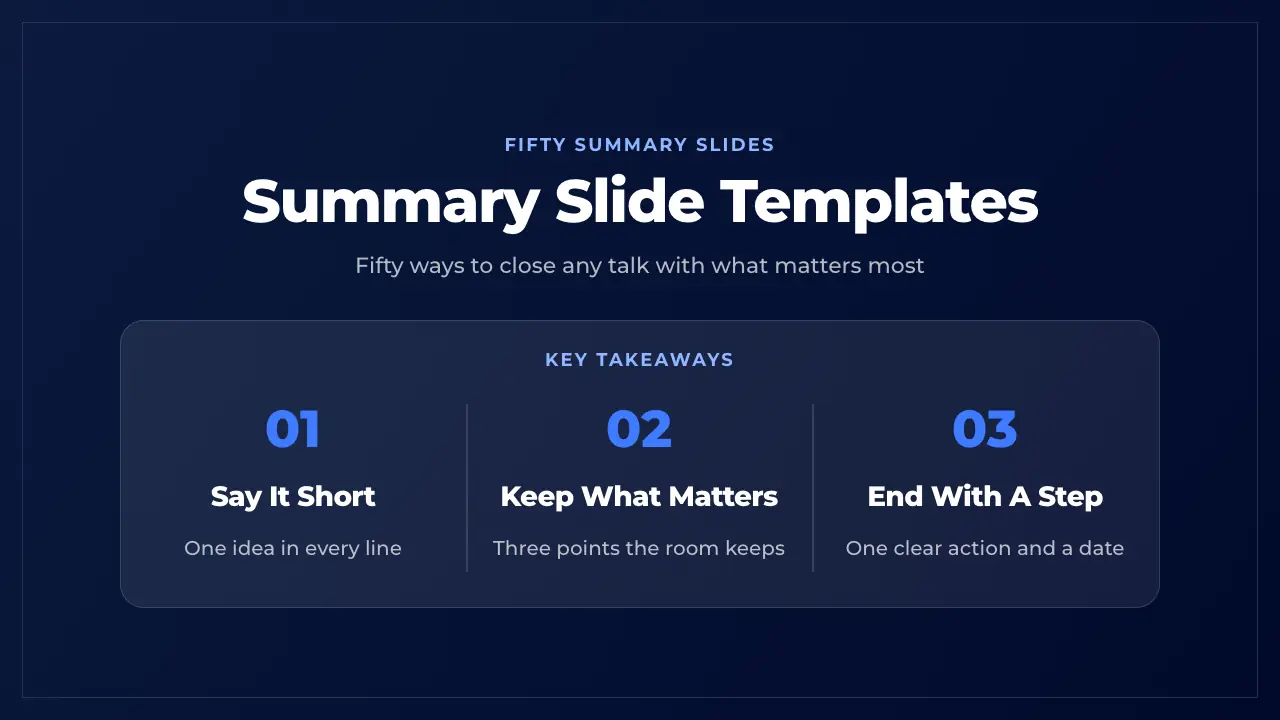
1 · Key Takeaways Card CoverThe cover of the pack is a summary in miniature: one card with the three takeaways a talk should leave behind. Use it as the opening of a summary section or as the last slide of a talk. Replace the three titles with your own takeaways and keep each caption to one line.
2 · Three Large Numbered TakeawaysThree takeaways stand side by side under large numerals, each with a short title and a two-line explanation. Use it at the end of a talk or a report when three points carry the message. Keep the titles to two words so they stand on one line.
3 · Covered Topics Checklist With PhotoA photo on the left and the four topics of the session on the right, each ticked off with one line of what was said. Use it as the recap at the end of a meeting or a workshop. Name your own topics and keep each line short.
4 · Four Key Figures With ConclusionFour large figures summarise a quarter at a glance, each with a label and a short comparison. A band under them states the conclusion in one line. Use it to close a quarterly review or a results talk.
5 · Ranked List With First Point MarkedFive points in order of weight, the first one marked in a blue band so the room sees what matters most. Use it to end a talk with a ranked list of takeaways. Keep each title to four words and each line to one sentence.
6 · Four Chevrons With Takeaway CardsFour chevrons name the parts of the talk in order, and a card under each states what that part concluded. Use it as the recap before questions or as the closing slide of a structured presentation. Rename the parts to match your own agenda.
7 · Three Points On A PhotoThe topic in brief: three points with icons stand on a full photo under a navy overlay. Use it when the audience should leave with the need, the answer and the gain in mind. Keep each point to one short sentence.
8 · Decision Count With Owner TagsA navy panel counts the decisions of a meeting, and four rows list them, each with a check mark and the role that owns it. Use it to close a meeting or to open the minutes. Replace the roles with the owners of your own decisions.
9 · Conclusion Beside A Next-Step CardThe conclusion stands on the left in one large sentence with three figures that prove it; an arrow leads to a navy card with the next step and its date. Use it to end a pilot review, a study or a proposal. Keep the next step to one action.
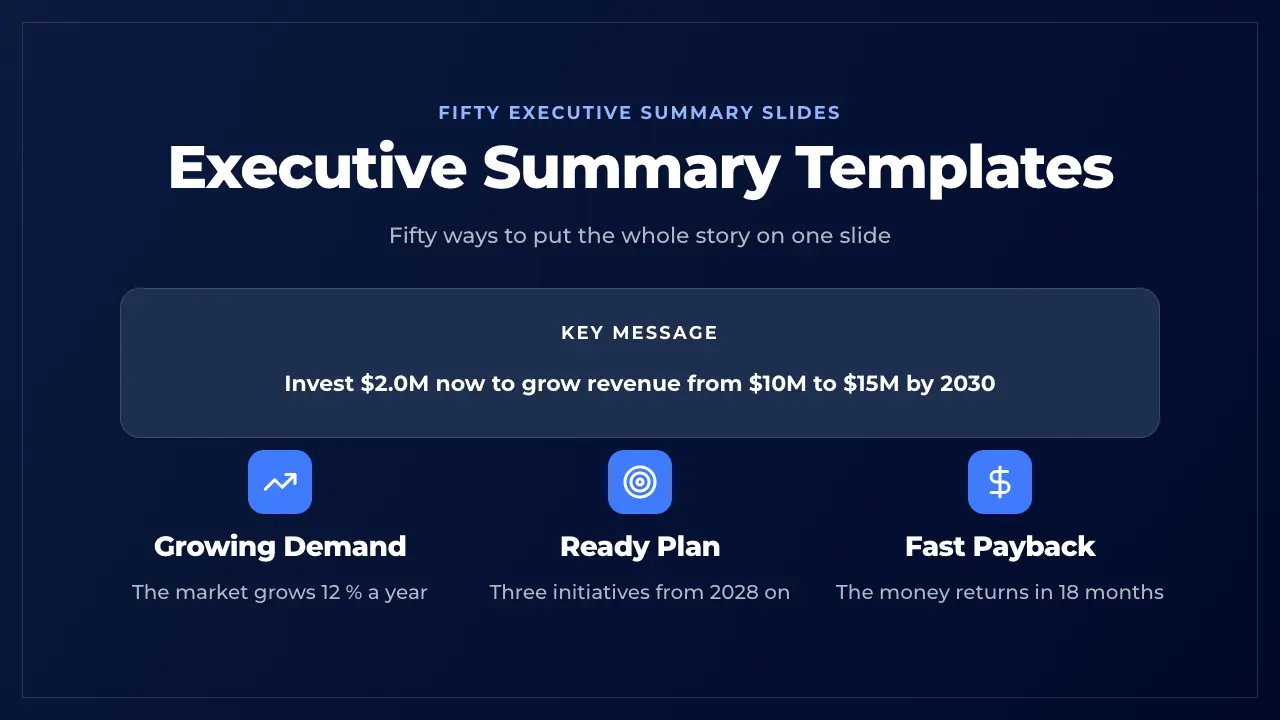
10 · Key Message On Three PillarsOne key message stands in a wide band and three cards under it carry it like pillars, each a reason in a title and two lines. Use it to close a talk that argues for one decision. State the message first, then the three reasons behind it.
11 · Four Cards Over A Figure BandFour white cards sum up what a workshop produced, from goals to owners, and a navy band under them counts the hours, the people, the ideas and the owners. Use it to close a workshop or to report on one afterwards. Replace the figures with your own counts.
12 · Numbered Lessons Beside A PhotoThree numbered lessons stand on the left, each with a short title and one sentence, and a tall photo fills the right side to the edge. Use it to close a project review or a retrospective. Write each lesson as something the team now does differently.
13 · Then And Now In Two CardsTwo cards set the starting point beside today, three figures each, and an arrow leads from one to the other. Use it to sum up what a project or a year has changed. Keep the same three measures on both sides so the change reads at a glance.
14 · One Sentence With Three SupportsOne sentence, set large under a quotation mark, says what the audience should remember; three short points under a rule support it. Use it as the very last slide of a talk. Write the sentence so that it still works when it is repeated in the corridor.
15 · Three Progress RingsThree rings show the results of a year as shares of a whole, each with its figure in the centre and a label under it. Use it to sum up satisfaction, delivery and goals, or any three rates. Change the arcs to match your own figures.
16 · Keep, Start, Stop ColumnsThree columns sum up a review as what the team keeps, what it starts and what it stops, each with an icon and two short points. Use it to close a retrospective, a quarterly review or a team day. Keep two points a column so the slide stays readable.
17 · Five Completed Phases With ResultFive phases of a finished project stand on one line, each ticked off with its date and what it delivered, and a white band states the overall result. Use it to close a project review or a final report. Replace the phases and dates with your own.
18 · Four Ideas Around A Round PhotoA round photo stands in the centre with two ideas on its left and two on its right, each a short title and one sentence. Use it to close a keynote or a training day with the ideas the audience should take home. Keep all four ideas the same length so the slide stays balanced.
19 · One Sentence Over Three FiguresThe whole talk stands in one large sentence, and three figures under a hairline back it up. Use it as the closing slide when one claim carries the talk. Write the sentence first, then choose the three numbers that prove it.
20 · Four Labelled Lines Of A StudyA study sums up in four lines — the question, the method, the finding and what it means — each with a navy label, the finding marked in blue. Use it to close a research talk or to open a report. Write each line as one complete sentence.
21 · Decisions, Actions And Open QuestionsThree columns count what a meeting produced — decisions, actions and open questions — and name the first two of each. Use it as the closing slide of a meeting or as the top of its minutes. Change the counts and the points to your own.
22 · Photo Band Over Three Skill CardsA photo band runs across the top, and three cards on the navy ground name the skills the participants can now use. Use it to close a training day or a course. Write each skill as something a person can do on Monday.
23 · Six Hexagon Takeaways With One LineSix takeaways stand in one row, each a hexagon with an icon, one word and a short line, and a white band sums them up in one sentence. Use it to close a conference day or a long talk with many points. Keep every takeaway to one word and three words under it.
24 · Quarter Columns With Total CardFour columns show revenue by quarter, the last one marked, and a navy card beside them gives the total for the year, its change and the best quarter. Use it to close an annual review or a results talk. Replace the values and keep the column heights in proportion.
25 · Four Key Facts Beside A PhotoA photo fills the left half and four key facts stand on the right, each a large figure with one line of meaning. Use it to close a report or a study with the numbers people should remember. Keep the figures short so they line up.
26 · Three Questions With Short AnswersThree cards repeat the questions the talk set out to answer, each with its answer beside it in one or two lines. Use it to close a talk that responds to known questions, or as the last slide before an open discussion. Put the questions in the words your audience uses.
27 · Three Rising Steps To ActionThree steps rise from left to right and turn the summary into action: learn, apply and share, each with one sentence. Use it at the end of a training or a talk to say what the audience should do next. Keep each step to one action a person can take alone.
28 · Six Ticked Items In Two ColumnsSix ticked items in two columns confirm what is settled before a meeting or a project phase closes. Use it as the final check of a kick-off, a planning day or a review. Tick only what is truly done and move the rest to the next steps.
29 · Large Numeral Beside Three PointsA large numeral fills the left side and three points stand beside it, each a short title and one line. Use it to close any talk with the three things everyone should know. Change the numeral if you have two or four points.
30 · Feedback Quote With Three FiguresA photo, one quote from a participant and three figures sum up how a workshop or a training was received. Use it to close a feedback round or to report on an event. Quote a role, never a name, and keep the quote to two lines.
31 · Five Chapters In Five LinesEach chapter of a report is reduced to one line: its number, its name and the point it makes. Use it as the closing slide of a report presentation or as its first page. Keep every line to one sentence so the slide reads like a table of contents with answers.
32 · Four Arrows From Context To Next StepFour arrows carry the logic of a talk from the context through the finding and the conclusion to the next step, each explained in one sentence under it. A band states the decision asked. Use it as the closing argument of a proposal or a review.
33 · Five Takeaways In Tall PillsFive tall pills hold one takeaway each: a white icon in a blue disc, one word and a short line under it. Use it to close a talk or a training with five values or principles. Keep each takeaway to one word and three words under it.
34 · Bottom Line Card On A PhotoOne white card on a full photo states the bottom line of a talk in one sentence, with the date of the decision in a pill under it. Use it as the very last content slide before questions. Write the bottom line so that it stands without the rest of the talk.
35 · Four Goals With Progress BarsFour goals of a quarter stand in rows, each with its target, a progress bar and the per cent reached. Use it to close a quarterly review or a team meeting. Mark the goals that fell short in the lighter tone and say why in your talk.
36 · Summary Beside A Next-Steps PanelThe left side sums up what was learnt in three ticked lines; a navy panel on the right lists the next three steps with their dates. Use it to close a pilot review, a project phase or any talk that ends with a plan. Keep both sides to three items.
37 · Three Photo Moments In A RowThree photos recall the moments of an event, each with a short title and what it taught. Use it to close a conference, an offsite or a launch day. Choose pictures of the room, never of one company’s logo.
38 · One Key Figure With Three ReasonsOne large figure in a white card says how the year went, and three numbered reasons beside it explain why. Use it to close a review when one number carries the message. Put the figure first and keep each reason to one line.
39 · Wins And Challenges Side By SideTwo columns set the wins of a period beside its challenges, three of each with a plus or a minus. Use it to close a quarterly review or a project update honestly. Say for every challenge what you do about it.
40 · Next Step Beside A PhotoOne next step stands in large type, with when it starts, who owns it and the first milestone under it; a photo fills the right side. Use it as the closing slide of a talk that ends with a decision. Name the owner by role.
41 · Six Module Cards In Two RowsSix white cards recap a training programme module by module, each with its number, its name and what was learnt in one line. Use it to close a course, an onboarding programme or a series of workshops. Rename the modules to match your own programme.
42 · Arc Gauge With Three Sub-ScoresAn arc gauge shows one overall score out of ten, and three bars beside it show the scores it is made of. Use it to sum up a review, a survey or an evaluation in one number. Change the arc and the bars to your own scores.
43 · Day Sessions Beside A PhotoA photo fills the left side and the day’s sessions run down the right, each with its time, its name and one takeaway. Use it to close a conference, a training day or an offsite. Keep one takeaway a session.
44 · Eight Lesson Cards In Two RowsEight short lessons stand in two rows of numbered cards, one sentence each. Use it to close a year in review, a retrospective or a long project. Keep each lesson to one sentence that starts with a verb.
45 · Centred Conclusion With Next StepOne conclusion stands in the centre of the slide under a large icon, with the next step in a navy pill beneath it. Use it as the final slide of a study, a review or a pitch. Keep the conclusion to one sentence.
46 · Four Research Bands With FiguresFour bands sum up a research project from its goal and method to its result and impact, each with one sentence and one key figure; the result is marked in blue. Use it to close a research talk or to open a study report. Replace the figures with your own.
47 · Thank You With Three PointsThe last slide of a talk: a round portrait of the speaker, a thank you and the three points to take home. Use it as the closing slide of any presentation, before questions. Replace the portrait with your own and keep the points to one line each.
48 · Four Owners With Their ActionsFour round portraits stand in one row, each with a role, the action that role owns and its date in a pill. Use it to close a meeting or a kick-off so everyone knows who does what next. Name roles, not people, if the slide is shared widely.
49 · Three Large Words In A RowThree large words sum up a whole change on one line, each with a short sentence under it. Use it as the memorable last slide of a talk about a new process, a plan or a product. Choose three words the audience can repeat.
50 · Closing Points Beside A PhotoA photo fills the left half; on the right three ticked points sum up the meeting and a navy card gives the date of the next one. Use it as the last slide of a meeting, a workshop or a project update. Keep the three points to one line each.
Fifty Forms Of A Summary In One Blue Look
A title slide that is a summary itself, with three key takeaways in one card; takeaways in every number and shape: three under large numerals, five ranked in bands, six in hexagons, five in tall cards, eight lessons in two rows, three beside one large numeral and four around a round photo; recaps of a talk, a workshop, a training, a conference day, a project in five steps and a report in five lines; summaries in figures: four key figures, three progress rings, quarter columns with the total, goals with progress bars, one overall score in an arc gauge and one figure that matters; what was agreed: a decision list with owners, decisions, actions and open questions, a checklist and four owners with their dates; and the close: one sentence to remember, the talk in one sentence, the summary in three words, the bottom line on a photo, a conclusion beside its next step and a thank you with three points. Slides 3, 7, 12, 18, 22, 25, 30, 34, 37, 40, 43, 47, 48 and 50 carry photos you can replace.
How To Use This Summary Template
01
Choose The Form
Pick the slides of this summary template that fit your ending: key takeaways for a talk, a recap for a workshop or training, figures for a quarterly review, what was agreed for a meeting, a conclusion with its next step for a proposal.
02
Keep It To A Few Points
Write the conclusion into the headline, then keep three to five short points under it, each one line or one figure. If a point needs a paragraph, it belongs earlier in the talk.
03
Set Your Look
Pick the colours and fonts in the bar above the slides, or apply your Design Kit, and every slide of the pack changes with them at once.
04
Present Or Download
Open the slides in the editor to change any text, figure, icon or photo, present them from the browser or download them as an editable PowerPoint file with a free account.
What Makes A Good Summary Slide
A good summary slide says less than the talk before it. It repeats the few points the audience should keep, in the same words you used earlier, and leaves out everything else. That is why every slide of this pack holds three to eight short items and no running text, and why most of them put the conclusion in the headline.
The best summaries end with a step. A recap that stops at what was said is soon forgotten; one that names the next action, its owner and its date turns a talk into work. Many slides of this pack therefore pair the takeaways with a next step, a decision asked or the date of the next meeting.
Which Form Fits Your Ending
Choose the form by what the audience has to do next. If they should remember ideas, use the takeaway slides with numerals, icons or one sentence. If they should act, use the slides with owners, dates and a next step. If they should judge results, use the summaries in figures with rings, bars or one key figure.
Keep the summary at the end of the deck and, for a long talk, show it once at the start as well. The same slide then works as an agenda and as a recap, and the audience hears the main points twice.
Questions About The Summary Template
Is this summary template free?
Yes. You can view all 50 slides, change their colours and fonts and open them in the editor for free. A free account downloads the summary template as an editable PowerPoint file.
What should a summary slide contain?
The conclusion in one line and the few points that carry it, usually three to five, each one line or one figure. Add the next step with its date if the audience has to act. Every slide of this summary template follows that rule with neutral sample content.
Can I use these slides for a meeting or a workshop?
Yes. Several slides are made for meetings and workshops: what we agreed with the role that owns each decision, decisions, actions and open questions, a summary checklist, a workshop summary with its figures and who does what next.
How is this different from an executive summary?
An executive summary opens a plan or report for a decision-maker. These slides close any talk, meeting, training or study and tell the audience what to keep and what happens next.
Can the AI build my own summary in this look?
Yes. Describe your talk or attach your notes, minutes or report, and Fill with AI builds your own deck in this look, with your takeaways, your figures and your next step.
Can I change the colours and fonts?
Yes. The bar above the slides changes the colours and fonts of all 50 slides at once, and a Design Kit applies your own brand to them.
Do the slides work in PowerPoint and Google Slides?
The download is a PPTX file whose texts, shapes and photos stay editable in PowerPoint, and you can import it into Google Slides or Keynote.
Try ExpertSlides AI For Free — The Ultimate AI Presentation Maker
Describe any topic or upload a document, and ExpertSlides designs and writes the whole deck — editable in the browser and as a PowerPoint file.

 Organizational Chart Presentation Templates50 slides
 Executive Summary Presentation Templates50 slides
 Business Case Presentation Templates50 slides
 Dashboard Templates50 slides
 OKR Presentation Templates50 slides
 Meeting Presentation Templates50 slides
 Business Presentation Templates50 slides
 Human Resources Presentation Templates50 slides