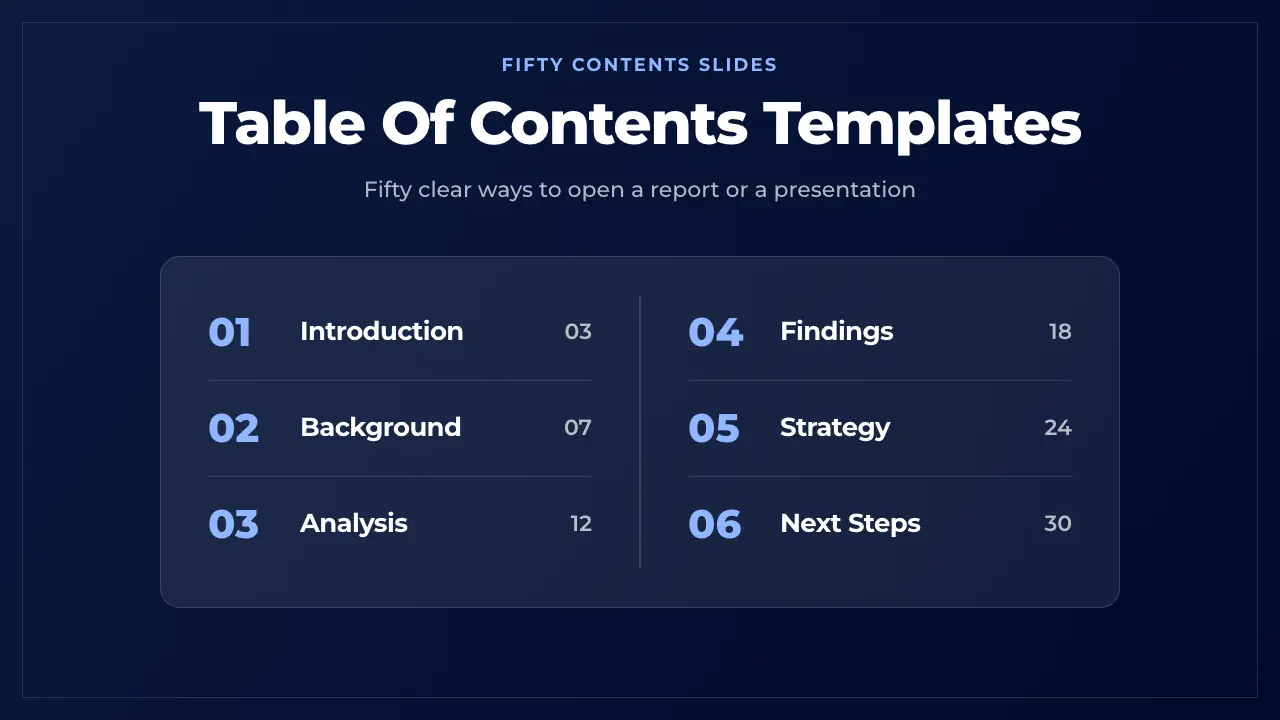
Fifty table of contents slides in one blue look, each a different form: numbered lists, chapters with page numbers, sections with icons, contents beside a photo, two columns and dividers that mark the current section. Change the colours and fonts of all of them at once, let the AI build your own deck in this look, download them as PowerPoint or edit each slide in the editor.
This table of contents PowerPoint template pack holds 50 slides, and each one sets out the sections of a presentation or report in a different form: the classic list with dotted leaders to its slide numbers, a contents page set like a book's, chapters with icon tiles, two columns of four sections, parts with numbered sub-chapters, contents beside a photo and section dividers that highlight where the talk stands. If you came for a table of contents template that does more than list five headings, you can choose by length, by structure and by how much each section needs to say.
Every slide is finished and written out with neutral sample content: the sections most decks and reports share, such as Introduction, Background, Analysis, Findings, Recommendations, Next Steps and Appendix, with sample slide and page numbers that you replace with your own. There is no company, person or place to write out of it. The pack lists sections and where they begin, without times, so it stays separate from an agenda and works for a document that is read as well as for a talk that is presented.
All 50 slides share one blue look on navy, light and white grounds, so a contents slide, its dividers and a closing recap belong together in one deck. Pick your colours and fonts in the bar above the slides, describe your topic and let the AI build your own deck in this look, open the slides one to one in the editor, or use a free account to download a PPTX file for PowerPoint.
Your Deck In This Contents Look
Describe your topic, your audience and the sections you need, or attach a report or your notes. ExpertSlides builds your own deck in this look in a few minutes, with your sections in your order.
The 50 Slides Of The Table Of Contents PowerPoint Template
Every slide is a complete table of contents with neutral sample content: general section names, short captions and sample slide or page numbers that fit any organisation. Replace them with the sections of your own deck.
1 · Cover With A Six-Part ContentsThe opening slide of the pack is a table of contents itself: a centred kicker, headline and lead over a calm panel of six numbered sections in two columns, each with the slide on which it begins. Use it as the cover of the pack or as the contents slide of any report or presentation.
2 · Classic Contents With Dotted LeadersThe classic table of contents: six numbered sections, each with a dotted leader that runs to the slide on which it begins. It suits any report or deck that is read as well as presented. Put in your own section titles and slide numbers.
3 · Numbered Contents Beside A PhotoA table of contents of five report sections, each with its number in a blue tile, a title and one line on what it holds. The photo on the left gives the slide a human side. Use it at the start of a report or a longer presentation.
4 · Five Chapter Cards In A RowFive chapters of a presentation as five equal cards, each with a large number, a short rule, the chapter title, two or three lines on what it holds and the slide where it starts. Use it to give the audience the whole route before you begin.
5 · Eight Sections In Two ColumnsA table of contents for a longer report: eight numbered sections in two columns, each with a one-line caption and the slide on which it begins. Each column stands on its own white card. Use it when a deck has more parts than one column holds.
6 · Section Divider With You Are HereA section divider that repeats the table of contents and marks where the talk stands: the sections already covered carry a tick, the current one sits on a bright bar with a You Are Here pill, the later ones wait in plain ink. Put it before each new section of a longer presentation.
7 · Glass Cards On A Full PhotoFour parts of a presentation on translucent cards over a full photo under a navy overlay, each with its number, title and the slides it spans. The photo sets the mood while the contents stay easy to read. Use it to open a keynote or a pitch.
8 · Six Chapters With Icon TilesSix chapters in one row, each marked by a white icon in a blue tile on a thin line, with its chapter number, a title and a short caption under it. The icons make the contents easy to remember. Use it for a deck of five to six clear parts.
9 · Folder Tabs With An Open SectionThe table of contents as a row of folder tabs: five sections across the top, the first one open and joined to a large card that shows its slide range and its three sub-chapters. Copy the slide for each section and open the next tab each time.
10 · Seven Sections Beside A Tall PhotoA calm contents of seven report sections on the navy ground, each with its number and the slide where it begins, divided by fine lines. A tall photo fills the right side to the edge. Use it for a yearly report or any deck with many parts.
11 · Grid Of Six Section CardsSix equal cards set out the sections of a deck in two rows of three. Each card holds a number, a section title, a short caption and the slides it covers. Use it when every section deserves a line of explanation.
12 · Four Parts With Large NumeralsFour large numerals carry the design and set the order of the parts. Under each stand a thin rule, a part title, a short caption and its slide range. It works well for a talk built as one clear argument.
13 · Five Hexagon SectionsFive hexagons in two royal tones number the parts of a report from left to right. A title and a one-line caption stand under each. Use it for a short report or a compact briefing.
14 · Round Photo Beside A Vertical ListA round photo in a pale ring sits beside five sections joined by one thin vertical line. Each section has a title, a one-line caption and its slide number. It gives a warmer opening to a case or a project story.
15 · Numbered Circles On One AxisSix numbered circles stand on one thin line like stops on a reading path. The slide range sits above each circle, the section title and a short caption below. Use it when the order of the sections is the message.
16 · Three Parts With Sub-ChaptersThree columns hold the parts of a longer report, each with a header pill, a title and three numbered sub-chapters. It suits documents with two levels of headings. Replace the part names and sub-chapters with your own.
17 · Book-Style Contents PageA white page with a thin border sets the contents like those of a printed book. Seven chapters run from the foreword to the index, with page numbers on dotted leaders. Use it for reports, handbooks and whitepapers.
18 · Photo Band Over Five SectionsA wide photo under a navy tint carries the headline across the top of the slide. Five sections stand below it with numbers, captions and slide ranges. It makes a strong opening slide for a longer deck.
19 · Six Stacked Section BandsSix full-width bands deepen in tone from the first section to the last, so the slide shows the way into the topic. Each band has a number, a title and the slide where it starts. Use it for a confident, graphic contents page.
20 · Contents Beside A Key-Figure CardA navy card states the size of the deck: five sections, 32 slides and about 30 minutes. Five numbered rows beside it give each section a caption and a slide number. Use it when the audience wants to know how long you will take.
21 · Three Photo Cards With Number PillsThree cards give each part of a talk its own photo, with a number pill under the picture. The title and a two-line caption stand below. It works well for short talks told in three acts.
22 · Five Chevrons In One RowFive chevrons show the order in which the deck reads, from the problem to the next steps. Each has a numeral inside and a title with a caption below. Use it when the sections build on one another.
23 · Divider With One Section EnlargedA section divider that opens the current section on a large royal card with its three sub-points. The full contents stand beside it with the current section marked. Duplicate it for each section as you go through the deck.
24 · Progress Ring Beside The ContentsA large ring shows how much of the talk has been covered, and the list beside it ticks off the sections done. It is a calm way to mark the halfway point of a longer presentation. Move the ring and the ticks as you advance.
25 · Contents On A Full PhotoA full photo fades into a navy overlay that holds six numbered sections on the left. The right half stays open for the picture. Use it to open a report with a human, confident first impression.
26 · Icon Rows With Slide PillsFive rows pair each section with an icon, a one-line caption and its slide number in a pale pill. The icons make the contents quick to scan from the back of a room. Swap them to fit your own sections.
27 · Five Cards Rising Like StairsFive numbered cards rise like stairs, so the contents show how the argument builds towards its conclusion. Each card holds a section title and its slides, and the last step is highlighted. Use it for a pitch or a recommendation.
28 · Two-Level Index With Open SectionFour main sections stand in a column, and the selected one opens on a white card with its four sub-sections and slides. It suits long decks in which each part has its own chapters. Duplicate it to open each section in turn.
29 · Huge Numerals Beside A PhotoFour sections stand beside a tall photo, each led by a huge royal numeral. The large figures make the order clear at a glance. Use it for a short plan or a proposal with few sections.
30 · Key Circle Beside Eight SectionsA large royal circle names the number of sections, and two columns beside it list all eight with their slides. It keeps a long plan calm and readable. Change the figure if your deck has more or fewer sections.
31 · Sections Above And Below An AxisSix numbered markers stand on one thin line, with the sections alternating above and below it for air. The layout reads from left to right like a path through the talk. It suits decks with slightly longer section captions.
32 · Four Tall Photo ColumnsFour tall photos give each section a face, with the number, title and slide range on a navy foot. It is a strong choice for a keynote or a company overview. Swap the pictures to fit your own topics.
33 · Four Diamonds On A BaselineFour diamonds stand on one thin baseline and number the steps of the talk. A title and a one-line caption sit below each. Use it for a short, decision-focused presentation.
34 · Seven Numbered Pill RowsSeven full-width pills stack the sections in order, each with a round numeral on the left and its slide on the right. It is a clean, easily read list for longer decks. Delete or add a row as your structure needs.
35 · Two Halves With A Central DividerThe deck is shown in two halves: a navy column for what has happened and a white one for what comes next. Each holds three sections with their slides. It fits annual reviews and any talk that looks back and forward.
36 · Dotted Contents Beside A Round PhotoFive sections run on dotted leaders to their slide numbers, beside a large round photo in a thin ring. The circle brings warmth to a very orderly list. Use it as the opening contents of a talk.
37 · Contents With A Summary Of Each PartA royal side panel holds the word Contents, and six numbered sections beside it each carry a two-line summary. The audience learns what every part says before it begins. Use it for reports that are also read without a speaker.
38 · Vertical Tabs With An Open SectionSix tabs run down the left, and the open one joins a white card that lists the slides of that section. It gives the audience both the overview and the detail. Duplicate the slide to open a different tab each time.
39 · Mosaic Of Five Section TilesFive tiles of different widths form a calm mosaic in two rows, with the first section larger and in royal blue. Each tile holds a number, a title and its slides. Change the widths to give weight to the sections that matter most.
40 · Three Parts On A Full PhotoA calm landscape under a strong navy overlay carries a centred headline and three large numbered parts, divided by thin rules. It gives a talk a composed, confident opening. Use it when the whole story fits into three parts.
41 · Central Spine With Eight SectionsEight sections alternate to the left and right of one vertical line, each with its slide number beside the marker. The symmetry keeps a long contents list calm. Use it for reports and decks with many short sections.
42 · Four Header Cards With Sub-ItemsFour columns open with a royal band that names the part, followed by its title and three sub-items. The slide shows the structure and the detail at once. Use it for proposals and project plans.
43 · Large Count On A Photo PanelA photo panel with a soft navy tint carries a huge count of sections, and five plain rows beside it give each title and slide. The contrast of big and quiet gives the slide its calm. Use it to open a compact talk.
44 · Five Numbered Circles In A ColumnFive large outlined circles stand in a column, each joined by a short line to its section and caption. The structure follows the classic path of a persuasive talk. Use it for pitches and proposals.
45 · Closing Recap With QuestionsA closing contents ticks off the sections covered and highlights the last one, Questions And Discussion, on a royal card. It tells the audience the talk is complete and opens the floor. Use it as the last slide before the discussion.
46 · Report Contents With Page BarsFive rows show the sections of a report, each with a bar for its length and its page range. Readers see at once where the weight of the document lies. Use it for annual reports, studies and long proposals.
47 · Icon List Beside A Photo BandFour numbered sections with icons and short summaries stand beside a photo band that runs to the edges of the slide. The icons make the structure quick to read. Use it for strategy decks and project updates.
48 · Six Stacked Pentagon ArrowsSix arrow bands stack from top to bottom and deepen in tone as the deck goes on. The slide range of each section stands to its right. Use it for a contents list with a strong sense of direction.
49 · Contents With A Featured SectionThree small cards list the supporting sections, and one large card features the section that matters most with a key figure and a short note. Use it when one part of a report carries the message. Replace the sample figure with your own.
50 · Closing Contents With QuestionsThe closing slide repeats the five sections as quiet rows and invites questions on a royal card that names the contact role. A photo of an audience fills the right half. Use it as the last slide of a talk.
Fifty Forms Of A Table Of Contents In One Blue Look
A cover that already holds a six-part contents; plain lists, from the classic with dotted leaders to seven numbered pills, stacked bands that deepen in tone, pentagon arrows and icon rows with slide numbers in pale pills; chapters and pages, as a book's contents page, as parts with sub-chapters from 1.1 to 3.3, as four header cards with sub-items and as a report whose bars show how long each section is; two-column contents, two halves that look back and ahead, and eight sections beside a large key circle or along a central spine; cards, tiles and shapes: five chapter cards, a grid of six, a mosaic of five, hexagons, diamonds, chevrons and stairs that rise towards the conclusion; contents along one line, with numbered circles or with labels above and below it; the contents with a photo, beside a tall picture, in a round frame, under a photo band, on a full photo and in four photo columns; dividers that show where the talk stands, with a You Are Here bar, an enlarged current section, a progress ring at three of six sections, folder tabs, vertical tabs and a two-level index; and the end of the talk, a recap with ticks and a closing slide that invites questions. Seventeen slides stand on navy, seventeen on light blue and sixteen on white, fourteen of them with a photo.
How To Use This Table Of Contents PowerPoint Template
01
Choose Your Contents Slide
Look through this table of contents PowerPoint template and pick the form that fits your length: slide 2 for a classic list, slide 5 for eight sections in two columns, slide 16 for parts with sub-chapters, slide 17 for a report or handbook.
02
Enter Your Sections
Replace the sample sections with your own and keep the titles short, one to three words each. Add a caption where the audience needs to know what a section covers, as on slides 11 and 37.
03
Add Dividers Between Sections
Duplicate a divider for each section and move the highlight: the You Are Here bar on slide 6, the enlarged section on slide 23 or the progress ring on slide 24 shows the audience where the talk stands.
04
Set The Final Numbers
When the order of your deck is final, type in the real slide or page numbers. Then close with the recap on slide 45 or the questions card on slide 50, and present or download the file.
Which Table Of Contents Fits Which Deck
A short talk of three to five sections needs little more than a clear order: the three photo cards on slide 21, the hexagons on slide 13 or the chevrons on slide 22 can be read in seconds. A longer deck of six to eight sections stays calm in a list or in two columns, as on slides 2, 5 and 34, where the slide numbers line up at the right.
Reports and documents are read rather than presented, so they gain from page numbers and a second level of headings: the book page on slide 17, the sub-chapters on slide 16 and the page bars on slide 46. For a talk with several parts, pair one contents slide with a divider such as slide 6 or slide 38, so that the audience keeps its place from the first section to the last.
How To Make A Table Of Contents In PowerPoint With This Pack
Write your sections first, in the order the audience needs them, and give each a title of one to three words. Choose a slide with as many sections as you have, or delete or duplicate a row on one of the list forms. Place the contents slide right after the title, and repeat it as a divider where a new part begins.
The numbers on these slides are ordinary text, so they do not follow your deck by themselves. Fill them in last, when the order is settled, and check them once more after you add or remove slides. If you want PowerPoint to jump to a section, select a row and add a link to its slide with Insert, Link.
Questions About The Table Of Contents Template
Is This Table Of Contents PowerPoint Template Free?
Yes. All 50 slides of this table of contents PowerPoint template are free. You can look at every slide and try colours and fonts on this page without an account; a free account, with no credit card, downloads the PPTX file or opens the slides in the editor.
Can I Edit The Table Of Contents Template In PowerPoint?
Yes. Press Download PPTX and open the file in PowerPoint. Section titles, captions and numbers stay text boxes, so you can retype them there, and you can copy single slides of the table of contents PowerPoint template into an existing presentation.
Do The Slide Numbers Update Automatically?
No. The slide and page numbers are ordinary text, which keeps them free to place in any layout. Enter them when the order of your deck is final, and check them again if you add or remove slides later.
What Should A Table Of Contents Slide Include?
The sections in the order you present them and the slide or page where each begins. Keep the titles short and aim for three to eight sections. A short caption helps where a title alone does not say what the section covers, as on slides 11 and 37.
What Is The Difference Between A Table Of Contents And An Agenda?
A table of contents lists the sections of a deck or document and where to find them, by slide or page. An agenda plans a meeting, with its items, times and speakers. The slides of this pack show sections and numbers and leave out clock times.
How Many Sections Can A Slide Hold?
The forms in this pack hold from three to eight sections. Slides 21 and 40 tell a story in three parts, slides 5, 30 and 41 carry eight, and slide 16 shows nine chapters by grouping them into three parts.
Can I Show The Audience Where We Are In The Talk?
Yes. Slide 6 marks the current section with a You Are Here bar, slide 23 enlarges it beside the full list, slide 24 shows the progress on a ring and slide 38 opens it as a tab. Duplicate the slide for each section and move the highlight.
Can The AI Build My Own Deck In This Look?
Yes. Press Fill With AI, describe your topic or attach a report or notes, and ExpertSlides builds your own deck in this blue look, or in the colours and fonts you picked, with your sections and your content.
Try ExpertSlides AI For Free — The Ultimate AI Presentation Maker
Describe any topic or upload a document, and ExpertSlides designs and writes the whole deck — editable in the browser and as a PowerPoint file.