Fifty training slides in one calm blue look, from the welcome and the learning objectives to the quiz, the certificate and the feedback. Change the colours and fonts, fill them with your own content, and download them as PowerPoint.
This training template pack gives you 50 slides for every part of a training session or programme: the welcome, learning objectives, modules, schedule, exercises, quiz questions, key rules, skills, assessment, certificate, feedback and next steps. Every slide carries general sample content that fits any subject, and you can replace it in minutes.
Use it as a training PowerPoint template or edit it right here. The forms range from four objective cards, an agenda of six numbered modules and a two-day schedule to an exercise brief with three steps, five golden rules, a skills matrix with bars, a learning path drawn as a road and a certificate of completion, on light, white and navy grounds.
Your Own Training In This Look
Describe your topic and the AI builds a deck of your own in this blue training style, with your modules, your exercises and your words.
Every slide with its words. Open one in the editor to change it 1:1.
1 · Training Cover With Four Building BlocksThe opening slide of the pack shows a training at a glance: a centred kicker, headline and lead over four cards for objectives, modules, exercises and the certificate. The last card is filled to mark the goal of the course. Use it to open any course, workshop or training programme.
2 · Four Learning Objective CardsFour white cards name what participants can do at the end of the session: explain, apply, practise and assess. Each card has a check in a blue disc, a verb as its title and one sentence. Use it right after the welcome to set clear expectations.
3 · Welcome Slide With Photo And Key FactsA welcome slide: a photo of the training room on the left and the session at a glance on the right, with duration, group size, format and who leads it. Each fact has a white icon in a blue tile. Use it as the first content slide of a workshop or course.
4 · Six-Block Agenda In Two ColumnsThe agenda of one training day: six numbered blocks in two columns, each with a large number, a title and its time. It reads from welcome to the closing quiz at a glance. Use it at the start of the day and again after lunch.
5 · Four Module ChevronsA programme of four modules shown as chevrons in one row, from basics through methods and practice to the final assessment. Under each chevron stand its weeks, a title and one sentence. Use it to show how a course is built up over time.
6 · Two-Day Schedule In Two ColumnsA two-day training schedule: day one for the foundations and day two for practice, each with four sessions and their start times. The day labels sit in pills over clean rows. Use it to show participants the shape of a longer course before it starts.
7 · Trainer Profile With Round PortraitA trainer introduction: a round portrait in a thin ring on the left, the role, one sentence and three key figures on the right. The figures show experience, sessions held and rating. Use it at the start of a course to build trust in the person leading it.
8 · Exercise Brief With Fact CardsAn exercise brief: a large card with the task and three numbered steps, and beside it three small cards for the time, the group size and the expected output. Everything a group needs to start on its own stands on one slide. Use it for any exercise, role play or group task.
9 · Multiple-Choice Quiz QuestionA quiz question with four answers in pills, the correct one filled in royal blue and marked with a check. A short line below explains the answer. Use it for knowledge checks during or at the end of a training; hide the highlight before you reveal it.
10 · Five Rules With Large NumeralsFive ground rules of a training, each under a large numeral with a one-word title and one sentence. The calm columns make the rules easy to read from the back of the room. Use it at the start of a workshop to agree how the group works together.
11 · Learning Methods With Shares And PhotoFour learning methods of a course, each with an icon, its share of the time in per cent and a bar. A photo of a workshop beside them sets the tone. Use it to show participants how much of the course is hands-on.
12 · Paired Bars Of Skills Before And AfterA small skills matrix: four skills, each with a pale bar for the level before the training and a royal blue bar for the level after it. The figures sit at the end of each bar. Use it to report the effect of a course in a way anyone can read.
13 · Learning Path On A Rising RoadA learning path drawn as one rising road with five numbered stages, from onboarding through basics, practice and assessment to the certificate. Each stage names its weeks. Use it to show participants the whole journey of a programme on one slide.
14 · Certificate Of CompletionA certificate of completion on one large white card with a thin inner frame: an award icon, the title, the programme and its hours, and two signature lines for the lead trainer and the head of learning. Use it at the end of a course, or print it for each participant.
15 · Feedback Rating With Stars And BarsThe feedback of a training at a glance: the overall rating as a large figure with stars, and three bars for content, trainer and pace. A photo of a participant on the right keeps it human. Use it to report the evaluation of a course.
16 · Next Steps As Rising StairsThree rising stairs show what participants do after the training: practise within 30 days, apply within 60 days and review with a coach after 90 days. Each step names its days, a title and one sentence. Use it at the end of a course to turn learning into action.
17 · Do’s And Don’ts In Two CardsTwo white cards set four good habits against four mistakes, each line marked with a check or a cross. The contrast makes the rules easy to remember. Use it for any skill where the right and the wrong way are both worth naming.
18 · Case Study With Scenario And QuestionsA case study for group work: a navy panel tells a short, neutral scenario with the time and group size, and three numbered cards ask the questions to answer. Use it for any exercise where groups analyse a situation and propose changes.
19 · Key Takeaways On A Full PhotoThree key takeaways of a session in large numerals over a full photo of a workshop under a navy overlay. Each takeaway has a short title and one sentence. Use it to close a module or a training day with the points everyone should keep.
20 · Training Needs As Gap BarsA training needs analysis in four rows: each skill shows its current level as a navy bar, the required level as a blue marker and the gap in a pill at the end. The largest gaps show where training pays off most. Use it to plan which courses a team needs first.
21 · Learning Mix As One Proportional BarThe 70-20-10 learning mix as one bar in three proportional parts: 70 per cent on the job, 20 per cent from others and 10 per cent from formal courses. A key under the bar explains each part. Use it to show why a training programme combines courses with practice and coaching.
22 · Module Overview With Large NumeralThe opening slide of one module: a large numeral, the duration and the format on the left, and the module’s four objectives with checks in a panel on the right. Repeat it at the start of every module so participants always know where they are.
23 · Exercise Steps Beside A PhotoA group exercise in four numbered steps down one vertical line, with a photo of a group at work on the left and the total time in a blue card on the right. Use it to brief any group task so everyone knows the next half hour.
24 · True Or False Knowledge CheckA quick knowledge check: four statements in rows, each with a True and a False pill, the correct answer filled. It works as a quiz in the room or as a recap at the end of a module. Show the slide without the filled pills first, then reveal the answers.
25 · Programme Plan As Week BandsA programme plan over twelve weeks: four modules as bands on a scale of weeks, overlapping where one hands over to the next, and a line that marks the current week. Use it to show participants and managers where a longer programme stands.
26 · Four Weeks Of Onboarding In CardsAn onboarding plan for the first four weeks: week pills on one axis, a dot under each and a white card with an icon, a title and a short caption. The last week is marked as the goal. Use it to welcome new colleagues and show them what each week brings.
27 · Four Practice Steps Beside A Tall PhotoFour steps of hands-on practice, from watching the trainer to teaching a colleague, as numbered rows beside a tall photo that runs to the slide’s edge. Use it to explain how a skill moves from the classroom into daily work.
28 · Four Key Figures Of A ProgrammeThe results of a training programme in four large figures: participants, pass rate, average rating and hours per person, each over a thin blue rule with a short explanation. Use it in a report to management or at the start of the next round.
29 · Four Evaluation Levels As Rising StepsFour levels of evaluating a training as rising steps: reaction, learning, behaviour and results, each with the question it answers. The higher the step, the harder it is to measure and the more it matters. Use it to plan how you will prove the value of a course.
30 · Weighted Criteria With Pass Mark CardThe scoring of a final assessment: four criteria with their weight as bars, and a navy card with the pass mark. The largest weight sits on top so the priorities are clear. Use it to explain how participants pass a course or a certification.
31 · Four Roles With Round PortraitsFour roles of a training in one row: trainer, participant, mentor and team lead, each with a round portrait in a thin ring, the role and one line on what it does. Use it to make clear who is responsible for what before a programme starts.
32 · Year Strip With Four Session CardsA training calendar for one year: twelve month pills in a strip, four of them highlighted, each linked to a white card with the session, its date and its format. Use it to announce a year’s training plan to a team or a whole organisation.
33 · Pre-Training Checklist In Two ColumnsA checklist of six things to prepare before a training, from the invitation to the survey, each ticked in a pale card. A navy card names the deadline. Use it as the organiser’s list or share it with participants before day one.
34 · Quiz Rules Around An ArcThe rules of a final quiz around one arc: the number of questions in the centre, the time on the left, the pass mark on the right and the attempts below. Use it right before a test so everyone knows what to expect.
35 · Four-Step Coaching Talk With PhotoA coaching conversation in four steps, each under a large letter in a blue tile: goal, reality, options and way forward, with the question that opens it. A photo of a one-to-one talk sits on the left. Use it to train coaches and mentors or to prepare a coaching session.
36 · Five Rising Competency BarsFive competency levels as rising bars, from novice to expert, each with a title and a short description. The target level of the programme is filled in royal blue. Use it to show where participants start and where the training should take them.
37 · Day Timeline With Lunch On The AxisOne training day on a single horizontal axis: six blocks with their start time above and the session below, and the lunch break marked on the line. The last block is filled as the goal of the day. Use it to show a day’s rhythm at a glance.
38 · Three Step Cards With Info PillsExercise instructions in three tall white cards, each with a large number, an icon in a blue disc, a title and one sentence. Two pills on top give the time and the group size. Use it to brief any exercise in a way groups can follow without asking.
39 · Course Progress Bars With PhotoThe progress of an online course: five lessons, each with a progress bar and its share done, beside a photo of a learner at a laptop. Finished lessons are marked in royal blue. Use it to report e-learning progress for a person or a whole group.
40 · Six Skills In Hexagon TilesSix skills a training programme builds, each as a white icon in a hexagon with a title and a short caption, in one calm row. The last hexagon is highlighted as the skill the others lead to. Use it to show the scope of a programme at a glance.
41 · Survey Bars With Response Rate CardThe results of a feedback survey: five statements, each with a bar of the share who agreed, and a white card with the response rate. The weakest statement stands out at a glance. Use it to report course feedback and to decide what to change next time.
42 · Before And After Cards With ArrowTwo cards side by side show a team before and after a training: the time for a standard task as a large figure, and errors and confidence below it. An arrow leads from the pale card to the navy one. Use it to prove the effect of a programme in one simple comparison.
43 · Programme Close On A Full PhotoThe close of a training programme: a centred headline and three large figures over a full photo of a group under a navy overlay. It celebrates the graduates and gives the key facts in one view. Use it for a graduation, a final review or a report.
44 · Four Role Cards With DutiesFour white cards give each role of a training its duties: the trainer, the participant, the mentor and the team lead, each with an icon and three short lines. Use it at the kick-off of a programme so everyone knows what is expected of them.
45 · Three Growth Stages As Arrow BlocksA train-the-trainer path in three arrow blocks: observe, co-deliver and lead. Under each stage stand what the new trainer does and a bar for the share of the session they lead. Use it to plan how new trainers are brought into a programme.
46 · Q&A With Speech Bubble And PromptsAn open round for questions: a large blue speech bubble on the left and three numbered prompts on the right that get the conversation going. Use it at the end of a module or a training day instead of a bare question slide.
47 · Material Cards Beside A PhotoFour white cards list what participants receive: the handbook, the slides, the worksheets and the online library, each with an icon and a line on what it holds. A photo of the materials sits on the left. Use it at the start or the end of a course.
48 · Three Goal Cards For An Action PlanA personal action plan in three pale cards: each goal has a short title, one sentence, the quarter it is due and who supports it. Participants fill it in at the end of a training to turn what they learned into action.
49 · Vertical Roadmap With Key FigureA training programme’s roadmap down one vertical line: five stages from needs analysis through design, pilot and roll-out to the review, each with its quarter. A card beside it gives the reach of the programme. Use it to present a training plan to management.
50 · Closing Slide With Next Steps And PhotoThe closing slide of a training: a thank-you headline, three next steps with icons for the feedback form, the next session and the trainer’s office hours, and a photo of the group. Use it as the last slide so participants leave knowing what follows.
What Is Inside The Pack
A cover, a welcome with session details, learning objectives, an agenda of modules, module arrows, a two-day schedule, a trainer introduction, exercise briefs, quiz questions, golden rules, learning methods with shares, a skills matrix, a learning path, do's and don'ts, a case study, a certificate of completion, a feedback score and the steps after the training. Every text, icon, photo and colour stays editable.
How To Use This Training Template
01
Pick Your Slides
Choose the training template slides your session needs: objectives and an agenda to open, exercises and a quiz in the middle, a certificate and feedback to close.
02
Set Your Colours
Use the colour and font bar to match your brand; every slide follows at once.
03
Write Your Content
Replace the sample modules, times, questions and figures with your own, and drop the slides you do not need.
04
Present Or Download
Present straight from the browser or download the slides as a PPTX file for PowerPoint.
How To Structure A Training Session
Open with a welcome and the practical details, then state three or four learning objectives so that participants know what they will be able to do by the end. An agenda of modules and a schedule show the shape of the day.
Alternate input with practice: after each module, set an exercise or a quiz question. Close with the key rules, a short assessment, the certificate and the next steps, and ask for feedback while the session is still fresh.
Tips For Clear Training Slides
Keep one idea to a slide and write objectives as actions, such as plan, apply or explain. Give an exercise its task, its steps and its time on one slide, so that groups can work without asking twice.
Show a question in large type and the answer on the next slide, and use figures, bars and icons rather than long text where a share or a level carries the message.
Frequently Asked Questions
Is this training template free?
Yes. You can view and edit every slide of this training template for free, and download the deck as PPTX with a free account.
Can I use it as a training PowerPoint template?
Yes. Download the slides as a PPTX file and open them in PowerPoint; the texts, icons, photos and shapes stay editable there.
Which slides suit a one-day workshop?
Start with the cover, the welcome and the objectives, follow with the agenda and one exercise brief a module, and close with the golden rules, the feedback score and the next steps.
Can I plan a training of several days?
Yes. The two-day schedule shows Day 1 and Day 2 side by side, and you can duplicate it for longer programmes or split the modules over several agenda slides.
Can I change the colours and fonts?
Yes. The colour and font bar changes every slide of the training template at once, and you can still adjust single shapes in the editor.
Is there a certificate of completion?
Yes. The certificate slide is a large centred card with a thin inner frame; replace the course name, the participant line and the date with your own.
Can the AI build a deck from my topic?
Yes. Fill With AI takes your topic and builds a new deck of your own in this look, with your modules, exercises and words.
Try ExpertSlides AI For Free — The Ultimate AI Presentation Maker
Describe any topic or upload a document, and ExpertSlides designs and writes the whole deck — editable in the browser and as a PowerPoint file.

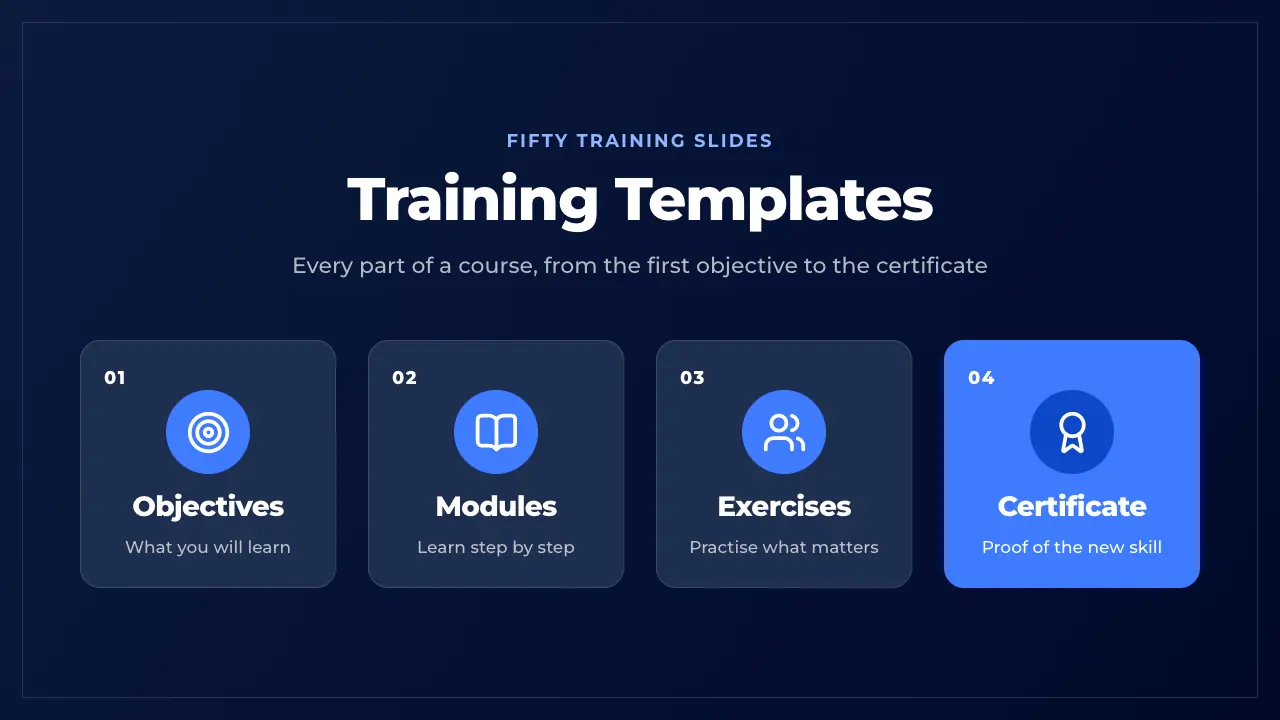
 Organizational Chart Presentation Templates50 slides
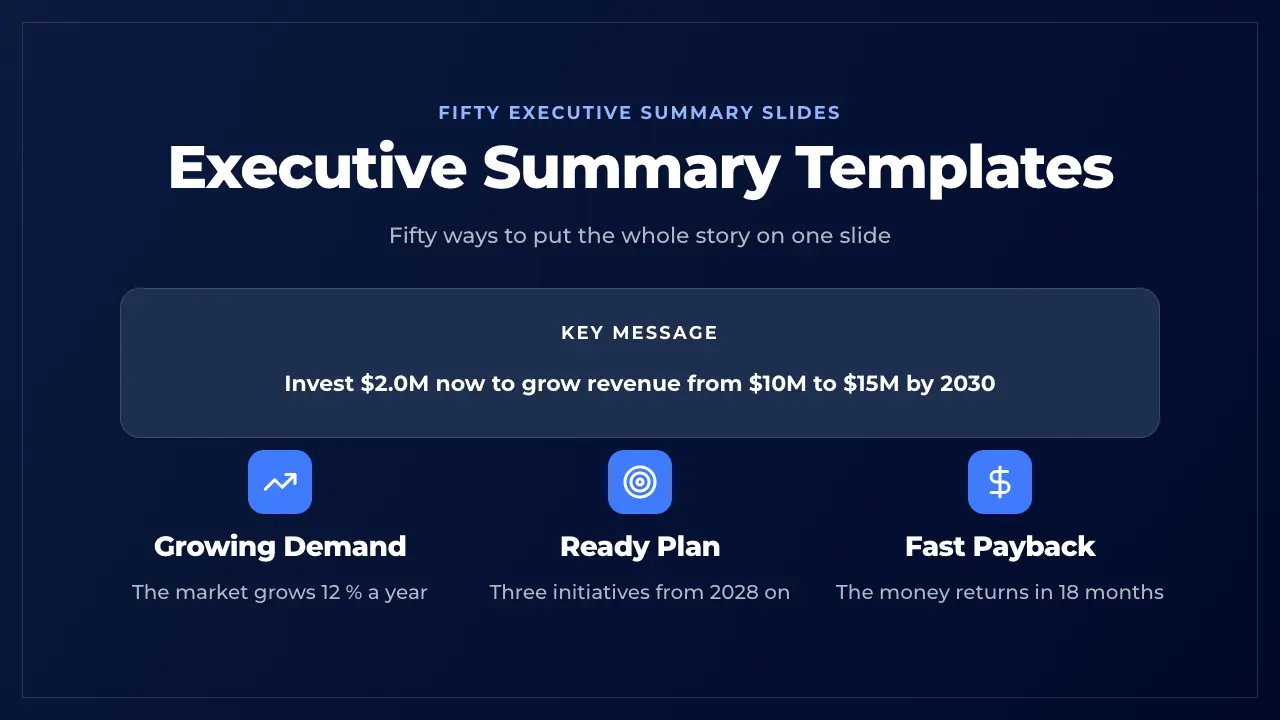 Executive Summary Presentation Templates50 slides
 Business Case Presentation Templates50 slides
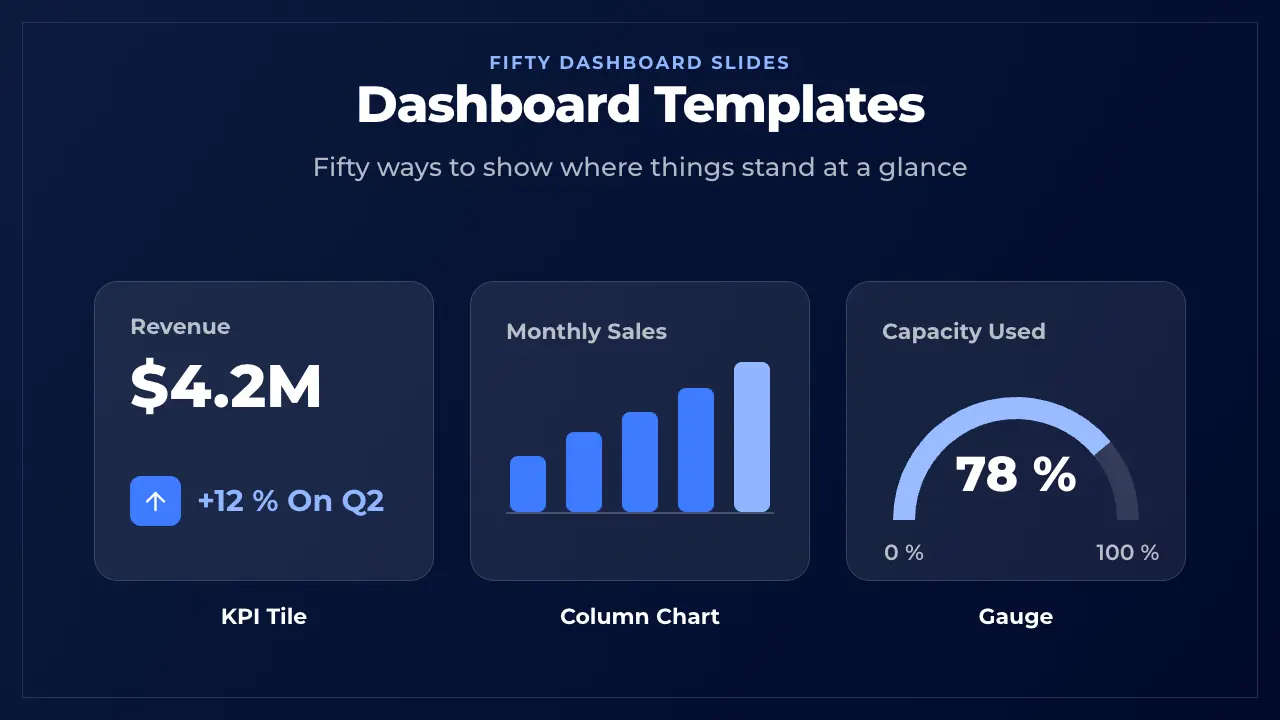 Dashboard Templates50 slides
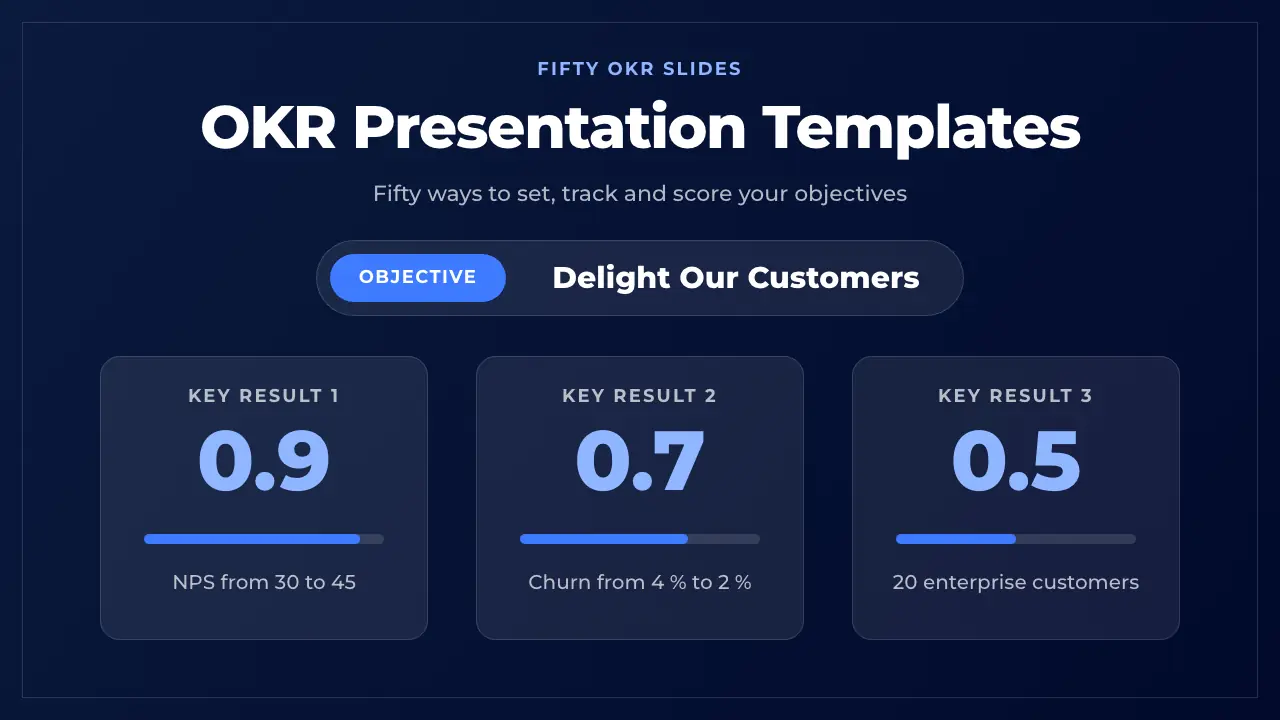 OKR Presentation Templates50 slides
 Meeting Presentation Templates50 slides
 Business Presentation Templates50 slides
 Human Resources Presentation Templates50 slides