Fifty wheel diagrams in one calm blue look, from the classic wheel of life to scored, half and two-ring wheels. Change the colours and fonts, put in your own segments and scores, and download them as PowerPoint.
This wheel template pack gives you 50 slides that put one hub in the middle and show the parts around it, with 4 to 12 segments and no order implied between them. It includes a life wheel template for personal balance, along with competency, service, strategy, brand, stakeholder and risk wheels, and its short general texts and round sample figures fit any team.
Use it for a coaching session, a skills review, a service survey or a strategy workshop. The forms range from full wheels of wedges, helms, gears, petals and hexagons to half wheels, concentric rings, wheels with a photo in the hub and scored wheels beside a real chart, on navy, light and white grounds.
Your Own Wheel Deck In This Look
Describe your topic and its parts, and the AI builds a deck of your own in this blue wheel style, with your segments, your scores and your words.
Every slide with its words. Open one in the editor to change it 1:1.
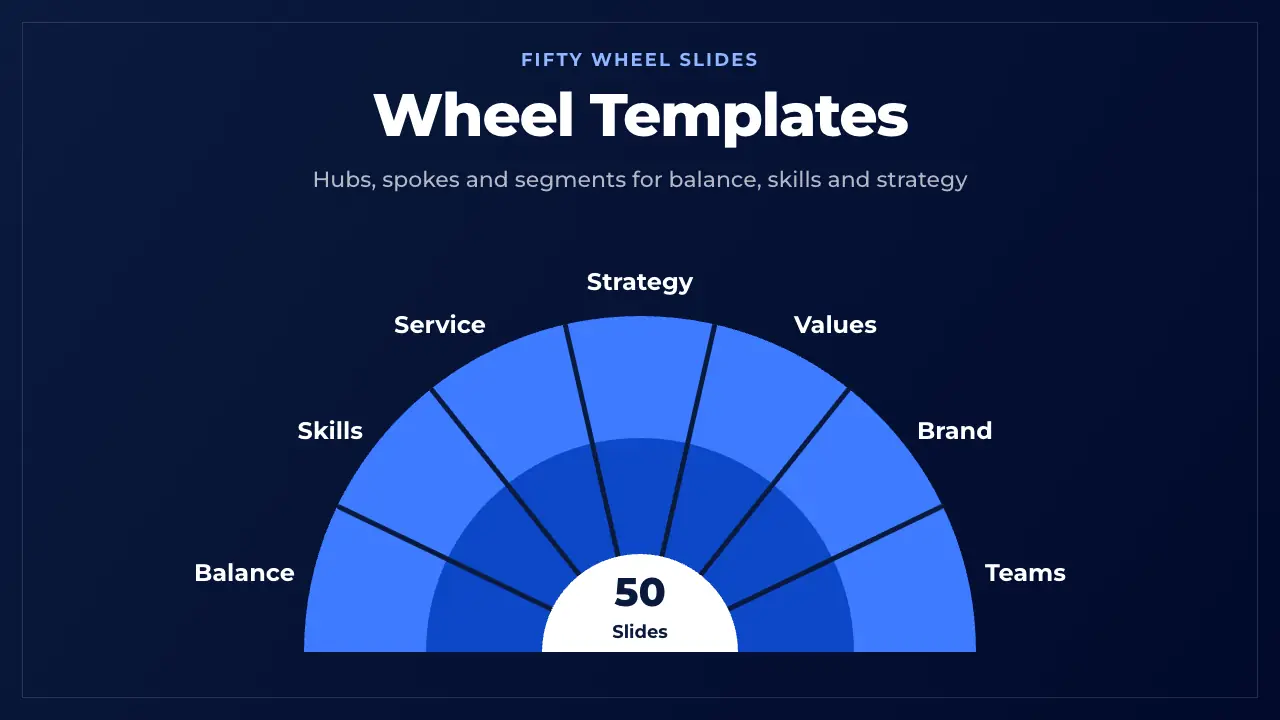
1 · Half Wheel CoverThe opening slide of the pack: a large half wheel with seven segments, each named for one use of a wheel diagram, around a hub with the number of slides. Use it as the title of any wheel presentation and rename the segments to your own.
2 · Eight-Segment Wheel Of LifeThe classic wheel of life: eight equal segments around one hub, each a part of life that deserves attention. Use it to introduce the idea of balance before anyone scores anything. Rename the segments to fit your group.
3 · Scored Life WheelA life wheel scored from 1 to 10: each bar runs along its spoke as far as the score, over quiet rings. The two lowest areas stand out in navy. Replace the scores with your own and resize each bar to match.
4 · Competency Wheel With Score DotsA competency wheel for a team: each of the eight spokes carries one dot at its score, read against three rings. The hub holds the team average. Use it after a skills review and move each dot to your own value.
5 · Six-Segment Wheel With PhotoA service wheel of six qualities around the customer, with a photo on the right to set the scene. Use it to explain what good service is made of. Keep each name to one word so the wheel stays calm.
6 · Hexagonal Strategy WheelA strategy wheel of six wedges with the name of each area inside it and the vision in the hub. Use it to show that every part of a strategy serves one aim. Rename the wedges to your own strategic areas.
7 · Donut Budget WheelA wheel drawn as a real donut chart: six segments of one budget with the total in the hub and the shares in its legend. Edit the chart data to your own figures, and the segments follow.
8 · Four-Quarter Wheel With CardsThe simplest wheel: four equal quarters around one hub, each explained on a card at its corner. Use it when four areas matter equally. Swap the icons and the words for your own four areas.
9 · Photo Hub With Icon NodesA round photo sits in the hub and six icon nodes stand on the ring around it. Use it to show what a team needs around its people. Replace the photo with your own team and the nodes with your own themes.
10 · Helm Wheel Of Eight HandlesA helm with eight handles, each one a quality a leader steers with. No handle comes first: a good leader reaches for whichever one the moment needs. Rename the handles to the qualities your organisation asks for.
11 · Half Wheel With Sized SegmentsA half wheel in which each segment is as wide as its share of the effort, with the whole in the hub. Use it to show how a team divides its attention, and resize the segments to your own shares.
12 · Twelve-Segment Skills WheelA full wheel of twelve segments for broad overviews: twelve skills, each one word. Use it for a skills map or a training programme. Keep the words short so that all twelve stay readable.
13 · Wheel On A Full PhotoA fine-lined wheel of six values over a full photo under a navy overlay. Use it as a calm, atmospheric slide when a team talks about what it stands for. Replace the photo with your own and keep the overlay.
14 · Petal Wheel Of SixSix petals around one hub: a softer wheel for people topics such as wellbeing. Each petal carries an icon and a name outside it. Change the icons and the names to fit your own programme.
15 · Wheel Between Six CardsA wheel in the middle with six stakeholder cards, three on each side, each joined to its segment by a thin connector. Use it to show who an organisation answers to and what each group expects.
16 · Wheel With One Segment Picked OutA wheel of eight segments with one picked out and explained on a card beside it. Use it to turn a group towards the area that needs attention first. Recolour another segment to move the focus.
17 · Two Scored Wheels Side By SideTwo life wheels side by side: where you stand today and where you want to be a year later. The bars that rise are in the deep blue. Use it for a personal plan or a coaching session.
18 · Concentric Brand WheelThe classic brand wheel: five rings, from what a brand has on the outside to what it is at the core. Each ring is named in its band and explained in the list. Use it in a brand workshop and fill the rings together.
19 · Hexagon Wheel Around A CoreA honeycomb wheel: one hexagon in the hub and six around it, each a capability of the organisation. Use it to show that all of them draw on one core. Replace the words with your own capabilities.
20 · Gear Wheel With Four DriversA gear wheel for operational topics, with four driver cards beside it. Use it to show what keeps an operation turning. Replace the four drivers with those that matter in your own operation.
21 · Wheel Beside A Ranked Bar ChartA small wheel for the whole picture and a real bar chart that ranks its eight segments. Use it when the audience needs both the balance and the order of the scores. Edit the chart data to your own values.
22 · Portrait Hub With Eight SpokesA round portrait in the hub with eight spokes, each ending in one customer need. Use it to put the customer visibly in the middle of a discussion. Replace the portrait and rename the needs.
23 · Disc Wheel Of SixSix large discs on spokes around a hub, each a kind of value a customer weighs up. Use it when the names matter more than the figures. Rename the discs and the short lines beside them.
24 · Half Wheel Score GaugeA half wheel read like a gauge: six equal segments around the overall score in the hub, each with its own value at its end. Use it for a score that is built from several parts.
25 · Seven-Segment Marketing WheelThe marketing mix as a wheel of seven segments around one offer, each with a short question. Use it to check that no part of the mix has been forgotten. Keep the questions short.
26 · Five-Segment Wheel With PhotoA wheel of five segments beside a photo of a conversation, for topics such as feedback or communication. Each segment names one source and says where it comes from. Rename them to fit your own team.
27 · Ten-Segment Wheel, Two ColumnsA wheel of ten segments whose names stand in two columns, each joined to its segment by a thin line. Use it when the names are too long to sit around the wheel. Keep them to two words.
28 · Segmented Ring With IconsA broad ring cut into six parts by spokes, with one icon on each part and the subject in the hub. Use it to show where new ideas come from. Swap the icons and the short lines for your own.
29 · Numbered Wheel With A KeyA wheel of eight numbered segments with a key beside it, so that longer names do not crowd the wheel. Use it for a risk overview or any list of eight areas. Change the names in the key only.
30 · Pie Chart Wheel With PhotoA real pie chart drawn as a wheel with a hub: one week of 168 hours across eight areas of life. Edit the chart data with your own hours and the segments follow.
31 · Maturity Wheel With LevelsA maturity wheel: the five rings are the levels, and one marker on each spoke shows where an area stands today. Use it for a digital, data or process assessment and move the markers to your own levels.
32 · Three Small Wheels In A RowThree small wheels side by side, one for each role, scored on the same four skills. Use it to compare roles or people at a glance. Resize each quarter to your own scores out of 10.
33 · Wheel With Pills On Its RimOne calm wheel with eight values as pills on its rim. Use it for culture slides and onboarding. The pills are separate shapes, so they move and retype easily.
34 · Scored Wheel Beside A PhotoA scored wheel of six service areas with a photo on the left. Each spoke runs as far as its score. Use it to report a service survey and adjust the bars to your own results.
35 · Experience Wheel With RatingsEight customer touchpoints as wedges, with the rating of each inside it and the average in the hub. The lowest wedge is navy. Use it after a customer survey and retype the ratings.
36 · Wheel Of Two HalvesOne wheel split into two halves, four internal factors on the left and four external ones on the right, each joined to its segment. Use it to separate what you control from what you do not.
37 · Hub With Sized Role SegmentsA wheel whose segments are as wide as the number of people in each role, with the team size in the hub. Use it to introduce a team without naming anyone. Resize the segments to your own head counts.
38 · Four-Quarter Question WheelA wheel of four quarters for a team workshop, with one question for each. Use it to run a short review: keep, start, stop and change. Replace the questions with those that fit your session.
39 · Eight Segments With IconsA round wheel of eight segments with an icon in each, for topics with many equal parts such as sustainability. Replace the icons and names with your own eight areas.
40 · Sideways Half WheelA half wheel turned on its side: six segments fan out from a hub on the left, and each is joined to a row with its name and a short line. Use it for lists that are too long to sit around a full wheel.
41 · Two-Ring Capability WheelA wheel of two rings: four capability groups inside and two capabilities for each group outside. Use it to show how a broad area breaks down. Rename the groups and the capabilities to your own.
42 · Split Slide With Photo HubA split slide: on the navy panel a wheel with a round photo in its hub and six numbered nodes, on the left the key to them. Use it when the names need more room than the wheel can give them.
43 · Nine-Segment Culture WheelA wheel of nine segments for a topic with many equal parts, here the parts of an organisation culture. Each name sits beside its segment. Rename them to fit your own model.
44 · Pentagon Wheel Of FiveFive wedges form a pentagon around one hub, with a name and a short line beside each. Use it for models with five equal parts, such as the parts of trust. Replace the words with your own.
45 · Scored Wheel With A Gap ChartA scored wheel beside a real bar chart of the gap between today and the target. Use it to turn a score into a priority list. Edit the chart data, and resize the bars on the wheel.
46 · Photo Hub In Four SegmentsFour large segments around a round photo, each a task of a leader, with a short line beside it. Use it for leadership or management topics. Replace the portrait with your own.
47 · Decision Wheel With A TotalA decision wheel: six criteria scored out of five around one choice, with the total on a card. Use it to compare options honestly. Make one wheel for each option and compare the totals.
48 · Half Wheel Beside A PhotoA half wheel of five health signs beside a photo of a project team, with the overall state in the hub. Use it in a project review and change the status under each sign.
49 · Large Wheel With One MessageA large wheel of eight named segments beside a single message. Use it near the end of a talk, when the audience should remember one thing. Replace the message with your own conclusion.
50 · Closing Wheel With TakeawaysThe closing slide: a small wheel beside three takeaways, each with an icon. Use it to end a wheel presentation with what people should do next. Keep each takeaway to one line.
What Is Inside The Pack
Full wheels of four to twelve segments, scored life wheels, competency and maturity wheels on rings, half wheels and gauges, a helm, a gear, petals, hexagons, concentric brand rings, a two-ring capability wheel, wheels with a photo in the hub, wheels joined to cards and lists, and real donut, pie and bar charts. Every text, shape, chart and colour stays editable.
How To Use This Wheel Template
01
Pick Your Wheel
Choose the slides of the wheel template that fit your session: a plain wheel to introduce the areas, a scored wheel for a review, a half wheel for a single overall score.
02
Set Your Colours
Use the colour and font bar to match your brand; every slide follows at once.
03
Enter Your Segments
Rename the segments, retype the scores and resize each bar or edit each chart's data to show your own values.
04
Present Or Download
Present straight from the browser or download the slides as a PPTX file for PowerPoint.
How To Score A Life Wheel Template
Give each area of life an honest mark from 1 to 10, without comparing it to anyone else's. Eight areas are common: health, career, finance, family, friends, growth, leisure and home. Rename any that do not fit.
Then look at the shape rather than the average. A wheel with one short segment would roll badly even with a good overall score, so choose the lowest area, set a target for it and score the wheel again later.
Tips For Clear Wheel Slides
Keep each segment's name to one or two words and put longer explanations beside the wheel. From nine segments on, a numbered key or labels in two columns keep the slide readable.
Use a wheel when the parts stand side by side and none comes first. Highlight only the segment you are talking about, and keep the same order of segments from slide to slide so that the audience can compare them.
Frequently Asked Questions
Is this wheel template free?
Yes. You can view and edit every slide of this wheel template for free, and download the deck as PPTX with a free account.
Is there a life wheel template in the pack?
Yes. Slide 2 shows the eight areas of life, slide 3 scores them, slide 17 compares today with a target and slide 45 shows the gaps between the two.
Can I open the slides in PowerPoint?
Yes. Download the slides as a PPTX file and open them in PowerPoint; the texts, shapes, charts and pictures stay editable there.
Which slides have real charts?
Slide 7 is a donut chart, slide 30 a pie chart, and slides 21 and 45 are bar charts. Change their data and the figures follow.
Which slides show a half wheel?
The cover on slide 1 and slides 11, 24, 40 and 48 are half wheels. Slide 24 reads like a gauge, with one overall score in its hub.
How many segments can a wheel have?
This wheel template runs from four segments on slide 8 to twelve on slide 12. You can copy, delete and resize segments in the editor to reach the number you need.
Can I change the colours and fonts?
Yes. The colour and font bar changes every slide at once, and you can still adjust single shapes in the editor.
Can the AI build a deck for my topic?
Yes. Fill With AI takes your topic and builds a new deck of your own in this look, with your segments, figures and words.
Try ExpertSlides AI For Free — The Ultimate AI Presentation Maker
Describe any topic or upload a document, and ExpertSlides designs and writes the whole deck — editable in the browser and as a PowerPoint file.