
Document to Presentation
Turn a PDF or Word document into a presentation
Upload a report, a paper or your notes. The AI reads it, finds the points that matter and writes a deck from them — in a design, not a copy of the pages.
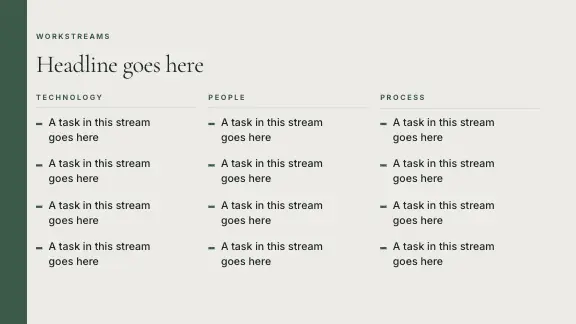
PDF to PPT: converting is not the same as presenting
There are two very different things people mean by “PDF to PPT”. The first is a file conversion: every page of the PDF becomes a slide, looking as much like the page as possible. That is useful when you need the pages themselves on a screen — a form, a drawing, a signed contract — and a plain converter does it well.
The second is what most people actually need: a presentation about what the document says. A twenty-page report does not become a good deck by putting twenty pages on twenty slides. It becomes one when someone picks the five findings that matter, writes them as headlines, turns the tables into charts and leaves the rest in the report. That is what ExpertSlides does.
What happens to your document
The AI reads the text and the tables of the files you attach — PDF, Word, CSV, plain text — and plans a deck from them: which points become slides, in which order, and which figures become charts. Then it writes the slides in the design you chose. The slides keep to what the document says: names, figures and claims are taken from it, not invented to fill a gap.
How to convert a Word document or PDF to PowerPoint with AI
Six steps from a document to a deck you can present. A ten-slide deck from a document usually takes a little longer than one from a prompt.
Attach the document to the prompt
Press Upload under the prompt, or drop the file onto it. PDF, Word (DOCX), CSV, text and pictures are read; several files can go together — a report and its appendix, a paper and its data.
The attached document under the prompt. Say what the deck is for
Add one line on the audience, the purpose and the length: “a 12-slide summary of this annual report for the management team, focused on the three biggest risks”.
One line on audience, purpose and length. Choose how closely the text is kept
In Settings, Text handling decides what happens to your wording: Keep text exactly for agreed language, Summarise slightly to trim filler, Summarise heavily for long documents, or Auto to let the AI decide.
Text handling: from word for word to a heavy summary. Pick a design
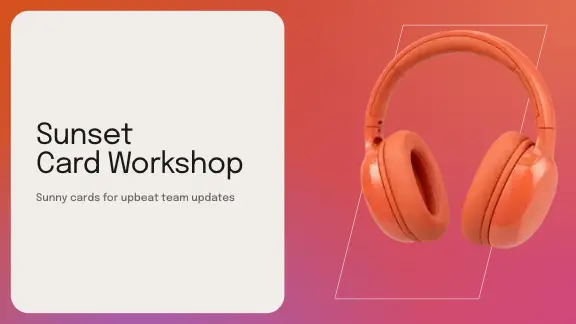
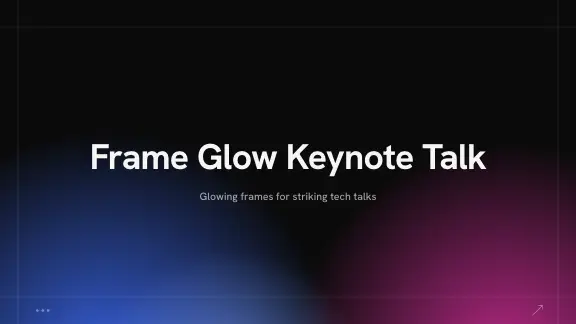
Choose the design and colour style the document becomes — a calm editorial design for a report, a bold one for a talk. Your brand kit can stand in for a design.
The document’s content in a design of your choice. Check the slides against the source
Read the deck next to the document. The structure, the headlines and the charts should match what the document says. If a section is missing, ask: “add a slide on the methodology from page 4”.
A table of the report, now a chart. Export to PowerPoint or PDF
Download an editable PowerPoint file on Pro and Business. Every plan exports PDF; on Free a PDF carries the ExpertSlides mark.
The finished deck as a PowerPoint file.
What you can turn into slides
Reports, papers, brochures and handouts — the text and tables are read, scans too.
Word
DOCX files with their headings, lists and tables; the headings often become the deck’s structure.
Text
Paste notes or an outline into the prompt: text to PPT in one step.
Spreadsheets
CSV data becomes charts and tables you can edit after the deck is made.
Pictures
Photos and diagrams are shown to the AI and can be placed on the slides.
PowerPoint
An existing .pptx can be opened in the editor itself — to rework the deck rather than summarise it.
A file converter and ExpertSlides, side by side
Both have their place. Choose by what you need on the screen.
| Compared | ExpertSlides | Page-by-page converter |
|---|---|---|
| Result | A new deck written from the document’s content | Each page as a slide, looking like the page |
| Text | Headlines and short points, kept or summarised as you choose | All the text of the page, as it was |
| Tables | Become charts or slide tables you can edit | Stay where they were on the page |
| Design | The design and colour style you pick, or your brand | The document’s own page layout |
| Best for | Presenting what the document says | Showing the pages themselves |
Watch a report become a presentation
Documents people turn into presentations
Text to PPT works for almost any document that has a point to make.
Reports for management
Annual reports, audits and analyses summarised into the findings and the decisions they call for.
Research papers
A conference talk or a seminar from your paper: question, method, results, discussion.
Lecture notes and handouts
Teaching slides from the material you already wrote, one idea per slide.
Proposals and business plans
The pitch from the plan: problem, solution, market and numbers, ready to present.
Policies and procedures
Training decks from a handbook, with the wording kept exactly where it matters.
Meeting notes
A follow-up deck from notes: what was decided, who does what, by when.
Grant applications
The pitch to a funder from the written application: need, plan, budget, impact.
Product documentation
A launch or training deck from a specification: what it does, how to use it, what changes.
How to prepare a document for a good deck
Any readable document works, but some make better decks than others. A few minutes of preparation pay off, especially for long or messy files.
Clear headings
Headings in a Word document or a PDF tell the AI how the content is divided. A report with chapters and sections becomes a deck with a clear structure; one long block of text needs more guidance in the prompt.
Tables with headers
A table with a header row and units in its column names becomes a chart that is labelled correctly. Where you have the original spreadsheet, upload it as CSV beside the document.
One topic per file, or say which part
A file that covers many topics makes a deck that tries to cover them all. Upload the part you need, or name the chapters in the prompt: “only sections 3 and 4”.
Readable scans
Text recognition works on clean scans. A blurred photo of a page loses words; check names and figures afterwards either way.
Designs your document can become






Good to know before you convert
- If you need every page of a PDF as a slide, unchanged, use a file converter — ExpertSlides writes a new deck instead.
- A scanned PDF is read with text recognition — check names and figures on the slides once it is done.
- For a long document, say which chapters matter. A shorter deck is a better deck.
- Name the audience: a summary for the board and a lesson for students need different slides from the same report.
- Keep the document at hand when you present; the deck is the summary, the document holds the detail.
- Choose Keep text exactly for legal, medical or agreed wording; summaries for everything else.
- Tables with clear headers make the best charts. Upload the spreadsheet itself where you have it.
- On Free a deck has up to 5 slides; Pro and Business make decks of as many slides as you choose.
Questions, answered
Is this a PDF to PPT converter?
Not page by page. It reads your PDF and writes a presentation from its content, in a design. For an unchanged copy of each page, a converter is the right tool.
Can I convert Word to PowerPoint with AI?
Yes. Upload the DOCX file, describe the deck you need and export the result. Download an editable PowerPoint file on Pro and Business. Every plan exports PDF; on Free a PDF carries the ExpertSlides mark.
Will the AI add facts that are not in my document?
No. A deck made from a document keeps to what the document says.
Can I keep my text word for word?
Yes. Choose Keep text exactly under Text handling in Slide Settings.
Which file types can I upload?
PDF, Word (DOCX), CSV, plain text and pictures. A PowerPoint file opens in the editor itself.
Can I upload several documents for one deck?
Yes. Attach several files together — a report and its data, a paper and its figures — and the deck is built from all of them.
Can I make a deck in another language than the document?
Yes. Choose the deck’s language in Slide Settings; the document can be in another language.
Is it free?
Start free — no credit card required. The plans set how many slides a deck from files can have; the PowerPoint download is part of Pro and Business.

Create Slides in Under 90 Seconds
No credit card required · Instant access